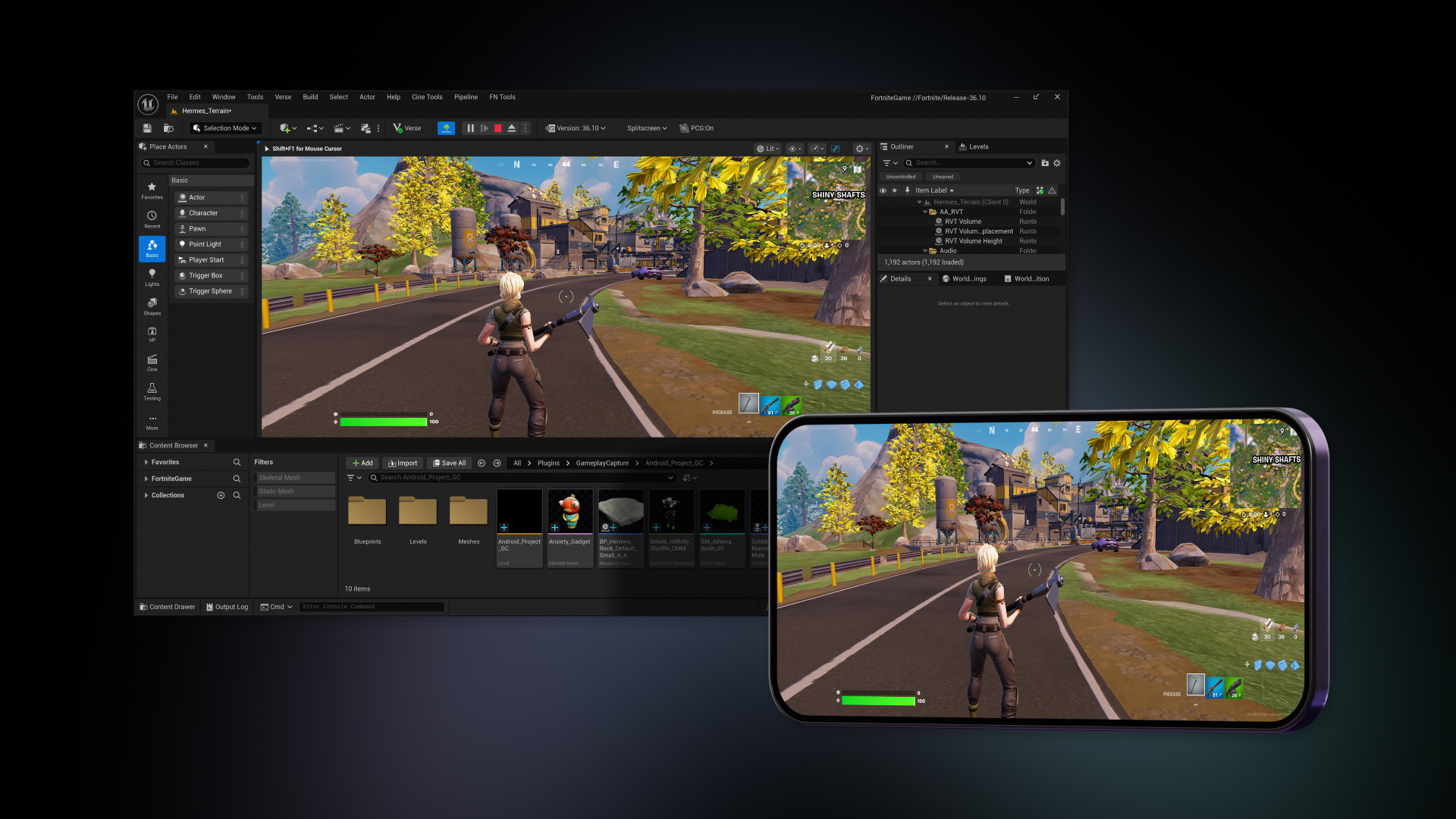
UEFN mobile performance profiling lets you run a Fortnite island on a real iPhone or Android device and see how it performs in Unreal Editor for Fortnite. Since v43.00, connected mobile sessions can feed data into Spatial Profiler, Memory Snapshot, Timing Insights and Verse Insights.
That matters when an island runs smoothly on your PC but stutters on a phone. Test the device itself using Connect To Platform and Monitor Performance, rather than guessing from a desktop preview. Here’s how to set it up, understand the results and troubleshoot a session that won’t connect.
How to start UEFN mobile performance profiling
Install or update the official Fortnite app on a supported phone or tablet. Sign in using the same Epic Games account as the computer running UEFN, then open your island project in the editor.
Follow Epic’s connected-device playtesting steps:
- Click the three vertical dots beside Launch Session in UEFN.
- Choose Connect To Platform in the session options.
- Check Monitor Performance so the session captures profiling information.
- Click Launch Session.
- Open Fortnite on the mobile device if it isn’t already running and let the connected island load.
- Move around your island and play normally while the editor gathers performance data.
Once the island loads on your phone, UEFN mobile performance profiling measures that local playtest. You can investigate problems during development without first publishing the island or installing an unrelated profiling app.
Which profiling tools work on iPhone and Android?
The v43.00 release supports four profiling tools with a connected mobile session. Each helps investigate a different kind of slowdown:
| Tool | Useful for |
|---|---|
| Spatial Profiler | Comparing performance in different parts of the island as you move around |
| Memory Snapshot | Finding assets and objects using substantial memory |
| Timing Insights | Investigating costly processes and hitches |
| Verse Insights | Examining Verse-related performance where applicable |
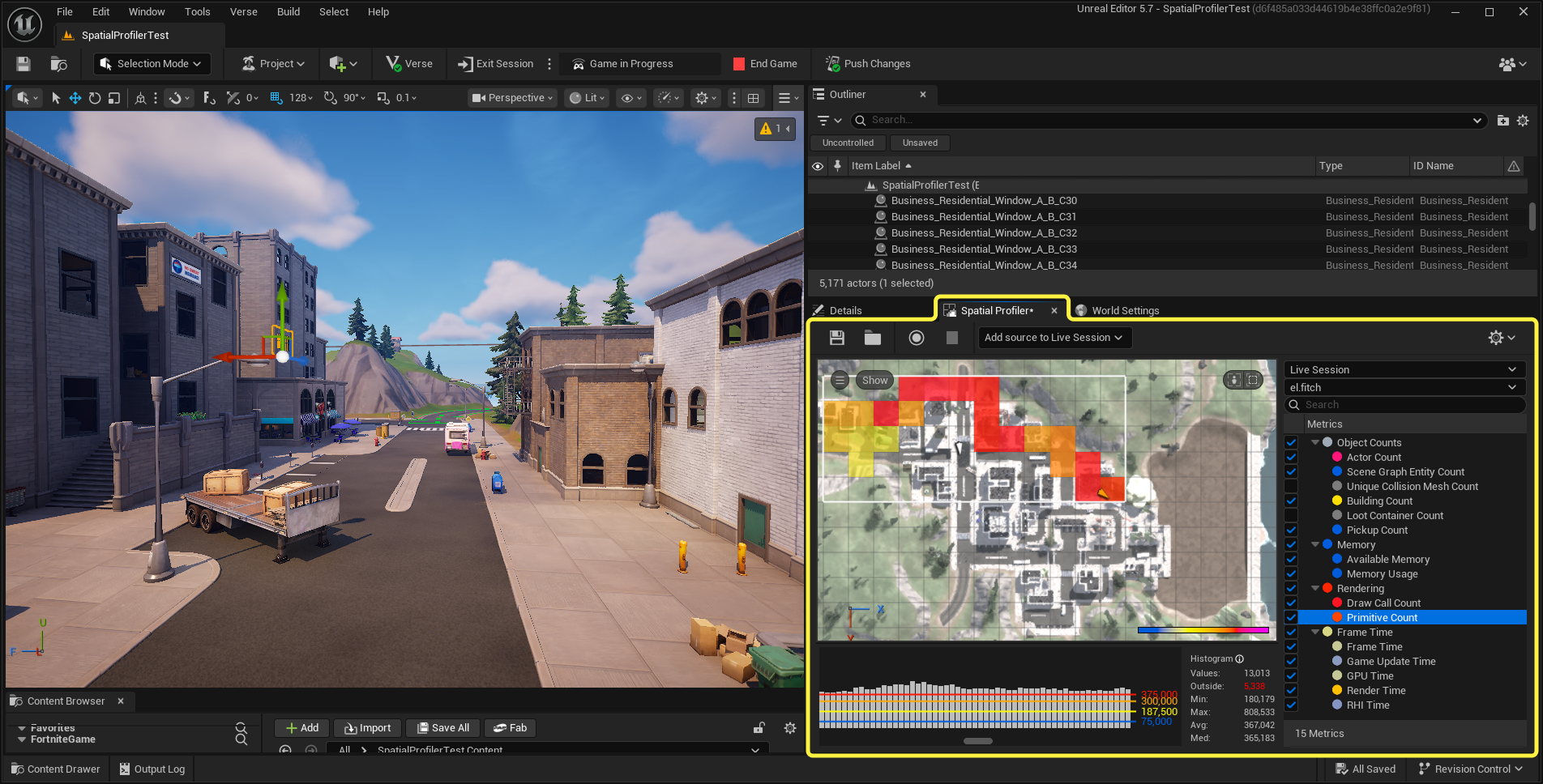
Spatial Profiler collects measurements as you move around the island. Walk from a quiet area into a busy one and compare the results. That can narrow a hitch down to a particular location rather than the entire project.
Memory Snapshot helps identify expensive assets. Timing Insights tracks time-consuming processes, while Verse Insights can show where Verse functions contribute to hitches. An MCP-connected AI agent can help analyse results, but isn’t required.
For server-side Verse hitches, there’s an extra step. Epic’s v43.00 notes place Verse Insights inside Timing Insights. To capture Verse function timings, enable Use Verse VM in Launch Options and select Server as the profiling target. That’s separate from measuring the phone’s memory.
UEFN mobile performance profiling versus Mobile Preview
Connect To Platform runs Fortnite on your physical phone. Mobile Preview (This PC) runs on your workstation while imitating a mobile screen, device profile and touch controls. They’re different tests for different problems.
Use Mobile Preview to check HUD placement, readable text, buttons and how the island looks on smaller screens. It can profile the preview, but Epic says the measurements use cooked PC data, so they don’t reflect memory use on a real phone.
For device-specific memory or frame-time problems, switch to UEFN mobile performance profiling on actual hardware. Mobile Preview helps catch interface issues, but can’t prove an island will perform well on every iOS or Android device.
What to test during UEFN mobile performance profiling
Play the game as your audience will. Enter busy areas, trigger effects, open menus and use mechanics that create or move many objects. Standing still at spawn won’t show you what happens during a hectic match.
Compare the same route before and after a change. If a packed arena stutters, use UEFN mobile performance profiling to find where the load increases, adjust the relevant assets or effects, then run the route again.
One smooth test on a powerful phone won’t tell you how an older device behaves. Where possible, repeat the session on more than one supported model, especially if your island has elaborate effects or a complicated HUD.
Connect To Platform not loading or showing data?
Session opening on the PC? Open the three-dot menu beside Launch Session and choose Connect To Platform. Phone not loading the island? Check that Fortnite is updated, both devices use the same Epic account and the app is open, then try again.
Island loads but profiling is blank? Check Monitor Performance in UEFN’s session options. Move around and play once the session starts so Spatial Profiler has activity to measure.
If those checks fail, read the session messages in UEFN. A connection problem isn’t necessarily a memory problem; first make sure the island is reaching the phone’s Fortnite client.
Does mobile profiling monitor other players?
No. UEFN mobile performance profiling uses Fortnite running on your own connected test device. Epic explicitly says it doesn’t collect performance traces from players’ phones after you’ve published the island.
For performance reports from published islands, see our Creator Portal Technical Dashboard guide. It covers client crashes, hitch rates and server metrics, which are separate from testing a local phone.
UEFN mobile performance profiling FAQ
Can I test iPhone and Android? Yes, on supported devices running the current official Fortnite app. The phone and workstation must use the same Epic Games account.
Where is Connect To Platform? Open the three-dot menu beside Launch Session in UEFN.
Why can’t I see data? Enable Monitor Performance before launching the session, then play on the phone.
Does Mobile Preview give accurate phone memory figures? No. It uses PC data, so connect a real mobile device.
Do I need an AI agent? No. The integrated profiling tools work without UEFN MCP.
The most useful UEFN mobile performance profiling test is repeatable: play through your busiest area, investigate the slow spots, make one targeted improvement and run the same route again.
Related Guides
Official source: Epic Games guide to Playtesting on Mobile Devices.