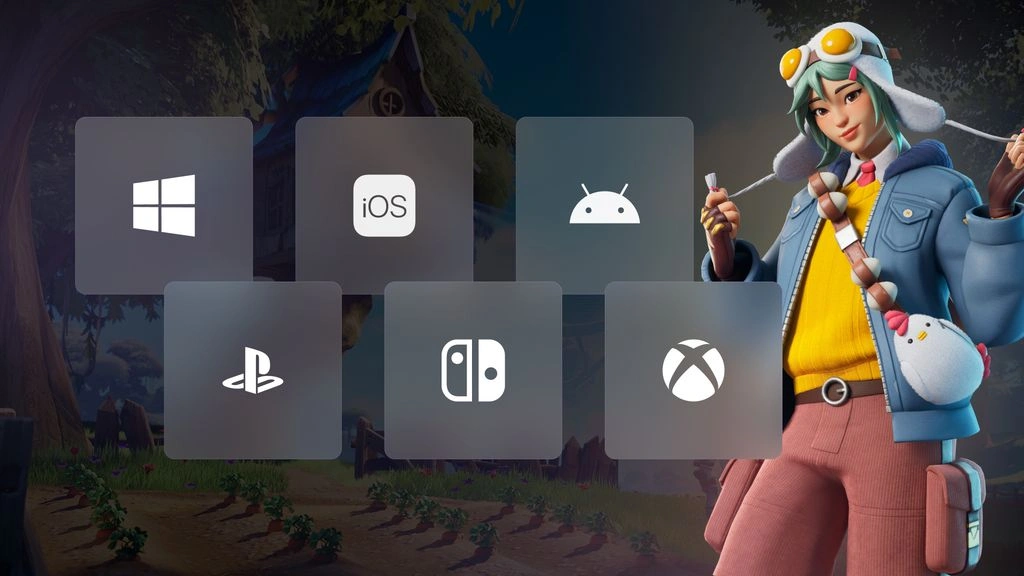
The latest Fortnite mobile creator tools give UEFN developers more control over how their islands work on touchscreen devices. Fortnite v41.30 introduces experimental pinch-to-zoom support, expands the actions available through custom mobile layouts and confirms that several touchscreen features can already be used in published experiences.
The headline addition is PointerZoom, a new input action capable of reading two-finger pinch gestures on mobile devices. The same system can also recognise mouse-wheel movement and controller right-stick input, allowing creators to build one zoom mechanic that works across several platforms.
Epic Games has also expanded Developer-Customizable Touchscreen Controls with new vehicle, inventory, map and autofire actions. These controls allow developers to reposition, restyle or hide Fortnite’s standard mobile buttons through Unreal Editor for Fortnite.
Here is everything included in the latest Fortnite mobile creator tools update, how the new controls work and which features remain experimental.
Fortnite Mobile Creator Tools Add PointerZoom
PointerZoom is the largest new feature in the v41.30 Fortnite mobile creator tools update.
It is a new InputAction designed to detect zoom-style input across touchscreen, mouse and controller devices. On mobile, players can move two fingers together or apart to produce a pinch gesture.
Creators can then use that input to change something inside their island.
Possible uses include:
- Zooming a camera in and out
- Scaling an object
- Enlarging an interactive map
- Adjusting the view in a strategy game
- Inspecting items
- Controlling a management-game camera
- Creating mobile-friendly photo tools
- Navigating custom interfaces
PointerZoom does not only work with touchscreens. A single subscription can also detect the scroll wheel on a mouse and the right stick on a gamepad, reducing the need to create completely separate zoom systems for each device.
Use our Fortnite trackers to record Victory Umbrellas, Sprite rewards and Reload unlocks.Track Your Fortnite Collection
How PointerZoom Works in Fortnite UEFN
PointerZoom is part of Fortnite’s Virtual Pointer and enhanced input systems.
The exact control used depends on the player’s device:
| Device | PointerZoom input |
|---|---|
| Mobile or touchscreen | Two-finger pinch gesture |
| Mouse and keyboard | Mouse scroll wheel |
| Controller | Right stick moved up or down |
On a touchscreen, moving the fingers closer together or farther apart creates a continuous value based on the speed and direction of the gesture.
On a mouse, the scroll wheel returns a value based on the direction of the scroll. On a controller, moving the right stick up represents zooming in, while moving it down represents zooming out.
The creator can read this changing value through Verse and decide how strongly the camera, object or interface should react.
How to Enable Pinch-to-Zoom in Fortnite UEFN
Creators must add touch input mapping before PointerZoom can be read during gameplay.
The general setup involves:
- Creating or using a suitable touch input mapping.
- Adding that input mapping to the player through Verse.
- Accessing the player’s input events.
- Subscribing to the PointerZoom action.
- Using the returned value to adjust a camera, object or other feature.
- Removing the input mapping when Virtual Pointer mode is no longer needed.
Epic’s documentation shows that creators can subscribe to several stages of the PointerZoom action, including when the gesture begins, while it is continuing, when it activates and when it ends.
This allows a creator to detect more than a single button-style press. The island can react continuously as the player moves their fingers, scrolls the mouse wheel or holds the controller stick in a particular direction.
Fortnite PointerZoom Can Scale Objects
One of Epic’s official examples uses PointerZoom to enlarge or shrink an object.
The input event detects the direction of the player’s pinch or equivalent control. Verse can then apply that value to a Scene Graph entity, changing the scale of its mesh.
This could be used for more than a demonstration cube.
Creators could potentially apply the same principle to:
- Building previews
- Placeable decorations
- Character-customisation objects
- Tycoon machinery
- Puzzle pieces
- Interactive models
- Vehicles displayed in a showroom
- Objects inside educational islands
The system may be particularly useful in experiences where players need to inspect or manipulate an object rather than simply shoot, jump or interact with it.
Fortnite PointerZoom Can Control Cameras
Camera zoom is likely to be one of the most common uses for the new Fortnite mobile creator tools.
A developer can read the PointerZoom input and use it to move a camera closer to or farther from a target.
This may be useful in:
- Strategy islands
- Tycoon experiences
- Building games
- Top-down adventures
- Map-based games
- Photography islands
- Puzzle games
- Management simulations
- Spectator systems
Because mouse and controller input are supported through the same action, creators can offer a similar camera experience across mobile, PC and console.
The final behaviour still needs to be created by the developer. PointerZoom supplies the input data, but it does not automatically add a finished camera-zoom system to an island.
Is PointerZoom Available in Published Fortnite Islands?
Not yet.
PointerZoom is currently experimental, and Epic’s Virtual Pointer documentation states that projects using the experimental Virtual Pointer system cannot be published at this time.
Experimental APIs may change, lose functionality or be removed before their full release. Epic also does not guarantee backward compatibility for assets created while a feature remains experimental.
Epic currently plans to move PointerZoom out of Experimental with the Fortnite 42.00 ecosystem update. That is a stated development plan rather than a guarantee, so creators should check the latest documentation before depending on the feature in a production project.
Creators can use PointerZoom for testing and development, but should not build a time-sensitive published release around it until Epic confirms that the feature is production ready.
Fortnite Touchscreen Controls Get More Actions
The other major part of the Fortnite mobile creator tools update is an expansion to Developer-Customizable Touchscreen Controls.
This feature allows UEFN developers to modify the standard Fortnite mobile control layout.
Creators can reposition supported buttons anywhere on the HUD, replace their icons, apply colour changes or hide controls that are unnecessary for the island.
Fortnite v41.30 adds support for the following actions:
| New touchscreen action | Typical use |
|---|---|
| Vehicle Boost | Activating a vehicle boost |
| Vehicle Horn | Sounding the vehicle horn |
| Vehicle Brake | Applying the vehicle brake |
| Vehicle Aim | Aiming while using supported vehicles |
| Vehicle Brake or Coast | Controlling braking or coasting behaviour |
| Vehicle Switch Seat | Moving between vehicle seats |
| Vehicle Throttle | Controlling vehicle acceleration |
| Backpack | Opening the player inventory |
| Map Ping | Placing a map or world ping |
| Toggle Autofire | Turning automatic firing on or off |
| Toggle Map | Opening or closing the map |
These join existing mobile actions such as Jump, Shoot, Crouch, Reload, Sprint and Secondary Ability.
Fortnite Vehicle Controls Are Better for Mobile Islands
The addition of more vehicle actions is particularly useful for creators building racing, driving or vehicle-combat islands.
Previously, a creator could design a customised touchscreen layout but lacked support for several important vehicle controls.
The v41.30 additions make it possible to provide dedicated mobile buttons for acceleration, braking, aiming, boosting, switching seats and using the horn.
This could improve mobile support in:
- Racing islands
- Taxi games
- Delivery experiences
- Vehicle tycoons
- Car-combat maps
- Boat or aircraft experiences
- Open-world role-playing islands
- Driving simulators
A creator can position the most important vehicle actions close to the player’s thumbs and hide controls that are not used by the experience.
That is much better than forcing every island to rely on one general-purpose Fortnite mobile layout.
How Developer-Customizable Touchscreen Controls Work
Creators build their mobile control layout as a UMG User Widget inside UEFN.
The basic process is:
- Create a standard User Widget.
- Add a Canvas panel as the root layout.
- Add a Touch Control Layout Override for each button being customised.
- Assign an action to every override.
- Choose whether the button should remain visible.
- Optionally change its icon or colour.
- Position and resize the controls on the canvas.
- Place a HUD Controller device on the island.
- Assign the completed widget to the Override Touch Layout property.
- Enable the HUD Controller.
When the HUD Controller becomes active, it replaces the default locations of the controls included in the custom widget.
Any supported controls that are not added to the custom layout remain in their normal Fortnite positions.
Creators Can Use Multiple Mobile Layouts
UEFN creators are not limited to one touchscreen layout for the entire island.
Different HUD Controller devices can point to different UMG widgets. By enabling another HUD Controller during gameplay, the island can switch to a different mobile-control arrangement.
For example, an experience could use:
- One layout while walking
- A separate layout while driving
- A simplified layout during a puzzle
- A combat layout during battles
- A menu-focused layout inside a shop
- A spectator layout after elimination
This means mobile buttons can change as the player moves between different game modes or activities.
When no HUD Controller with a touch-layout override is active, the experience returns to Fortnite’s default touchscreen controls.
Fortnite Mobile Buttons Can Be Hidden
Creators can hide touchscreen controls their islands do not use.
This is useful for experiences with very simple mechanics. A one-button game, for example, may only require Jump or Interact and does not need shooting, aiming, reloading and inventory controls covering the screen.
Buttons can be hidden through the custom layout settings. Input actions that are removed or unsubscribed through Verse can also cause their related touchscreen controls to disappear.
Creators must be careful when hiding an action. Mobile players will not be able to access a hidden control, so the island must not require that action later without restoring its button.
Creators Can Change Touchscreen Button Icons
Developer-Customizable Touchscreen Controls also support visual changes.
Each Touch Control Layout Override can optionally include:
- A replacement icon
- A colour tint
- A custom position
- A custom size
- Visibility settings
This allows the mobile layout to match the island’s visual identity instead of looking like an unchanged version of the standard Fortnite HUD.
A racing map could use large, easily recognised brake and boost buttons. A fantasy game could replace a generic secondary-action icon with an image representing a spell or ability.
The underlying action remains connected to a supported Fortnite control, even when the creator changes how the button appears.
Tappable Custom HUD Widgets Are Production Ready
Epic has also corrected earlier information about Tappable Custom HUD Widgets.
The feature had been described as experimental in the Fortnite v41.00 ecosystem update. Epic now says it is fully production ready, meaning creators can publish experiences that use it.
Tappable Custom HUD Widgets allow a custom HUD element to behave like a touchscreen button.
Possible examples include:
- A currency counter that opens a shop
- An inventory slot
- A reward notification
- A custom hotbar button
- An ability icon
- A mission tracker
- A map shortcut
- A menu button
These widgets can respond to a touchscreen tap and also use associated keyboard or controller input, making them useful for cross-platform interfaces.
Custom Touchscreen Controls Are Also Production Ready
Developer-Customizable Touchscreen Controls were also mistakenly listed as experimental when first introduced.
Epic has confirmed that the feature is production ready and that experiences using customised touchscreen layouts can be published.
This distinction matters because the different Fortnite mobile creator tools do not all have the same publishing status.
| Mobile feature | Current status |
|---|---|
| Developer-Customizable Touchscreen Controls | Production ready |
| Tappable Custom HUD Widgets | Production ready |
| PointerZoom | Experimental |
| Virtual Pointer | Experimental |
| Published islands using experimental Virtual Pointer | Not currently supported |
Creators can therefore publish custom mobile layouts and tappable HUD elements now, while continuing to test PointerZoom separately.
Fortnite Virtual Pointer Explained
Virtual Pointer is the wider system supporting gesture-driven input across multiple devices.
The pointer behaves differently depending on the hardware:
- Finger contact on touchscreen devices
- Standard mouse pointer on PC
- A controller-driven on-screen pointer on gamepads
UEFN reads these as a consistent pointer input, allowing creators to build interactions without treating every platform as a completely unrelated control system.
Virtual Pointer can be used to detect screen positions, interact with world objects and read gestures such as swipes and pinches.
However, Virtual Pointer is still experimental and does not work while Fortnite’s game menus are open. Epic also notes that players become immobilised while Virtual Pointer mode is active.
That limitation means creators should enable the mode only when it suits the current activity.
For example, it might be activated while the player uses an interactive map, edits an object or navigates a custom interface, then disabled when normal movement resumes.
New Fortnite Virtual Pointer Settings
Fortnite v41.30 also adds new player-facing settings for Virtual Pointer.
They can be found under:
Settings > Controller > Virtual Cursor
The available options are:
- Pointer Speed
- Pointer Opacity
- Pointer Haptic Feedback Intensity
These settings allow players to change how quickly the pointer moves, how visible it appears and how strongly supported controllers respond through haptic feedback.
This gives players some control over the accessibility and feel of pointer-based experiences rather than forcing every user to accept one fixed configuration.
Why Fortnite Mobile Creator Tools Matter
Fortnite islands can be played on a wide range of hardware, but an experience designed entirely around keyboard, mouse or controller input may feel awkward on a phone.
Mobile players have less physical screen space, no permanent physical buttons and different expectations around tapping, swiping and zooming.
The new Fortnite mobile creator tools allow developers to design specifically for those differences.
A strong mobile layout can:
- Keep important buttons within easy reach
- Remove unused controls
- Prevent HUD clutter
- Make vehicle gameplay easier
- Provide larger interactive targets
- Support familiar pinch gestures
- Improve custom menus
- Keep controls consistent across game modes
The update does not automatically optimise an island for mobile. Creators still need to test layouts on smaller screens and make deliberate design choices.
Best Practices for Fortnite Mobile Controls
Creators should avoid placing every available action on the screen simply because it is supported.
Mobile layouts work best when they prioritise the controls players use most often.
Important considerations include:
Keep Buttons Away From Important Information
A large touchscreen control can cover quest text, health information, menus or interactive objects.
Test the layout with every major HUD element visible.
Make Important Actions Easy to Reach
Frequently used buttons should be positioned where players can tap them without changing their grip.
Less important actions can be smaller or placed farther from the primary movement and camera areas.
Avoid Tiny Touch Targets
A button that looks elegant in the UEFN editor may be frustrating on an actual phone.
Controls need enough space to account for different screen sizes and finger sizes.
Use Separate Vehicle Layouts
Vehicle controls often need a different arrangement from on-foot combat controls.
Switching HUD Controller devices can provide a cleaner interface when a player enters or exits a vehicle.
Hide Unused Controls
Removing unnecessary buttons gives the player more room to see and interact with the island.
Do not hide an action unless the experience genuinely does not require it.
Test on Real Mobile Hardware
A desktop preview cannot fully reproduce the way an island feels when held and controlled on a phone or tablet.
Creators should test button reach, visibility, performance and accidental taps on actual touchscreen devices.
What the Fortnite Mobile Creator Tools Update Means for Players
Players should gradually see more creator-made islands with cleaner mobile layouts and better touchscreen support.
Vehicle-heavy experiences can now offer more complete controls, while custom HUD widgets can provide buttons designed specifically for the island.
PointerZoom opens the door to familiar touchscreen gestures such as pinching a map, adjusting a camera or resizing an object. However, players should not expect that feature to appear immediately in published islands because it remains experimental.
The most immediate impact will come from the production-ready touchscreen tools that creators can already publish.
Fortnite v41.30 does not completely solve mobile island design, but it gives developers far more control over the experience. As creators begin using the expanded actions and custom HUD layouts, Fortnite mobile islands should feel less like desktop experiences squeezed onto a smaller screen.