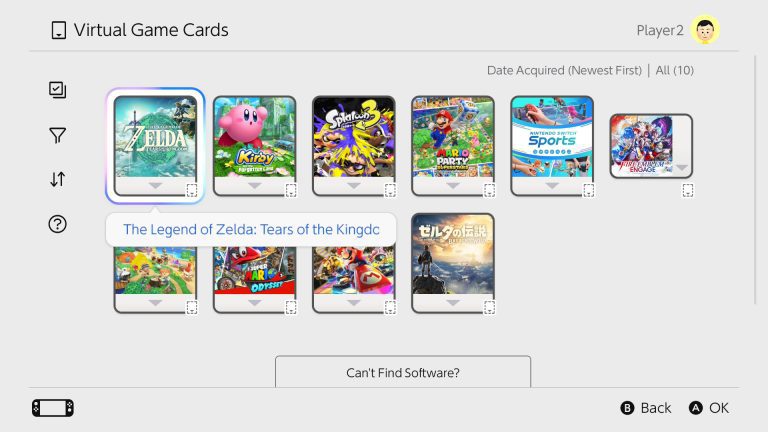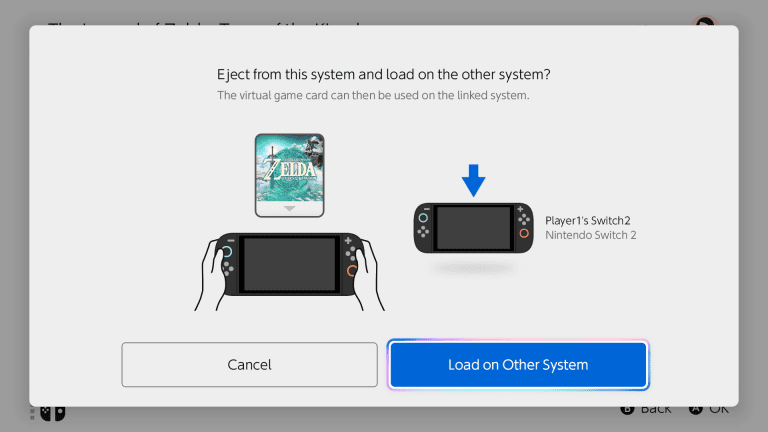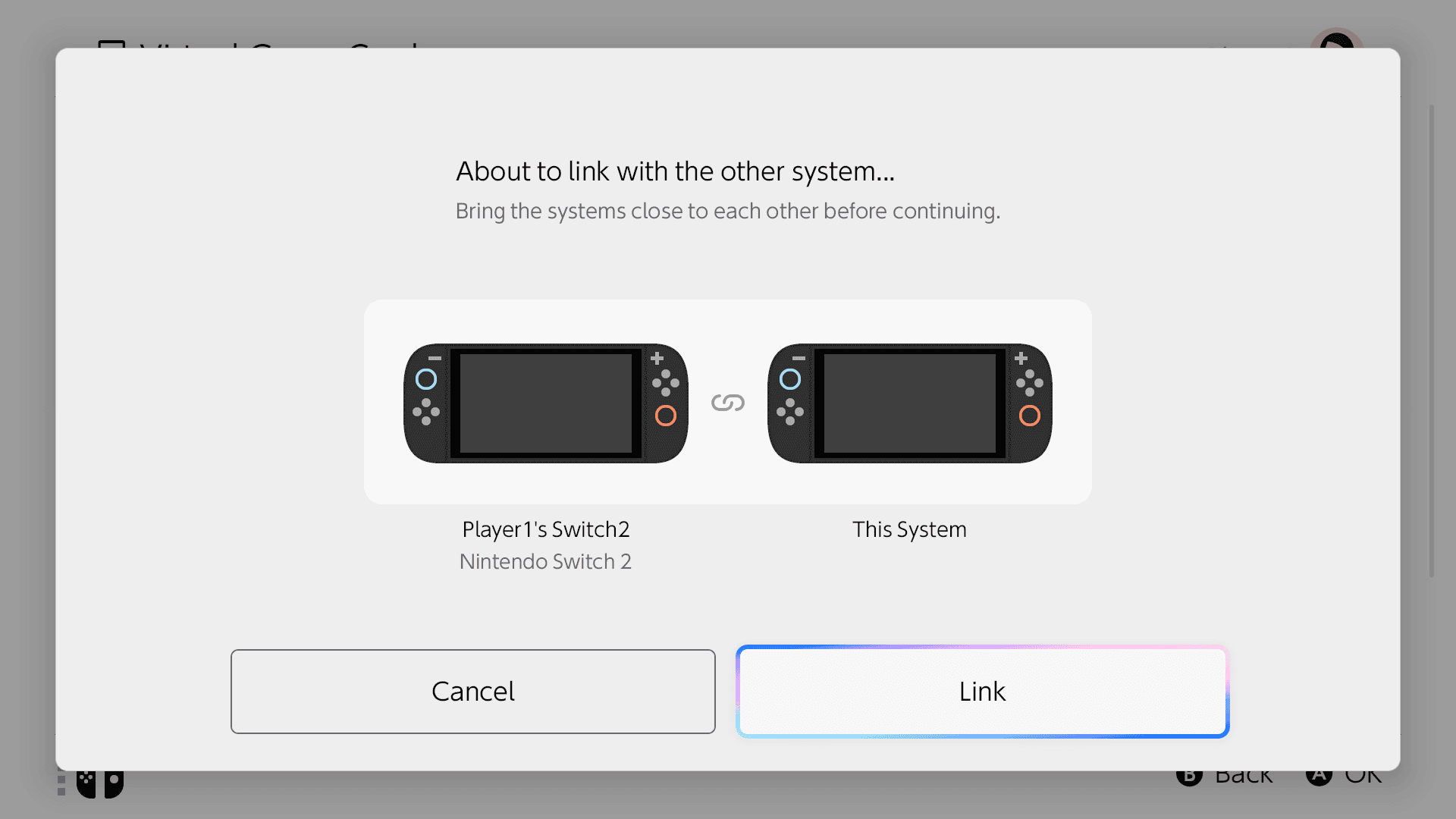
Nintendo Switch 2 virtual game card settings let you decide which two consoles can load your purchased digital games. If an old console has been sold, lost or replaced, you can unpair it to free up a slot for your new Nintendo Switch 2.
System update 23.0.0 added a Settings option inside Virtual Game Cards in September 2026. That is now the place to review authorised consoles without resetting your hardware or risking your Nintendo Account purchases.
Where to find Nintendo Switch 2 virtual game card settings
From the HOME Menu, select Virtual Game Cards and then Settings. The Nintendo Switch 2 virtual game card settings menu lists consoles able to load your cards. Each Nintendo Account can have no more than two paired eligible systems at once.
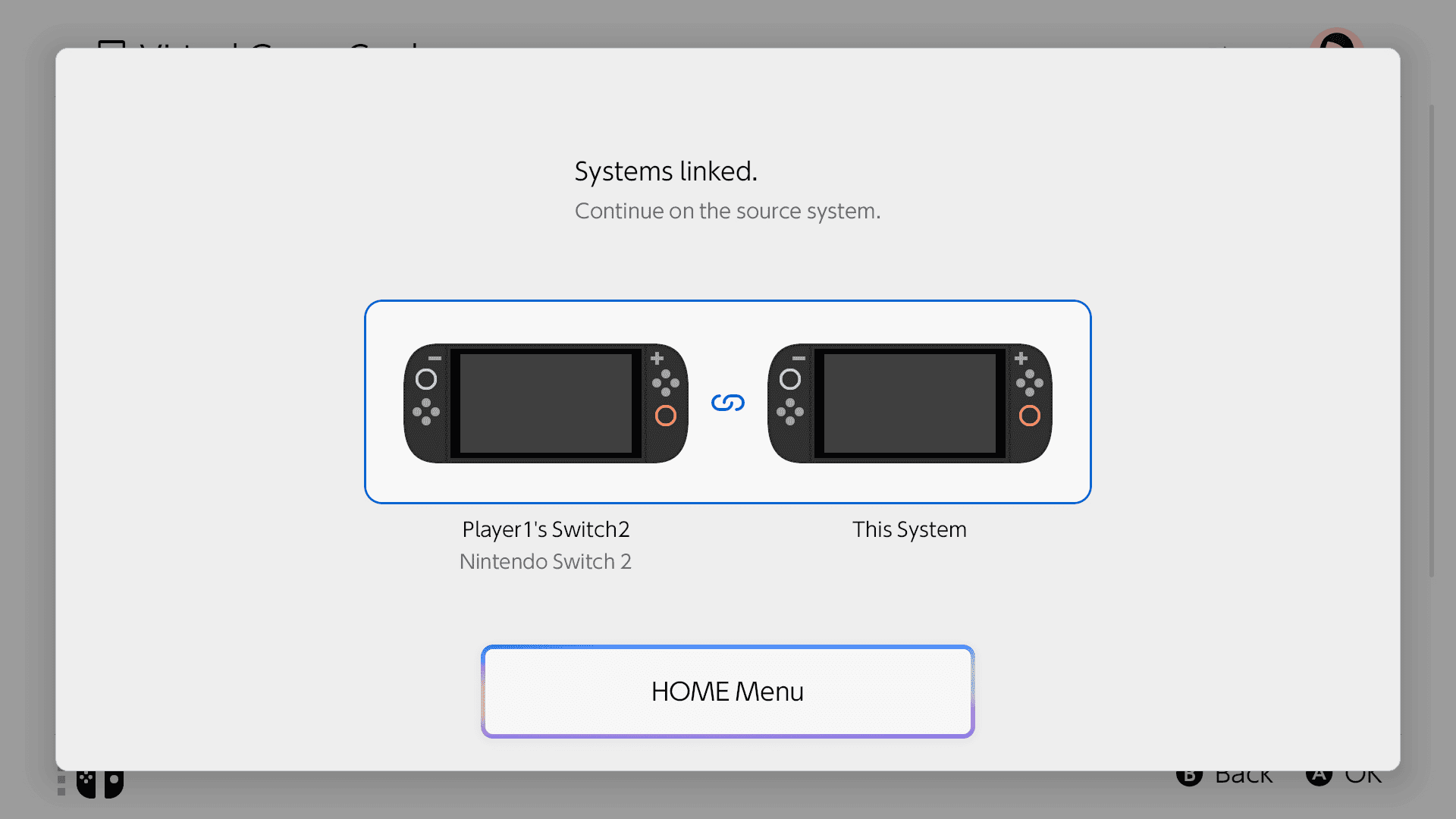
Nintendo Switch 2 virtual game card settings help you manage paired systems before replacing an older console.
How to unpair an old Nintendo Switch console
To use Nintendo Switch 2 virtual game card settings to remove a system, start with a console connected to the purchasing Nintendo Account and the internet.
- Choose Virtual Game Cards from the HOME Menu.
- Open Settings.
- From the list of paired consoles, select the system you want to remove.
- Select Unpair.
- Read the confirmation and select Unpair again.
If Nintendo reports that the selected console is offline, turn it on and reconnect it to the internet before retrying. This normal unpairing method is preferable when you still have both systems.
What if your old console is lost or unavailable?
Nintendo Switch 2 virtual game card settings can offer Force Unpair Console if you cannot access the chosen system. Nintendo limits force-unpairing through this route to once per year. It is a recovery option, not something to use routinely when swapping devices.
There is also a browser method. Sign into the Nintendo Account portal, select Consoles, then Consoles that can use virtual game cards, and choose Unpair next to the device. Unpairing through the portal is limited to once per year as well.
If you already used the annual option and have no paired console available, contact Nintendo Support. A factory reset is not Nintendo’s prescribed way to recover an unavailable paired device.
How to pair a new console after unpairing
Once you have changed Nintendo Switch 2 virtual game card settings, your new device must be paired. Put the new and an existing authorised console nearby, connect both to the internet, and link the same purchasing Nintendo Account to a user on each.
- On the new console, select Virtual Game Cards and the purchasing account’s user.
- Choose a game and select Load to This Console.
- Follow the prompt to bring the two systems close together.
- On the existing console, open Virtual Game Cards for that account and select Start Pairing.
- Complete pairing and load the selected game.
If the account already has two paired consoles, you can instead select which existing console to unpair during the new pairing process. Only the first pairing needs local wireless proximity. Later card swaps between the two paired systems can take place over the internet.
Do unpaired consoles lose purchased games or save data?
Unpairing takes the console out of your authorised pair, so it can no longer load that account’s virtual game cards. It does not delete the account or the original purchase. You retain the digital purchases on the Nintendo Account that bought them. Game saves are separate from virtual game cards, so moving a licence does not copy or transfer your progress.
For save files, use Nintendo’s supported system-transfer or save-data transfer options. Save Data Cloud works for supported games with a Nintendo Switch Online membership, but that membership is not required just to use virtual game cards.
Can you use a third Switch without pairing it?
Yes, the purchaser can use the separate online licence feature on additional consoles, provided the game supports it and the console is connected to the internet. Only the purchasing user can play via that licence, unlike a virtual game card loaded to an authorised console, which other users on that device can play.
Nintendo Switch 2 virtual game card settings also differ from lending to your family group. Lending lets an eligible game be borrowed for 14 days; pairing changes which of your own consoles can load that card. Neither transfers the game’s ownership.
Before selling or replacing a Switch, check Nintendo Switch 2 virtual game card settings, confirm which console should stay paired and arrange any separate save-data transfer. To move virtual game cards between consoles, keep both systems online. The offline play guide covers loaded cards for travel, while these virtual card loading fixes address connection and pairing errors.
Official source: Nintendo: How to Unpair Consoles That Can Load Virtual Game Cards.