Nintendo Switch 2 camera not working in GameChat? Before assuming it’s broken, check the privacy shutter, reconnect the USB cable and try the console’s built-in camera test. A black picture can also mean that video is switched off in the chat.
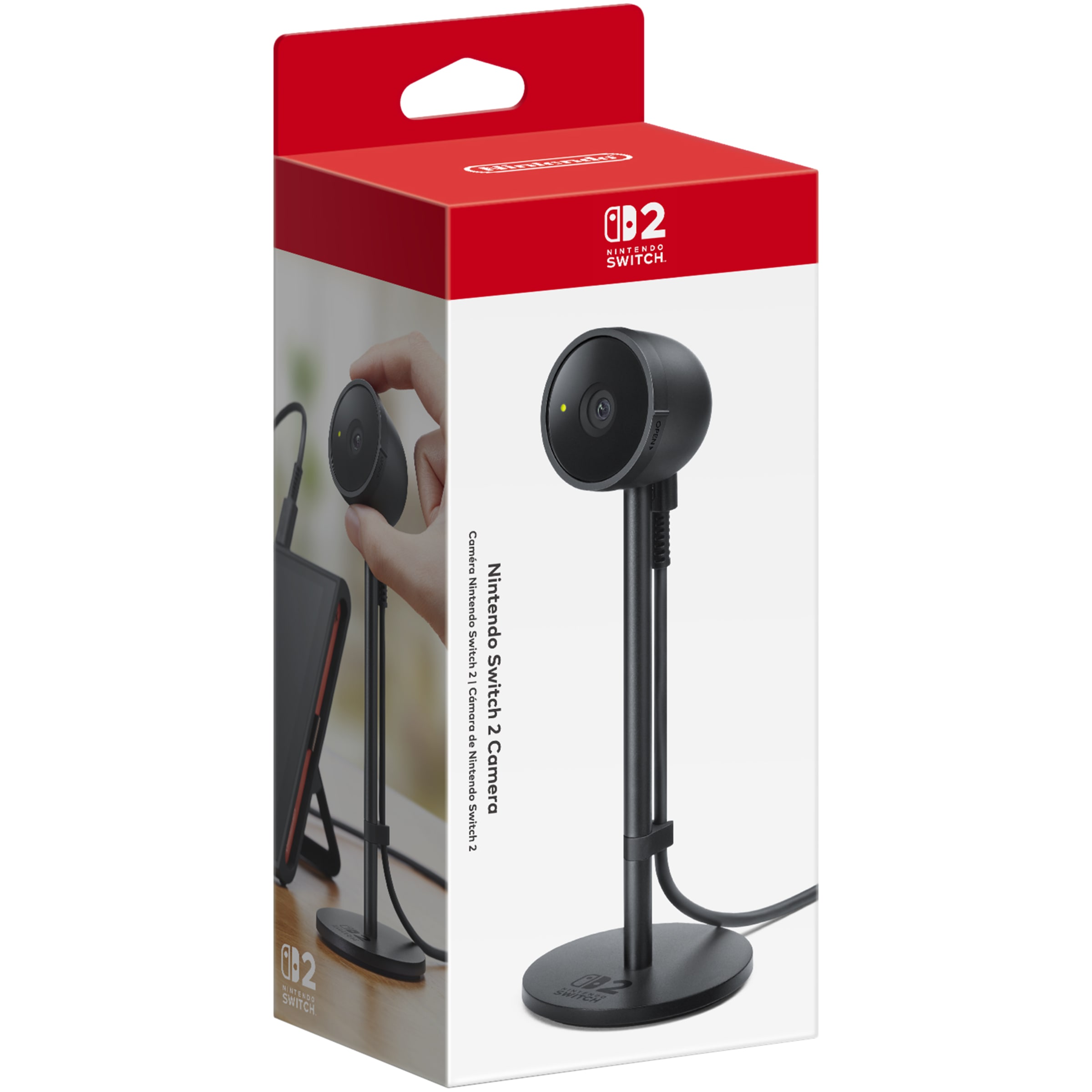
You don’t need a camera for GameChat voice calls, but sharing your own video requires a compatible USB camera. Nintendo’s Switch 2 Camera has its own firmware and shutter controls. Third-party USB webcams may also work, although Nintendo doesn’t guarantee compatibility with every model.
Fix Nintendo Switch 2 camera not working in GameChat
Restart the Switch 2 and install any available system updates. Unplug the camera and reconnect it, trying another USB port if you’re using the dock. A compatible camera should trigger a brief “A camera has been connected” notification at the top-left of the screen.
If that message doesn’t appear, check the connection and try another supported camera if possible. A webcam that works on a computer isn’t guaranteed to work with Nintendo Switch 2.
Nintendo Switch 2 camera not working in GameChat with the shutter closed?
The official Nintendo Switch 2 Camera has a physical privacy shutter that can cover its lens with a light-coloured film. Gently turn the outer rim clockwise to open it. If your own USB webcam has a privacy cover, open that as well.
Nintendo’s camera also has a green light near the lens that indicates when it’s in use. If the light comes on but the picture is blank, check the shutter before moving on.
Use Test USB Camera in System Settings
For Nintendo Switch 2 camera not working in GameChat, Nintendo’s built-in video test is the quickest way to check whether the console can see a picture outside the call.
- Open System Settings from the HOME Menu.
- Select Controllers & Accessories.
- Scroll down to Test USB Camera.
- Check whether the camera’s live video appears.
If you see a picture, the accessory is sending video to the console. If you see nothing, reconnect the camera and check the shutter and compatibility before changing GameChat settings.
Update the official Nintendo Switch 2 Camera
With Nintendo’s camera connected, go to System Settings > Controllers & Accessories > Update Nintendo Switch 2 Camera. Install an update if one is offered, then repeat Test USB Camera. That option is specifically for the official camera, not all USB webcams.
Nintendo Switch 2 camera not working in GameChat after a successful test?
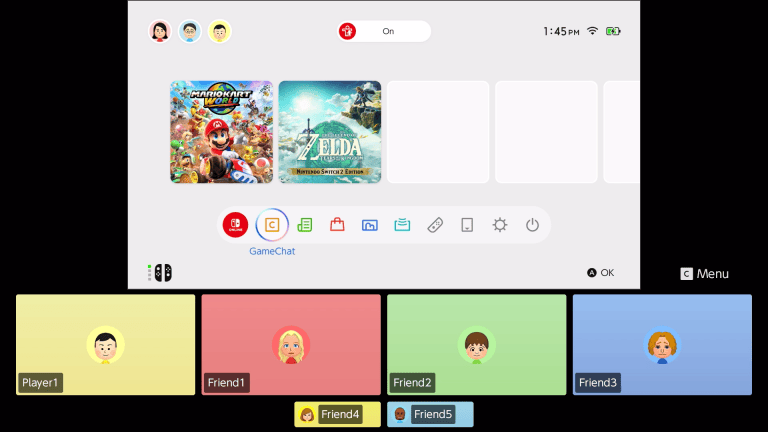
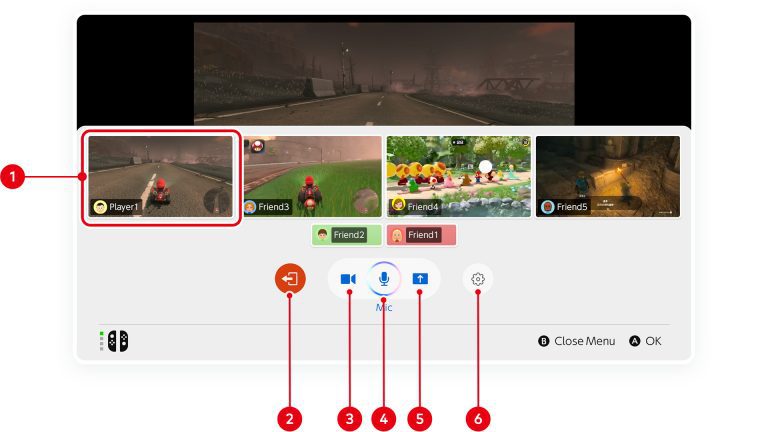
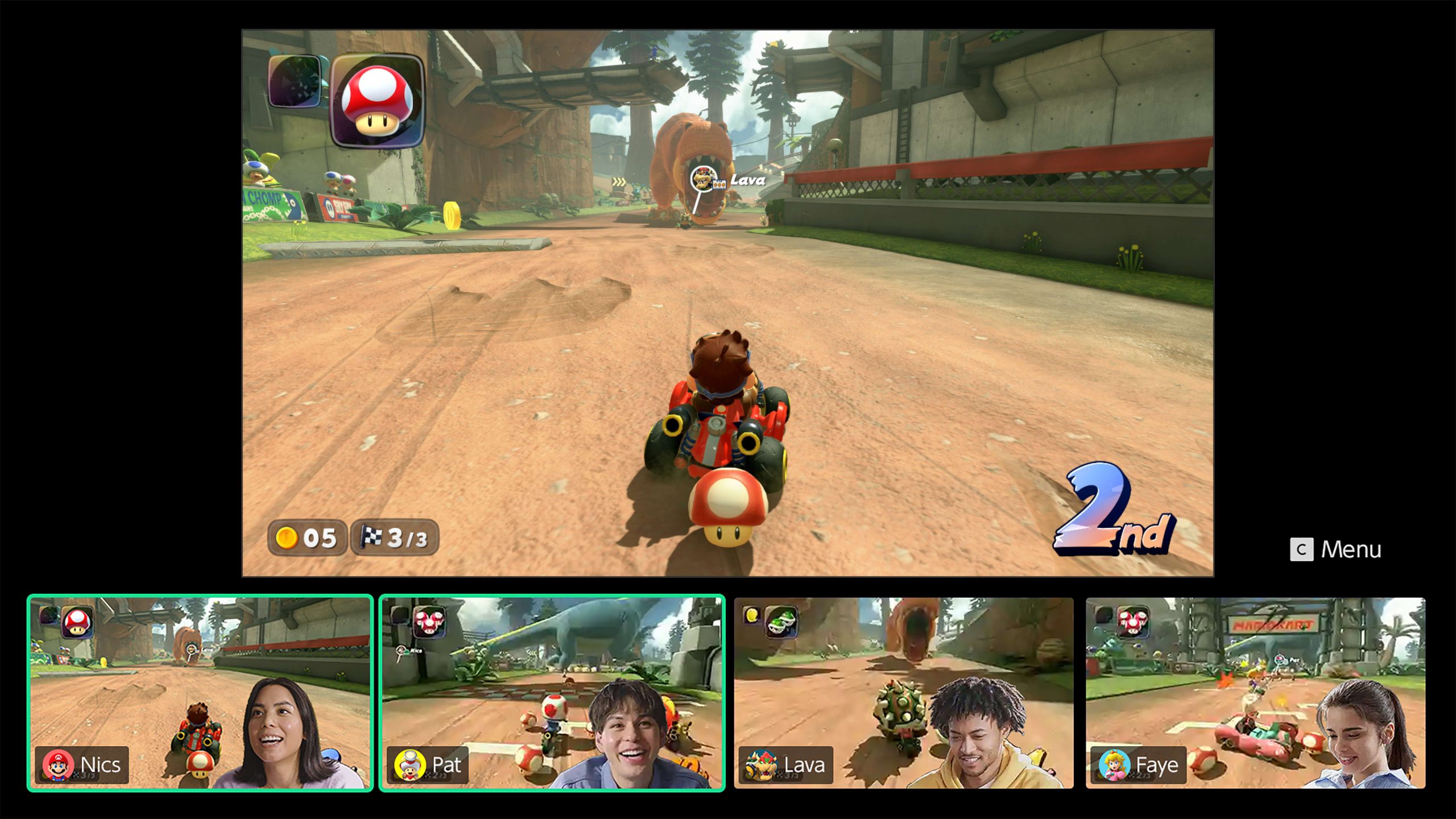
Press the C Button while you’re in a GameChat session and select the camera icon to enable your video. Under Settings > Camera, adjust the zoom or field of view. Nintendo offers face-only, focused and full-camera views.
For children under 16, a parent or guardian must set up GameChat Parental Controls and can approve camera use for each session or disable it. A permission restriction won’t be solved by reconnecting the camera.
A GameChat session can include up to 12 people on voice chat, but only four participants can share their camera or game screen at once. Another member may need to stop sharing before your video can be shown.
Check the connection if video disappears mid-call
A Nintendo Switch 2 camera not working in GameChat after previously displaying video may be affected by weak or limited connectivity. Nintendo says GameChat can temporarily disable camera video when the network isn’t sufficient. Test your internet connection and check Nintendo’s Network Status page.
If video works in Test USB Camera but not in chat, revisit the video toggle, parental permission, sharing limit and network before deciding the camera needs repair.
When to contact Nintendo
If you’ve still got a Nintendo Switch 2 camera not working in GameChat after following these steps with Nintendo’s official accessory, the manufacturer’s next recommendation is a repair request. For a third-party camera, try another model to see whether compatibility is the cause.
Start with the USB test rather than a factory reset. It gives you a much clearer idea of whether you’re dealing with the camera or the chat session.
Official source: Nintendo’s GameChat camera troubleshooting.