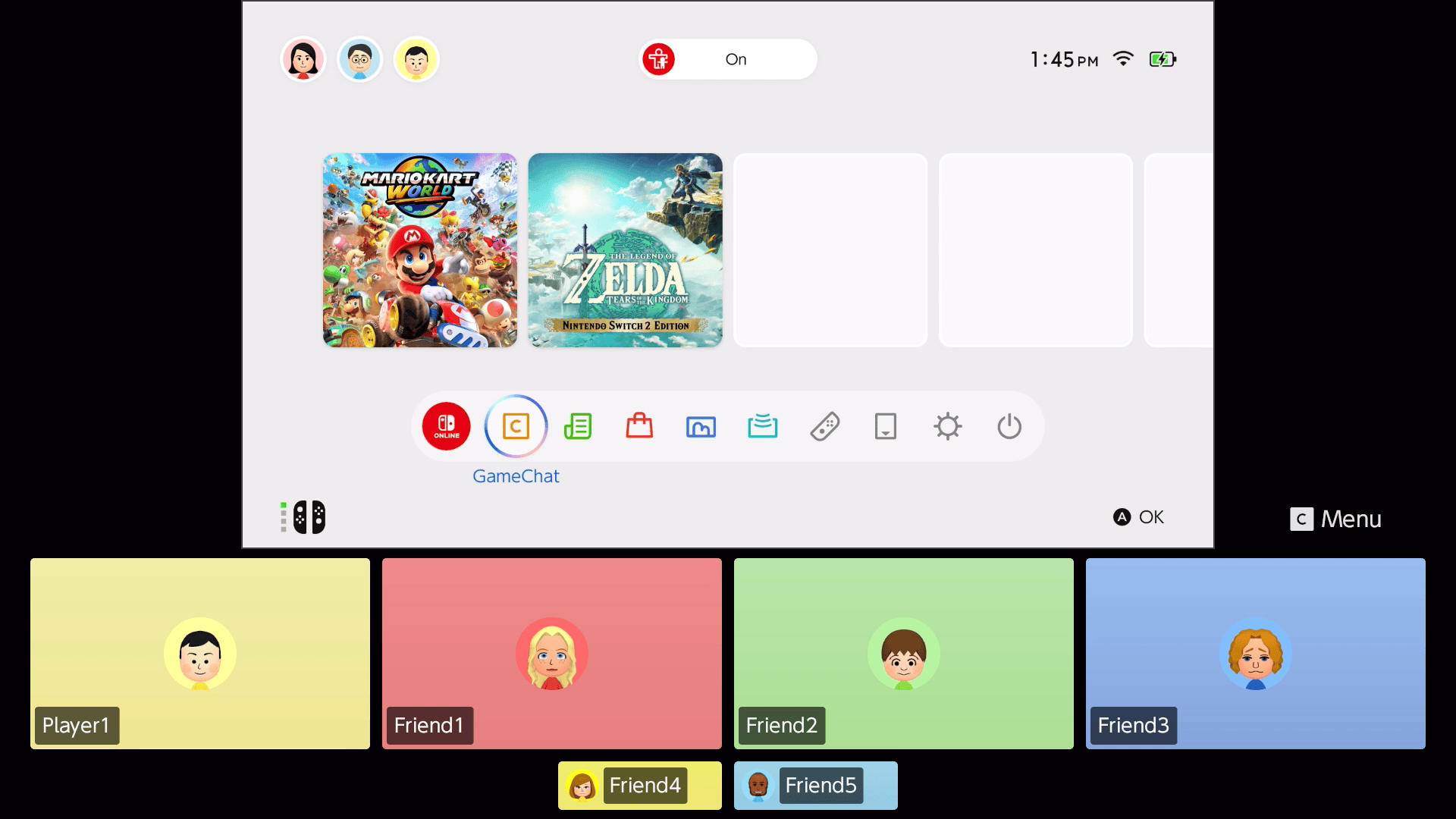
Nintendo Switch 2 GameChat network conditions can prevent a chat from starting even when the console is connected to the internet. If you see the message “GameChat cannot be used with your current network conditions”, begin with Nintendo’s service status and your own connection. You do not need to start changing router ports or DNS settings.
It’s also worth checking exactly what happens. An error when starting GameChat isn’t necessarily the same problem as being unable to invite one friend. Nintendo has separate checks for the network warning, creating a chat and joining an existing one.
Fix Nintendo Switch 2 GameChat network conditions errors
Check Nintendo’s Network Status page first. If GameChat is affected by scheduled maintenance or an outage, try again once the service is restored. A router restart won’t fix a problem on Nintendo’s side.
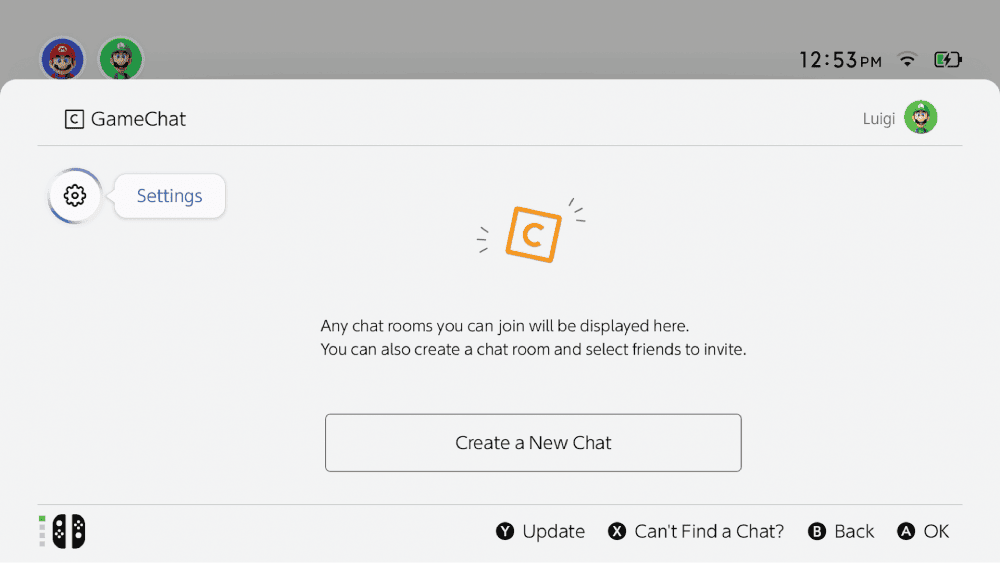
Before troubleshooting your home network, make sure your console has the latest system update and that you’ve completed GameChat’s first-time setup. The Nintendo Account also needs a registered phone number. GameChat requires a Nintendo Switch Online membership now that its free-access period ended on 31 March 2026. A standard membership is enough; the Expansion Pack isn’t required just for GameChat.
If an error code appears alongside the warning, use Nintendo’s support lookup for that code. You can also scan the QR code shown with it using a phone. This is more useful than treating every GameChat failure as the same network problem.
What to try on Wi-Fi
If the Nintendo Switch 2 GameChat network conditions warning appears on a wireless connection, move the console two to three metres from the router for a test. Taking the console out of the dock can make this easier. Keep large metal objects, speakers, power strips and cordless phones away from the router and console while testing.
- Restart the Nintendo Switch 2.
- Unplug your modem and router, if separate. Let them restart fully before reconnecting the console.
- Run the console’s internet connection test once your other devices are back online.
- If the connection still fails, try creating a new internet connection on the console.
Test again after each change rather than making several adjustments at once. If moving closer to the router helps, you have a useful clue about your wireless connection. If it changes nothing, continue with Nintendo’s other checks.
Nintendo Switch 2 GameChat network conditions on wired LAN
When using the dock’s Ethernet port, check that the cable clicks securely into both the dock and the router. Try a different cable if either end is loose, and test a different router LAN port if one is available. Then restart the Switch 2, power-cycle the network equipment and run another connection test.
Those steps test the wired connection itself. If you still see the Nintendo Switch 2 GameChat network conditions message, remember that a working Ethernet cable doesn’t rule out a service interruption or an account setup problem.
Can you start a chat but not invite or join?
That points towards a different set of checks. To invite someone, both accounts must have completed GameChat setup, be friends and approve each other for chatting. If you used the chat-history list, the person may no longer be on your friend list or approved.
Make sure you’ve accepted the GameChat terms. For children under 16, a parent or guardian must complete the GameChat Parental Controls requirements. Joining a room can also depend on who is already inside it: Nintendo’s rules differ for supervised accounts, people you haven’t approved and blocked users.
If the only problem is that one friend doesn’t appear when inviting them, use our dedicated GameChat friends-not-showing guide rather than repeatedly resetting the network.
Still getting Nintendo Switch 2 GameChat network conditions warnings?
Once you’ve tested Wi-Fi or LAN and checked for Nintendo outages, the next step depends on where the fault lies. Nintendo advises contacting your router manufacturer about firmware or router-specific problems. It also provides console repair support if the recommended troubleshooting doesn’t resolve the issue.
Keep the exact error message or code to hand when asking for support. A Nintendo Switch 2 GameChat network conditions failure is about establishing the session; if you’re already in a call but can’t hear anyone, the audio guide below is the better place to start.
Official source: Nintendo’s GameChat connection troubleshooting.