If your Switch 2 virtual game card won’t load, start by checking the internet connection on the receiving console, which Nintendo Account owns the purchase, and whether you have already paired two systems. Nintendo has specific messages for these problems, so there is no need to delete games or reset the Switch.
Virtual game cards act like digital cartridges. A game’s files may be installed even when its licence is loaded to another console. That is why a purchased title can be visible on the HOME Menu but refuse to start.
Switch 2 virtual game card won’t load? First checks
Begin by checking that both consoles have up-to-date system software. Make sure you selected the purchasing Nintendo Account in Virtual Game Cards. The receiving console also needs internet access and must be on or in sleep mode for remote loading.
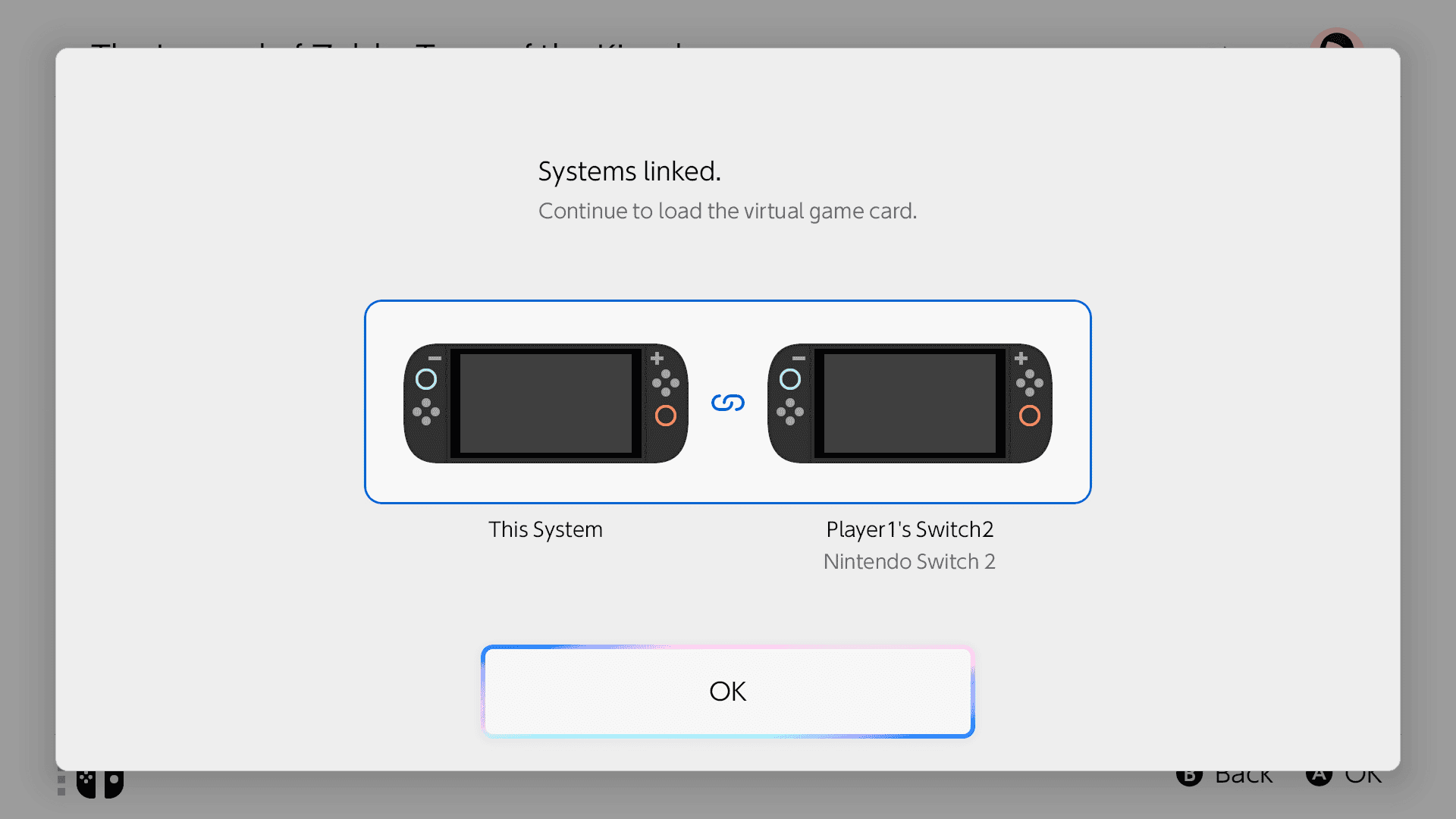
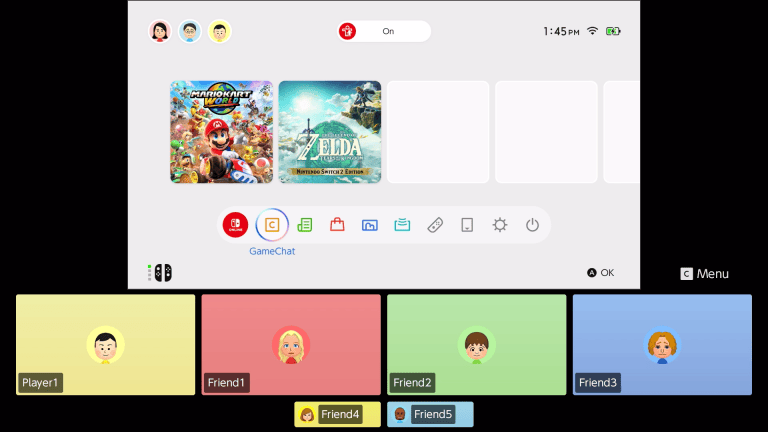
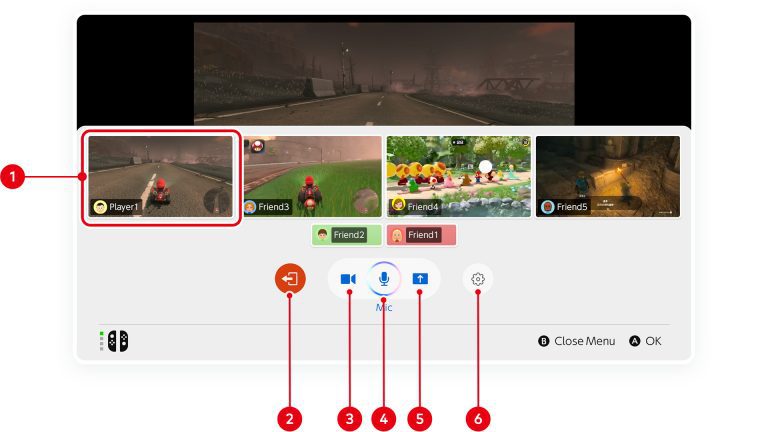
Nintendo’s pairing screen helps when a Switch 2 virtual game card won’t load on another console.
- Connect the receiving Switch to the internet.
- Open Virtual Game Cards from the HOME Menu.
- Select the user associated with the account that bought the game.
- Choose the title and Load to This Console or Load to Another Console.
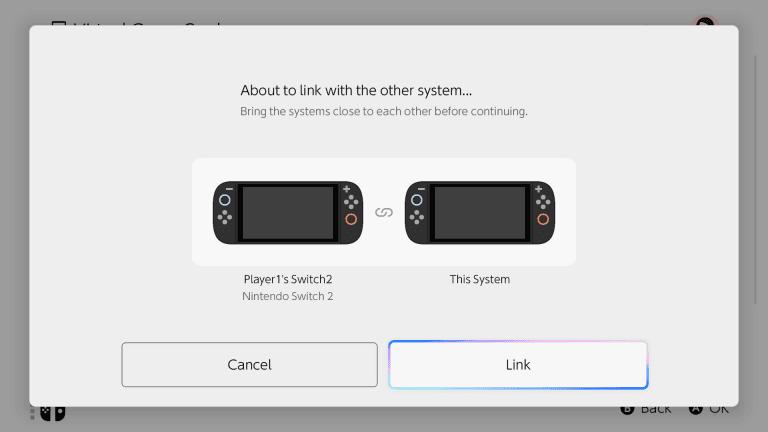
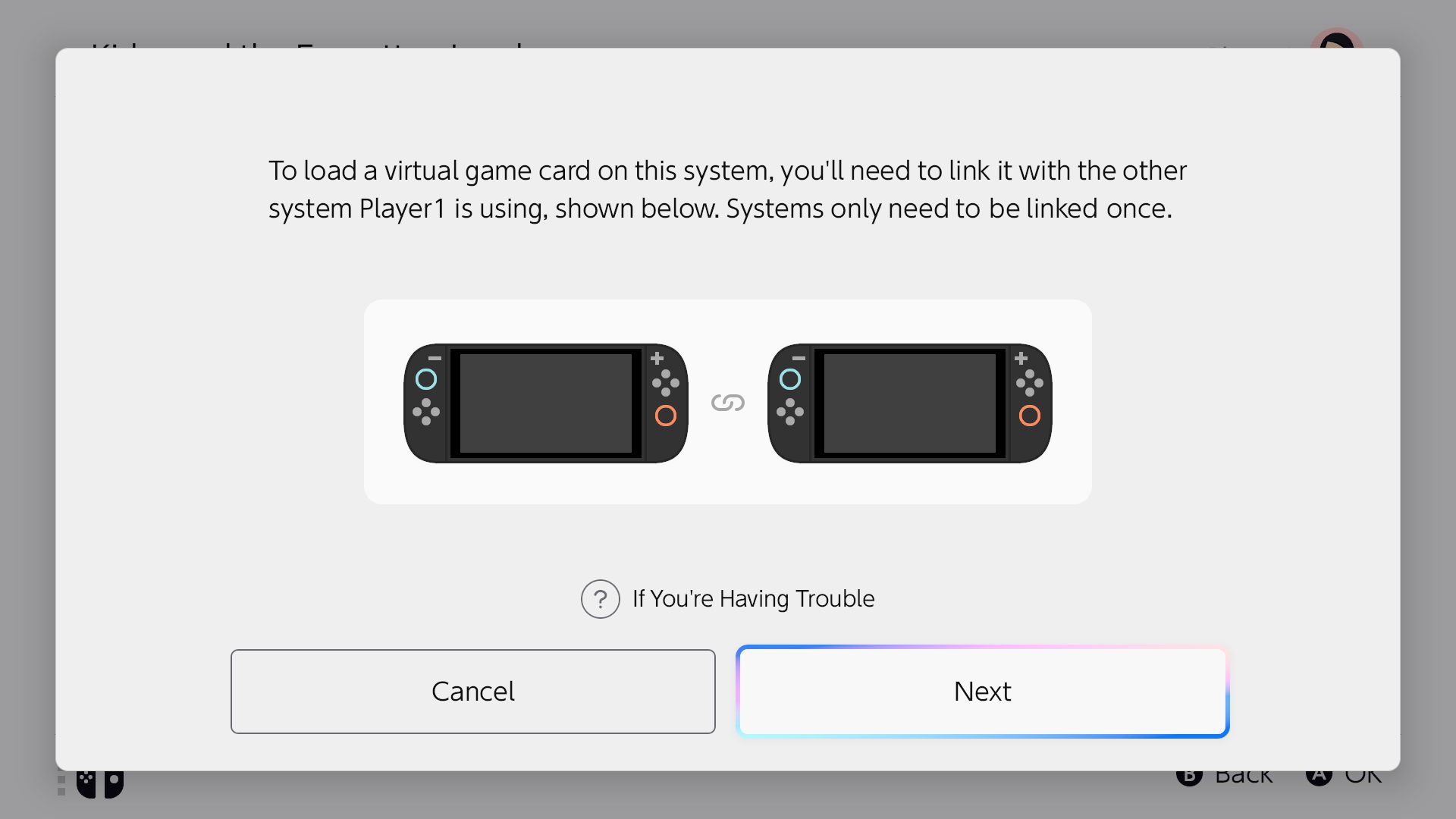
- If the systems are not yet paired, place them close together and follow the pairing instructions.
- Wait for the game download to finish if it is not already installed.
Close the game on the other system if somebody is still playing it. Only one paired console can hold a particular virtual game card at a time.
When your Switch 2 virtual game card won’t load on another console
Nintendo’s connection message says: “The virtual game card could not be loaded to the other console because it is not connected to the internet.” The problem is with the destination Switch. Turn that system on, reconnect it to the internet and retry loading the card.
The consoles do not need to be near each other after the first pairing. They do need to be online, however. If your Switch 2 virtual game card won’t load and the message names another system, check that specific system rather than only the one in your hands.
Switch 2 virtual game card won’t load: two consoles already paired
Nintendo also shows “Another paired console has been found. You can only pair each console to one other console at a time.” This means your Nintendo Account already has two systems authorised for virtual cards. You must remove one before adding a third.
From the HOME Menu, open Virtual Game Cards, then Settings. Choose the old console and select Unpair. If the old system is accessible, connect it to the internet first. If it is lost or unavailable, Nintendo offers Force Unpair Console, but this option is limited to once per year. The account website’s unpair option has a similar annual limit.
If you have already used the restricted method and cannot access the old console, contact Nintendo Support. Do not factory reset the replacement console to work around this limit.
Why won’t a purchased digital game load?
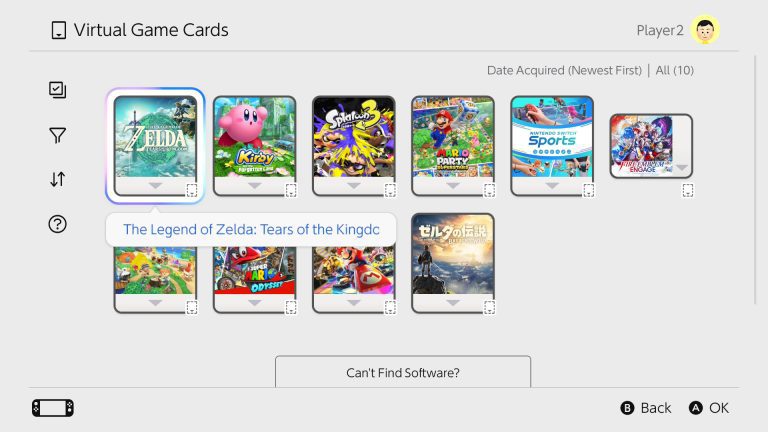
A missing card does not mean your purchase has disappeared. First, make sure you selected the Nintendo Account that bought it. If the game is still absent, open Virtual Game Cards, select the purchasing user and scroll to Can’t find specific software? Choose View Hidden Virtual Game Cards and sign in if prompted. Hidden titles can still be loaded from that list. If the game is not installed, check the Nintendo eShop download options for the purchasing account.
Compatibility matters too. Switch 2-exclusive games and Switch 2 Edition content cannot be loaded as Switch 2 software onto an original Nintendo Switch. If the game is for newer hardware, signing into the same account cannot make it run on the old system.
Switch 2 virtual game card won’t load without internet?
An online licence differs from a loaded virtual card. It can let the purchasing user play a downloaded game without loading that card, but the system needs internet access. Nintendo associates error 2819-0001 with suspended software when that connection is lost.
For offline access to a compatible game, reconnect, load its virtual card to your paired console and launch it once online. Supported offline modes can then run without Wi-Fi. Online-only games, online multiplayer and downloads still require a connection.
When your Switch 2 virtual game card won’t load after these checks
If your Switch 2 virtual game card won’t load after you have checked the purchasing account, internet connection, pairing limit and compatibility, note the exact wording or error code and contact Nintendo. That helps identify whether the issue is with the account or a specific console.
If your Switch 2 virtual game card won’t load after replacing an old system, check the pairing first. If it fails only when Wi-Fi drops, check whether the game is using an online licence rather than a loaded card. They require different fixes, and neither calls for an unsupported DNS trick or a factory reset.
Official source: Nintendo Virtual Game Card Guide.