Nintendo Switch 2 GameChat microphone not working when you join a call? Check whether you’re muted before changing any settings. It’s easy to overlook the microphone button when you can already hear everyone else’s voices.
The Switch 2 has a built-in microphone, so you don’t need a headset to speak in GameChat. If friends can’t hear you, check the green speaking indicator in your chat, then use Nintendo’s microphone test in System Settings. Together, those checks should help you work out where the silence starts.
Nintendo Switch 2 GameChat microphone not working: check mute first
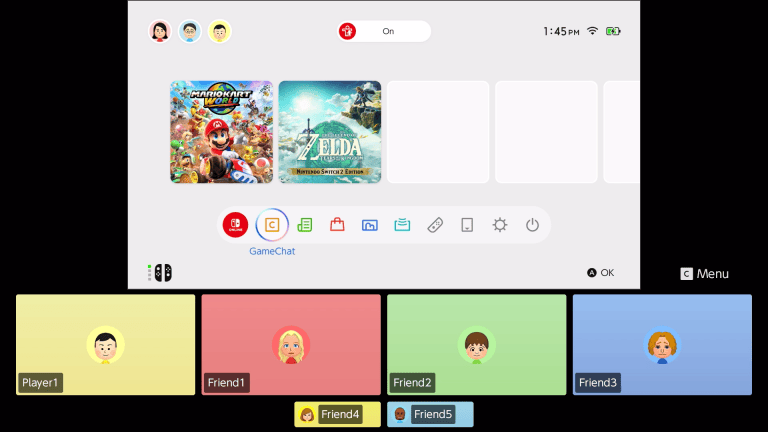
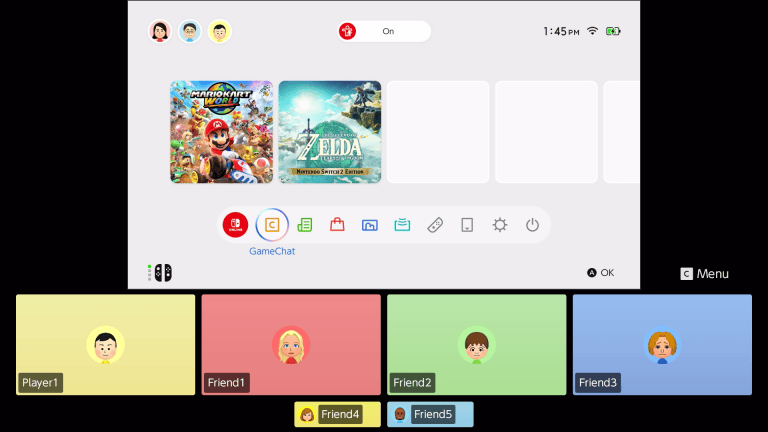
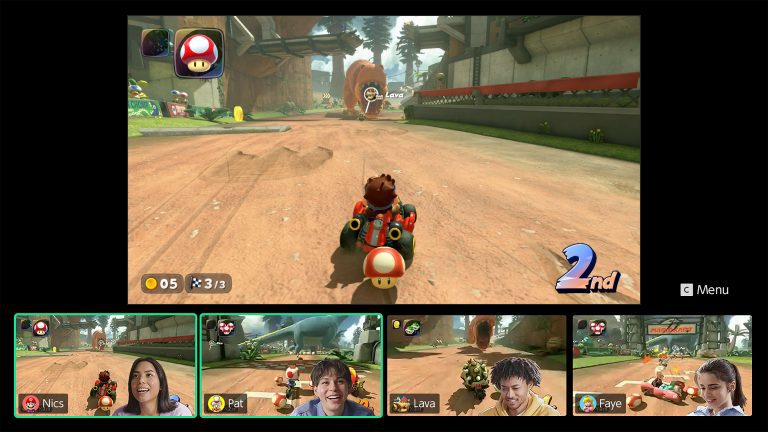
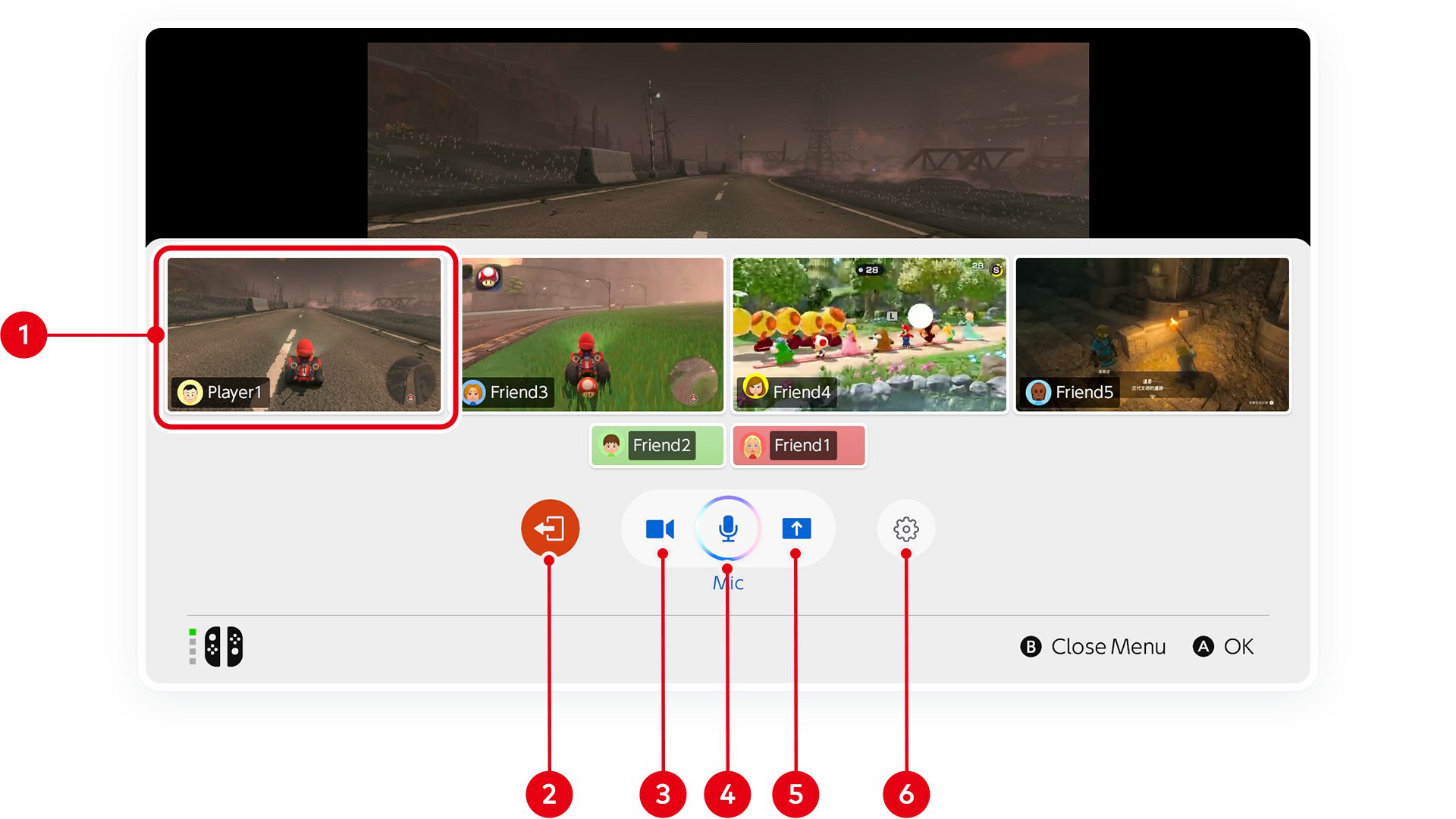
While you’re in GameChat, press the C Button to open the chat menu and select the microphone icon to unmute. Speak and watch your user icon at the bottom of the screen. A green border should appear while GameChat detects your voice.
If that green border appears, the microphone is picking up sound. Ask a friend to select your user in the C Button menu, open Options and raise your individual voice volume. They may simply have your voice turned down.
Nintendo Switch 2 GameChat microphone not working every new call?
From the HOME Menu, open GameChat > your user > Settings and check Mute Microphone When Entering a Chat Session. When this is enabled, your microphone starts muted every time you join. Leave it on if that’s what you prefer, but remember to unmute before talking.
Run Nintendo’s built-in microphone test
If the green speaking border never appears, open System Settings > Audio from the HOME Menu and scroll to Audio Input. Check that the right microphone is selected, especially if you’ve recently switched headsets.
- Choose the microphone you’re actually using.
- Increase the microphone input volume if your voice is too faint.
- Temporarily disable noise suppression while checking whether it cuts out your voice.
- Select Test Microphone to see whether the selected input picks up sound.
Nintendo confirms that Test Microphone is part of the normal Audio settings. If it responds to your voice but nobody hears you in GameChat, return to the call and check mute and the other players’ volume sliders. If it doesn’t respond, try testing the console’s own microphone with external accessories disconnected.
Nintendo Switch 2 GameChat microphone not working with a headset?
Unplug and reconnect the accessory. With a USB-C microphone or a USB headset connected to the dock, try another available port. With a wired headset in the console’s audio jack or the Nintendo Switch 2 Pro Controller, reconnect the plug firmly.
Check that nothing is covering the console microphone. In TV mode, try sitting closer to the Switch 2, since the built-in microphone is still on the console. Game sound coming through your speakers doesn’t confirm that the microphone input is working.
The Nintendo Switch 2 GameChat microphone not working after a headset change can simply mean the console is listening to the wrong input. Return to Audio Input and check the selected device before trying another chat.
What if you can’t start GameChat at all?
That’s a connection or account problem rather than a failed microphone test. GameChat needs a Nintendo Switch Online membership, a registered phone number on the Nintendo Account, completed first-time setup and internet access. Accounts belonging to children under 16 also need the relevant parent or guardian setup.
If the call opens but one friend’s voice is missing, the issue may be on their side. Use our missing-audio guide for listening problems, or the network-conditions guide if GameChat refuses to open in the first place.
Nintendo Switch 2 GameChat microphone not working after restarting?
Restart the console and repeat Test Microphone without a separate headset connected. If the console still cannot pick up your voice, Nintendo advises submitting a repair request. There is no need to start with a factory reset.
A Nintendo Switch 2 GameChat microphone not working warning isn’t one single fault: the green speaking border, the other players’ voice sliders and the system test will tell you whether to look at mute, chat volume or the input device.
Official source: Nintendo microphone troubleshooting.