NVIDIA App Resizable BAR per game lets you adjust the driver’s Resizable BAR behaviour for an individual title. NVIDIA added the setting in app version 11.0.9, so you can find it in the regular app rather than relying on unofficial profile tools.
Here’s where to find the override, how to check whether your PC supports Resizable BAR and why changing a game profile won’t automatically improve FPS.
Where is NVIDIA App Resizable BAR per game?
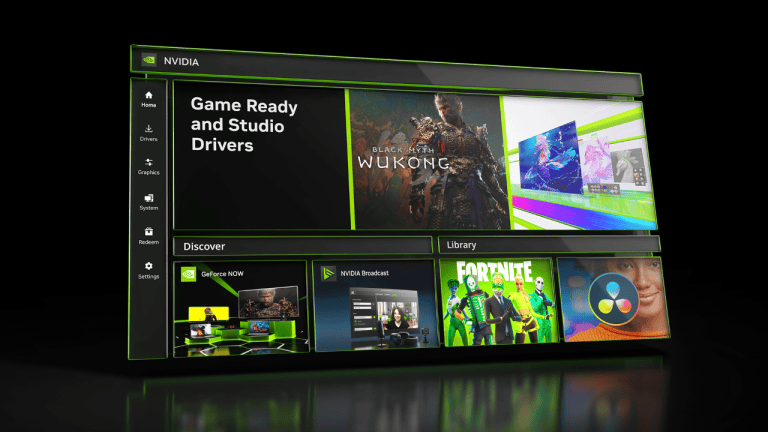
The NVIDIA App Resizable BAR per game option is in the Graphics menu. Open the app and follow these steps:
- Select Graphics from the NVIDIA app sidebar.
- Open Program Settings, rather than Global Settings.
- Select the game you want to configure from the available program list.
- Scroll to Driver Settings and locate Resizable BAR.
- Review the controls presented for that game and choose the supported setting you want to use.
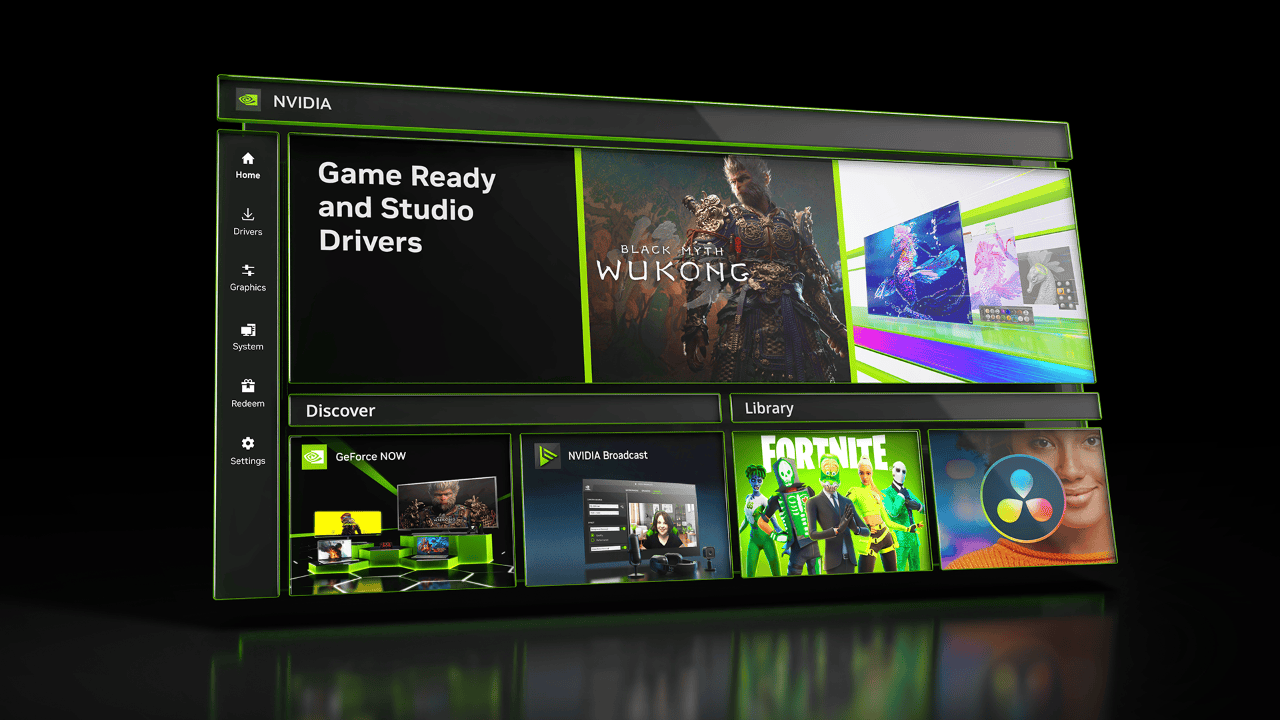
In the NVIDIA app, open Graphics and then Program Settings to reach the individual game controls.
NVIDIA confirms the path as Graphics > Program Settings > Driver Settings > Resizable BAR. NVIDIA App Resizable BAR per game is a driver-profile control, not an option inside the game’s own settings.
If it isn’t listed, check the app version and your GPU’s support first. NVIDIA doesn’t promise that every game or system will expose the same controls.
What does NVIDIA App Resizable BAR per game change?
Resizable BAR is a PCI Express feature that lets the CPU access more GPU video memory at once. That can help with asset transfers in some games, but the result depends on the title and hardware.
NVIDIA App Resizable BAR per game lets the NVIDIA driver apply a Resizable BAR preference to one game profile. That differs from a system-wide hardware switch. It also doesn’t turn an incompatible CPU, motherboard or graphics card into a compatible one.
NVIDIA App Resizable BAR per game doesn’t guarantee a frame-rate increase. If a game is already running well, there’s no need to change its default profile just because an override is available.
NVIDIA app vs motherboard BIOS Resizable BAR
The BIOS or UEFI setting determines whether the hardware can use Resizable BAR in the first place. Depending on the motherboard, it may be labelled Re-Size BAR Support and appear near Above 4G Decoding. The exact menu varies by manufacturer.
NVIDIA App Resizable BAR per game sits higher up, in the graphics driver’s individual program settings. Changing a game profile doesn’t replace firmware support. If the hardware feature is unavailable or disabled, choosing a per-game driver preference alone won’t make it work.
For a desktop PC, check the manufacturer documentation for your exact motherboard and GPU before touching firmware settings. NVIDIA’s original Resizable BAR support guidance makes clear that compatible system components, firmware and driver support all matter.
How to check whether Resizable BAR is enabled
Open NVIDIA Control Panel and select System Information at the bottom left. Find Resizable BAR on the right. NVIDIA says a value of Yes confirms the hardware feature is working. If it says No, check motherboard compatibility and firmware settings before adjusting game profiles.
If you’re looking specifically for NVIDIA App Resizable BAR per game, go back to the NVIDIA app and the Program Settings path above. The Control Panel’s hardware status and an individual game override answer different questions.
Does enabling Resizable BAR improve FPS?
Not always. NVIDIA has documented cases where Resizable BAR hurt performance as well as titles where it helped. That’s why the driver uses game-specific profiles rather than enabling it indiscriminately.
That’s why NVIDIA App Resizable BAR per game shouldn’t be treated as an automatic FPS boost. If a particular game is performing well with its default profile, there’s no need to override it purely because a new menu appeared. For a game you’re actually troubleshooting, compare performance under the same in-game conditions before keeping a change.
A benchmark from someone else’s graphics card is no guarantee of the result on yours. There’s no single FPS improvement you should expect.
Why is the Resizable BAR option missing?
Start by checking the NVIDIA app version. Per-app Resizable BAR controls were introduced in 11.0.9, so an older installation might not show them. Next, check that the NVIDIA driver and GPU support the feature, and that you’re viewing an actual game’s Program Settings rather than Global Settings.
Then check the PC itself: desktop support depends on compatible graphics hardware, motherboard firmware and drivers, while laptop support depends on the manufacturer. NVIDIA App Resizable BAR per game cannot bypass missing system-level support.
If NVIDIA App Resizable BAR per game is missing, don’t flash your BIOS or edit the Windows registry to force a switch to appear. Use NVIDIA updates and your PC manufacturer’s support guidance.
Is this the same as AMD Smart Access Memory?
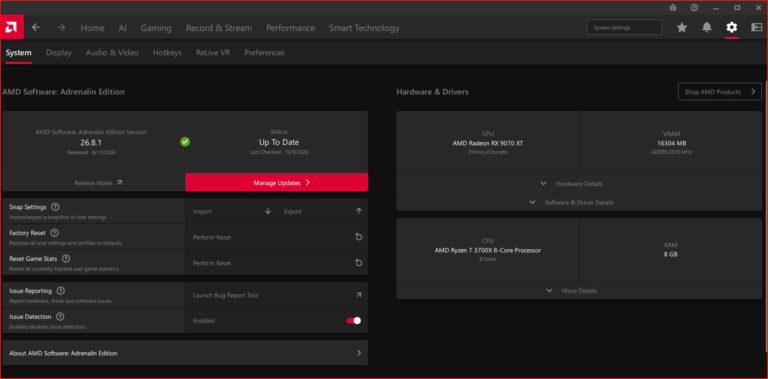
AMD Smart Access Memory is AMD’s name for Resizable BAR on eligible hardware. It’s the same underlying PCI Express idea, but NVIDIA App Resizable BAR per game is an NVIDIA interface. The menus won’t match AMD Software: Adrenalin Edition.
For wider GPU software context, see our AMD Adrenalin 26.10.2 update guide, our NVIDIA driver 621.01 guide and our NVIDIA 621.12 hotfix coverage.
Other NVIDIA app settings worth knowing
Another addition to the NVIDIA app is NVIDIA Automatic Shader Compilation, which handles DirectX 12 shader rebuilding after graphics driver updates. That beta deals with shader work, not VRAM access, so switching one feature on doesn’t enable the other.
Our Advanced Shader Delivery guide and Advanced Shader Delivery troubleshooting page also explain a separate Microsoft shader delivery system for supported games.
For the exact version and menu location, see NVIDIA’s official 11.0.9 release notes.