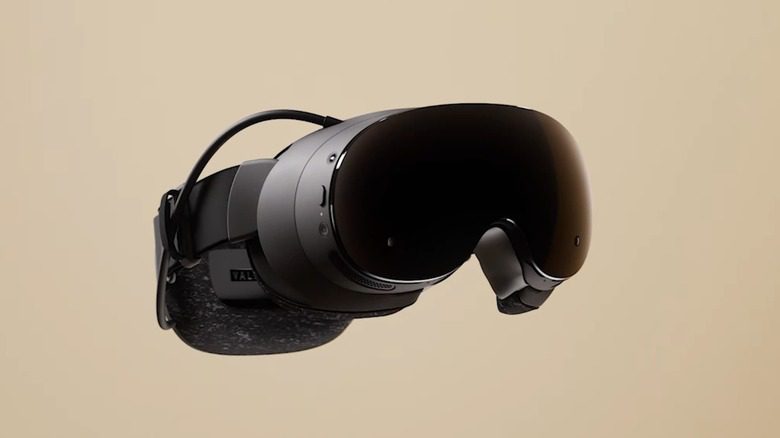
Steam Frame best performance settings start with Valve’s Performance preset in the Quick Access Menu, the newest SteamOS updates and a choice between running Half-Life: Alyx locally or streaming from a gaming PC. Valve added standalone depth reprojection and foveated rendering to Alyx in September, then improved Steam Frame reprojection quality in the October game patch.
Steam Frame has refresh-rate modes from 72Hz to 144Hz, with Valve labelling 144Hz experimental. A display’s refresh rate isn’t necessarily the number of complete frames a game renders. Depth reprojection can smooth the view during standalone play at lower frame rates, while PC streaming depends on both the gaming PC and the wireless connection.
Steam Frame best performance settings: start here
For Steam Frame best performance settings, open the headset’s Quick Access Menu and choose Performance instead of Playtime when you want to favour performance over battery life. Valve documents both presets in its Steam Frame feature guide. Then go to Steam Settings > System > Updates in the VR Dashboard and install the available system updates.
If you will stream from a PC, update the Steam client and SteamVR on that host as well. A new Alyx build can fix gameplay rendering while SteamOS and SteamVR updates address headset or streaming behaviour. Check the Steam Frame battery guide if you want to prioritise session length rather than maximum performance.
How depth reprojection works in Half-Life Alyx
Valve added depth reprojection to the standalone Steam Frame version of Alyx in September. It uses depth information to create smoother headset views when the game renders fewer complete frames. That isn’t the same as the processor generating extra fully rendered frames.
The October 26 Alyx update enabled stencil buffer tagging on Steam Frame, improving reprojection quality. Install the latest game and headset updates to use those engine improvements. You don’t need a console command to enable them.
Steam Frame best performance settings for PC streaming
For PC streaming, use the included 6GHz wireless adapter attached to your host PC. Valve recommends keeping clear line of sight to the headset and a distance of around 20 feet or less. Pair it using the prompts on your PC, or go to Steam Settings > Remote Play > Wireless Streaming Adapter on the headset if manual pairing is needed.
To stream Alyx, open your Library on Steam Frame and select Stream from [host PC name] instead of installing the standalone build. The gaming PC then renders the game. Valve’s foveated streaming uses eye tracking to prioritise detail around your gaze, while Multi-Link Streaming can use available connections together to improve reliability.
How to reduce wireless stutter
If your streamed game still hitches, check the wireless adapter’s position and your host PC’s SteamVR performance. Keep the adapter within around 20 feet of the play area with clear line of sight, and close GPU-heavy applications on the PC. Check Remote Play settings before changing Alyx’s graphics preset.
For a PC-rendered Alyx session, Valve’s SteamVR Settings > Video > Render Resolution > Auto is a good baseline. If the host GPU is overworked, reduce render resolution or headset refresh rate rather than assuming all hitching comes from wireless interference. Our Alyx VR settings guide explains these PC-side controls.
Standalone versus streamed Alyx performance
The Steam Frame best performance settings for standalone Alyx start with the game’s optimised native ARM64 version and its built-in foveated rendering and depth reprojection support. Unlike PC streaming, this route depends on the headset’s Snapdragon processor and local storage. The game content remains the same, but high-end PC settings and custom desktop GPU drivers do not apply.
If you switch between standalone and PC streaming, compare one area of Alyx on each path using similar comfort and motion settings. Our Steam Frame vs PC VR guide explains the two options, while eye-tracking support covers the headset’s foveation systems.
Related Guides
Official source: Valve’s Steam Frame support and troubleshooting guide.