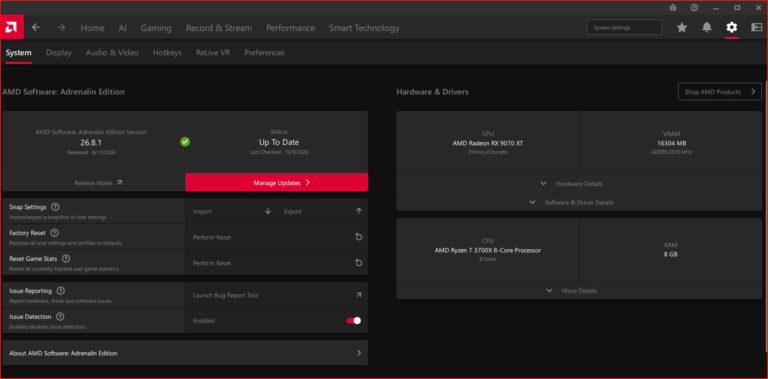
Half-Life Alyx foveated rendering supported GPUs include NVIDIA GTX 16-series and RTX 20-series or newer cards using DirectX, plus AMD Radeon RX 6000-series or newer GPUs when the game launches through Vulkan. Valve published the desktop option on October 26, 2026, then clarified the Radeon minimum in its amended notes. This is a renderer-specific compatibility list, not a list of every card capable of running Half-Life: Alyx.
You can switch on Foveated Rendering inside the game’s Advanced Performance menu after updating. NVIDIA owners normally use the DirectX path, while AMD users need the Steam -vulkan launch option. Eye tracking improves where the sharpest area sits, but the GPU and selected renderer determine whether the desktop feature is supported.
Half-Life Alyx foveated rendering supported GPUs list
Valve’s NVIDIA range starts with the GTX 16-series, including GTX 1650 and GTX 1660, and extends through RTX 20, 30, 40 and 50-series cards. Those families support the feature through DirectX. Headset resolution, CPU performance and the game’s graphics settings still affect how smoothly Alyx runs.
Valve’s amended October 26 notes list AMD Radeon RX 6xxx and newer with the Vulkan renderer. That covers RX 6000 and later desktop families. The update also explains how to change the renderer through Steam rather than altering a graphics-driver control. For the exact Steam field, use our AMD Vulkan setup guide.
Do GTX 10-series and older AMD cards work?
The Half-Life Alyx foveated rendering supported GPUs announcement does not include GTX 10-series or earlier Radeon RX 5000-series cards. Those GPUs might still run Half-Life: Alyx under its ordinary requirements, but they are not listed for the new desktop foveated option. Don’t confuse being able to launch the game with Valve confirming support for this particular performance feature.
How to enable Vulkan on Radeon GPUs
For Radeon RX 6000 and newer, right-click Half-Life: Alyx in Steam, select Properties > General, and enter -vulkan under Launch Options. Restart the game before enabling the feature. NVIDIA users on the listed DirectX cards don’t need that launch argument.
The -vulkan argument selects the Vulkan renderer. To return to the previous configuration, remove it from the Launch Options field and restart. See our main settings walkthrough for the Advanced Performance toggle.
Why eye tracking and the October 28 patch matter
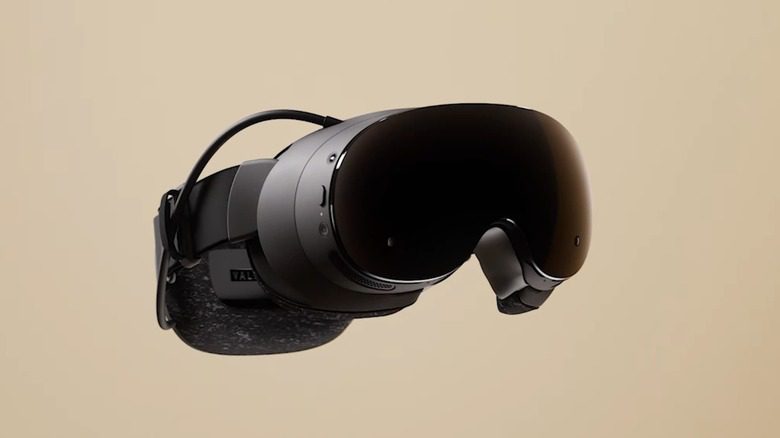
Valve’s Half-Life Alyx foveated rendering supported GPUs support announcement was followed by an October 28 fix for a performance regression affecting AMD graphics users. The same revision fixed visual defects on decals and splatters while the new rendering option was active. Let Steam finish the newest build before assuming your Radeon card is performing as it should on the initial October 26 build.
Eye tracking helps the sharp region follow your gaze rather than being centered according to the headset’s view. The Steam Frame headset includes inward-facing cameras, while other models need compatible tracking hardware and software. Our eye-tracking guide explains the difference between gaze-driven rendering and Steam Frame’s wireless foveated streaming.
How to confirm foveated rendering is running
To test Half-Life Alyx foveated rendering supported GPUs, update Half-Life: Alyx, select the supported renderer, then open Advanced Performance and enable Foveated Rendering. Compare the same scene with it on and off. SteamVR’s Video > Render Resolution set to Auto gives you a consistent starting point while checking the visual trade-off.
If you see a faint quality boundary in the peripheral image, that is a consequence of allocating different amounts of rendering work across the frame. Try it with the headset’s eye tracking enabled if available, or turn the toggle off if you prefer an even image. Our VR settings guide covers resolution and refresh-rate changes independently of the new option.
Related Guides
Official source: Valve’s October Half-Life: Alyx update notes.