Half-Life Alyx best VR settings begin with the game’s own Settings > Performance menu and SteamVR’s automatic render resolution. Valve designed Half-Life: Alyx to benchmark your CPU, GPU and memory on first launch, then choose a suitable starting point. If you experience stutter, reduce overall fidelity first, then adjust the more demanding options one by one.
Valve’s official performance guide identifies the exact controls: the gear icon in the lower-left corner of Performance opens advanced options, and texture quality is separate from the overall fidelity preset. The October 26, 2026 update also added desktop foveated rendering for supported GPUs, giving players another performance option.
Half-Life Alyx best VR settings to try first
For Half-Life Alyx best VR settings, open Alyx’s menu, select Settings > Performance and begin with the game’s recommended preset. If gameplay is choppy, choose Low Fidelity and test a demanding scene. Once movement and interaction feel smooth, raise quality one level and test again. You can make these changes while playing rather than relying on the quieter main menu.
Keep Texture Quality separate from overall fidelity. Valve says to open the gear icon under Performance for Advanced Performance Settings, choose Low textures if necessary, then work upwards. A graphics card with limited video memory may need lower texture quality even if the overall preset is otherwise acceptable.
How to use the advanced performance menu
If you need more performance, reduce the most demanding options first and check the same busy scene. Steam’s support guide recommends testing inside the game, because the main menu doesn’t reproduce the rendering load of enemies, lighting and physics interactions in City 17.
SteamVR render resolution and refresh rate
Valve recommends SteamVR > Settings > Video > Render Resolution > Auto as a baseline. If performance improves substantially on Auto compared with your manually chosen value, you can try a lower resolution and then adjust upwards until it is comfortable. A headset’s very high native resolution can be demanding even at modest in-game fidelity.
On Valve Index, SteamVR also offers high refresh rates up to 144Hz. If your PC cannot keep up, Valve suggests lowering the setting through SteamVR > Settings > General > Refresh Rate, for example to 90Hz. Consistent frames and tracking matter in VR, so don’t choose a higher number solely because the headset advertises it.
Foveated rendering and supported GPUs
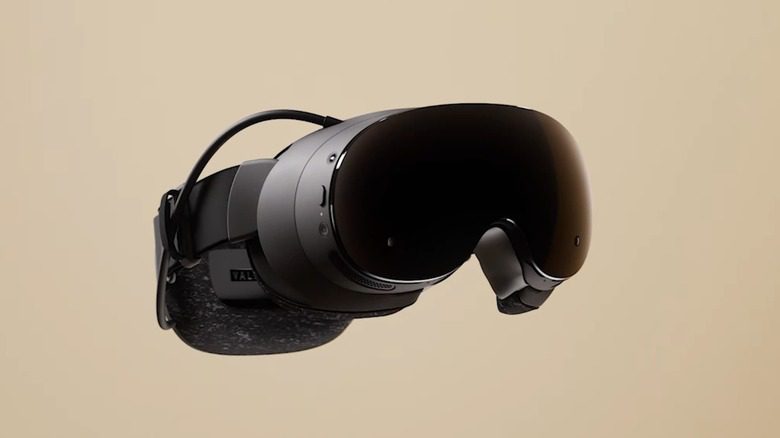
The October update added foveated rendering, and Half-Life Alyx best VR settings can now include that option on a supported PC. On DirectX, Valve lists NVIDIA GTX 16-series and RTX 20-series or newer; AMD RX 6000 and later require -vulkan. It concentrates drawing work in the higher-detail viewing area. Eye tracking can help that area follow your gaze.
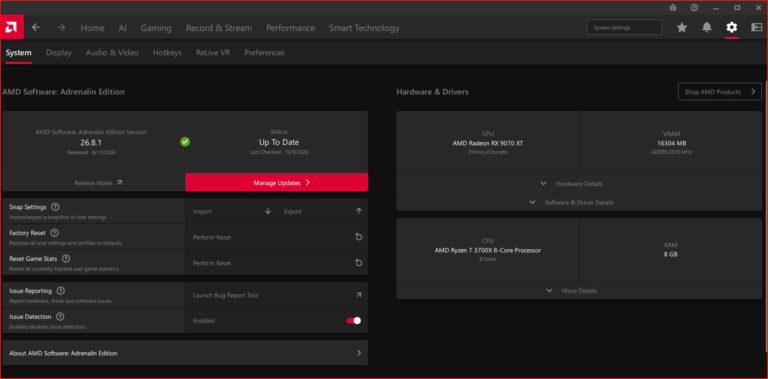
Valve’s October 28 follow-up fixed an AMD performance regression and decal glitches with foveated rendering. Update Alyx before comparing the feature, especially on a Radeon GPU. Our foveated-rendering setup and Vulkan instructions cover the new option in more detail.
How to test changes without losing comfort
For a Half-Life Alyx best VR settings comparison, use the same location and movement sequence while changing one option at a time. Start with SteamVR Auto render resolution, then adjust overall fidelity, textures, refresh rate and foveated rendering. A busy gameplay scene shows the effect better than the main menu.
Before changing all your settings, close unnecessary GPU-heavy background applications and check headset tracking. Valve notes that tracking problems can feel like poor frame rate. Our eye-tracking guide explains the new gaze-based rendering, while Steam Frame performance settings covers the standalone headset separately.
Related Guides
Official source: Valve’s Half-Life: Alyx performance guidance.