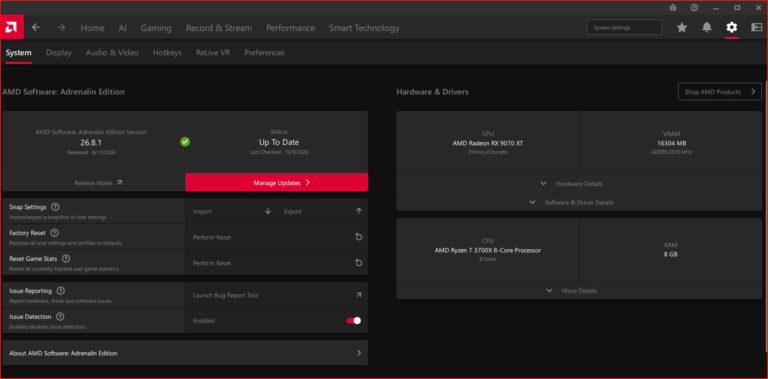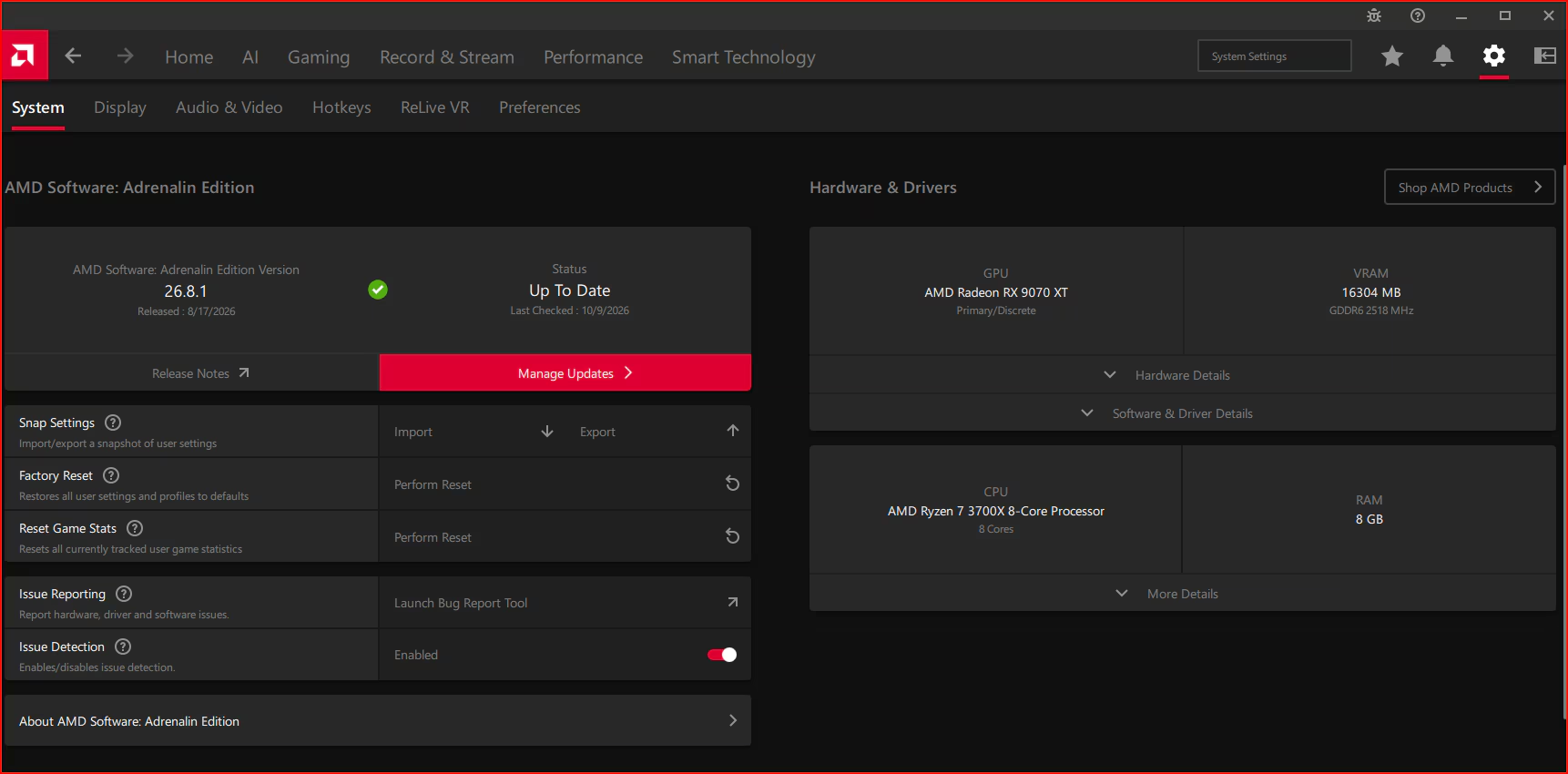
To update AMD Adrenalin drivers on Windows 11, open AMD Software: Adrenalin Edition, go to its System page and select Manage Updates. That launches AMD Install Manager, where your PC’s available software and graphics driver packages are listed. You don’t need a separate driver updater.
If an older tutorial tells you to look for a separate Check for Updates button, it’s easy to get lost. The current AMD route goes through System Settings. Here’s how to update AMD Adrenalin drivers from that screen, check what’s already installed and avoid downloading a package meant for another GPU.
How to update AMD Adrenalin drivers on Windows 11
- Open the Windows Start menu and search for AMD Software.
- Launch AMD Software: Adrenalin Edition.
- Type System into the app’s search box and select System Settings.
- On the System page, select Manage Updates.
- In AMD Install Manager, review the installed software and any available updates.
- Check the offered graphics package’s release notes, supported GPUs and Windows requirements before using its download or install controls.
- Follow the installer. If Windows asks you to restart afterwards, save your work and restart before testing games.
AMD documents these steps using Adrenalin 26.8.1, a Radeon RX 9070 XT and the Default installation type. The AMD screenshot below shows an older interface, so don’t worry if yours looks different. Follow the menu names rather than trying to match every icon when you update AMD Adrenalin drivers.
Where is the update checker in AMD Adrenalin?
Look for Manage Updates on the System page. It opens AMD Install Manager rather than a separate Check for Updates window. The manager may list other AMD software components alongside graphics drivers. Read the names and versions of the offered packages before selecting one.
If you want to update AMD Adrenalin drivers but nothing new appears, check the installed version first. You might already have the latest package offered for your GPU. AMD also fixed an Install Manager bug in 26.10.2 that had prevented Optional packages from being found with Recommended + Optional selected. That’s a specific documented fix, not proof that every empty update list is broken.
How to find your current AMD graphics driver version
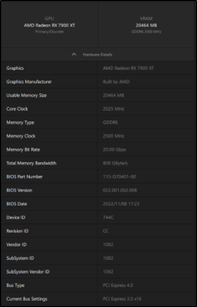
Stay in System Settings, scroll to Hardware & Drivers and expand Hardware Details to identify your Radeon GPU. Open Software & Driver Details to review the software version, installed driver details, APIs and operating system information.
Check this before you update AMD Adrenalin drivers, especially on a laptop. AMD advises using manufacturer-provided graphics packages where device-specific features are involved. Its generic 26.10.2 package does not support gaming handhelds, so check the handheld maker’s downloads instead. Graphics drivers, AMD chipset drivers and Windows updates are separate things.
How to change the AMD driver update preference
In Manage Updates, open the three vertical dots menu, select Preferences and choose either Recommended or Recommended + Optional. Recommended is AMD’s default validated channel. Recommended + Optional can additionally show packages with recent game optimisations and fixes.
Changing that preference does not automatically install anything. If you update AMD Adrenalin drivers for a specific game, read the package notes to confirm its fix is included. See our AMD Adrenalin Recommended vs Optional drivers guide for a closer comparison.

What if the Manage Updates button is missing?
First, check what you installed. A Driver Only installation has no Adrenalin app interface, so it won’t have these menus. If Adrenalin opens, search for System Settings and then Manage Updates. The layout also varies by version, install type and GPU.
If you cannot update AMD Adrenalin drivers through the app on a laptop or handheld, check the device manufacturer’s official support instructions for your exact model. Avoid third-party driver utilities, registry workarounds or forcing a general Radeon package over a customised driver without confirming compatibility.
Read the release notes before installing
Click Release Notes on the System page to open AMD’s notes for your installed software in a browser. You need an internet connection. For an available update, read that package’s own notes to check supported cards, Windows versions, fixed problems and known issues.
For instance, our AMD Adrenalin 26.10.2 guide covers changes that affect particular games. If you update AMD Adrenalin drivers simply because a newer package exists, you could overlook a known issue affecting the game you play. The release notes matter more than the version number on its own.
Can you update AMD Adrenalin drivers on Windows 10?
Yes, on compatible Windows 10 systems with supported Radeon graphics. The same general System Settings route applies, although AMD’s support list varies by release. Review the actual package requirements before installing rather than assuming a new driver supports every older GPU.
Once you update AMD Adrenalin drivers, reopen Software & Driver Details to check the version. Then try the game that prompted the update. Even if AMD lists a relevant fix, a driver is not a guaranteed cure for every crash.
Official source: AMD’s graphics information and software updates support guide.