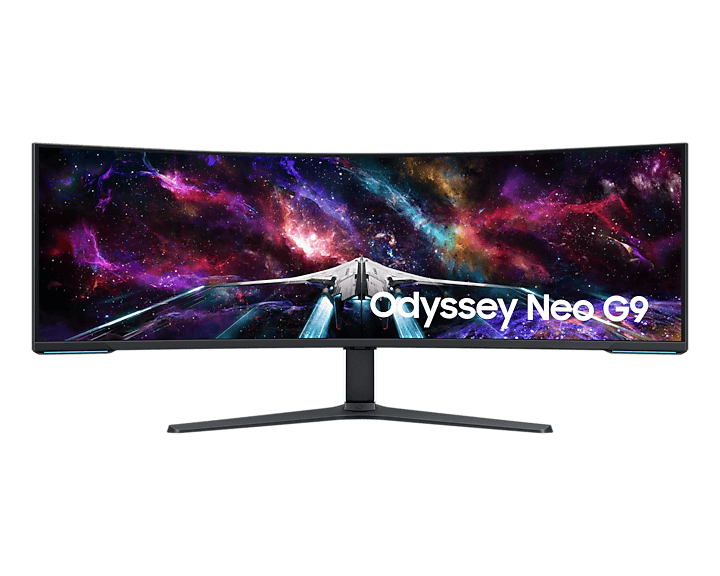
Samsung Odyssey G95NC black screen problems caused by NVIDIA’s R615 driver branch have an official fix in GeForce Game Ready Driver 617.14. NVIDIA lists a specific correction for no picture on the Odyssey G95NC when connected through HDMI after updating to R615 drivers, and the same 617.14 release also fixes certain monitors failing to wake correctly over DisplayPort. If the problem began after a recent NVIDIA driver update, installing 617.14 or newer is therefore the first step rather than changing random monitor settings.
The G95NC is an unusually demanding display because its 57 inch panel can run at 7680 by 2160 with a refresh rate up to 240 Hz. High bandwidth display modes can depend on Display Stream Compression and a clean handshake between the GPU, driver, cable and monitor. That does not mean every Samsung Odyssey G95NC black screen has the same cause. The confirmed NVIDIA bug is one specific driver regression, so this guide starts there and then separates driver related failures from cable, input, refresh rate, firmware and wake from sleep problems.
Install NVIDIA 617.14 or newer first
NVIDIA’s 617.14 release notes include the exact G95NC issue: no picture on the Samsung Odyssey G95NC when connected by HDMI after updating to R615 drivers. If your Samsung Odyssey G95NC black screen started after moving to an R615 based driver, update to 617.14 or a later driver that retains the fix. Restart Windows after installation before testing the display again, because the active driver stack needs to reload fully.
A user who had reported the high bandwidth 7680 by 2160 at 240 Hz HDMI failure later confirmed that the mode worked again on 617.14. That is useful real world confirmation, but NVIDIA’s own release note is the important evidence because it names the monitor and HDMI symptom directly. If you already have 617.14 or newer and the screen is still black, continue with the checks below instead of repeatedly reinstalling the same package.
Check whether the problem is HDMI or DisplayPort
The confirmed Samsung Odyssey G95NC black screen fix is specifically for HDMI after the R615 driver update. NVIDIA also lists a separate 617.14 fix for certain monitors that would not wake correctly over DisplayPort. That means the connection type changes what you should suspect. A permanent no picture state immediately after an R615 update over HDMI fits the G95NC bug very closely. A display that works normally until the PC sleeps and then refuses to wake over DisplayPort fits the second fix more closely.
Before changing several settings, note which input is in use and when the failure occurs. If possible, test the other connection type temporarily. A working DisplayPort connection while HDMI is black can help isolate the path, and the reverse can do the same. Do not treat that temporary connection as proof that the monitor itself is faulty when a known driver issue already exists.
Test a lower refresh rate if you can reach Windows
If the Samsung Odyssey G95NC black screen only appears at the full desktop setting but the display shows an image at startup or in a fallback mode, test a lower refresh rate before assuming the panel has failed. The G95NC’s maximum 7680 by 2160 at 240 Hz mode pushes far more data than a lower refresh setting. A marginal cable, handshake problem or driver regression can therefore appear only at the highest mode.
Use Windows display settings or NVIDIA Control Panel to choose a lower refresh rate that the monitor supports, then test stability. If the screen works reliably at a lower rate after 617.14 but still fails at the maximum mode, that narrows the problem to the high bandwidth configuration and is useful information for NVIDIA or Samsung support. Our low latency gaming guide explains why refresh rate matters to responsiveness, but stability should come before chasing the maximum number.
Reseat the cable and confirm the correct input
A Samsung Odyssey G95NC black screen can also be caused by a simple connection problem that happens to appear at the same time as a driver change. Power the PC and monitor down, reseat both ends of the HDMI or DisplayPort cable, confirm the monitor is on the correct input, then start the system again. Avoid adding adapters, splitters or capture hardware while troubleshooting because each extra device adds another point where the display handshake can fail.
If you have another known good cable that meets the bandwidth requirements of the mode you want to run, test it. The same principle applies in console troubleshooting. Our Switch 2 VRR troubleshooting guide and Witcher 3 Remastered HDR settings guide both use the display path as a deliberate test rather than assuming software is always responsible.
Power cycle the monitor after a failed handshake
If Windows appears to be running but the Samsung Odyssey G95NC black screen remains, shut the PC down and switch the monitor off completely. Disconnect monitor power for a short period, reconnect it, select the correct input and boot the PC again. This forces the display and GPU to negotiate the connection from a clean state rather than carrying a failed wake or handshake forward.
This is particularly relevant after sleep or resume because NVIDIA separately fixed DisplayPort wake behaviour in 617.14. If the Samsung Odyssey G95NC black screen only happens after sleep, record that pattern. A monitor that is perfect after a cold boot but fails after resume is a different troubleshooting case from one that never displays the Windows desktop at all.
Check Samsung firmware before deeper changes
For a Samsung Odyssey G95NC black screen that survives the driver update, Samsung provides firmware and support information for the G95NC, so check the exact monitor model and current firmware before assuming every remaining issue belongs to NVIDIA. Firmware can affect display compatibility, input handling and other monitor behaviour. Use Samsung’s instructions for your exact regional model and do not install firmware intended for a different Odyssey variant just because the model name looks similar.
When documenting a Samsung Odyssey G95NC black screen, remember that the monitor is a 57 inch Dual UHD model with HDMI and DisplayPort connectivity and a 240 Hz maximum refresh rate. Those details are useful when reporting a problem because support needs the exact combination of monitor, GPU, connection, resolution and refresh rate. A generic report that only says black screen gives far less information than a reproducible sequence.
What not to change first
For a Samsung Odyssey G95NC black screen, do not start by resetting Windows, reinstalling games or changing unrelated security settings. The confirmed Samsung Odyssey G95NC black screen regression sits in the NVIDIA display driver path, so the most direct test is the fixed driver. Game graphics options such as ray tracing, DLSS and shader delivery are also separate from whether Windows can maintain a signal to the monitor.
If you are updating NVIDIA drivers for a game at the same time, related PC graphics guides can help keep those issues separate. 007 First Light path tracing, its path tracing PC requirements, the Witcher 3 Remastered DLSS fix and Modern Warfare 4 upscaling all concern GPU features, but none should be used as a substitute for solving a monitor signal problem.
If 617.14 does not fix the black screen
If the Samsung Odyssey G95NC black screen remains on 617.14 or newer, collect the details before escalating. Record the GPU model, driver version, Windows version, HDMI or DisplayPort connection, cable used, selected resolution and refresh rate, whether the monitor works during boot, and whether the failure happens only after sleep. Test one known good cable and one lower refresh setting if you can do so safely.
If another display works on the same GPU while the Samsung Odyssey G95NC black screen continues, include that result. If the G95NC works on another computer, include that too. Those comparisons help separate the monitor, cable and graphics output. Avoid repeatedly forcing a mode that produces no picture when a lower setting gives you a stable desktop from which to collect information.
NVIDIA’s GeForce Game Ready Driver 617.14 page is the official source confirming the G95NC HDMI fix and the separate DisplayPort wake correction. Use a newer driver if NVIDIA has since replaced 617.14, but make sure the later release has not introduced a new documented issue before changing a stable system.
For most affected systems, the best Samsung Odyssey G95NC black screen troubleshooting order is straightforward: install 617.14 or newer, restart, identify whether HDMI or DisplayPort is failing, test a lower refresh rate if needed, reseat the cable, power cycle the display and check Samsung firmware. That order starts with the documented fix and only moves into broader hardware checks when the confirmed regression is no longer a sufficient explanation.