Witcher 3 Remastered HDR Settings Missing is a documented console issue that CD Projekt Red specifically addressed in the Remastered update. The patch notes say a bug that could prevent HDR settings from appearing on consoles has been fixed, so the first troubleshooting step is making sure the September 29 Remastered build is fully installed.
If Witcher 3 Remastered HDR Settings Missing is still happening after the update, the next checks are the console’s HDR output, the display’s HDR mode and the HDMI path. The game cannot expose useful HDR controls when the console itself is not reporting HDR capability correctly.
Witcher 3 Remastered HDR Settings Missing: update first
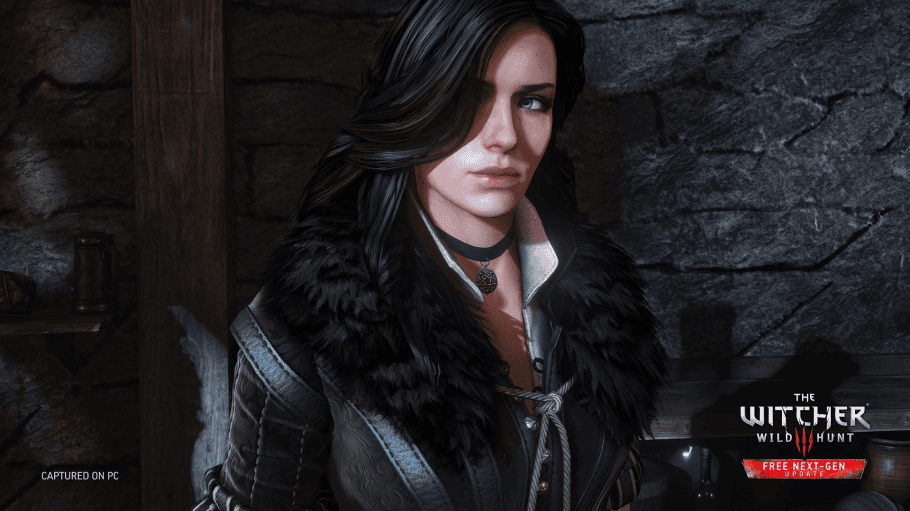
Witcher 3 Remastered HDR Settings Missing Image CD PROJEKT RED.
- Close The Witcher 3 completely.
- Check for the latest Remastered update on the console.
- Install any pending game update.
- Restart the console rather than only resuming from rest mode.
- Launch Remastered again and reopen the display or graphics settings.
This matters because CD Projekt Red’s official patch notes explicitly list a fix for HDR options sometimes failing to appear on consoles. Testing an older running session can make the bug look unfixed.
Check console HDR output
On PlayStation 5 or Xbox Series X|S, confirm HDR is enabled at the system level and that the console detects the connected display as HDR-capable.
If the console’s own HDR calibration or video-information screen says HDR is unavailable, Witcher 3 Remastered HDR Settings Missing is likely downstream of the display or HDMI configuration rather than the game menu.
Check the TV or monitor input mode
Many displays require an enhanced HDMI, deep colour or high-bandwidth input mode before they report HDR correctly. The exact label varies by manufacturer.
Make sure the specific HDMI port used by the console has its full HDR-capable mode enabled. Moving the console to another port can also change what capabilities are exposed.
Remove AV receivers or capture devices as a test
An AV receiver, splitter or capture card can sit between the console and display and fail to pass HDR metadata correctly. If possible, connect the console directly to the television for one test.
If Witcher 3 Remastered HDR Settings Missing is fixed by the direct connection, the intermediate device or cable path needs to be checked rather than the game.
Restart after changing HDR settings
After enabling HDR at the system or display level, fully close and reopen The Witcher 3. Do not assume the menu will rebuild every display option while the game remains suspended.
A complete restart is especially useful on consoles that preserve a game session through sleep or quick-resume features.
Witcher 3 Remastered HDR Settings Missing after the official fix
Verify that other HDR games expose their HDR controls on the same console and input. If several games fail, the issue is almost certainly system-level.
If other HDR titles work and Remastered is fully updated, capture the game version, console model and display information before reporting the problem to CD Projekt Red Support.
Do not reset saves for an HDR menu problem
HDR availability is a display and settings issue, not a story-save flag. Deleting local saves, starting a new campaign or resetting progression is not an appropriate first fix.
Witcher 3 Remastered HDR Settings Missing should be approached through the update, console video output and display chain in that order.
More The Witcher 3 Remastered guides
CD Projekt Red documents the console HDR-menu fix in the official Remastered patch notes.