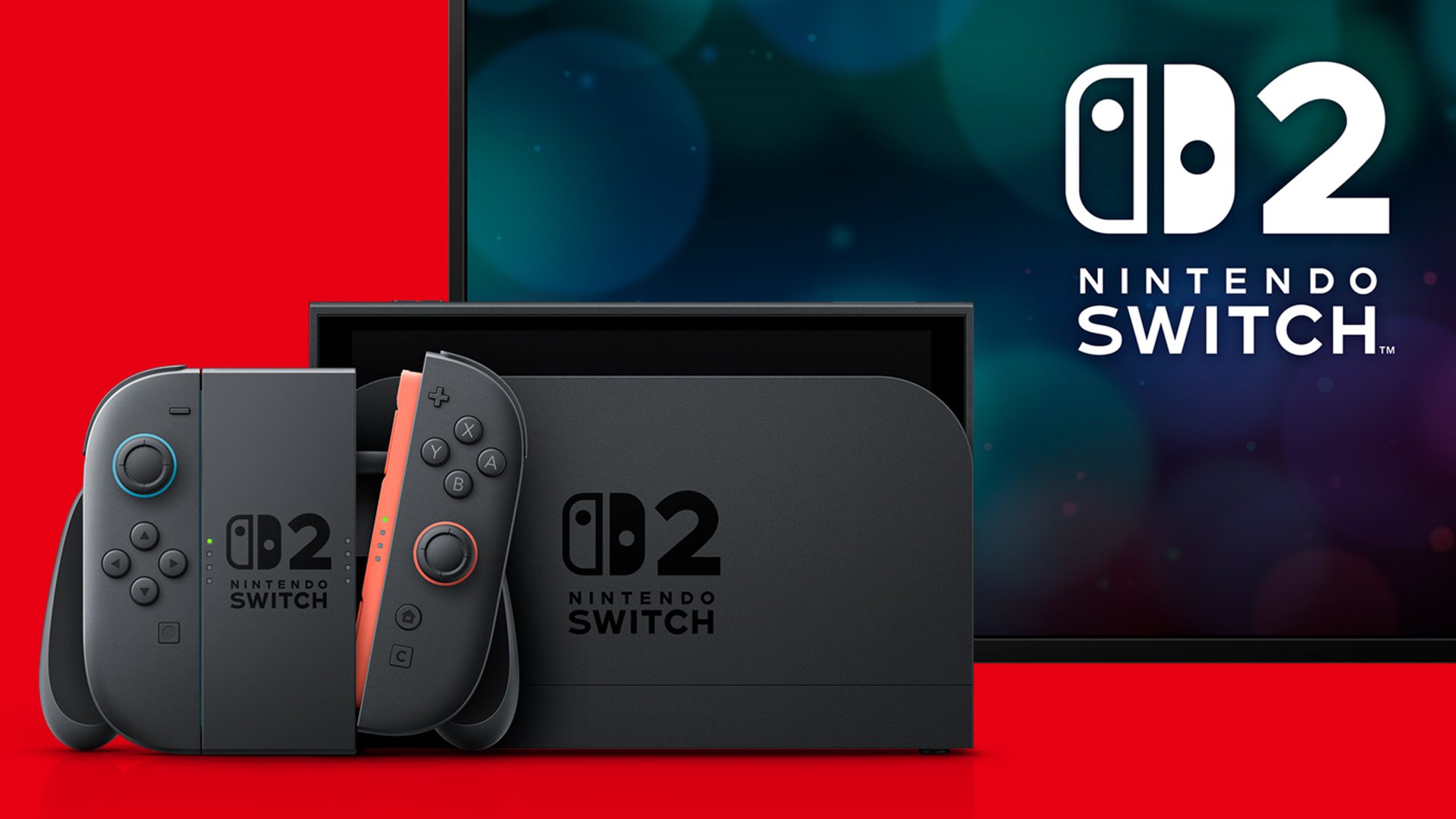
Nintendo Switch 2 VRR Not Showing after system version 23.0.0 is usually worth checking at the dock and display level first. Nintendo added Variable Refresh Rate support for TV mode in version 23.0.0, but it also states that the Nintendo Switch 2 dock needs its own firmware update before the new TV-mode VRR feature can work.
That extra dock update is easy to miss because updating the console itself does not automatically mean every connected accessory is current. The television and the software you are running also need to support the feature, so there are several places where the option can appear unavailable even when the console update installed correctly.
Nintendo Switch 2 VRR Not Showing: update the dock first
The first fix for Nintendo Switch 2 VRR Not Showing is to update the dock. Put the Switch 2 in its dock, make sure the console itself is on the latest system software, then open System Settings, System and Dock Update. Choose Begin Update if a newer dock firmware is available.
- Dock the Nintendo Switch 2 console.
- Open System Settings from the HOME Menu.
- Scroll down and choose System.
- Run System Update first if the console is not current.
- Return to System and choose Dock Update.
- Select Begin Update and let the process finish.
Why Nintendo Switch 2 VRR Not Showing can happen after version 23.0.0
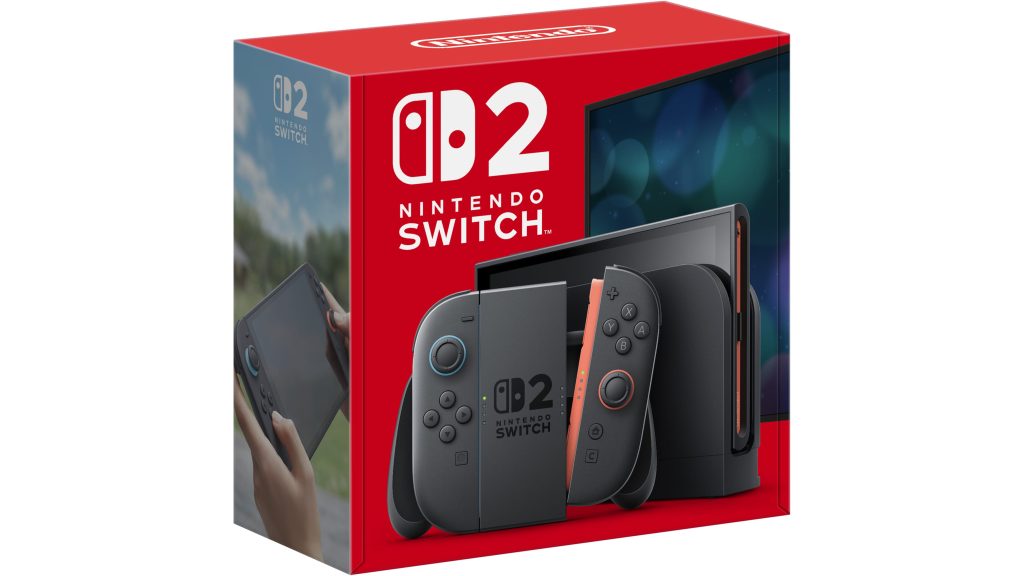
Nintendo Switch 2 VRR Not Showing can be confusing because version 23.0.0 adds the setting to the console while the output still depends on the dock. Nintendo’s update notes explicitly say a Switch 2 dock update is required to enable VRR in TV mode.
The update also changes Display settings and renames Dock Output Information to Video Output Information, which now shows more detail about signals the connected TV can display. That makes the Video Output Information screen useful when you are trying to work out whether the console is detecting the television correctly.
Check the TV when Nintendo Switch 2 VRR Not Showing
If Nintendo Switch 2 VRR Not Showing continues after the dock update, confirm that the television or monitor supports VRR on the HDMI input you are using. Some displays only support VRR on particular HDMI ports, or only when an enhanced HDMI mode is enabled in the TV settings.
Do not assume a 120 Hz label automatically guarantees the exact VRR behavior you need. Check the display manufacturer’s specifications and input settings. If the TV has a game mode, HDMI enhanced format or VRR switch, make sure it is enabled for the port connected to the Switch 2 dock.
Does every game use Switch 2 VRR?
No. Nintendo Switch 2 VRR Not Showing inside one game does not automatically mean the system feature is broken. Nintendo says TV-mode VRR works when both the software and the TV support it. A title that does not use the feature will not suddenly become a VRR showcase simply because system version 23.0.0 is installed.
Nintendo Switch 2 Welcome Tour is one useful confirmation because Nintendo updated its VRR Slider tech demo so it can run in TV mode when a compatible TV is connected and the dock is updated. That gives you a first-party way to test the feature separately from a game whose support may be unclear.
Cable checks for Nintendo Switch 2 VRR Not Showing
If Nintendo Switch 2 VRR Not Showing remains, use the HDMI cable supplied with the system or another cable that meets the requirements of the display mode you are trying to use. Reseat both ends of the cable and test the correct HDMI input before buying anything new.
A bad or marginal HDMI connection can cause a display to negotiate a lower capability set. Restarting the console and TV after updating the dock can also force a fresh HDMI handshake, which is a sensible low-risk check before changing more settings.
Nintendo Switch 2 VRR Not Showing: quick checklist
- Install Nintendo Switch 2 system version 23.0.0 or later.
- Update the Nintendo Switch 2 dock through System Settings.
- Check Video Output Information for the connected display.
- Use a TV or monitor that actually supports VRR.
- Confirm VRR or enhanced HDMI mode is enabled on the correct input.
- Test software that supports the feature.
- Reseat the HDMI cable and restart the console and display.
If your problem is the dock firmware itself, use our Switch 2 Dock Update guide. If you are troubleshooting another Switch software update, our Pokémon Champions update guide also shows the manual software-update route on Nintendo hardware.
- Switch 2 Dock Update: How to Update the Nintendo Switch 2 Dock
- Switch 2 System Transfer: Move Data to Another Switch 2
- Nintendo Online License Error: This Software Cannot Be Played Fix
- Pokémon Champions Update Not Working: How to Update on Switch
- How to Play Star Fox Adventures on Nintendo Switch 2
- Destroy All Humans 2 Switch 2: Release, DLC, Size and What Changed
Official details for Nintendo Switch 2 VRR Not Showing
Nintendo’s official Nintendo Switch 2 system update history confirms that version 23.0.0 adds TV-mode VRR and requires a dock update. That first-party requirement is the key check when Nintendo Switch 2 VRR Not Showing starts immediately after updating the console.