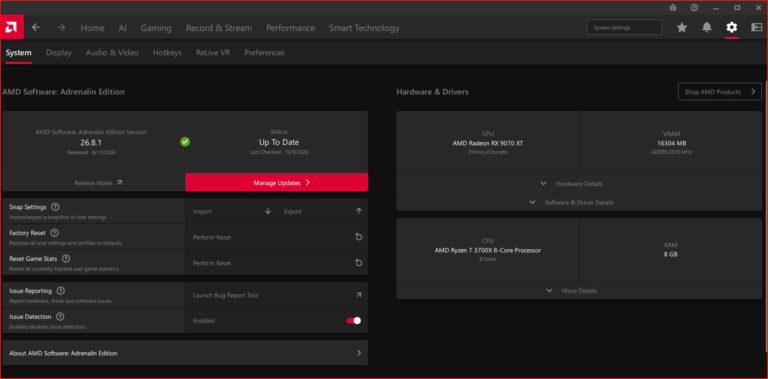
Half-Life Alyx eye tracking helps the game’s new foveated-rendering option concentrate image quality where your eyes are looking. Valve added desktop foveated rendering under Advanced Performance on October 26, 2026 and recommends using compatible eye-tracking hardware for the best result. You can still enable the feature on a supported GPU without an eye-tracking headset.
Steam Frame has two inward-facing cameras used for gaze tracking. With PC VR headsets, whether the game receives eye-position data depends on the hardware and software connection. It isn’t the same as the outward-facing cameras used to track your room and controllers. Here’s what changes in Alyx and how to check it.
How Half-Life Alyx eye tracking improves rendering
With Half-Life Alyx eye tracking available, the highest-detail rendering region can follow your gaze. That allows Valve’s foveated-rendering system to spend more graphics work on the part of the scene you’re examining and less on peripheral regions. This is especially helpful when you look around a scene with your eyes without moving your head.
On a headset that doesn’t provide eye-position data, the game can still use the new rendering feature on supported GPUs, but the high-detail region may not follow those eye movements. That can make the transition between sharp and less-detailed areas easier to see. Valve describes eye tracking as the best way to use the feature, not as an absolute requirement for enabling it.
Enable eye tracking with Half-Life Alyx on PC
To use Half-Life Alyx eye tracking with PC VR, update the game, connect a headset whose software provides compatible eye-tracking data and check the headset’s own eye-tracking setup. Then open Alyx’s Settings > Performance, choose the gear icon for Advanced Performance, and enable Foveated Rendering. Compare details while looking to the side to see how the high-detail area behaves.
The desktop GPU must also support the feature: Valve names NVIDIA GTX 16-series and RTX 20-series and later on DirectX, or AMD RX 6000 and later using -vulkan. The GPU requirement is separate from the headset’s eye-tracking capability. Our GPU support list and settings guide cover both.
Steam Frame eye tracking and standalone Alyx
For Half-Life Alyx eye tracking on Steam Frame, Valve uses built-in inward-facing cameras as part of its foveation system. The headset can run a native ARM64 build of Half-Life: Alyx, or stream the PC version from a host machine. Its September 14 Alyx update added standalone foveated rendering and depth reprojection, with additional reprojection-quality work in October.
Steam Frame has built-in gaze-tracking cameras used for foveated rendering and streaming. Valve also provides a Track Dominant Eye Only accessibility option under VR Settings > General when advanced settings are shown. For PC streaming, keep SteamVR and headset software updated and use gaze tracking through the compatible headset software.
Eye tracking vs headset tracking and streaming
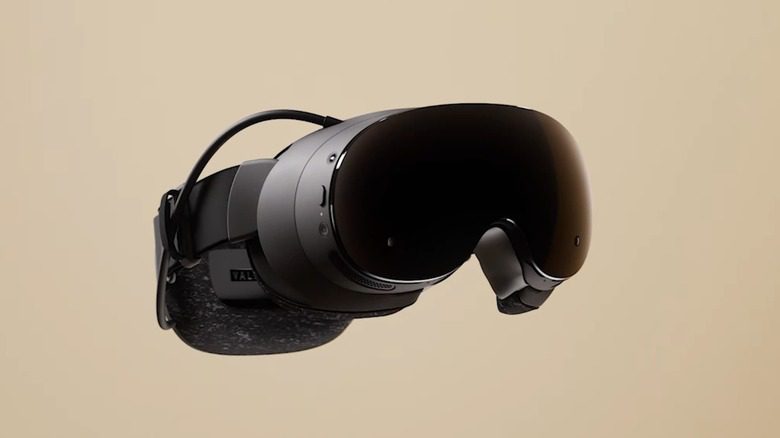
Half-Life Alyx eye tracking should not be confused with head tracking or controller tracking. Head tracking works out where the headset is moving and pointing. Eye tracking measures gaze direction inside it. Steam Frame’s exterior tracking cameras and its two interior eye cameras serve different functions in the same VR experience.
Another difference is foveated streaming, which prioritises transmitted image quality and bandwidth around gaze position. Foveated rendering concentrates GPU drawing work. The former affects the wireless video stream; the latter affects how the scene is rendered. Our Steam Frame versus PC VR guide explains both.
What to check if your gaze does not match the sharp area
If the sharpest part of the image appears in the wrong place, check your headset’s fit and eye-tracking setup. Compare the same Alyx scene with foveated rendering on and off. Valve’s October 28 update also fixed decal and splatter glitches with the effect enabled, so apply that game update first.
Try a familiar Alyx scene with your SteamVR render resolution and refresh rate unchanged. Look towards details at the edge of the image, then repeat with foveated rendering disabled. This gives you a clear comparison without changing several graphics settings together.
Related Guides
Official source: Valve’s Half-Life: Alyx update notes.