NVIDIA 621.12 Hotfix was released on October 27, 2026, to fix video playback freezes and black screens reported on some GeForce RTX 50 Series graphics cards and RTX Spark systems after driver 621.01. It also addresses a specific Unreal Engine 5.8 crash and two display faults.
It’s an optional driver, not an update everyone needs. If video playback started freezing or your screen went black after installing 621.01, this is the update to check. Here’s what changed, which Windows installer you need and how to confirm it worked.
What does NVIDIA 621.12 Hotfix fix?
NVIDIA lists four fixes for version 621.12. One targets RTX 50 video playback; the others concern an Unreal Engine crash and two specific hardware configurations.
| Fix | Affected hardware or software | Bug ID |
|---|---|---|
| Video playback may freeze or cause black screens after driver 621.01 | Some RTX 50 Series cards and RTX Spark | 6979343 |
| Crash with Ray Lighting Mode set to Hit Lighting | Unreal Engine 5.8 | 6914378 |
| HDMI display corruption with StarTech Thunderbolt 3 to HDMI 2.0 adapter | RTX Spark | 6054761 |
| Intermittent display flickering | MSI N16 Flip laptop | 6945359 |
The NVIDIA 621.12 Hotfix addresses the playback problem listed above, not every black screen on an RTX 50 PC. The Unreal Engine fix is specifically for version 5.8 with Hit Lighting enabled, not crashes in every Unreal Engine game.
NVIDIA 621.12 Hotfix download for Windows 10 and 11
There are two official download packages. Most gaming desktops and laptops use GeForce Windows 10/11 x64; a compatible RTX Spark system running Windows on ARM uses RTX Spark Windows 11 ARM64.
| NVIDIA driver package | Windows version | Choose this for |
|---|---|---|
| GeForce 621.12 x64 | Windows 10 or Windows 11 (x64) | Standard GeForce gaming desktops and laptops |
| RTX Spark 621.12 ARM64 | Windows 11 (ARM64) | Compatible RTX Spark systems running Windows on ARM |
An RTX 50 laptop with an Intel or AMD processor generally needs x64, not ARM64. Check Settings → System → About → System type if you’re unsure. The NVIDIA 621.12 Hotfix must be downloaded manually from NVIDIA’s support page; it won’t appear as a normal NVIDIA App update.
How to install NVIDIA 621.12 Hotfix
1. Download the right file. Open NVIDIA’s 621.12 support page linked at the bottom. Choose GeForce Windows 10/11 x64 for a standard gaming PC or RTX Spark Windows 11 ARM64 for a compatible ARM system. Avoid unofficial driver mirrors.
2. Close running apps. Save your work, exit games and browsers, and let any Windows update that’s already installing finish. This helps avoid interruptions while the graphics driver is being replaced.
3. Run the installer. Open the downloaded executable, approve the Windows permission prompt if one appears, then follow NVIDIA’s installation instructions. Your screen may briefly flicker or go blank while the display driver changes.
4. Keep your settings unless installation fails. You can install the new driver over the existing one. NVIDIA also provides Custom (Advanced) → Perform a clean installation if an earlier installation failed. A clean install can reset saved settings; it isn’t required for every hotfix update.
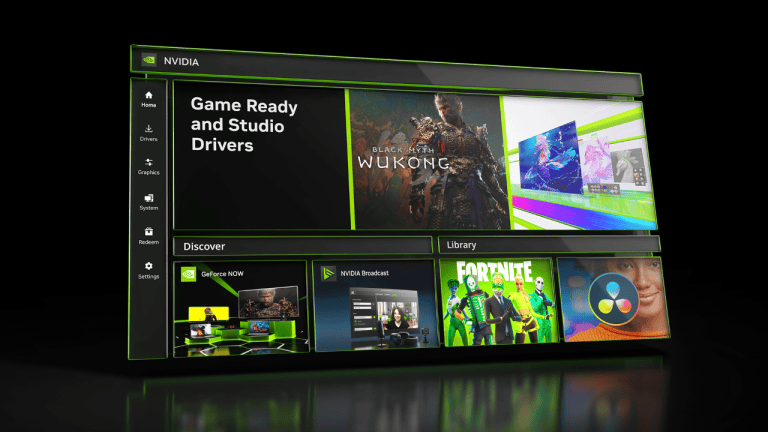
5. Restart and confirm version 621.12. Restart Windows and replay the video that previously froze. Check the installed driver version in NVIDIA App’s View Rig information. If NVIDIA Control Panel is still installed, use Help → System Information. Otherwise, open Device Manager → Display adapters → NVIDIA GPU → Properties → Driver. The last five digits of the driver number should be 62112.
NVIDIA App can show an older date or description for a manually installed hotfix, because it doesn’t appear as a normal Game Ready release. Check the installed version number rather than relying on the app’s update card.
Should you install NVIDIA 621.12 Hotfix if nothing is wrong?
If your PC isn’t affected by any of the four problems in the table, there’s no urgent need to install this optional hotfix. You can stay on a working driver and wait for the next regular Game Ready release.
The NVIDIA 621.12 Hotfix is particularly relevant when playback began freezing after installing 621.01. A black screen that happens only in one game, or began with another driver version, might have a different cause.
For a separate NVIDIA display issue, our Samsung Odyssey G95NC black screen guide covers its own driver fix. Our NVIDIA Windows 10 support guide explains the longer-term support situation, which is unrelated to this October hotfix.
What if NVIDIA 621.12 Hotfix does not fix the black screen?
First confirm that 621.12 actually installed, then retry the video that froze on 621.01. If installation failed, close graphics-related apps and run setup again. A clean install can help with a broken installation but won’t necessarily fix a black screen caused by something else.
If videos work but one game keeps crashing, check that game’s known issues and graphics settings separately. Our Cyberpunk 2077 DLSS settings guide, for instance, covers performance options rather than the 621.01 video playback regression.
The NVIDIA 621.12 Hotfix is worth trying when your symptoms match the release notes. Pick the correct Windows download, restart, confirm the installed version and test the same video again. If your PC works normally, this optional release can be skipped.