Steam Remote Play HDR gained new controls in Valve’s October 2026 Steam Client Beta, including Automatic, On and Off modes for streaming. If a streamed game looks washed out, too dark or unnaturally bright, those settings are an important place to start. The feature is not guaranteed to work on every screen, and the update was announced for Valve’s Preview and Beta channel rather than universally confirmed for stable Steam installations. Checking the installed client is therefore essential.
Steam Remote Play HDR involves more than simply turning on a graphics feature in a game. The host PC must produce suitable content, Steam must capture and encode it, and the receiving screen must display it correctly. Valve’s latest beta notes restore HDR streaming to Steam Deck OLED and extend support to more operating systems. This guide explains the new settings, what they do and how to compare results before changing unrelated options.
What changed with Steam Remote Play HDR?
In its 22 October 2026 Steam Beta Client notes, Valve added advanced client HDR options, a brightness slider in the streaming overlay and broader HDR capture support. Steam Remote Play HDR can now be enabled again for Steam Deck OLED and supported Android phones running Android 15 or newer with the beta Steam Link app. Valve also mentions PipeWire capture on desktop Linux and streaming from macOS alongside Windows desktop and HDR games. These features are beta changes, not guaranteed stable-client functionality.
Should Steam Remote Play HDR use Automatic, On or Off?
Automatic is the most sensible first choice for Steam Remote Play HDR because Valve says it enables HDR when HDR content is enabled. On forces HDR streaming and may increase brightness for SDR content, while Off disables the feature entirely. That last option is a useful comparison when streamed colours look grey or highlights appear wrong. Choosing On cannot give a non-HDR panel true HDR capabilities, and the correct result still depends on what the host is sending.
Compare the same scene in Automatic and Off before assuming Steam Remote Play HDR has a specific software defect. Keep the game, host output and display brightness unchanged during the comparison. If the streaming overlay includes Valve’s new brightness slider, try that control as well, but do not confuse a brightness adjustment with a full HDR calibration. Record whether the change affects contrast, black levels or merely the overall brightness of the picture.
Is Steam Deck OLED supported again?
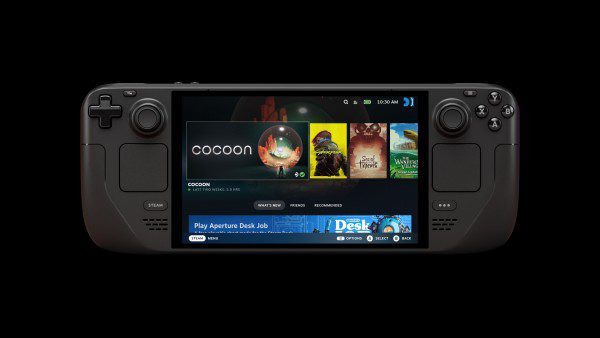
Yes, in the relevant Steam client beta. Valve previously disabled HDR streaming to Steam Deck OLED in an October beta while addressing compatibility, then stated on 22 October that it had been enabled again. That makes Steam Remote Play HDR available for further testing on the OLED hardware, whose panel is HDR-capable. The original LCD Steam Deck does not have the same HDR display, so the two models should not be treated as equivalent.
Steam Deck owners should check the Steam client update channel before following a newer beta guide. If Steam Remote Play HDR is unavailable in the stable build on their device, the absence of the setting may reflect release-channel differences rather than a faulty installation. SteamOS updates and Steam client beta updates are also distinct. Our SteamOS 3.8.28 Update and Steam Deck Game Won’t Launch guides address other software issues, but neither should be represented as a direct HDR repair.
Why does Steam Remote Play HDR look washed out?
A washed-out Steam Remote Play HDR image may reflect a mismatch between what the host captures and what the receiver can reproduce. First check whether HDR looks correct on the host without streaming, using genuine HDR content. Then compare the Remote Play image with HDR Off and Automatic. If local output already looks incorrect, changing a streaming switch may not resolve it. A different monitor, decoder or game can also change the result, so avoid drawing a universal conclusion from one title.
For Steam Remote Play HDR, the host operating system and enabled display options matter, but a specific Windows setting should not be prescribed without checking that system. Valve’s beta mentions HDR capture in Windows desktop sessions, PipeWire desktop Linux and streaming from macOS. That is not a guarantee that every compositor or external monitor combination behaves identically. The Click’s Fortnite HDR Not Working and The Sinking City 2 HDR articles provide useful general display background, although their game-specific menus are different.
Does Steam Remote Play HDR work on Android?
Valve’s October beta says Steam Remote Play HDR is enabled on Android 15 and newer when using the beta Steam Link app. Both qualifications are important. Android 15 alone does not prove that a phone screen can display true HDR, and the ordinary public Steam Link app may lag behind the beta features. Check the app channel, Android version and display capability before diagnosing a failure. The receiver must still be able to present the content arriving from the host.
Other Steam interface guides can help users distinguish platform problems from stream quality. Steam Big Art Mode, Steam Big Picture Keyboard Not Showing and Steam Achievement Sets explain different changes to the client, while Best Games to Play on Steam Deck covers handheld experiences. They are related reading rather than steps required to enable HDR. Avoid installing an unrelated update solely because another Steam setting is missing.
Where Valve documents Steam Remote Play HDR changes
The 22 October beta changes appear in Valve’s official Steam Deck announcements. The notes identify the three HDR modes, brightness slider, restored OLED support and Android beta requirement. Because this is an active beta, users should check later official client notes before assuming those features have been promoted to stable. The date and channel are as important as the setting names when following troubleshooting advice.
For Steam Remote Play HDR troubleshooting, establish which client version is installed, confirm that the host is actually producing HDR content and compare Automatic against Off on a suitable receiver. Use the overlay brightness control only for the problem it can address. Those targeted checks offer a clearer path than altering every graphics option or assuming a beta update has reached every Steam device.