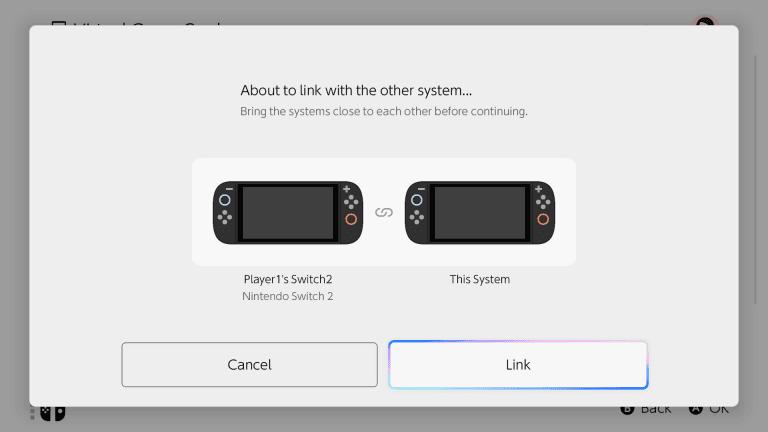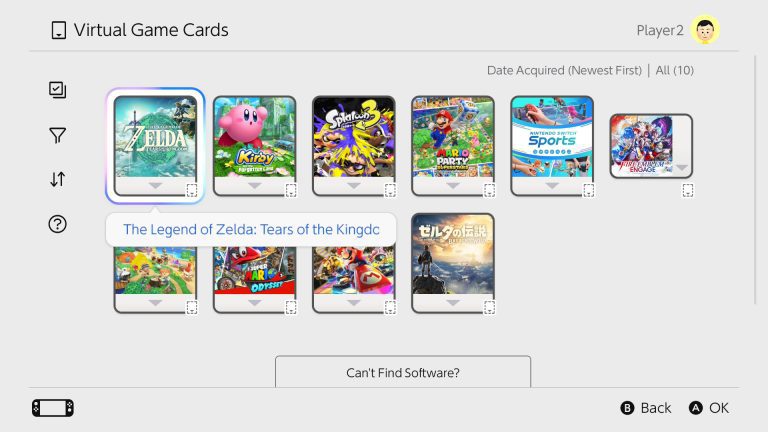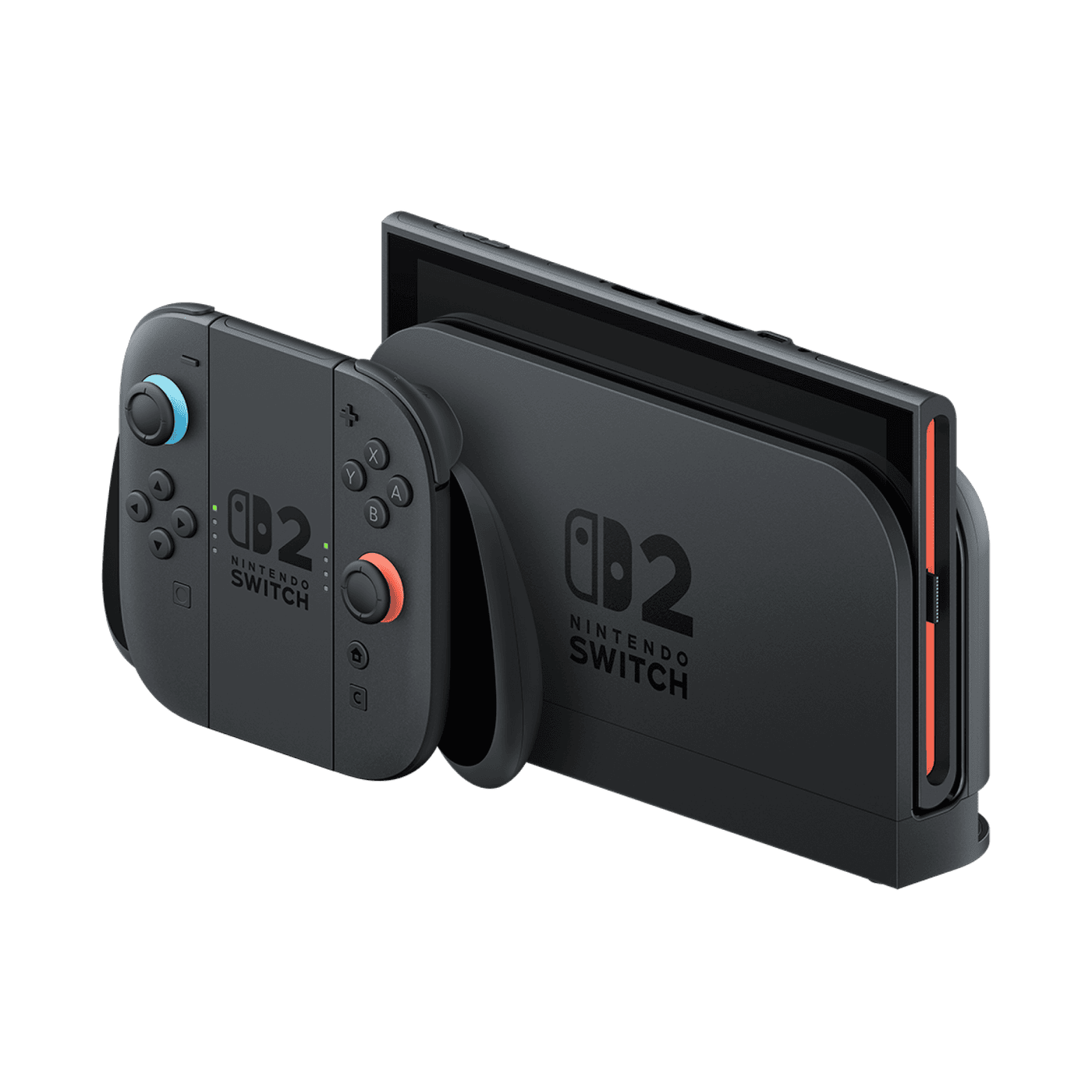
To transfer Nintendo Switch screenshots to Switch 2, use the microSD card from your original console. Nintendo lets you import the screenshots and video clips stored on that card directly into Switch 2 system memory. There’s no need to move everything through a computer first.
This copies your pictures and videos, not your games or save data. Your old microSD card also won’t work as regular Switch 2 storage afterwards, so keep the two jobs separate.
How to transfer Nintendo Switch screenshots to Switch 2
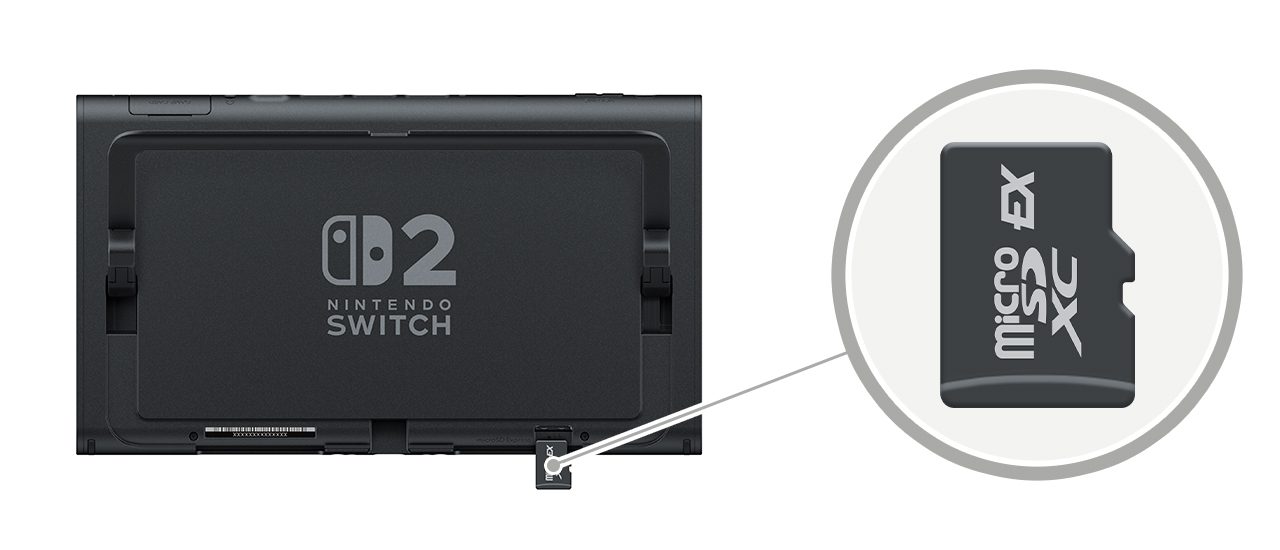
You’ll need the microSD card that actually holds your old Switch captures. Turn the original console off before removing it, then follow the Switch 2 import steps below. An ordinary microSD card works for this one job, even though Switch 2 normally requires microSD Express.
- Power off the original Nintendo Switch and remove the microSD card containing your screenshots and captured videos.
- With Switch 2 powered off, insert that original card into the slot behind its stand, then turn the console on.
- Select Import From a Nintendo Switch Console’s microSD Card when the option appears.
- Follow the console’s instructions to import the captures into system memory.
- Open Album on Switch 2 and check your pictures and videos before putting the original card away.
The import is intended for captures made on a Nintendo Switch. To transfer Nintendo Switch screenshots to Switch 2 without risking the originals, don’t reformat the old card or delete its files. Check that everything has arrived in Album first.
Can you transfer Nintendo Switch screenshots to Switch 2 without microSD Express?
Yes. You can import pictures from the older standard microSD card, but that’s the exception. Switch 2 needs a microSD Express card for new screenshots, captured videos and game downloads. Your original Switch card won’t become usable extra storage once the import has finished.
If you decide to buy an Express card, Nintendo supports compatible models up to 2 TB. The first time you use one, the console needs an update over the internet. Our microSD Express recognition guide covers the checks if a compatible card isn’t showing up.
Does the import bring over game saves or downloads?
No. Importing the screenshots only copies captured media. Game saves live in console system memory, not on the old microSD card, and inserting that card won’t install your purchased games or bring across your user accounts.
Nintendo has a separate system transfer from the original Switch to Switch 2 that can include games, saves, screenshots and settings. That’s normally handled during the new console’s initial setup, and some methods remove data from the old Switch. Don’t start a full transfer just to retrieve a few photos. The Switch 2 system transfer guide on The Click covers moving between two Switch 2 consoles, which is a different situation.
Where will the imported screenshots be saved?
When you transfer Nintendo Switch screenshots to Switch 2 from your old microSD card, the imported files go into Switch 2 system memory. Open Album from the HOME Menu to see them. You’ll need enough free system storage for what you’re importing.
You can move those captures to microSD Express later. Under System Settings → Data Management → Manage Screenshots and Videos, Nintendo lets you copy images between system memory and an inserted Express card. Our Switch 2 screenshot save location guide also explains how to choose where new captures are saved.
Why can’t I transfer Nintendo Switch screenshots to Switch 2?
Start by checking which card you’ve inserted. You need the one containing screenshots and clips captured on the original Nintendo Switch. The importer isn’t meant for phone photographs, computer files or an empty memory card.
If the option doesn’t appear, leave the original card untouched and check Nintendo’s documented import process rather than changing folders on a computer. Nintendo doesn’t describe a manual folder-copy method as an alternative to importing captures from the old Switch card.
Can you then copy those photos to a computer?
Yes. After the import, open System Settings → Data Management → Manage Screenshots and Videos → Copy to PC via USB Connection. Use a data-capable USB cable and a computer that supports Media Transfer Protocol (MTP). The Switch 2 USB screenshot transfer guide walks through it.
Once you transfer Nintendo Switch screenshots to Switch 2, look through the Album before making any changes to your old microSD card. It’s worth keeping that card as another copy of the photos and videos.
Official source: Nintendo microSD Express Card FAQ.