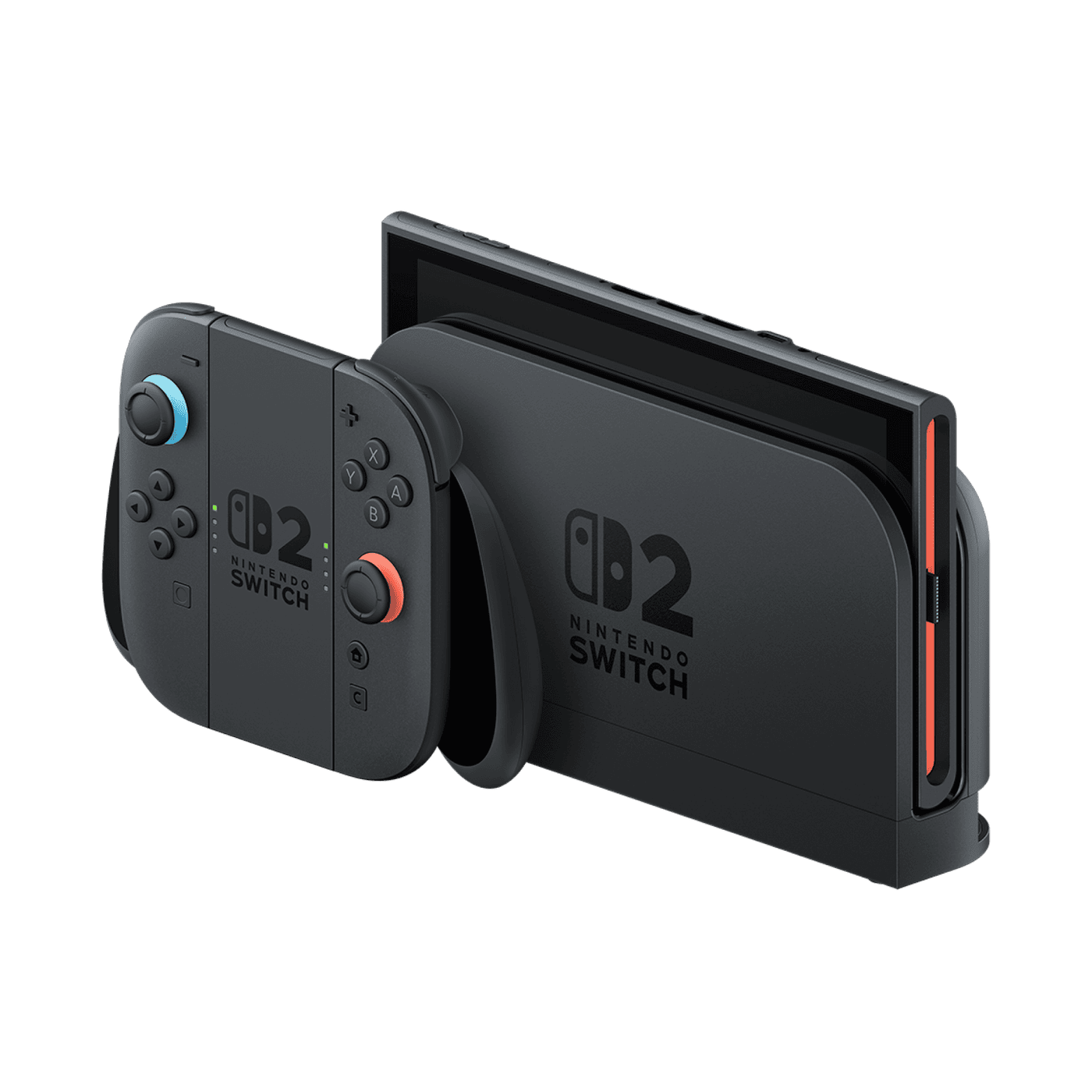
You can copy Nintendo Switch 2 screenshots to PC using a USB cable, without uploading your pictures anywhere or taking the microSD Express card out. Nintendo includes a wired option for moving screenshots and gameplay video clips to a compatible computer.
You’ll need a USB cable that transfers data and a computer that supports Media Transfer Protocol (MTP). The cable plugs straight into the Switch 2 console, not its dock. Once that’s connected, you can choose the captures you want to keep.
How to copy Nintendo Switch 2 screenshots to PC via USB
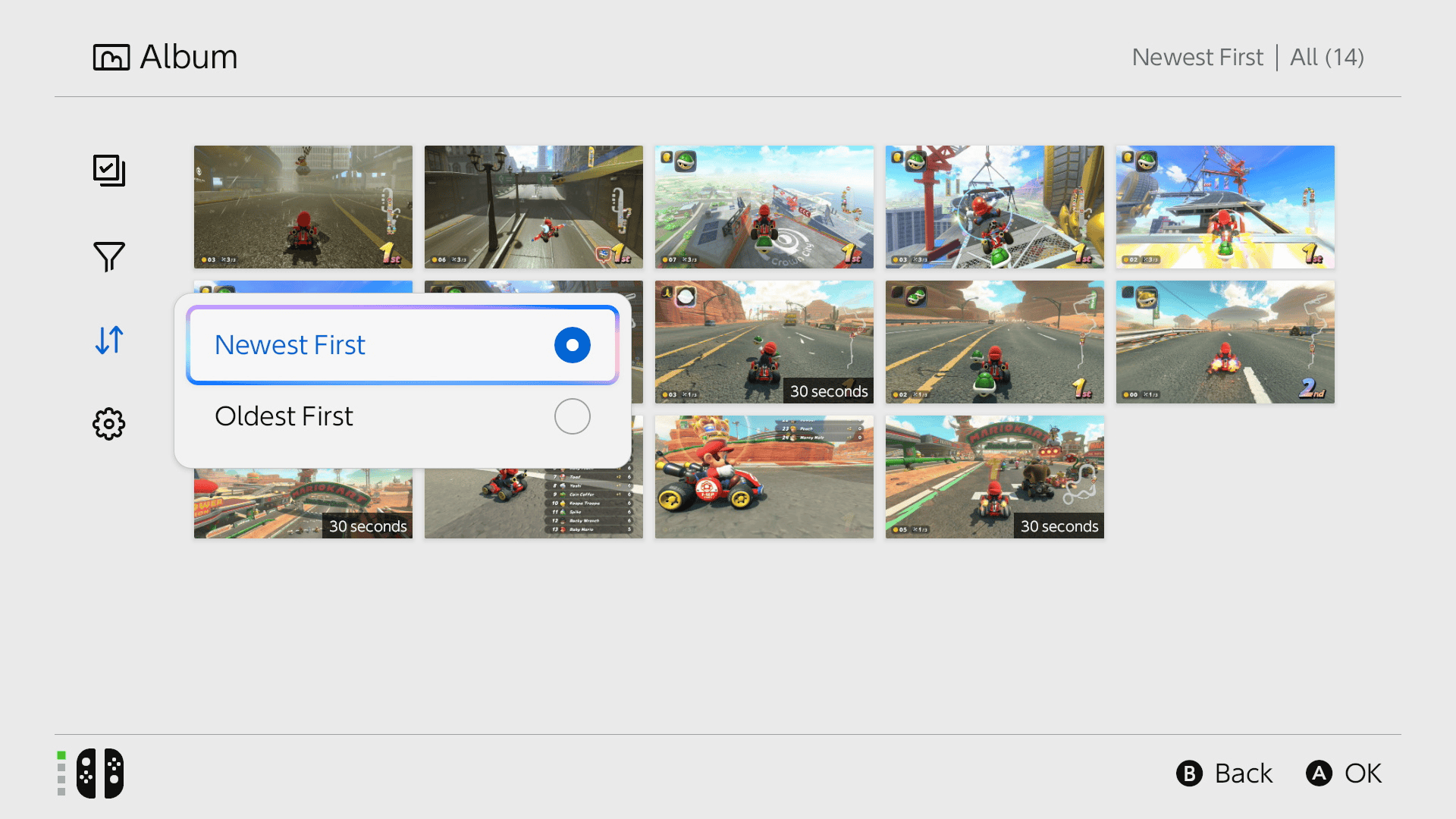
Make sure the cable can transfer files. Some USB cables are intended only for charging, which won’t work here. You’ll need USB-C at the console end, with USB-A or USB-C at the computer end depending on its ports.
- On Switch 2, open System Settings from the HOME Menu.
- Select Data Management, then Manage Screenshots and Videos.
- Choose Copy to PC via USB Connection.
- Connect the USB cable directly to the Switch 2 console’s USB-C port and your computer.
- On the computer, select the screenshots and videos you want, then copy them into a folder. The last step looks different depending on your operating system.
That’s how to transfer Nintendo Switch 2 screenshots to PC by USB. The dock’s USB ports won’t work for this feature. After copying, open a few images and video clips on your computer to make sure they’re readable before you think about deleting anything from the console.
Can you copy Nintendo Switch 2 screenshots to PC on Windows or Mac?
Yes, as long as the computer supports MTP. A compatible Windows PC should let you browse the connected console’s media through its file manager. How the console appears can vary with the operating system and settings.
A Mac needs more attention. Its USB-C port alone doesn’t guarantee that the necessary MTP support is available. Nintendo notes that additional software might help on some computers, but it doesn’t recommend any particular third-party application or guarantee that it works.
If you’re using a Mac, check the MTP options for your computer before relying on a wired transfer. It isn’t accurate to promise that every Mac will automatically show the Switch 2 in Finder.
Why aren’t my Switch 2 screenshots showing on the PC?
Check the simple things first. The console must be on Copy to PC via USB Connection, the USB cable must support file transfers, and the connection must be directly to the console. Plugging into the dock is a common reason this feature won’t work.
If the computer still doesn’t recognise the Switch 2, check whether its operating system supports MTP. Nintendo can’t guarantee third-party MTP software, so don’t start formatting storage or deleting captures to troubleshoot a USB connection.
Can you copy Nintendo Switch 2 screenshots to PC without Nintendo Switch Online?
No. The USB copy option is available even if you haven’t inserted a microSD Express card, and a Nintendo Switch Online subscription isn’t required for a direct wired file copy. Those are separate services and storage features.
You can also send selected screenshots and videos to the Nintendo Switch App, but that’s a different route. If you want Nintendo Switch 2 screenshots to PC in a local folder, use the USB setting described above.
Does USB copying move saves, games or profiles?
No. USB copying is for photographs and captured gameplay videos, not game saves, downloaded software or user profiles. Your game progress isn’t part of the Album, so it isn’t moved by this option.
Treat the copy as a backup. Keep the originals on Switch 2 until you’ve opened and checked the files on your computer. Nintendo warns that screenshots and videos can’t be recovered after deletion.
What if your pictures are on an old Nintendo Switch microSD card?
If the screenshots are still on the standard microSD card from your original Nintendo Switch, use the console’s separate import option first. That brings those older pictures and clips into Switch 2 system memory.
Our old Switch screenshot import guide covers that process. Once the captures are visible in the Switch 2 Album, follow the USB steps above to make a computer copy.
Copying Nintendo Switch 2 screenshots to PC is useful before you clear space or change cards. Check the destination folder, make sure the clips play, then leave the console copies in place until you’re happy the backup is complete.
Official source: Nintendo’s Switch 2 USB capture transfer instructions.