PlayStation PULSE microphone not working on PS5? Open the Mic controls from the PS5 Control Centre, select the connected PULSE headset under Input Device and check that it is unmuted. Then choose Adjust Microphone Level and speak at a normal volume. Sony recommends adjusting the input until the meter reaches the Good range.
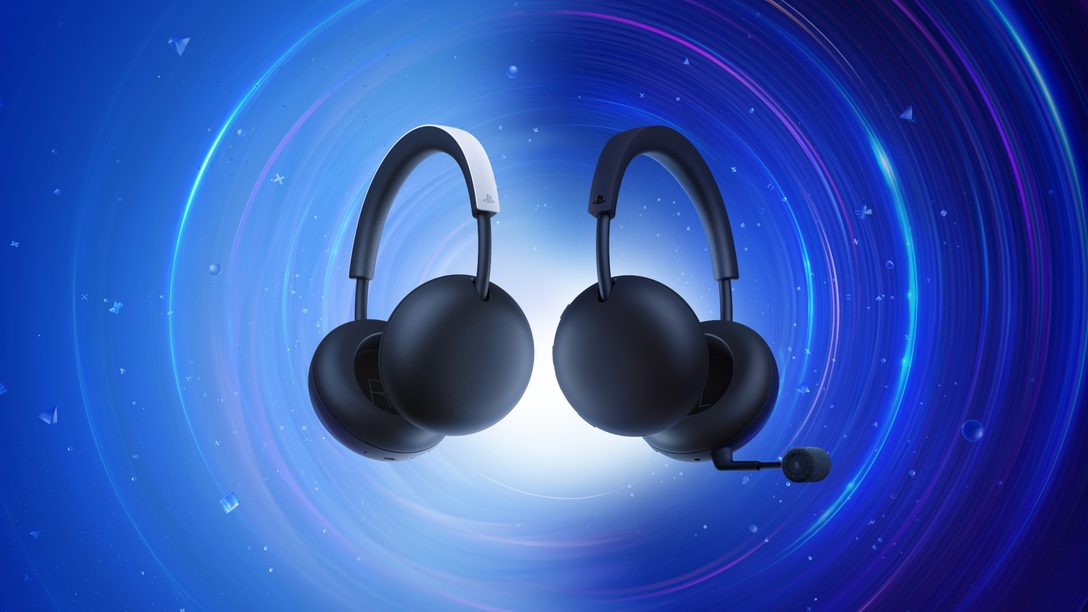
This is for the new PlayStation PULSE CFI-ZWH3, which launches in the UK on 19 November 2026 for £89.99. As of 31 October, it’s still available to preorder. The checks below come from Sony’s PS5 support instructions, not reports from people using an unreleased headset.
PlayStation PULSE Microphone Not Working: First Settings to Check
You can hear a game perfectly well while PS5 is listening to the wrong microphone, or none at all. Input and output are separate. Start by checking which mic the console has selected.
- Press the PS button on your DualSense controller.
- In the Control Centre, select Mic.
- Under Input Device, choose the new PlayStation PULSE headset if it is shown, instead of the controller mic.
- Check Mute and make sure your microphone is on.
- Open Adjust Microphone Level, talk normally and bring the meter into the indicated Good range.
- Try speaking in a PlayStation party after the PS5 meter responds.
Watch the level meter as you speak. If it responds, the console is receiving sound from the selected input. If it doesn’t, check the mute setting, input device and wireless connection before investigating game chat.
PlayStation PULSE Microphone Not Working When Connected by PlayStation Link
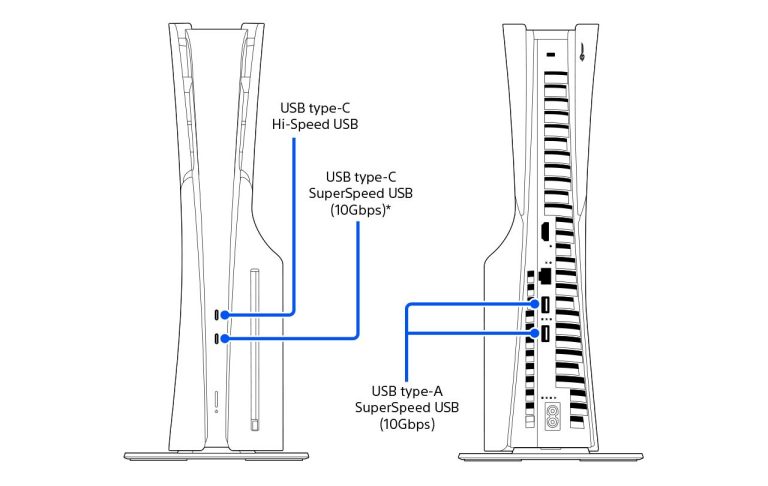
The CFI-ZWH3 includes a USB-C PlayStation Link adapter. Check that it is fully plugged into a compatible PS5 port, the headset is charged and switched on, and PULSE appears under Mic → Input Device. If the headset isn’t in the list, sort out its connection first.
Turn the headset off and back on and check the adapter is secure. If the connection is intermittent, move other wireless devices away from the console. These are Sony’s general headset checks, not a model-specific reset procedure.
The new PULSE can connect to a phone over Bluetooth while PlayStation Link carries PS5 audio. A working phone call doesn’t prove that the console has selected the headset mic. Our Bluetooth and PlayStation Link guide explains both connections.
PlayStation PULSE Microphone Not Working Because the Mic Is Muted
Check the DualSense MUTE button and the mute state in the PS5 Mic panel. A muted input can look like a headset fault even when game sound is coming through normally.
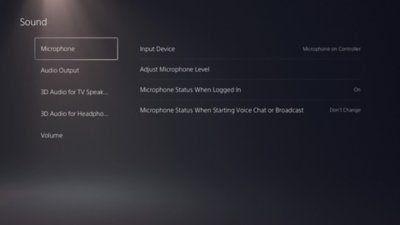
In the PS5 microphone settings, review Microphone Status When Logged In and Microphone Status When Starting Voice Chat or Broadcast. Setting the latter to Switch to Mute turns the mic off when chat begins. Choose Don’t Change to retain the previous state.
For the headset’s own buttons and indicators, use the CFI-ZWH3 manual supplied by Sony. Controls shown in PULSE Elite or PULSE 3D tutorials aren’t a reliable substitute.
PlayStation PULSE Microphone Not Working Only in Game or Party Chat
If friends can hear you in a PS5 party but not in a game, the microphone is reaching the console. Press the PS button → Game Base, select your party and check the voice chat card. Sony lets you switch between party chat and game chat from its drop-down menu. Then check the game’s own voice channel and mute settings.
PlayStation PULSE microphone not working in only one game? Compare it with a PS5 party before changing anything else. If neither chat works and the system input meter stays flat, return to the input and mute settings.
PlayStation PULSE Microphone Not Working but Headphones Have Sound?
When you can’t hear other players, open Settings → Sound → Audio Output → Output Device. You can also enable Switch Output Device Automatically. Neither setting determines which microphone other people hear: that’s controlled by Mic → Input Device.
If game sound works but nobody hears your voice, the microphone level meter is still your best starting point. If it responds, look at the party or game chat settings. If it doesn’t, return to microphone input, mute status and the Link connection.
PlayStation PULSE Microphone Not Working After Reconnecting or Updating
If the headset disappears from PS5’s device list, restart the headset and console, then reconnect the Link adapter. Keep the console’s system software updated. Sony’s CFI-ZWH3 product page says firmware update prompts may appear when the headset or adapter is connected to PS5 or the PlayStation Link PC Driver. Follow prompts for the actual device rather than assuming older headset driver features apply.
Don’t use the PULSE Elite’s 10-second reset or PULSE 3D pin-reset instructions on CFI-ZWH3. Sony hasn’t confirmed those steps for this model. Check its own manual or model-specific support page if a full reset is needed.
Is the Built-In Mic Different From PULSE Edge?
No boom needs to be attached. Standard PULSE has a built-in microphone with AI noise rejection. PULSE Edge is a different model with a detachable boom mic and active noise cancellation.
AI noise rejection aims to reduce background noise heard by teammates; it doesn’t cancel outside sounds for the wearer. See our noise-cancelling guide and PULSE vs PULSE Edge comparison for that difference.
When to Contact Sony About Your PULSE Microphone
If the PS5 microphone meter still shows nothing after you select and unmute PULSE, check its charge, Link connection and available updates. After launch, the supplied CFI-ZWH3 manual and PlayStation Support are the right next steps for a persistent problem. Avoid opening the headset or guessing at reset combinations.
Once the headset launches, this guide can be updated with any new CFI-ZWH3-specific instructions from Sony. For now, the console’s input meter, mute controls and Link connection give you a clear first set of checks.
Official Sony support source: How to change PS5 audio and microphone settings.