Can you copy PS5 game saves to USB? Sony does not allow individual PS5 game save files to be copied directly onto a normal USB flash drive. PS4 saves work differently and can still be exported as separate files.
If you need to copy PS5 game saves to USB, the supported option is a full console backup. Otherwise, PlayStation Plus cloud storage or a direct transfer between consoles may be a better fit. The choice depends on whether you’re moving a few saves or everything on the machine.
Can you copy PS5 game saves to USB directly?
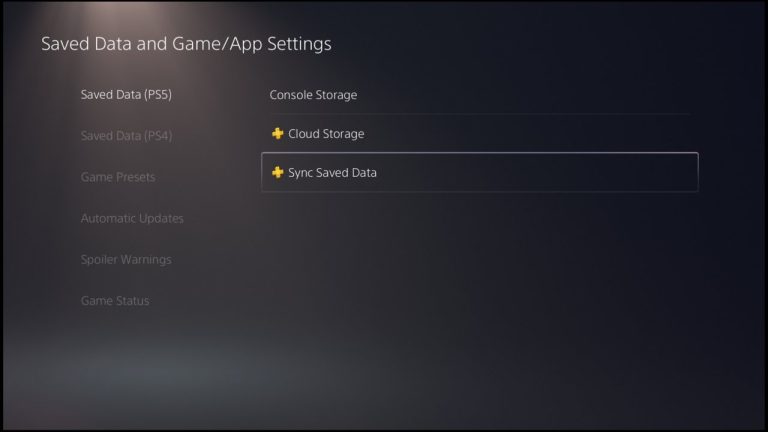
No. You cannot copy PS5 game saves to USB one by one through the Saved Data (PS5) menu. The old PS4-style Copy to USB option is not offered for individual native PS5 saves. A USB extended storage device can hold PS5 game installations, but not your PS5 save files as a separate portable collection.
An installed M.2 SSD is also not a workaround for saved progress. Sony’s storage guide puts PS5 save data in the console’s internal storage and PlayStation Plus cloud storage, not the user-installed M.2 expansion or USB extended storage.
How PS4 save copying is different
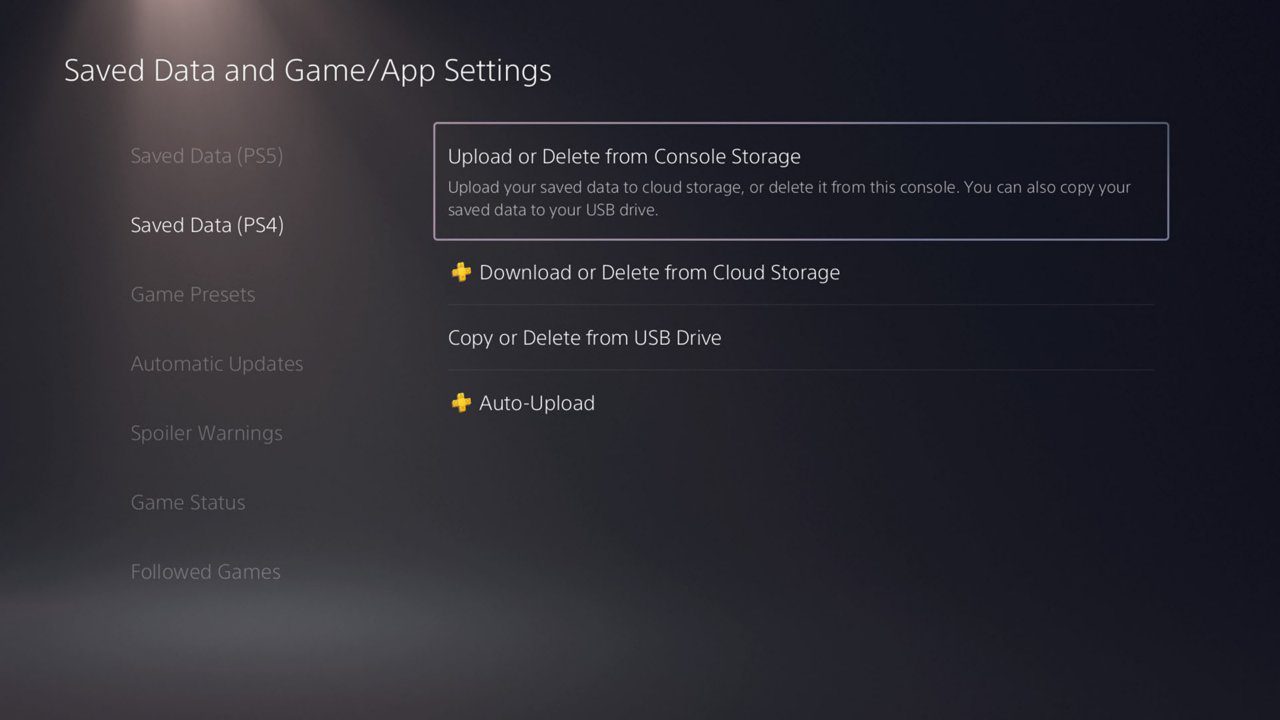
If the game is running as a PS4 game, you can copy its saved data to a compatible USB drive. On the PS5, follow these steps:
- Connect the USB drive and open Settings.
- Select Saved Data and Game/App Settings > Saved Data (PS4).
- Choose Upload or Delete from Console Storage > Copy to USB Drive.
- Select the game and the save files you want, then choose Copy.
Those steps are for PS4 save data, even when you are playing the PS4 edition on PS5 hardware. You cannot copy PS5 game saves to USB by selecting the PS4 menu, and PS4 save compatibility with a separate PS5 edition depends on the individual game.
How to copy PS5 game saves to USB through a full backup
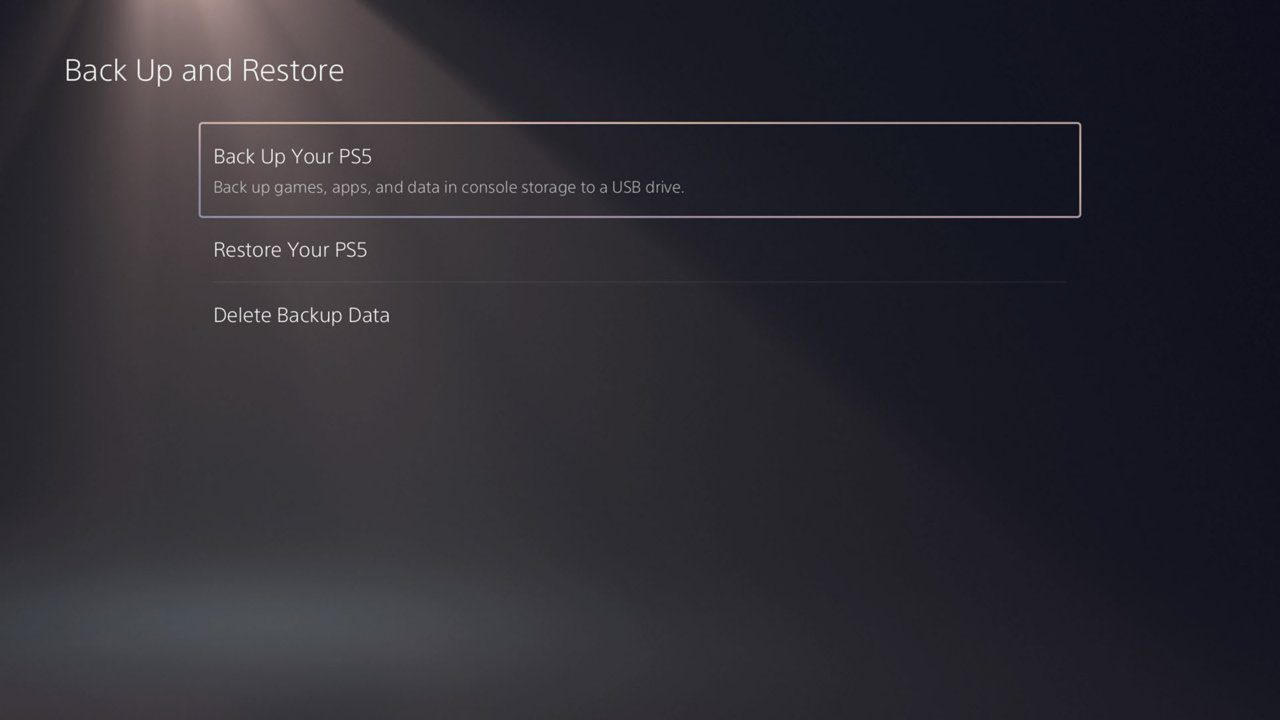
Sony lets you back up PS5 console data to a separate FAT32 or exFAT-formatted USB drive. Go to Settings > System > System Software > Back Up and Restore > Back Up Your PS5. Select the data to back up and follow the prompts. You can include saved games, installed apps, captures and settings. Games already held on an external USB extended storage drive or M.2 expansion SSD are not included, and the USB extended storage drive itself can’t be used for this separate system backup.
A full backup is not a collection of individual PS5 save files you can copy into someone else’s profile. Restoring it erases the existing data on the destination PS5, so protect anything already stored there. Sony also says the destination system software must be the same version or newer than the software used when creating the backup.
When you copy PS5 game saves to USB as part of a full backup, leave the drive connected and do not switch off the console until it has finished. The backup is linked to your PlayStation account: moving it to another PS5 requires signing in with the same account used for the backup. Trophies are excluded, so synchronise those separately.
Better ways to move PS5 saves
If your account has active PlayStation Plus, cloud storage is usually easier for moving selected progress. Upload the latest PS5 save from your existing console and download it after signing in to that same PlayStation account on the new PS5. This avoids restoring the entire system.
Cloud storage belongs to the subscribed account; console sharing does not give every family member free cloud storage. Check our PS5 Cloud Saves Not Syncing walkthrough before overwriting a newer local save with an older cloud version.
Transfer saves directly between two PS5 consoles
If both PS5 consoles are available, sign in to the same PlayStation account and connect both consoles to the same network. On the destination PS5, open Settings > System > System Software > Data Transfer and follow the prompts. This can transfer local saved data without a PlayStation Plus membership. Check your progress on the replacement console before wiping or selling the old one.
If you move an expansion SSD, remember the installed games on it are separate from the saves on console storage. The steps in Move PS5 M.2 SSD to a New PS5 explain that distinction.
USB game storage and save backup are not interchangeable
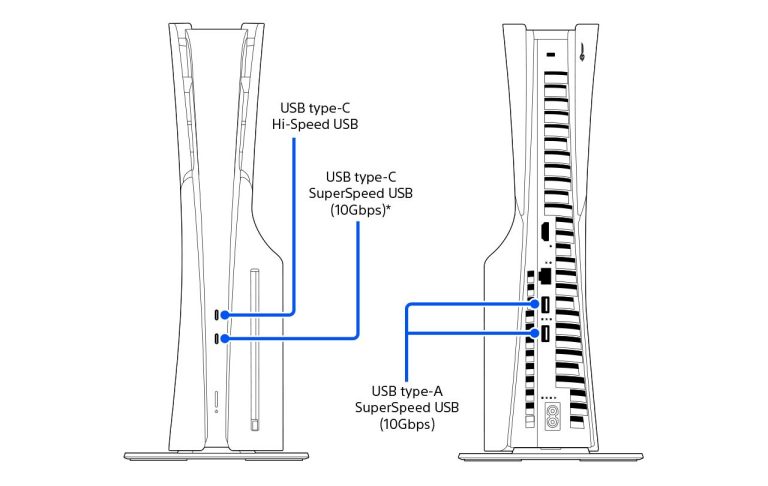
USB extended storage can store installed PS5 games, although you must copy them back to console storage or compatible M.2 SSD storage to launch them. PS4 games can run from USB extended storage. Neither fact allows you to copy PS5 game saves to USB as standalone save files.
If your external drive is not being detected, read our PS5 External USB Drive Not Recognized guide before trying another cable or port. Do not format a drive containing important data merely to test it, because formatting erases the files on it.
To copy PS5 game saves to USB, make a full-system backup; there is no per-game USB export for PS5 saves. If you only want to move your progress to another working PS5, use the subscribed account’s cloud storage or a direct console transfer instead.
Related Guides
Official source: PlayStation Support, back up and restore PS5 data.