You can move PS5 M.2 SSD to new PS5 hardware and keep using eligible games already installed on that expansion drive. Sony supports taking an M.2 SSD from one PS5 and installing it in another compatible PS5 without formatting it again.
Your game saves are another matter. PS5 save files are kept in the console’s own storage or in PlayStation Plus cloud storage, not on the expansion SSD. The installed games come across with the drive; your progress needs to be transferred separately.
How to move PS5 M.2 SSD to new PS5 safely
Start by closing your games and turning the original PS5 off completely. Unplug the power cable and other devices, let it cool and place it on a clear, flat surface. Sony advises touching a grounded metal object before handling the M.2 SSD to reduce the risk of static damage.
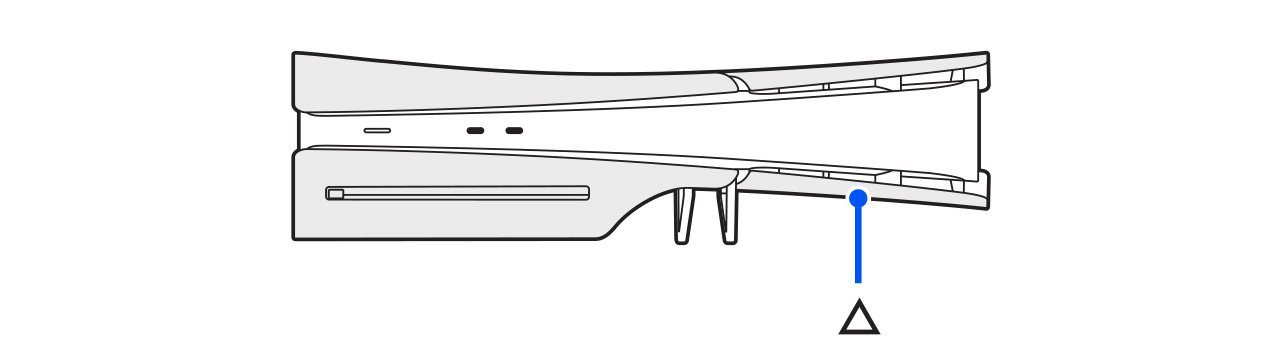
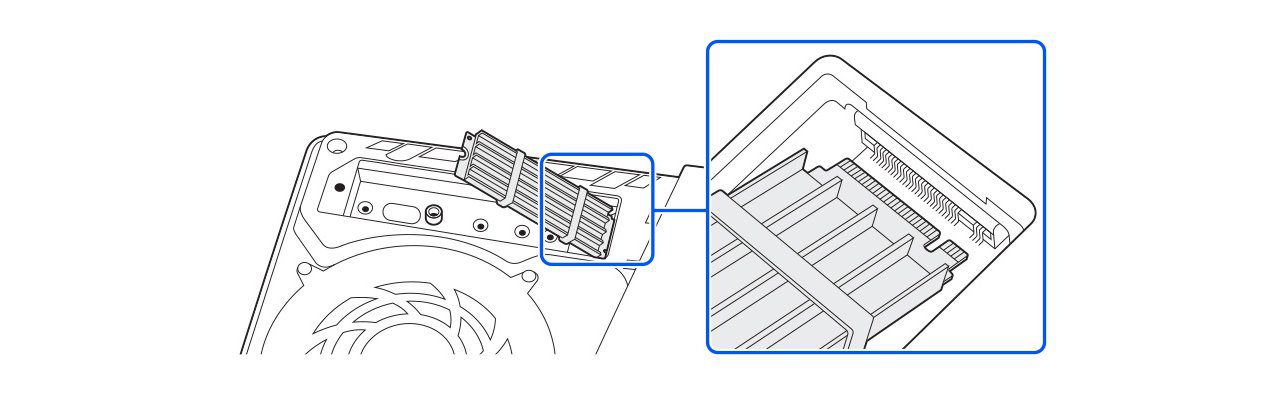
Follow Sony’s instructions for your specific PS5 model. The original CFI-1000 models use different cover and slot diagrams from CFI-2000/7000 models, which include Slim and Pro hardware. Remove the correct outer cover and expansion cover, take out the SSD screw, then lift the drive slightly and pull it out diagonally by its edges.
Before you move PS5 M.2 SSD to new PS5 hardware, check the drive’s dimensions and heatsink against Sony’s requirements. Keep the required heat-dissipation equipment fitted. Don’t force the drive into the connector or power the console on with its cover removed.
Install the SSD in your replacement console
With the replacement PS5 switched off and unplugged, follow its model-specific installation steps. Insert the M.2 SSD into the expansion connector, lower it into position and secure it using the correct spacer and screw. Refit the expansion cover and console cover before switching on.
Sony says you do not need to format an M.2 SSD again when moving it between PS5 consoles. If the new console unexpectedly asks to erase the drive, stop and check the installation and compatibility before agreeing. Formatting deletes what is stored on it.
To move PS5 M.2 SSD to new PS5 successfully, sign in with the same PlayStation account on both consoles. Sony says this is needed to access the stored data on the destination PS5. Your digital purchases and subscriptions remain tied to the account and game licences, not to the hardware alone.
What stays when you move PS5 M.2 SSD to new PS5?
Games installed on the M.2 drive should be accessible on the new PS5 once it is installed properly and you’re signed in with the same account. PS5 save files are not on the M.2 drive. Transfer them while the original console still works.
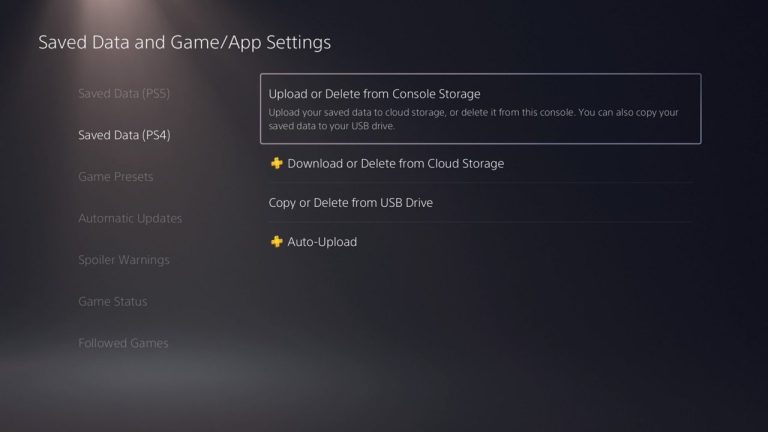
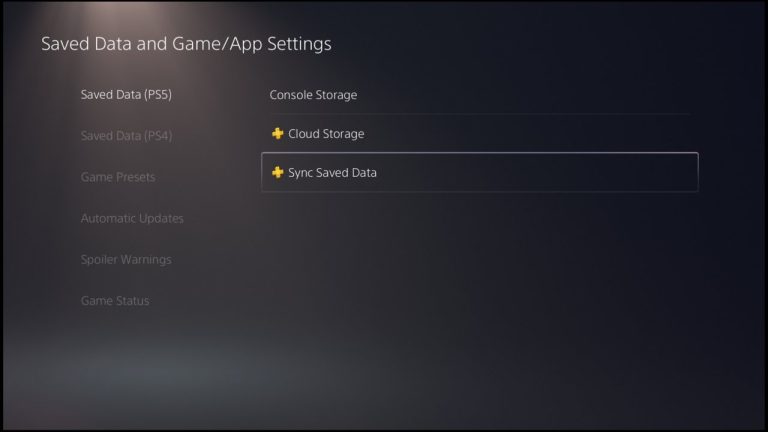
If you have PlayStation Plus, you can sync PS5 progress to your account’s cloud storage and download it to the replacement console. See PS5 Cloud Saves Not Syncing to check dates before overwriting anything. Sony also supports direct PS5-to-PS5 transfer, or a complete USB console backup and restore when appropriate.
Move PS5 M.2 SSD to new PS5 without losing progress
- Sync trophies before resetting or selling the old PS5, because trophies are not included in the USB backup.
- Check the last saved progress for games you care about on the original console.
- Upload or transfer PS5 saved data separately; an expansion SSD does not contain it.
- Use the same account on the destination console to access digital purchases.
- Launch a few transferred games and verify save progress before wiping the old console.
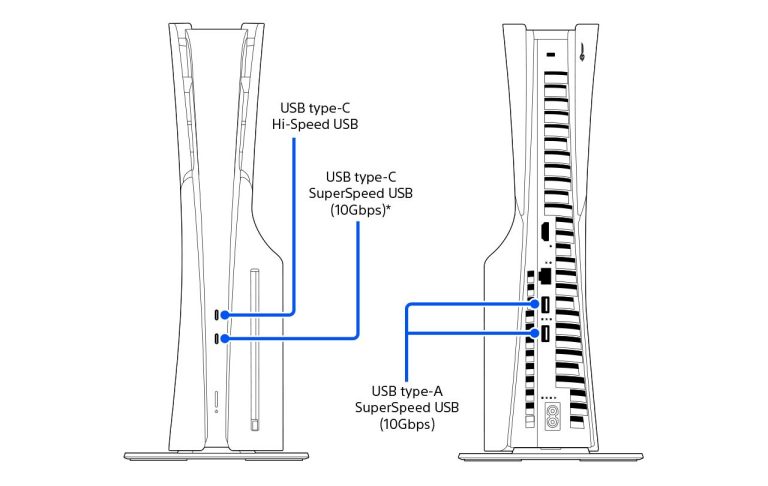
A full PS5 USB backup is not simply a collection of individual saves you can drag onto another console, and restoring one erases existing user data on the destination. The Copy PS5 Game Saves to USB guide explains which files Sony lets you export.
What if the new console does not recognise the SSD?
If you move PS5 M.2 SSD to new PS5 and it isn’t detected, shut the console down and check the installation and heatsink against Sony’s requirements. Do not format a drive containing games you want to keep. You can check PS5 M.2 SSD Not Recognized for the safe checks and when to seek hardware help.
Before you move PS5 M.2 SSD to new PS5 hardware, check that it meets Sony’s specifications. These include PCIe Gen4x4 NVMe drives within the supported capacity and size ranges, with effective heat dissipation. SATA M.2 drives are not supported. If a drive is incompatible with the replacement console, the safe option is a supported SSD rather than attempting to force the old one to work.
What to check after you move PS5 M.2 SSD to new PS5
Confirm the new console has your game progress, synced trophies and account access. Remove any USB devices, discs and expansion drive you intend to keep. Only then use Sony’s factory-reset procedure on the old hardware. A reset permanently erases that console’s user data.
You can move PS5 M.2 SSD to new PS5 for game installations, but treat the saved progress as a second transfer. Check that both have transferred before you reset the original console.
Related Guides
Official source: PlayStation Support, M.2 SSD installation and moving between consoles.