
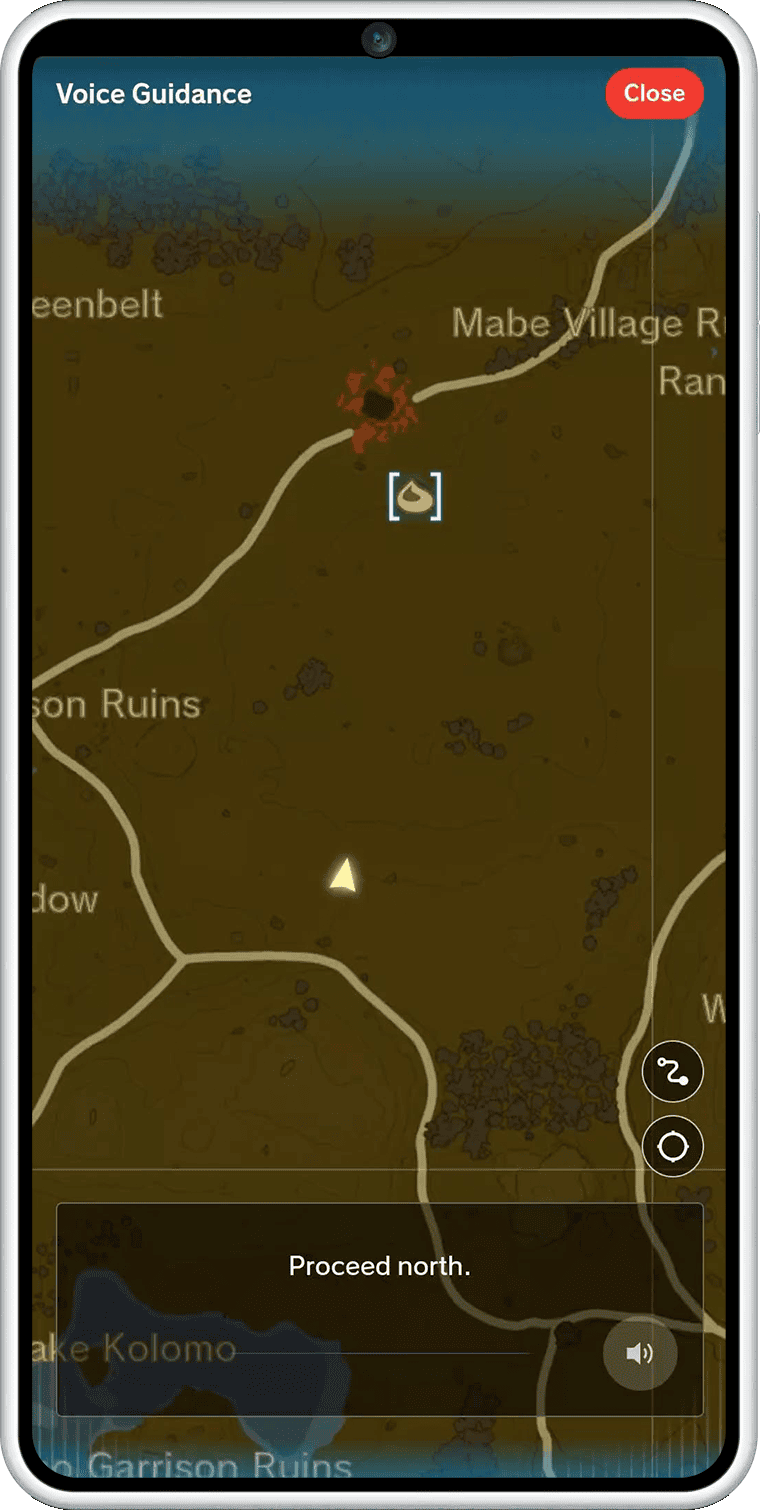
How to use ZELDA NOTES starts with the free Nintendo Switch App and the right Zelda game. Sign in on your phone with the Nintendo Account linked to your Switch 2, then launch Breath of the Wild or Tears of the Kingdom in its Nintendo Switch 2 Edition. The phone companion offers directions, QR sharing, play records and daily rewards.
You don’t need to pay for Nintendo Switch Online to use the phone companion. You do need access to the correct Nintendo Switch 2 Edition of the game, rather than only the original Switch version. That distinction is especially important if you’ve upgraded an older physical or digital copy.
How to use ZELDA NOTES on Nintendo Switch 2: get started
- Download or update the Nintendo Switch App from the iOS App Store or Google Play Store.
- Sign in with the Nintendo Account used on your Switch 2 console.
- Launch Breath of the Wild (Nintendo Switch 2 Edition) or Tears of the Kingdom (Nintendo Switch 2 Edition).
- Keep your console and phone online, then open that game’s ZELDA NOTES features in the phone app.
- Choose the feature you need, such as Navigation or Daily Bonus, and follow the displayed instructions.
The Nintendo Switch App used to be called Nintendo Switch Online App. If you’ve installed it before, update it rather than downloading a separate Zelda application. Nintendo requires existing save data on the linked account to access its game-specific services.
A common stumbling block when learning how to use ZELDA NOTES on Nintendo Switch 2 is starting the original Switch game through backwards compatibility. Check that the title screen displays the Nintendo Switch 2 Edition logo.
How to use ZELDA NOTES on Nintendo Switch 2 with compatible games
Nintendo’s established ZELDA NOTES service supports the Switch 2 Editions of Breath of the Wild and Tears of the Kingdom. Both have the companion’s navigation, Voice Memories, Item Sharing, Photo Studio, play data and daily rewards. Autobuild Sharing is exclusive to Tears of the Kingdom because it uses that game’s construction system.
Nintendo has also announced ZELDA NOTES features for the new Ocarina of Time Switch 2 remake releasing on 5 November 2026. Those features differ, with Gossip Quest, Play Ocarina, Today’s Record and a quiz, so don’t expect the Breath of the Wild map or TotK Autobuild tools to appear automatically. Our Ocarina of Time companion guide explains them.
How to use ZELDA NOTES without Nintendo Switch Online
No. ZELDA NOTES doesn’t require a paid Nintendo Switch Online membership. You can use it with a complete Switch 2 Edition or a separately purchased upgrade pack. The phone service itself has no separate subscription charge.
If you’re accessing a Switch 2 upgrade pack through Nintendo Switch Online + Expansion Pack, that upgrade entitlement lasts only while your membership is active. You still need a copy of the base game. Nintendo confirms that your save data remains when the membership expires, and a separately purchased upgrade pack doesn’t depend on the subscription.
How to use ZELDA NOTES features
There are nine confirmed features: Navigation, Voice Memories, Autobuild Sharing, Item Sharing, Photo Studio, My Play Data, Global Play Data, Daily Bonus and amiibo. Navigation guides you across the map, Voice Memories offers commentary about places in Hyrule, and the play-data sections show your personal records and comparisons with other players.
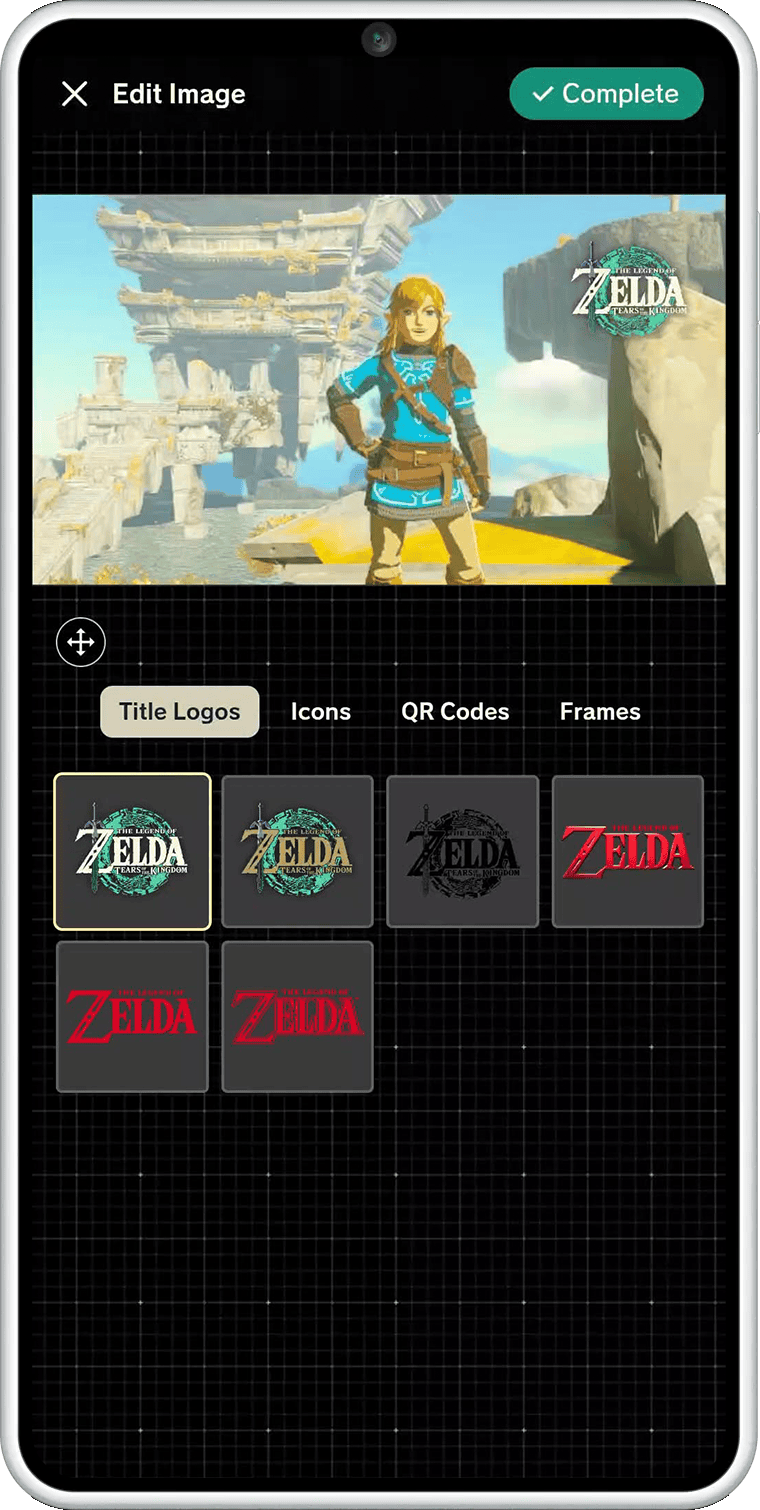
Use Item Sharing for QR-coded item boxes in either game, or Autobuild Sharing for construction schematics in Tears of the Kingdom. Photo Studio decorates photographs from Link’s in-game Album. Daily Bonus offers a daily chance at a reward, while the amiibo feature tracks scans towards an additional use.
For more detail, use our Navigation guide, Voice Memories guide and Item Sharing walkthrough. They’re companions to how to use ZELDA NOTES on Nintendo Switch 2, covering individual tools once the app is connected.
How to use ZELDA NOTES on Nintendo Switch 2 if the app is missing features
If ZELDA NOTES isn’t showing your game, check the account signed into your phone. It must match the Nintendo Account linked to the Switch 2 profile with that game’s save data. Confirm the title screen shows Nintendo Switch 2 Edition rather than the original Switch version.
Nintendo recommends checking your internet connection, app and game updates, phone operating system and browser. Android users should also update Android System WebView. To display play data, allow usage-data sharing in your Nintendo Account privacy settings. If the Switch 2 upgrade comes from Expansion Pack, verify the membership is still active.
To try the service, open Navigation while you’re playing and watch Link’s position appear on the phone map. If you prefer a quicker feature, check the Daily Bonus or open Photo Studio with a photograph from the game’s Album.
Related Guides
The official eligibility rules are in Nintendo’s ZELDA NOTES support guide.





