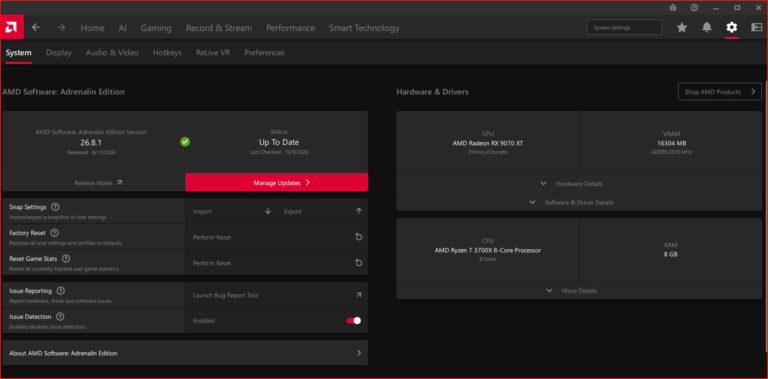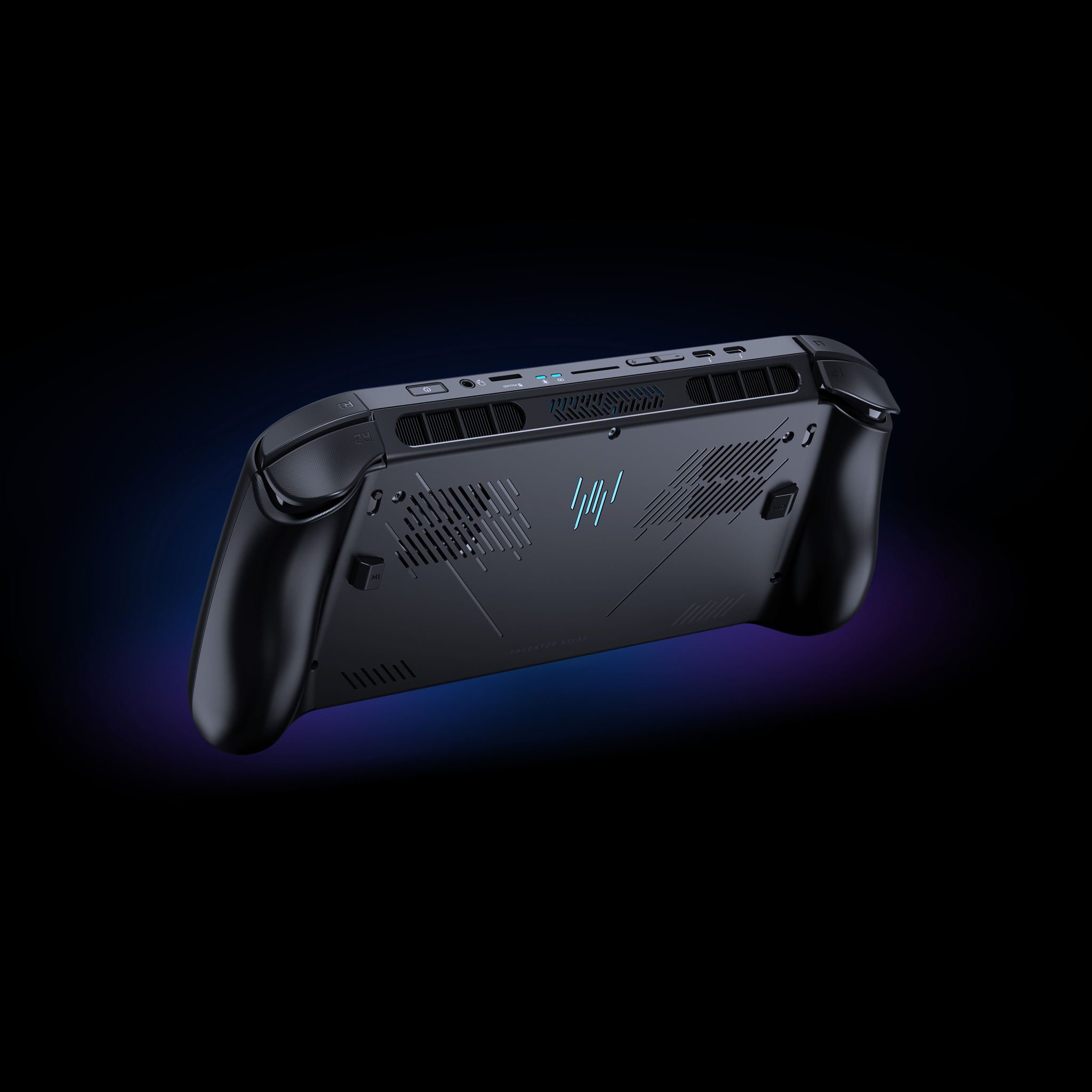
Predator Atlas 8 PredatorSense is Acer’s app for changing the handheld’s performance, cooling and lighting settings. Press the dedicated PredatorSense button to bring up live system information, including FPS and battery status, then open the full app for its broader hardware controls.
It’s useful for switching from a demanding PC game to something lighter without digging through Windows settings. You can check whether a performance mode is helping, adjust fan behaviour and customise the lighting around the sticks and the rear Predator logo.
How to open Predator Atlas 8 PredatorSense
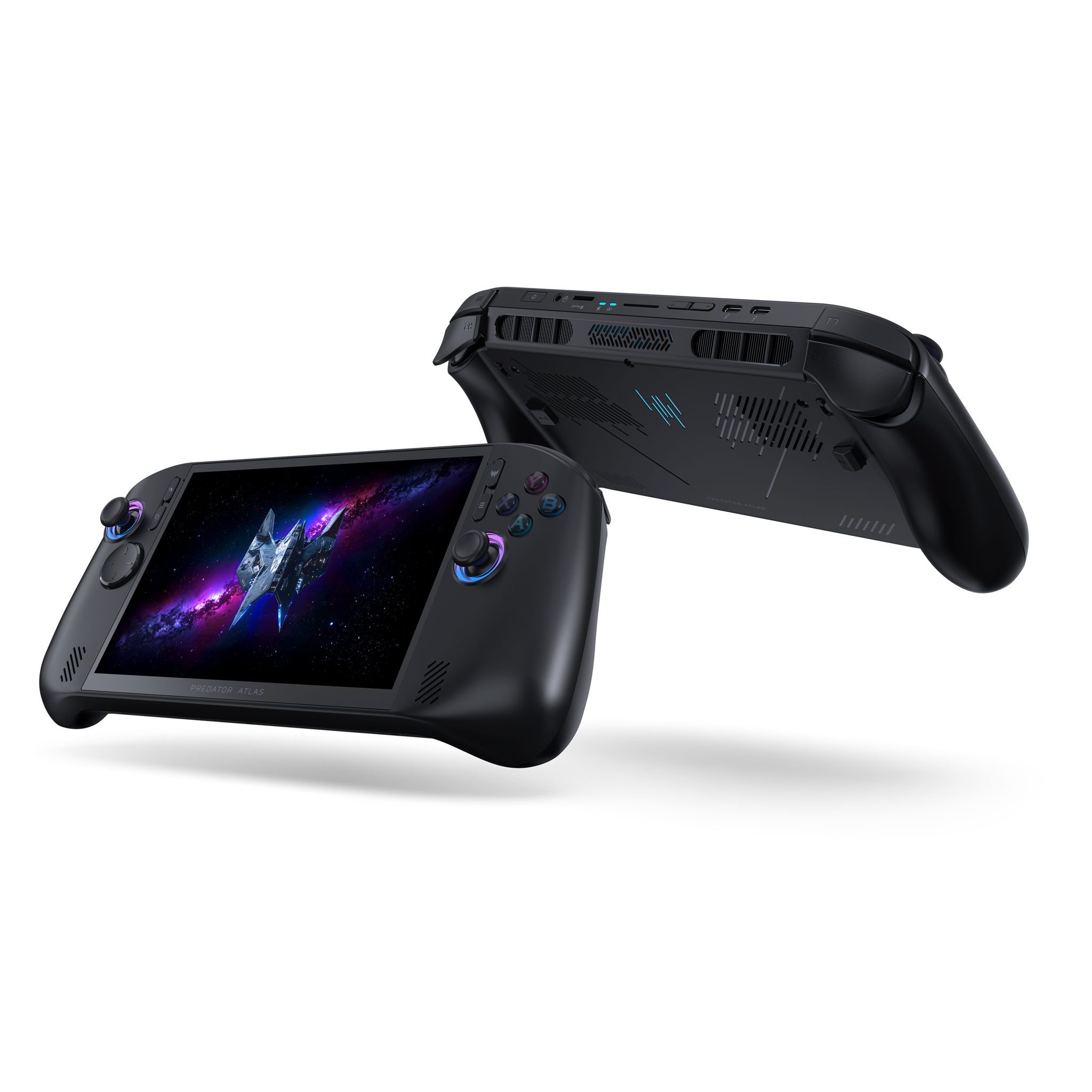
- Find the dedicated PredatorSense button on the front control layout, beside the standard handheld gaming buttons.
- Press the button to open Acer’s performance and system monitoring controls.
- Use the monitoring view to check the current system information, including the FPS and battery indicators available in the interface.
- Open the full PredatorSense app when you want to manage performance, cooling, display-related graphics or RGB lighting.
The PredatorSense button gives you a quick shortcut while you’re gaming. The separate Xbox Game Bar/Home button opens Windows gaming functions and your library. Use PredatorSense for the device itself, and Xbox Mode for games.
Predator Atlas 8 PredatorSense performance modes
Acer lists selectable performance modes as a core feature. Use a performance-focused profile for a game that needs the graphics hardware working harder, or a lower-power option when you’re playing something less demanding and want to preserve battery.
After changing a mode, look at the FPS reading in the same game and scene. If the frame rate barely changes, you may prefer a quieter or lower-power setting. That gives you a useful comparison without guessing which mode is best from its label.
The full Predator Atlas 8 PredatorSense app also includes limits and gameplay settings. These are part of Acer’s system controls; they aren’t the same as choosing the resolution, upscaling quality or textures inside an individual PC game.
Predator Atlas 8 PredatorSense FPS and battery monitoring
The live display includes FPS and battery monitoring. Watch the numbers after changing a performance profile or game setting. A useful test is to compare the same playable scene before and after your change, rather than a still menu.
The battery readout helps when you’re deciding whether to keep playing unplugged or connect a charger. The FPS display shows how smoothly the current game is running. Use both together to find a profile that suits your session.
Predator Atlas 8 PredatorSense fan controls
The Atlas 8 has a dual-fan cooling system, including Acer’s 89-blade metal AeroBlade fan and a second fan working with Vortex Flow air channels. PredatorSense gives you fan controls as part of the performance settings.
Use the fan controls in the full app to choose the cooling behaviour available on your unit. Higher fan activity makes sense during a heavy gaming session; a quieter setting may be more comfortable when you’re playing something light. Keep the vents clear whichever profile you choose.
The cooling controls work with the hardware already inside the handheld. The Predator Atlas 8 PredatorSense profiles adjust how it behaves; they don’t turn a standard G3/Arc B370 model into the faster G3 Extreme/Arc B390 version.
GPU settings and XeSS 3 games
Acer also lists VGA and gameplay settings in the full app. The Intel Arc G3 family supports XeSS 3 features where a game and graphics driver provide them. For individual graphics options such as upscaling quality, open that game’s own settings screen.
For demanding titles, start with the game’s resolution and graphics settings, then adjust the handheld’s power profile in PredatorSense if needed. On the 1920 x 1200 display, choosing a supported upscaling mode can help balance image sharpness and frame rate.
Change RGB lighting on the joysticks and logo
The full Predator Atlas 8 PredatorSense app includes RGB controls for the joystick light rings and the Predator logo on the back. Open the lighting controls, select the part you want to change and apply the available colour or effect.
The Xbox app doesn’t manage those Acer lighting effects. Use PredatorSense for RGB and device settings, and Xbox Mode or your PC storefront for finding and launching games.
PredatorSense versus Xbox Mode
Xbox Mode gives the handheld a full-screen game launcher and a way back to the Windows desktop. PredatorSense is the separate app for monitoring FPS and battery, adjusting fans and performance, and changing the device lighting.
Press PredatorSense when you want to change how the handheld runs a game. Press the Xbox Game Bar/Home button for game navigation and Microsoft controls. You can switch between them during a session without changing which PC storefront you use.
Tips for better handheld performance
The best performance setting depends on what you’re playing. A fast-paced game may benefit from a higher frame-rate target and more cooling, while a slower adventure can feel excellent with a more economical power profile.
The Predator Atlas 8 PredatorSense FPS monitor is particularly useful on the 120Hz VRR screen. Check the frame rate your hardware is actually delivering, then choose game and system settings that keep it steady rather than pushing every option to maximum.
Before travelling, try your favourite game in the performance profile you’ll use away from a charger. You’ll get a feel for the battery drain, fan noise and smoothness while you still have time to change your setup.
Official source: Acer Predator Atlas 8 PredatorSense features and controls.