Advanced Shader Delivery not working on your PC? Check your Windows version, graphics driver and where you installed the game. Microsoft delivers precompiled shaders with supported downloads, so all three need to match.
On NVIDIA GeForce RTX cards, Windows 11 24H2 or later and driver 621.01 or newer are the starting point. You also need a supported Xbox PC app game build. Here’s how to find the missing requirement.
Advanced Shader Delivery not working: Windows 11 version
Open Settings, System, About and check Windows specifications. The current minimum is Windows 11 24H2. Windows 10 cannot use this implementation just because NVIDIA also provides a 621.01 Windows 10 download.
If your Windows 11 version is older, use Windows Update to install the available feature update. Restart and check the version again.
Shader delivery not working on NVIDIA? Check the driver
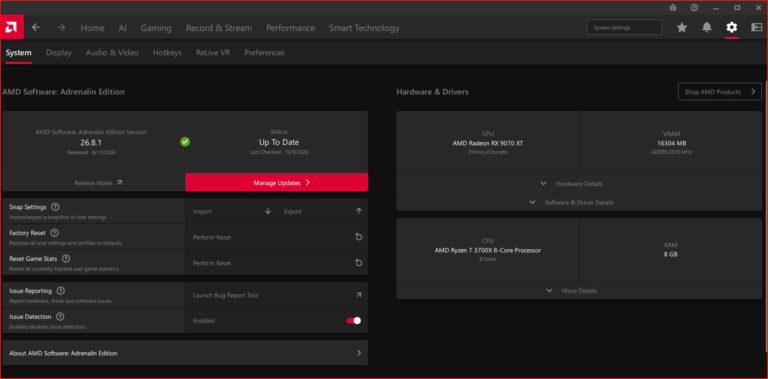
In NVIDIA App, open Drivers and look for version 621.01 or newer. Microsoft also supports AMD RDNA 1 through 4 with Adrenalin 26.6.1, Intel Arc B570/B580 and selected Core Ultra Series 2/3 with driver 32.0.101.9150, and Snapdragon X2 with driver 2026.08.3.
Confirm your exact GPU model before downloading. Use NVIDIA App, AMD Software, Intel’s official driver installer or your PC manufacturer’s support page, depending on your hardware.
Advanced Shader Delivery not working in the Xbox PC app
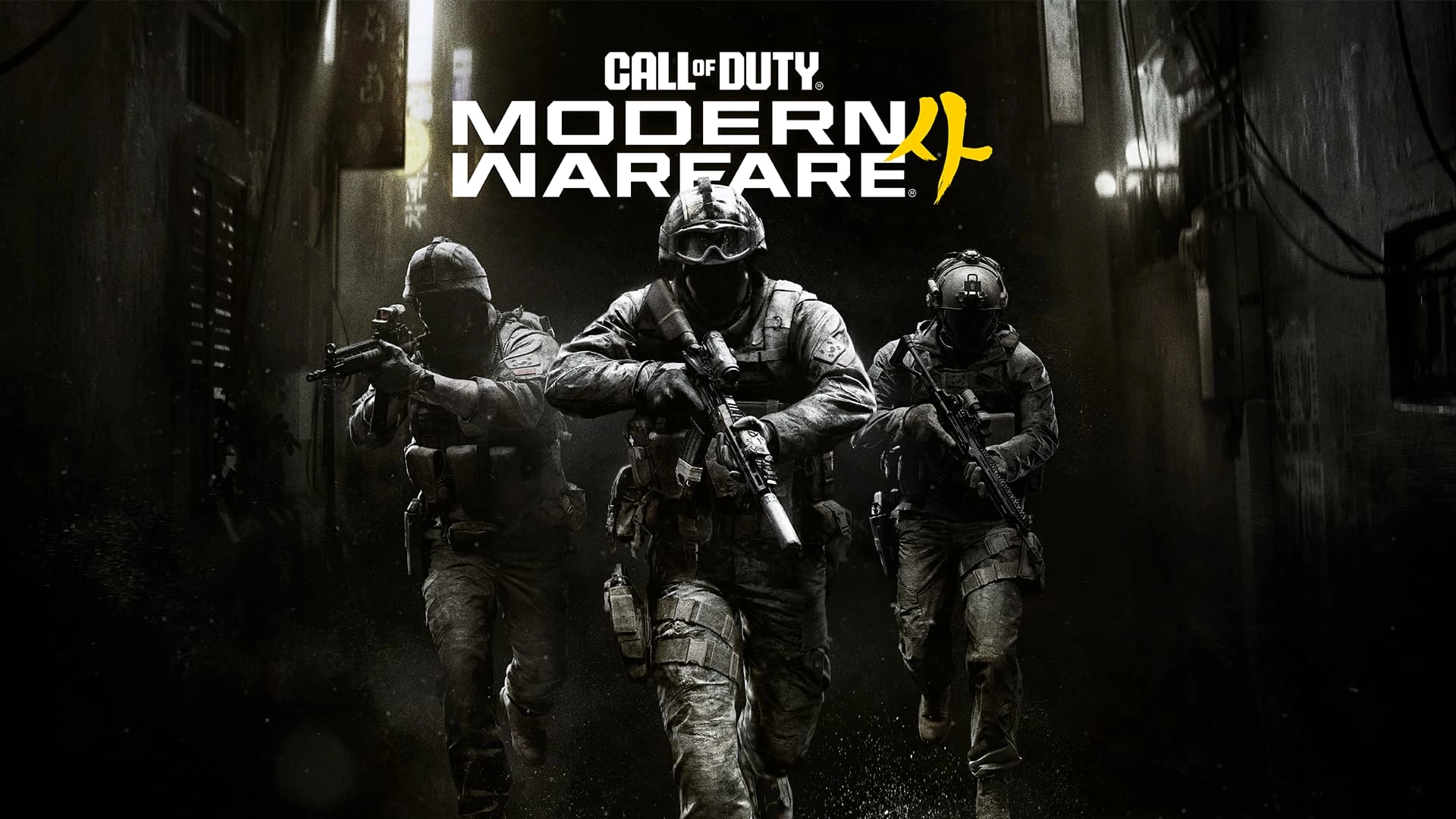
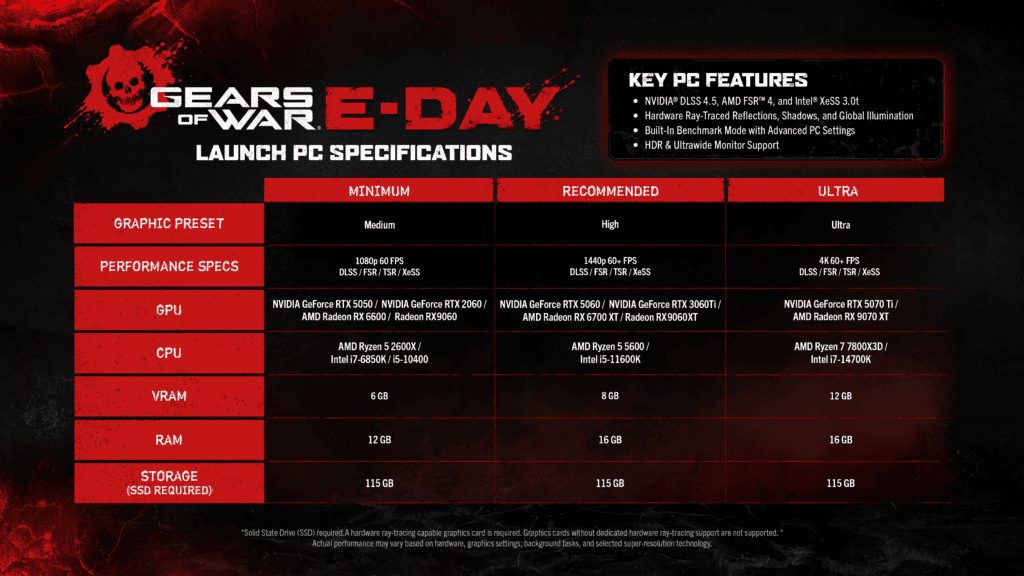
NVIDIA and Microsoft confirm the current rollout for Modern Warfare 4 and Gears of War: E-Day. Microsoft’s instructions are to install the Xbox PC app before downloading the supported game. That is the currently documented way to receive its matching shader database.
Shader delivery not working after a driver update? Open the Xbox PC app and check for a game update before reinstalling. Start with the driver and the game’s download version.
The clearest check is the launch message. Microsoft shows “Precompiled shaders installed” in E-Day and Modern Warfare 4 when the prepared shader package has arrived.
Advanced Shader Delivery not working on Steam
Microsoft plans to bring the technology to Steam and Epic Games Store, but those storefront integrations are separate from its current Xbox PC app delivery path. Installing the Xbox app doesn’t make a Steam or Battle.net copy download Microsoft’s shader package.
You don’t need Game Pass for the underlying technology. The game and storefront must provide the compiled data for a compatible Windows and GPU setup.
Shader delivery not working or compiling new shaders?
Some shader compilation can still happen after game or driver updates. The delivered database covers supported shader requests, not every new effect. A short compilation step doesn’t mean the download failed.
NVIDIA’s near-100% cache hit-rate claim describes shader coverage in supported games, not an FPS boost. If your game still stutters after the confirmation message, check CPU load and graphics settings separately.
What to avoid when Advanced Shader Delivery is not working
Don’t start by clearing DirectX shader caches, forcing NVIDIA Shader Cache Size or using registry tweaks. Those controls affect local caching and don’t make a missing prepared database appear. Avoid unofficial driver downloads as well.
The shortest useful checklist is Windows 11 24H2, supported GPU, compatible driver, supported game and the correct storefront. Check those, start the game and look for its shader confirmation message.
If the feature still fails, note your Windows build, GPU model, driver version and game storefront. Those details help pinpoint the missing requirement without changing unrelated PC settings.
Related Guides
Official source: Microsoft DirectX: supported hardware and shader delivery requirements.