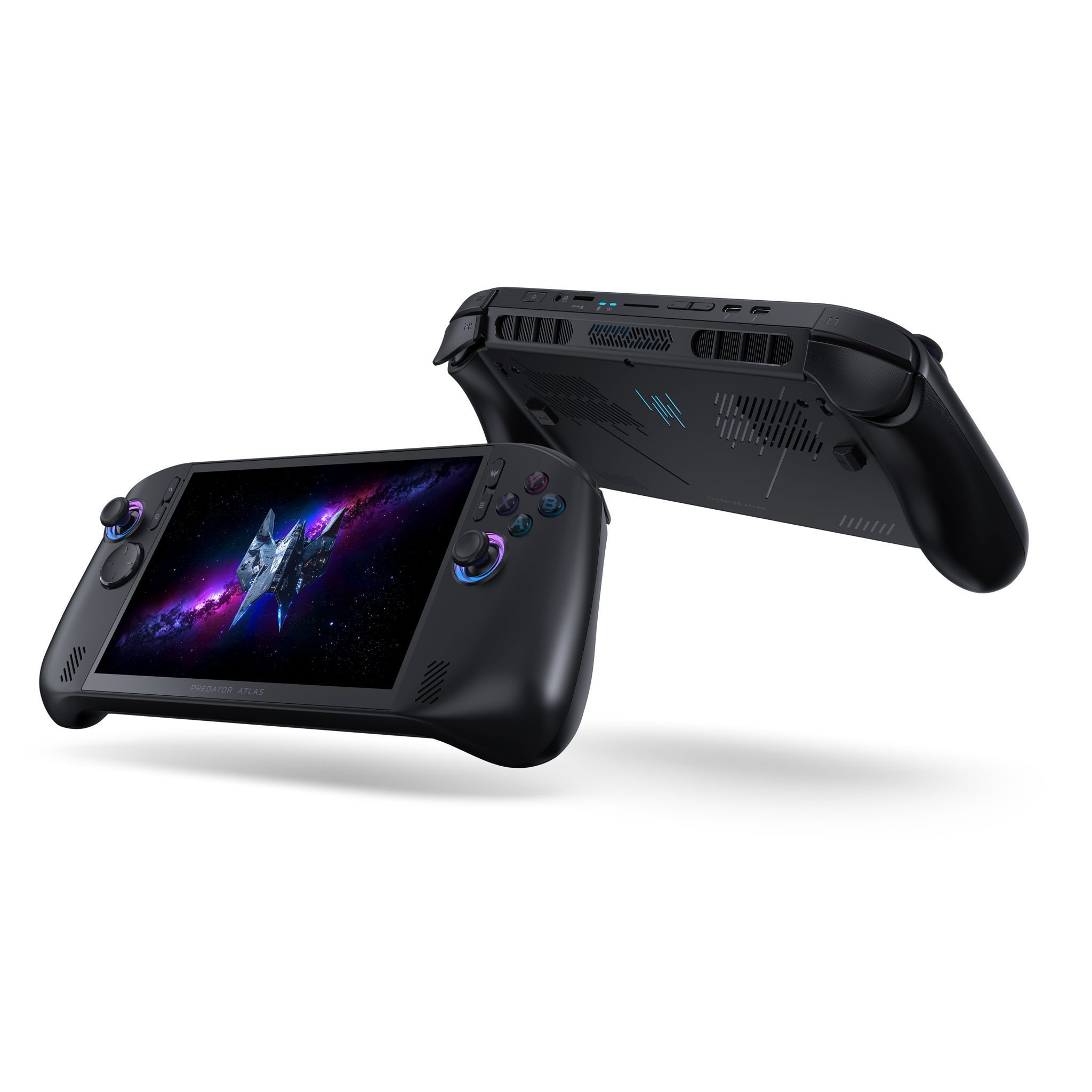
Predator Atlas 8 docking uses the handheld’s two Thunderbolt 4 USB-C ports. You can connect compatible external monitors, keyboards, controllers and storage to turn Acer’s eight-inch Windows 11 device into a desk gaming PC.
For a straightforward setup, choose a dock with the video output you need, attach the monitor, and connect a suitable USB-C power supply. You can then manage the external screen through Windows Display settings just as you would on a laptop.
Predator Atlas 8 docking: How to connect a monitor
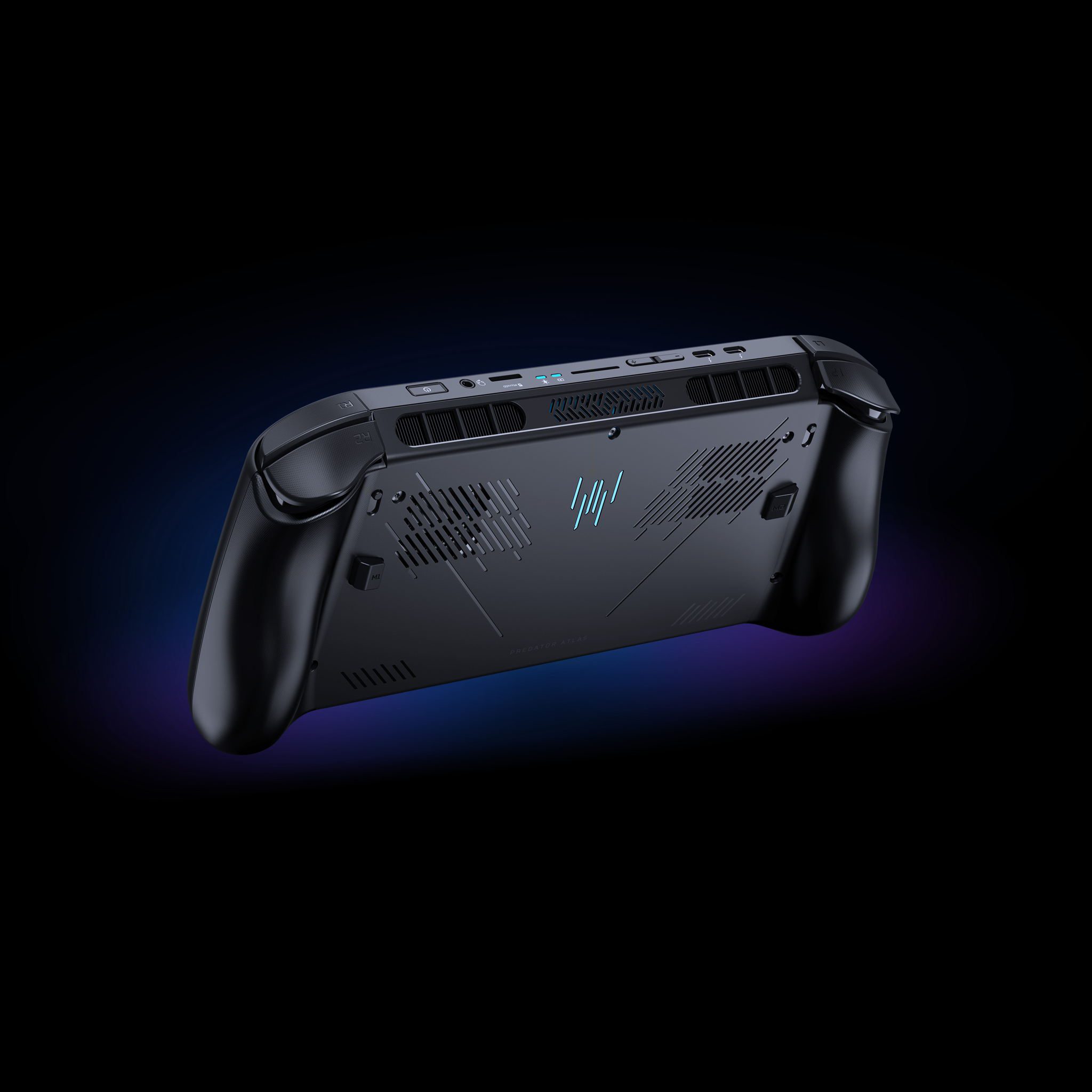
- Connect a compatible Thunderbolt 4 or USB-C dock to one of the Atlas 8’s two Thunderbolt 4 ports.
- Connect the monitor to a video output supported by the dock, such as HDMI or DisplayPort.
- Connect the dock to a suitable USB-C power supply if it supports charging the handheld.
- Power on the monitor and select the input connected to the dock.
- In Windows 11, open Settings > System > Display to choose how the external monitor works.
Windows should detect the external monitor when a compatible video cable or dock is connected. Press Windows + P with a keyboard to choose whether the picture appears on the handheld, the monitor or both.
Predator Atlas 8 docking ports and Thunderbolt 4
The two Thunderbolt 4 ports are useful because one can handle a dock or external display while the other stays available for charging or compatible storage. A USB-C accessory’s power and video capabilities still depend on its specifications.
A dock with HDMI or DisplayPort can connect an external monitor, but check the resolution and refresh rate supported by that exact dock. The Atlas 8’s Thunderbolt 4 connection provides video output; it does not override the limits of the accessory or cable.
For the Predator Atlas 8 docking setup, a powered dock is the most convenient choice if you’re connecting several peripherals. Look at its upstream Power Delivery rating as well as the ports it offers.
Predator Atlas 8 docking: Extend and mirror displays
Open Settings > System > Display to configure the monitor. Select Duplicate to show the same picture on both screens, Extend for extra Windows desktop space, or Second screen only to use the external display.
You can set the monitor as your main display and choose its supported native resolution and refresh rate. The built-in Atlas 8 touchscreen runs at 1920 x 1200 and 120Hz; the external screen’s options are determined by that monitor and its connection.
Can you connect to a 4K or 120Hz screen?
Predator Atlas 8 docking supports external display output through Thunderbolt 4, including compatible high-resolution monitors. Select a dock and cable rated for the actual display mode you want rather than assuming every USB-C hub offers the same video bandwidth.
If a game struggles at 4K or high refresh rates, lower its rendering resolution or graphics settings. The ability to send a video signal to a 120Hz monitor is separate from the frame rate the Intel graphics chip can generate in a demanding game.
Predator Atlas 8 docking power and USB-C charging
Acer’s original specifications describe a 65W USB-C adapter. For gaming through a dock, use a compatible charger and check how much power the dock can pass through to the handheld after its own devices are accounted for.
If the handheld charges slowly while you’re playing, test the manufacturer’s supported charging setup directly before blaming the battery. Some monitors and compact hubs offer less power than a dedicated adapter.
Predator Atlas 8 docking with controllers and keyboards
Plug USB keyboards, mice or controllers into a compatible dock, or pair wireless accessories using Settings > Bluetooth & devices. The Atlas 8 supports Bluetooth 5.4, and the extra desk controls make Windows settings and PC launchers easier to manage.
Xbox Mode remains available on the external display, so you can navigate the game library with a controller. Switch to the desktop for installers, file management or other Windows apps, and open PredatorSense when you want to check FPS, fans or battery status.
External storage and microSD
The Predator Atlas 8 docking setup also works with compatible external SSDs. For portable expansion, the handheld has a built-in UHS-II microSD reader, allowing a card to stay inserted while both USB-C ports are in use.
If installing PC games on an external drive, keep it connected when launching them. A fast SSD enclosure delivers its best speed when the dock, cable and connection support the enclosure’s rated transfer standard.
What to check if the monitor doesn’t show an image
If the monitor stays blank, start with the basics: select its correct input, check the dock’s power connection and reconnect the USB-C cable. In Windows Display settings, use the display detection option. A known video-capable cable is a useful way to rule out a charge-only lead.
For Predator Atlas 8 docking through HDMI, check the dock’s documented resolution and refresh-rate limits. Try a lower supported display mode if the preferred one doesn’t appear. With the correct cable, dock and power supply, the handheld can be used as a compact Windows desktop gaming system.
Official source: Acer Predator Atlas 8 Thunderbolt 4 connectivity and specifications.