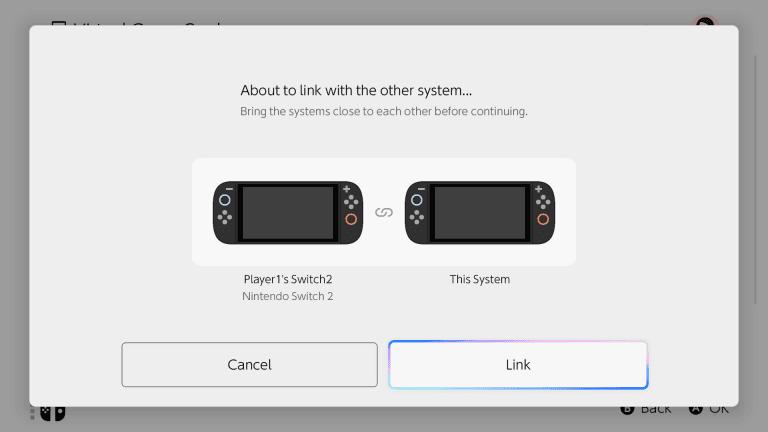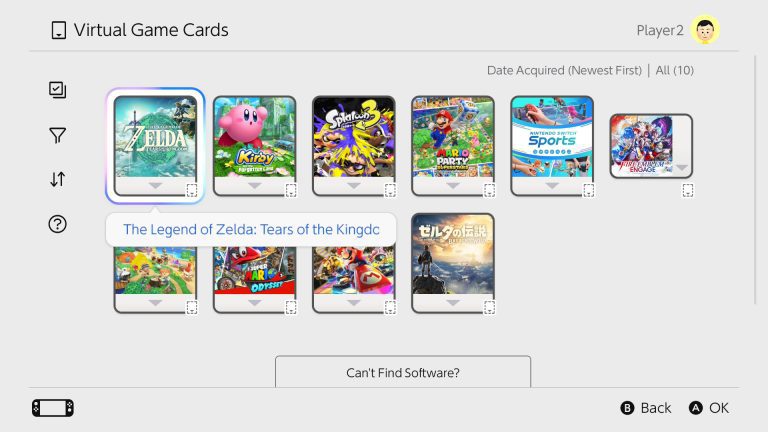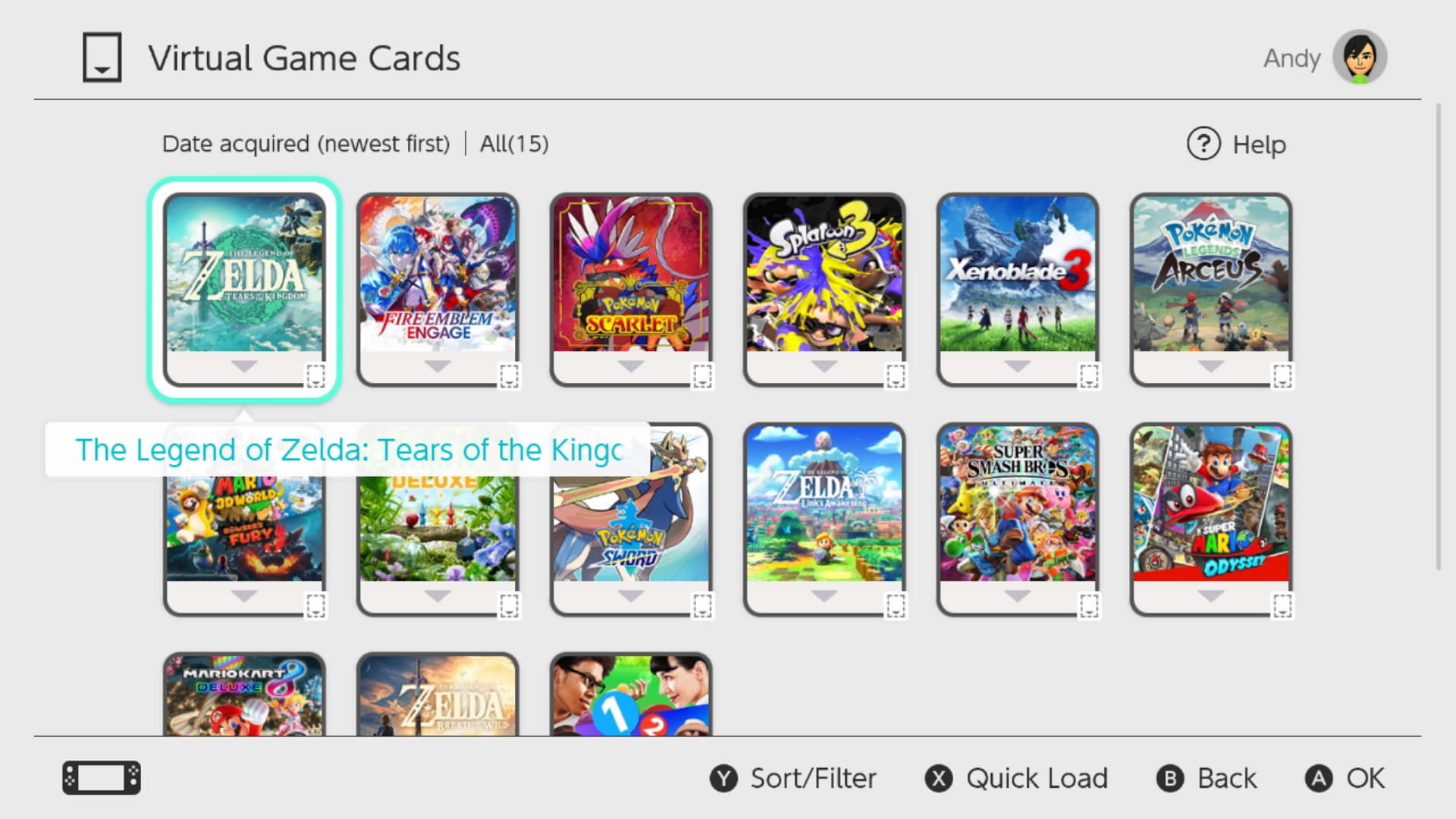
Nintendo eShop Purchased with no obvious redownload button does not mean you need to buy the game again. Nintendo says the Purchased label, a Virtual Game Cards button or a Hidden Software label all indicate that the current Nintendo Account has already obtained the content.
Since Nintendo moved digital software into the Virtual Game Card system, redownloading is often handled from that menu rather than from a traditional eShop download button. Hidden software can make the situation even stranger because the store still knows you own the game while the normal download route is deliberately suppressed.
Nintendo eShop Purchased: check Virtual Game Cards first
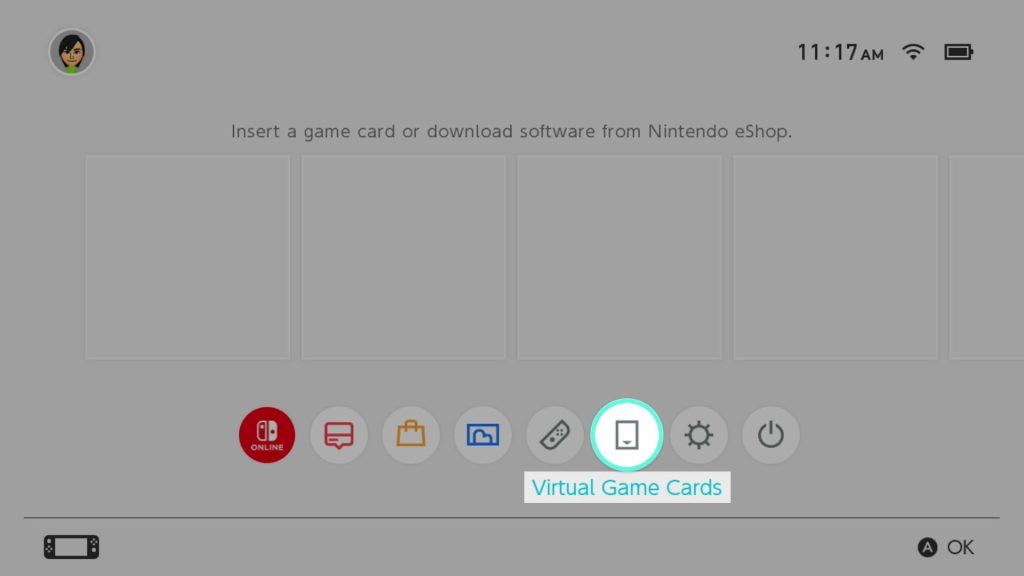
When Nintendo eShop Purchased appears, return to the HOME Menu and open Virtual Game Cards. Choose the account that purchased the software, find the game and load it onto the current console. If the game data is not already installed, the download should begin.
- Open Virtual Game Cards from the HOME Menu.
- Select the Nintendo Account that owns the game.
- Choose the game or DLC from the list.
- Select Load on This System.
- Wait for the download to finish before launching it.
What if Nintendo eShop Purchased is hidden from the Virtual Game Card list?
Nintendo eShop Purchased can also happen when the game has been hidden. In Virtual Game Cards, scroll down to the option for software you cannot find, open Hidden Virtual Game Cards, sign in if prompted and unhide the title. It should then return to the normal list.
Hiding a Virtual Game Card is not the same as deleting ownership. The purchase remains attached to the Nintendo Account, which is why eShop can continue to display Purchased even while the game is absent from the main card list.
The unusual five-button fix for Nintendo eShop Purchased
Nintendo documents another Nintendo eShop Purchased state called Hidden Software. Open the game or DLC details page in Nintendo eShop. If the page shows Hidden Software instead of a normal redownload option, press the + Button or – Button five times.
The page should update to show Virtual Game Cards again, allowing the content to be redownloaded by loading its virtual card. It is an unusual shortcut, but it is part of Nintendo’s current official support flow, so it is worth trying before contacting support.
Why Nintendo eShop Purchased can happen on the wrong account
If Nintendo eShop Purchased does not appear on one user but does on another, check which Nintendo Account actually purchased the software. Digital purchases are tied to the account used at checkout. Signing into a different account on the same console does not move ownership.
If no account on the console can find the purchase, check the purchase history and make sure you have not confused a physical game, a family member’s purchase or a Nintendo Switch Online entitlement with a permanent eShop purchase.
What if the game downloaded but still does not appear?
If Nintendo eShop Purchased has been resolved and the download started but the icon is still missing, restart the console. Nintendo recommends a restart when downloaded content does not appear on the HOME Menu. Hold the Power Button for three seconds, choose Power Options, then Restart.
For a broader missing-game problem, use our Nintendo Digital Content Missing guide. It also covers missing DLC, region mismatches and software that cannot be launched after redownloading.
Do not repurchase when Nintendo eShop Purchased is displayed
The most important rule with Nintendo eShop Purchased is not to pay a second time just because the store interface is confusing. Purchased is evidence that the current account already owns the item. Work through Virtual Game Cards, hidden cards and the redownload setting first.
- Nintendo Digital Content Missing: Restore Games and DLC
- Nintendo Online License Error: This Software Cannot Be Played Fix
- Checking Whether Software Can Be Played: What It Means
- Pokémon Champions Update Not Working: How to Update on Switch
- How to Play Star Fox Adventures on Nintendo Switch 2
- Destroy All Humans 2 Switch 2: Release, DLC, Size and What Changed
Official Nintendo eShop Purchased support
Nintendo’s official Purchased but cannot redownload support page covers Virtual Game Cards, hidden software and the five-button method. Those are the correct first places to check when Nintendo eShop Purchased blocks a redownload.