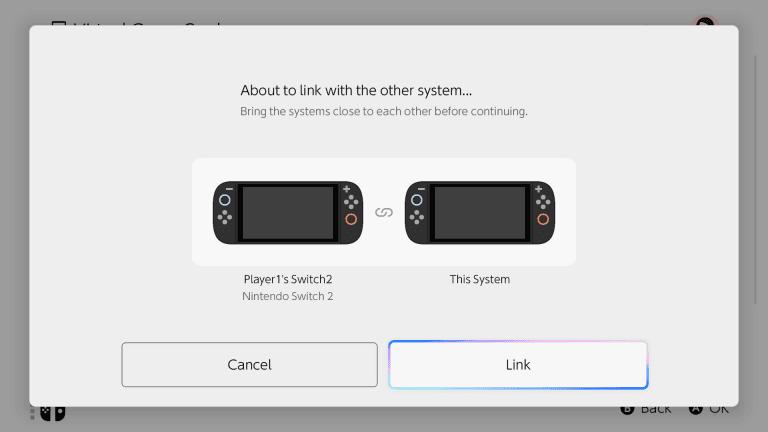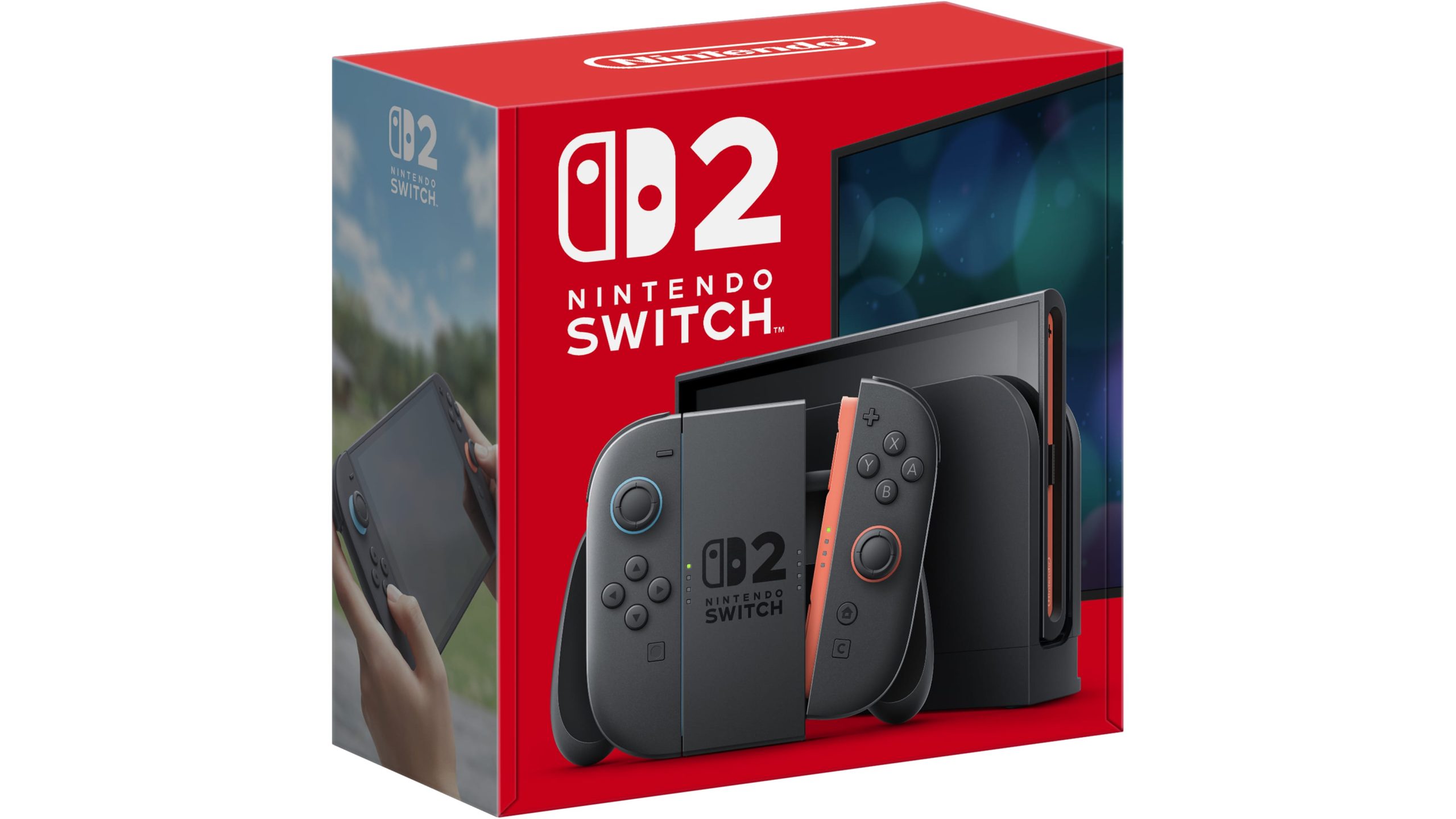
Switch 2 System Transfer from one Nintendo Switch 2 console to another is supported after system version 23.0.0. Nintendo added the ability to move a full Switch 2 setup to another Switch 2, including users, compatible save data, digital software information and several system settings.
This is not the same as simply signing into a second console. A full transfer is intended for replacing the source system, and Nintendo warns that data is deleted from the source as part of the process. If you plan to keep using both consoles, virtual game cards and individual save transfers may be a better fit.
Switch 2 System Transfer: what transfers
A Switch 2 System Transfer can move all users, signed-in Nintendo Accounts, friends, play activity, compatible save data, screenshots and videos stored in system memory, registered network information, parental-control links, Mii data and several other settings. Digital games are then downloaded to the target console after setup.
| Data | Transfer status |
|---|---|
| Users and linked Nintendo Accounts | Transferred |
| Compatible save data | Transferred or copied depending on method |
| Digital games | Redownloaded on the target console |
| System-memory screenshots and videos | Transferred |
| Bluetooth audio pairings | Not transferred |
| Custom controller button mappings | Not transferred |
| Time, region and language choices | Set again during target setup |
How to start a local Switch 2 System Transfer
For a local Switch 2 System Transfer, both consoles need to be nearby and connected to the internet. Nintendo recommends this method when you already have the old and new Switch 2 at the same time.
On the new target Switch 2, begin the initial setup and continue until the System Transfer screen appears. Connect to the internet, update the target if prompted, select Begin System Transfer and sign in with the Nintendo Account used on the source console.
On the source Switch 2, open System Settings, System, System Transfer to Nintendo Switch 2, then follow the prompts and confirm that the target console is nearby. You can choose whether to redownload software and transfer album data as part of the process.
Important warning before a Switch 2 System Transfer
A full Switch 2 System Transfer is destructive to the source system. Nintendo states that data is deleted from the source after the transfer, although the exact behavior differs between local and server methods. Do not start simply to test the menu.
If several people use the source console, make sure everyone knows the transfer is happening. A full system transfer includes all users rather than letting you casually pick one profile and leave the rest untouched.
Can you use a server Switch 2 System Transfer?
Yes. Nintendo provides a server-based Switch 2 System Transfer for situations where you will lose access to the source console before receiving the replacement, such as a trade-in. The source data is uploaded, then the source console is initialized. Nintendo stores the uploaded transfer for up to one year, with a deadline shown during setup.
The server method is not the best choice if you can simply keep both consoles together. Nintendo recommends local communication when both systems are available because it avoids wiping the source before the replacement is in your hands.
What if the new Switch 2 is already set up?
The full Switch 2 System Transfer is retrieved during the initial setup of the target console. If you have already completed initial setup and want to retrieve a server transfer, Nintendo says the target must be initialized so the setup process can be run again.
If you do not want to initialize the new console, use individual save-data transfer or Save Data Cloud for supported games instead. Digital purchases remain tied to the Nintendo Account and can be downloaded again.
Switch 2 System Transfer or Virtual Game Cards?
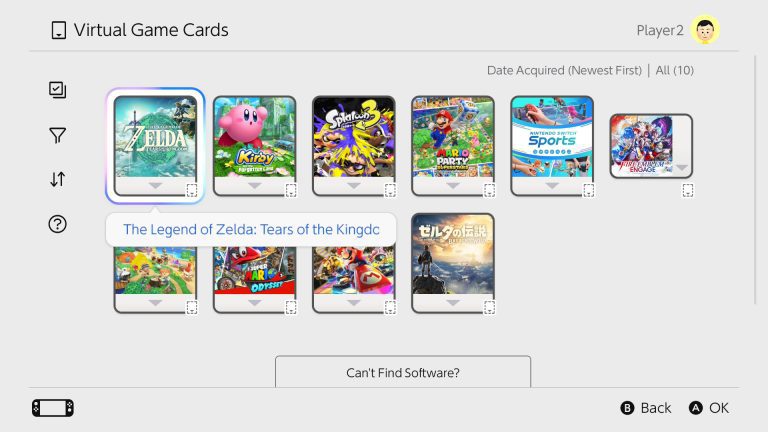
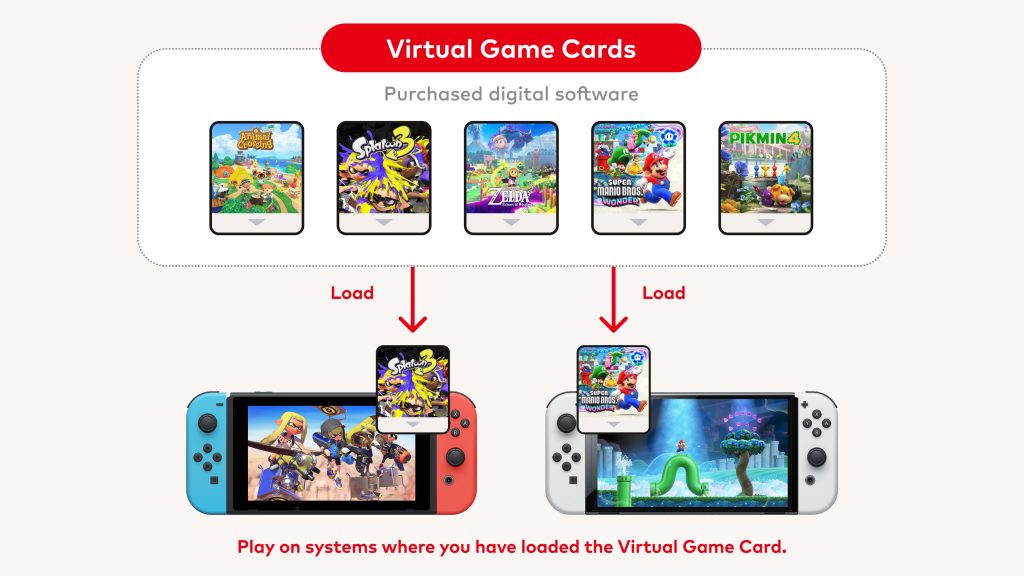
Use a Switch 2 System Transfer when you are replacing one Switch 2 with another and want to migrate the whole system. Use Virtual Game Cards when you intend to keep two consoles and move access to digital games between them. Nintendo allows up to two consoles to load a user’s virtual game cards.
Our Nintendo Online License Error and Checking Whether Software Can Be Played guides cover the common messages that can appear when digital games are being used across multiple systems.
- Nintendo Online License Error: This Software Cannot Be Played Fix
- Checking Whether Software Can Be Played: What It Means
- Nintendo eShop Purchased But Cannot Redownload: Fix
- Pokémon Champions Update Not Working: How to Update on Switch
- How to Play Star Fox Adventures on Nintendo Switch 2
- Destroy All Humans 2 Switch 2: Release, DLC, Size and What Changed
Official Switch 2 System Transfer information
Nintendo’s official system transfer support guide explains the local and server routes, what is moved and what is erased. Read those warnings before starting a Switch 2 System Transfer, especially if the source console still contains local saves that are not backed up.