UEFN HUD Controller Interact and Pickup controls can now be customised for mobile players. Fortnite v43.00 added both actions to the HUD Controller’s touch overrides, letting creators change the shared button’s appearance and position.
The catch is that Interact and Pickup share one contextual button. Your override applies to both actions, so you can’t create separate positions or icons for them this way.
UEFN HUD Controller Interact and Pickup: What changed?
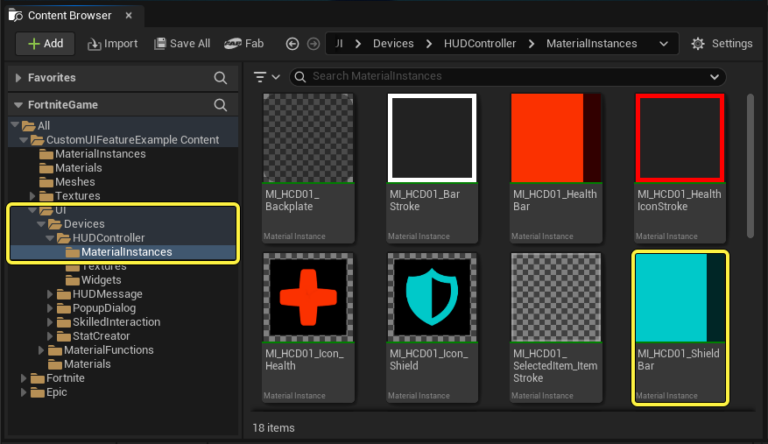
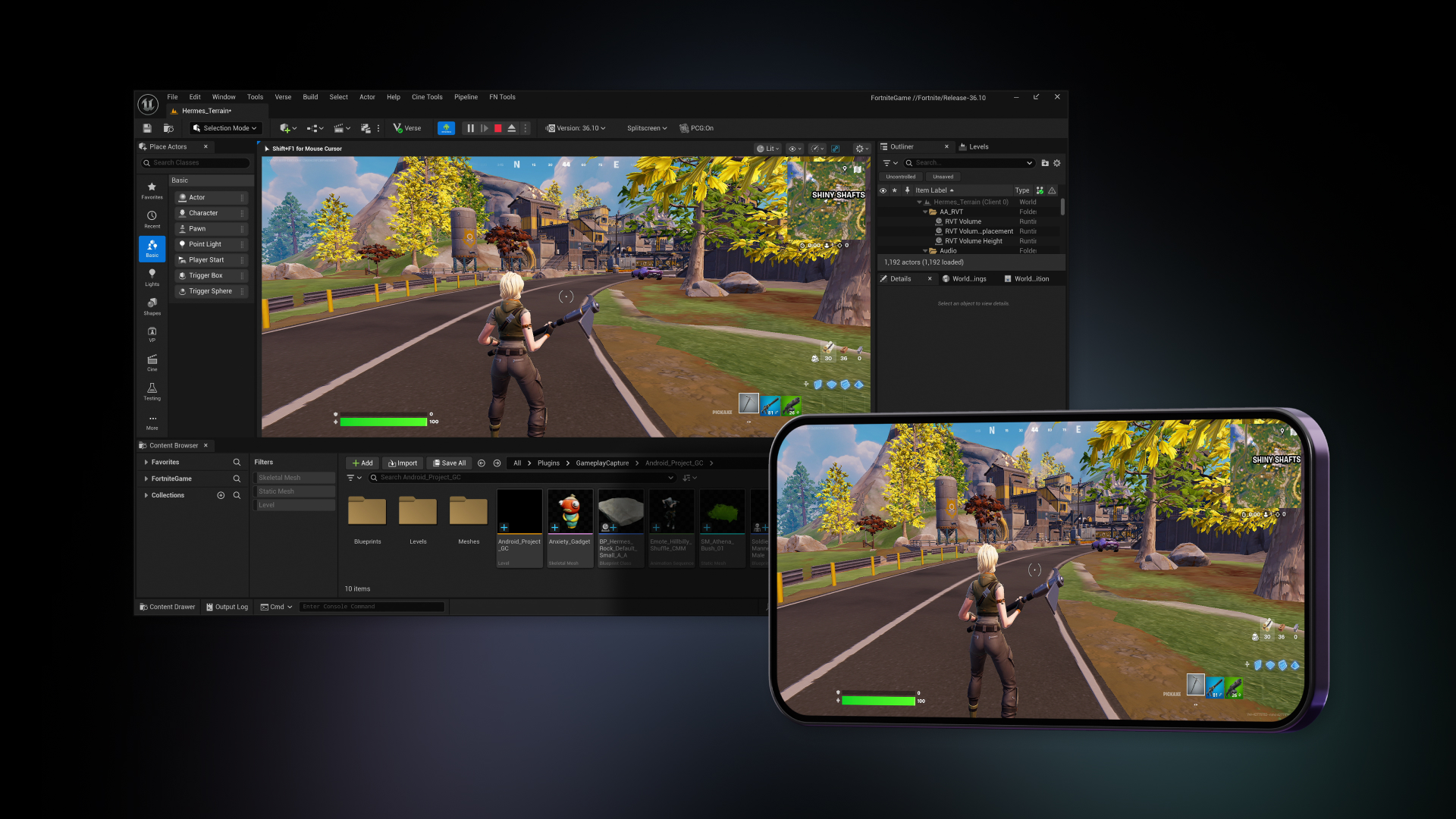
UEFN HUD Controller Interact and Pickup controls need testing on mobile layouts. Official Epic Games mobile preview illustration.
You can change the icon or colour without rearranging every button. If players have already set up a layout that feels comfortable, that’s usually the best option.
In v43.00, the shared Interact/Pickup action joined the list of controls that can be overridden. Epic also updated sizing so the custom HUD layout can affect button scale. The earlier v42.40 update introduced an Apply Canvas Transform option to control whether canvas placement and sizing are applied for a button.
UEFN HUD Controller Interact and Pickup: Create a Mobile Touch Layout
- Open your UEFN project and create a standard UMG User Widget for the mobile layout.
- Add a Canvas Panel as the root widget.
- Add a Touch Control Layout Override widget for the action you want to customise.
- Set its Action to the contextual Interact/Pickup action supported by your editor version. Adjust the icon or colour override if you only want a new appearance.
- Arrange and size the control on the canvas if you intend to change its location.
- Place a HUD Controller device in the island, assign your UMG widget using its Override Touch Layout setting, and enable the relevant override.
- Test the resulting layout on a touchscreen, including situations where the same button is used to interact with a device or pick up an item.
Epic’s touchscreen documentation still shows an older action list, but the v43.00 release notes explicitly add the shared Interact/Pickup override. Look for it in your updated UEFN editor.
Should you enable Apply Canvas Transform?
| What you want | Apply Canvas Transform | Expected result |
|---|---|---|
| Change icon or colour only | Off | Keep the player’s existing button position and size |
| Move or resize the control | On | Use the widget’s canvas transform for that control |
For UEFN HUD Controller Interact and Pickup, leave Apply Canvas Transform off if you’re only changing the icon or colour. Turn it on when you need to move or resize the button.
You can use that choice per button rather than forcing every control into a new global arrangement. When changing UEFN HUD Controller Interact and Pickup, start with a cosmetic-only override if you do not have a specific reason to move the button.
Why Interact and Pickup cannot be moved separately
Epic treats Interact and Pickup as one contextual action in this override system. The button changes meaning depending on what the player can do in front of them. If you position or restyle that control, both situations use the same override.
The same button has to feel comfortable for both actions. Test it near doors, chests, loose pickups and anything else players need to interact with. A layout that works for opening a door can still feel awkward when picking up loot.
Don’t accidentally hide a required mobile control
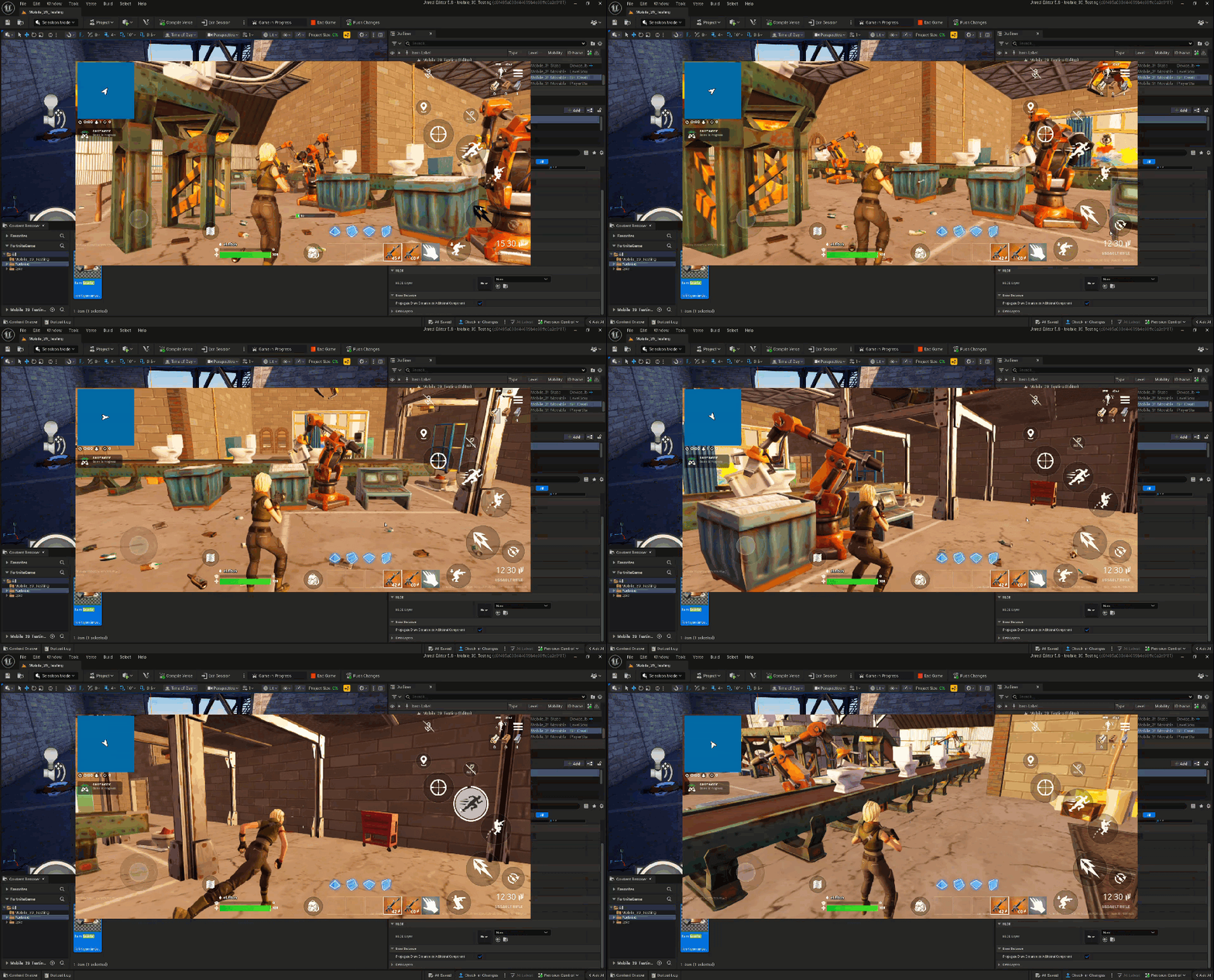
UEFN HUD Controller Interact and Pickup: mobile touch preview from Epic Games. Check that essential actions remain visible in play.
UEFN HUD Controller Interact and Pickup overrides also have a Hide from Layout option, but don’t hide a button players actually need. Removing Interact/Pickup could stop touchscreen users opening doors or collecting essential items.
Controls that you omit from the override widget remain in their default behaviour. If an action goes missing unexpectedly, check both the Hide from Layout setting and whether your project changed the default input mapping. A keyboard or controller playtest cannot reproduce every mobile touch interaction.
Use more than one layout when necessary
For UEFN HUD Controller Interact and Pickup, you can create more than one UMG touch layout and activate a different HUD Controller device to switch which override is used at runtime. This can help if a vehicle section or a special mode needs a different layout. Keep the interaction action available whenever the player needs it.
When you change UEFN HUD Controller Interact and Pickup between modes, check that a control does not jump to an awkward location because one widget applies its canvas transform and another does not. Also inspect button sizing at different UI scales and screen sizes.
Why a mobile override may not show in the preview
If the button keeps its old icon or position, your widget may not be the problem. Epic tracked a Mobile Preview regression after v42.40 that stops some Touch Control Layout Override changes from appearing. On 11 November 2026, Epic said the fix would be addressed in v44.00. Check your current editor version and the issue status before rebuilding the layout.
UEFN HUD Controller Interact and Pickup FAQ
Can I separately override Interact and Pickup? No. Epic says they share one contextual action.
Can I keep the player’s chosen position? Yes. Do an icon or colour override without applying the canvas transform when appropriate.
Can I test this in the desktop editor only? Desktop previews help with layout, but test essential interactions on a real touchscreen before relying on the result.
Test the final layout on a real touchscreen, especially when picking items up and interacting with objects. Both actions need to remain easy to reach.
Related Guides
- Fortnite Mobile Creator Tools
- Fortnite Mobile Pocket Item HUD
- UEFN Mobile Performance Profiling
- UEFN Procedural Content Generation
- UEFN Scene Graph Camera Not Working
- UEFN Versioning Stage Failed
- UEFN Copied Entity Not Showing
- Fortnite Creator Portal Technical Dashboard
- UEFN Scene Graph Camera Modifiers
- UEFN GLB Import
Official source: Epic Games documentation.