GeForce NOW DLSS 4.5 settings are in the GeForce NOW app, where you can adjust how compatible games use Super Resolution, Ray Reconstruction and frame generation. NVIDIA launched the controls on 15 October 2026. You can benefit from the technology even if the computer in front of you doesn’t have an RTX graphics card.
Your game is rendered on NVIDIA’s servers, not on your own graphics card. The options you get depend on your membership, the cloud rig you’re connected to and the game you’re playing. Here’s where to look and what each control actually changes.
Where to find GeForce NOW DLSS 4.5 settings
Open GeForce NOW, sign in and go to Settings > Gameplay. Look for DLSS Overrides in the streaming settings, then select Details. NVIDIA confirms the controls on Windows, macOS, Chrome OS and Steam OS. The layout may vary between apps, and the GeForce NOW DLSS 4.5 settings you see depend on your account and the supported game.
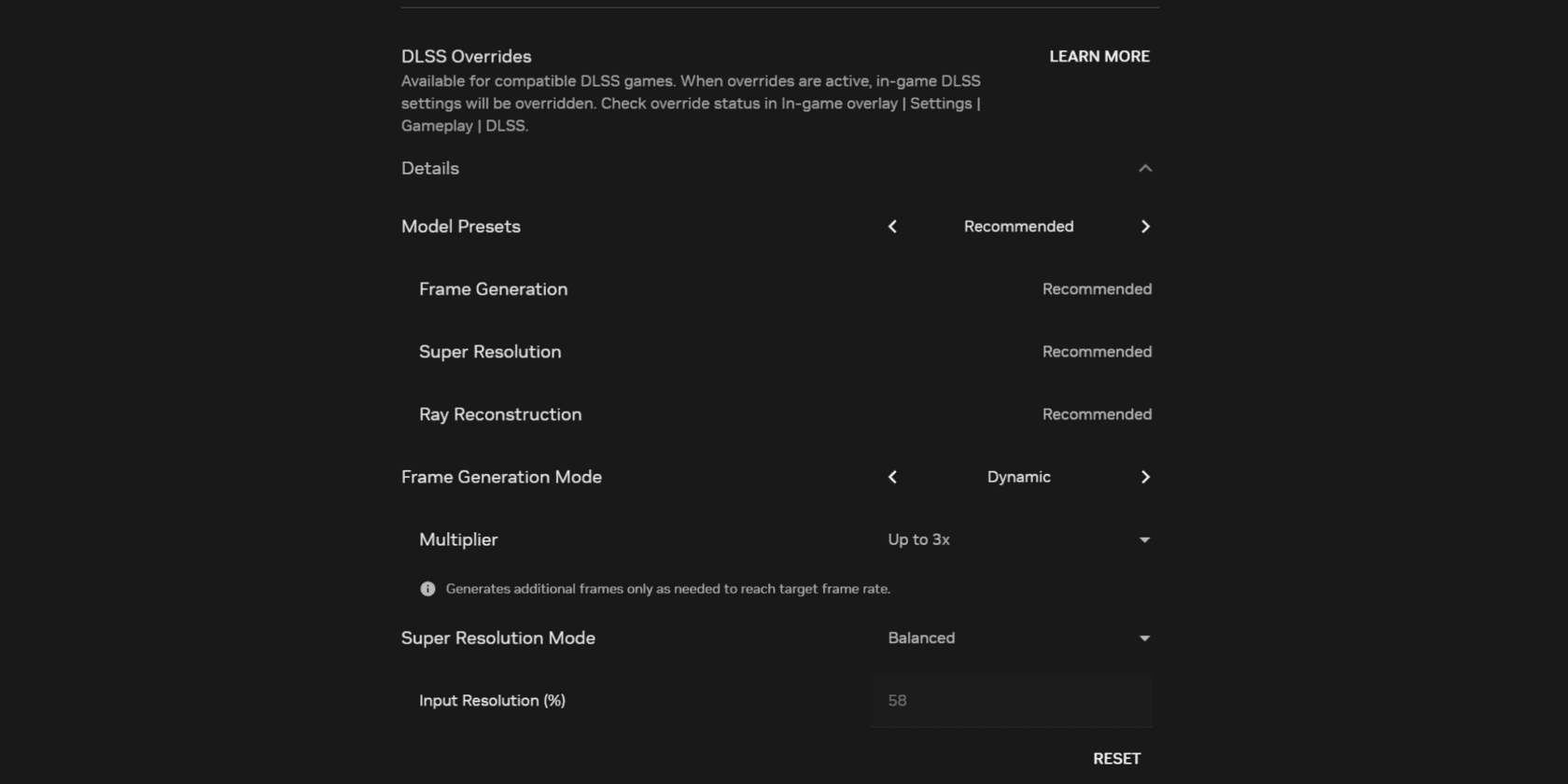
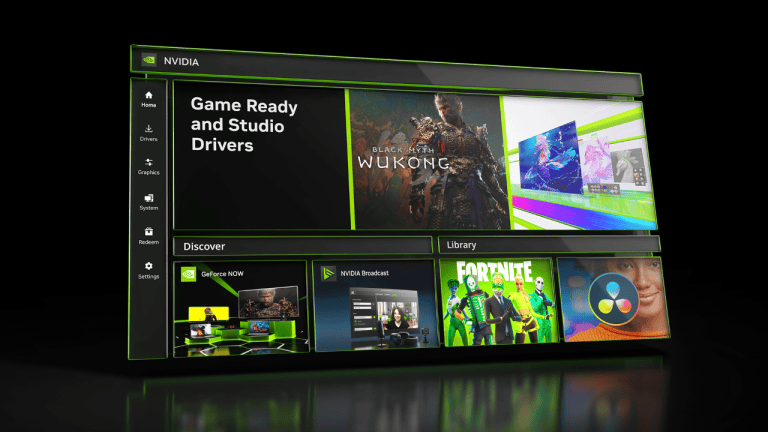
The GeForce NOW DLSS 4.5 settings are separate from the NVIDIA app’s Graphics and Program Settings pages for locally installed PC games. You don’t need to install an RTX 50 Series driver to change the cloud options, although you may need to enable the matching DLSS feature inside the game.
How to use Super Resolution and Ray Reconstruction
Start by opening GeForce NOW DLSS 4.5 settings with a game you already know. Change one option, play a familiar scene and see whether the image or motion improves. The three headline technologies do different jobs:
- DLSS Super Resolution: uses AI-assisted upscaling to produce a higher-quality image from a lower internal rendering resolution. It is about how the game is rendered, not simply changing the video stream’s output resolution.
- DLSS Ray Reconstruction: improves the appearance of supported ray-traced effects, replacing some conventional denoising work with an AI model. It matters most when a game uses ray-traced lighting, reflections or similar effects.
- Dynamic Multi Frame Generation: creates additional frames between traditionally rendered game frames in supported titles. NVIDIA presents it as a way to reduce stutter and improve smoothness and responsiveness, but it is not a substitute for a good internet connection.
GeForce NOW DLSS 4.5 settings improve existing DLSS features in supported games. They won’t give a title ray tracing or frame generation if it doesn’t support them in the first place.
How to enable GeForce NOW DLSS 4.5 settings for a game
- Open the GeForce NOW app on one of the platforms NVIDIA lists and sign in.
- Visit Settings and check the DLSS options offered by your membership and cloud rig.
- Choose the available image-quality or performance option you want to test. Do not assume every title offers all three DLSS technologies.
- Launch a supported title and check its in-game graphics options for the DLSS feature you intend to use.
- Compare image quality and responsiveness during normal gameplay. If the stream struggles, check your streaming quality and network connection before assuming DLSS is at fault.
If the GeForce NOW DLSS 4.5 settings look different from screenshots you have seen, check your app version, subscription and cloud rig. The options are in GeForce NOW, not the separate desktop NVIDIA app.
Which GeForce NOW membership gets the best DLSS options?
Ultimate members streaming from an RTX 5080-powered cloud rig receive the maximum controls announced for this rollout. That includes Dynamic Multi Frame Generation up to 4X, provided the game supports the relevant feature. A different GeForce NOW tier or a session running on an older cloud rig should not be assumed to offer the same 4X option.
The GeForce NOW DLSS 4.5 settings are not the same as the local NVIDIA app’s RTX 50 Series overrides. In particular, the 5X or 6X Multi Frame Generation figures associated with local hardware are not a confirmed 6X cloud option. NVIDIA’s stated ceiling for its 15 October GeForce NOW announcement is 4X on qualifying Ultimate sessions.
Games and devices that support the new controls
NVIDIA highlights 007 First Light, CONTROL Resonant and Resident Evil Requiem when talking about the rollout. That isn’t a guarantee that every game offers every DLSS feature. Check the individual game’s graphics menu for what’s actually supported.
Steam OS is explicitly included in NVIDIA’s supported platform announcement, making the GeForce NOW DLSS 4.5 settings relevant to compatible Steam-based devices. NVIDIA did not expressly extend the October launch controls to the Android, iPhone, iPad and TV apps in that announcement. GeForce NOW streaming on a phone is not proof that these particular adjustment controls are present there.
Why a DLSS setting might be missing or have no effect
If your GeForce NOW DLSS 4.5 settings seem to be missing, start with the game and the membership tier. A title without the matching DLSS technology cannot use its override, and Ultimate’s RTX 5080-only options do not follow you into every cloud session automatically. The device app also matters. Reopen Settings on a supported platform, then check which rig and options the current session actually offers.
Don’t confuse the quality of the rendered image with the quality of the stream. Super Resolution works on frames in the cloud machine, while bitrate, video resolution and your internet connection determine how the result reaches you. No DLSS override can fix packet loss or unreliable Wi-Fi.
For readers specifically comparing the 4X cloud feature with local 6X technology, our GeForce NOW Dynamic Multi Frame Generation guide covers the hardware and membership differences.
Official source: NVIDIA’s GeForce NOW DLSS 4.5 controls announcement (15 October 2026).