
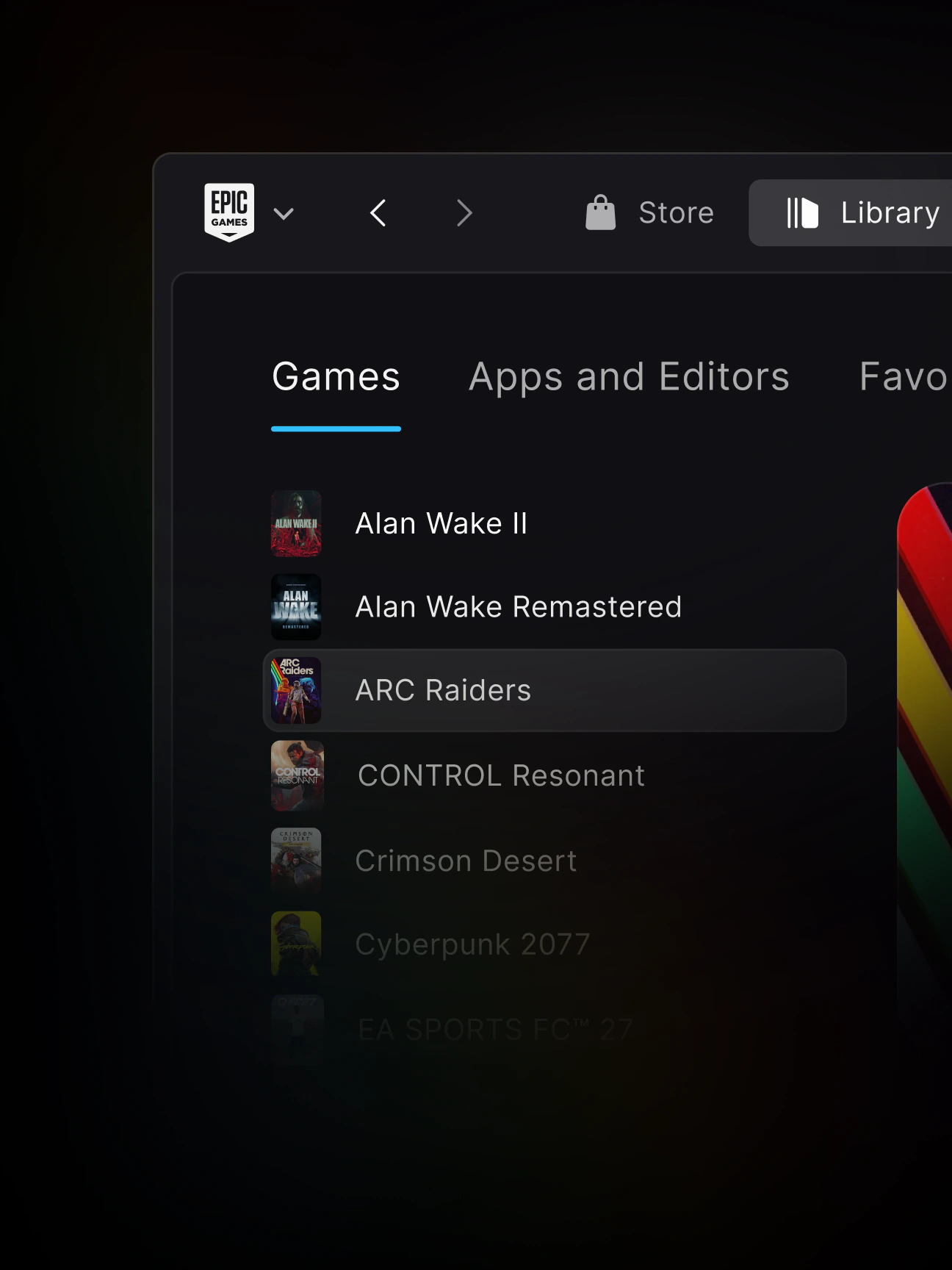
To move Epic Games Launcher Preview games to another drive without downloading the entire game again, make a complete copy of its installation folder first. Once that copy is safely on the new drive, uninstall the game through Preview’s Library and select the copied files when you install it again. Epic says Preview will recognise the existing installation automatically.
If your C: drive is filling up, or you’ve added an SSD for your bigger games, this saves you from downloading everything from scratch. Epic has different instructions for Preview and the older Legacy launcher, so check which one you’re using before you begin. Don’t click Uninstall until you’ve checked that the copied folder is complete.
How to move Epic Games Launcher Preview games to a new drive
You’ll need enough free space on the destination drive for the full game. On Windows, Epic lists C:\Program Files\Epic Games\[Game Name] as the usual game folder, although yours could be elsewhere. Check the folder’s size and contents before copying. Paths on macOS and Linux will be different.
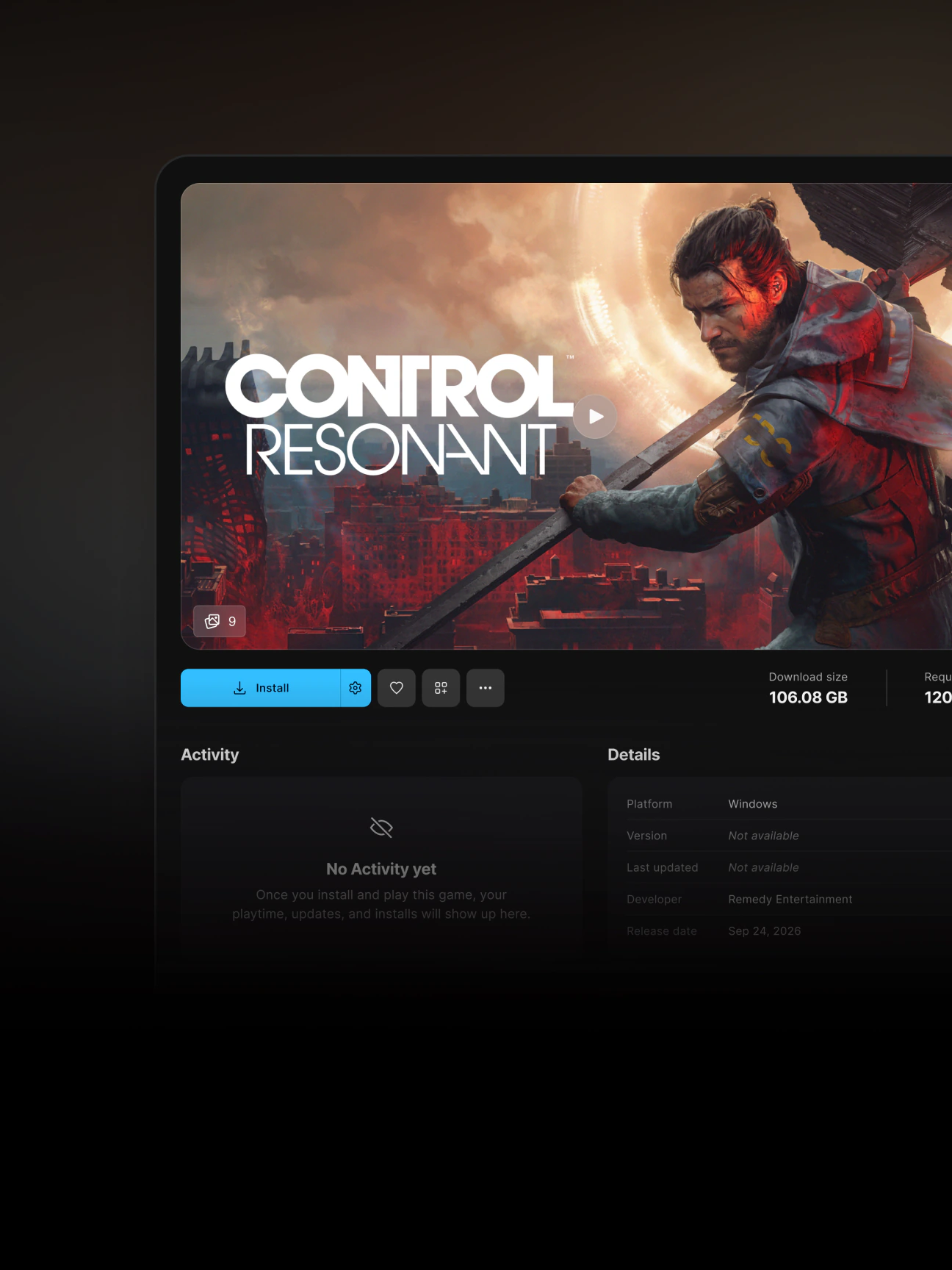
Before you move Epic Games Launcher Preview games, make sure the copy has finished and that the new drive contains the files. Then follow Epic’s steps:
- Find the installed game folder and copy the whole folder to the destination drive or directory. Confirm that the copy has finished.
- Open Epic Games Launcher Preview and go to Library.
- Select the game, open its three-dot menu and choose Uninstall. Do this only after making the copy.
- Go back to the same game in Library and select Install.
- Choose the new installation location where you copied the game’s files, then select Install again.
- Let Preview recognise the existing installation. Once the game becomes available, launch it and check everything is working.
Preview doesn’t use the old trick of pausing a fresh download after 2-3%. That’s part of Epic’s Legacy procedure, which is covered separately below. Don’t combine the two sets of steps.
What to check after you move Epic Games Launcher Preview games
Open the game from its Library page and check the new drive contains the installed files. Keep the original backup until you’ve played successfully. Epic’s file-detection method avoids a full re-download when the files are recognised, but an update or missing game files can still require some data to be downloaded.
If the game still appears uninstalled after you move Epic Games Launcher Preview games, check that you’ve selected the copied folder on the new drive. Don’t delete those files while troubleshooting. Preview also has a built-in detection tool: click the Epic Games icon at the top left, open Settings, select Library and then choose Scan for installed games. Check Library again when the scan finishes.
If Preview still can’t find the game, keep your backup and contact Epic Support with your launcher version and any error message. Our games missing from Library guide explains the Preview scan option in more detail. The older Legacy client does not have that scan feature.
Does changing the default folder move Epic Games Launcher Preview games?
No. Changing the default download location in Preview affects where new games will be installed. It doesn’t automatically move the ones already on your PC. To choose a default location for future downloads, click Downloads at the bottom of Preview and select Change beside Default install location.
If you want to move Epic Games Launcher Preview games you’ve already installed, use the copy-and-reconnect steps above. For a single new installation, Epic also lets you choose a custom folder using the cogwheel beside the game’s Install button.
Moving installed games in the Legacy Epic Games Launcher
The old launcher handles this differently. If your game is installed through Legacy, follow Epic’s separate procedure instead of using the Preview steps:
- Make a complete backup copy of the existing game folder.
- Open Legacy, go to Library and use the game’s three-dot menu > Uninstall.
- Start installing the game again and select your new folder.
- Let the download reach 2-3%, then use the three-dot menu to choose Cancel Install.
- Copy the backed-up game folder into the new installation directory. Select Replace if asked about duplicate files.
- Resume installation. Epic says the launcher verifies the files before the game can be started.
That pause-and-copy sequence is only for Legacy. If you want to switch from Legacy to Preview without changing the game’s drive, read our Epic Games Launcher Preview migration guide instead. Migrating between launcher versions and relocating an installed game are not the same process.
What happens to saves when you move Epic Games Launcher Preview games?
Moving a game’s installation folder doesn’t change your Epic account or remove a purchase from your Library. When you move Epic Games Launcher Preview games, the files you need to protect separately are your saves. Some games support cloud saves; others store progress locally, sometimes outside the installation folder. Back up any important local saves rather than assuming they’re included in your copy.
There’s also a big difference between uninstalling one game through its three-dot menu and uninstalling the entire Preview application. Don’t remove the launcher just to make space on a different drive. Epic’s FAQ warns that removing it can delete installed games, although its 21 October 2026 release notes confirm that version 0.100.0 added a prompt to keep games. See our guide to uninstalling Preview safely before doing that.
Can you move Epic Games Launcher Preview games from an HDD to an SSD?
Yes. The same process works when you’re moving a game from an HDD to an SSD. Make sure the SSD has enough room for the full installation, then test the game from its new location before removing the old backup.
This process applies to games installed through Epic, not Unreal Engine projects or the launcher application itself. If you need to move Epic Games Launcher Preview games to another PC, don’t assume the drive-to-drive steps cover that situation; Epic’s instructions here are for moving an installed game to a different directory on the same computer.
To move Epic Games Launcher Preview games safely, copy first, reconnect the new location and test the game before removing your backup. That order matters far more than the speed of your SSD, and it saves you from deleting the only working installation.
Source: Epic Games’ official instructions for moving installed games to another directory.





