
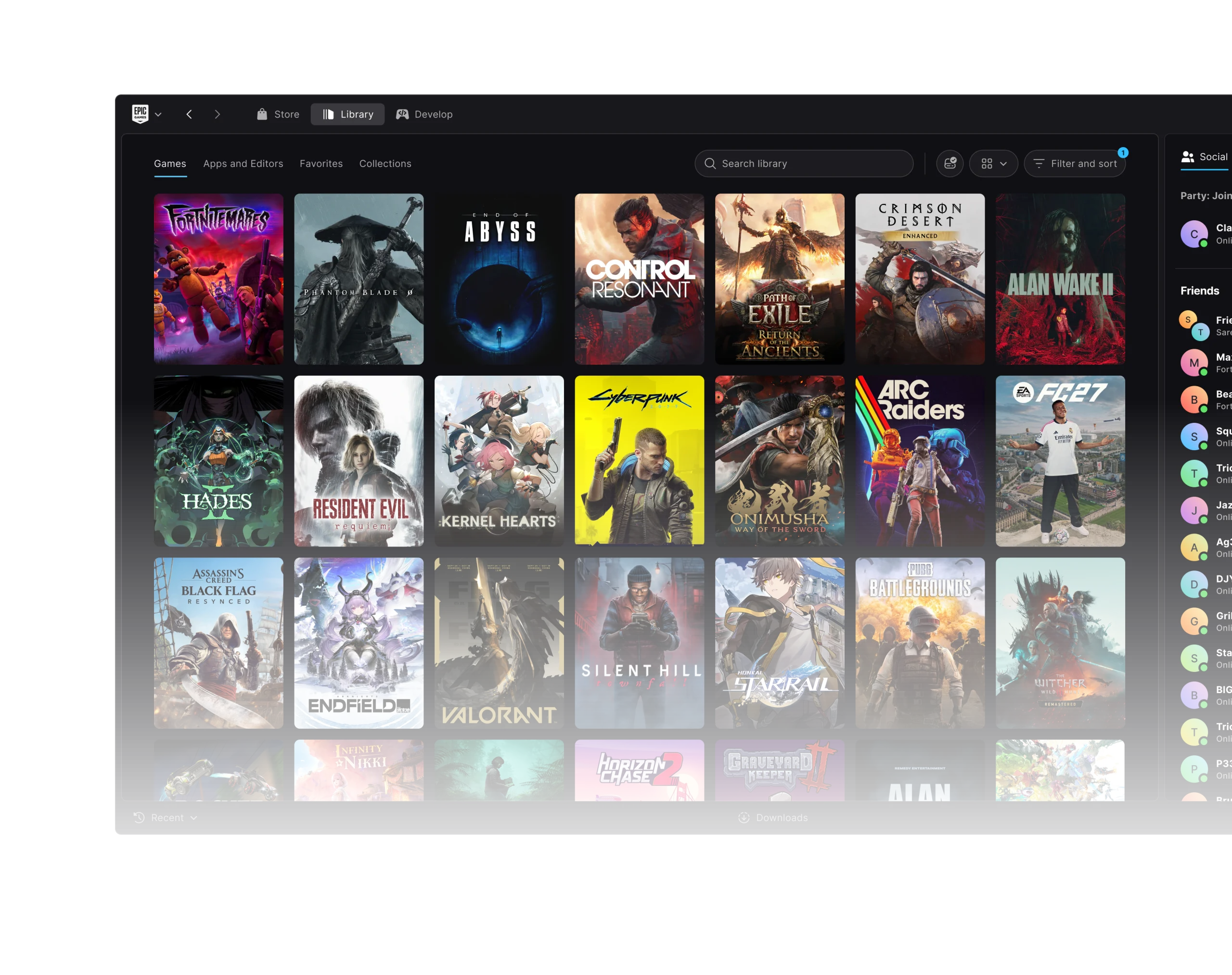
Epic Games Launcher Preview migration moves installed games, applications and Unreal Engine projects from the old Epic launcher into the rebuilt client. Epic says you won’t need to download your games again if the transfer completes successfully.
The Preview has been available since 14 October 2026 for Windows, Apple Silicon Macs and Linux. If you’re already using the legacy launcher, leave it installed until Preview offers to migrate your content. Removing it first can disrupt the supported transfer.
Epic Games Launcher Preview migration: what gets transferred?
When Preview detects the legacy launcher, Epic offers to move installed games, applications and Unreal Engine projects. The migration registers that content with the new client so you can carry on using it without downloading it all again.
Once the process finishes, Epic uninstalls the legacy launcher. That’s part of the normal transfer. It isn’t a reason to delete your installation folders yourself before starting.
Preview still lacks some of the legacy client’s features. If you rely on particular tools, read the latest patch notes and decide whether this version meets your needs before switching.
How to complete Epic Games Launcher Preview migration
- Leave your legacy Epic Games Launcher and installed game folders in place.
- Go to Epic’s official Preview website and choose the correct installer for your computer.
- Run Preview and sign in using your existing Epic Games account.
- When the built-in migration offer appears, follow it to transfer games, apps and Unreal Engine projects.
- Keep the launcher window open while the progress spinner runs. Epic warns that migration can take time.
- Once complete, open the Preview Library and check that your installed games are recognised.
Epic specifically says the migration spinner can keep moving for a while. Leave the window open while it’s working. If you get an error instead, take note of its wording before trying to restart the transfer.
The Epic Games Launcher Preview migration changes which launcher manages your existing games. It isn’t a method for moving a game between drives; Epic has separate instructions for choosing a different installation directory.
Do you need to redownload your installed games?
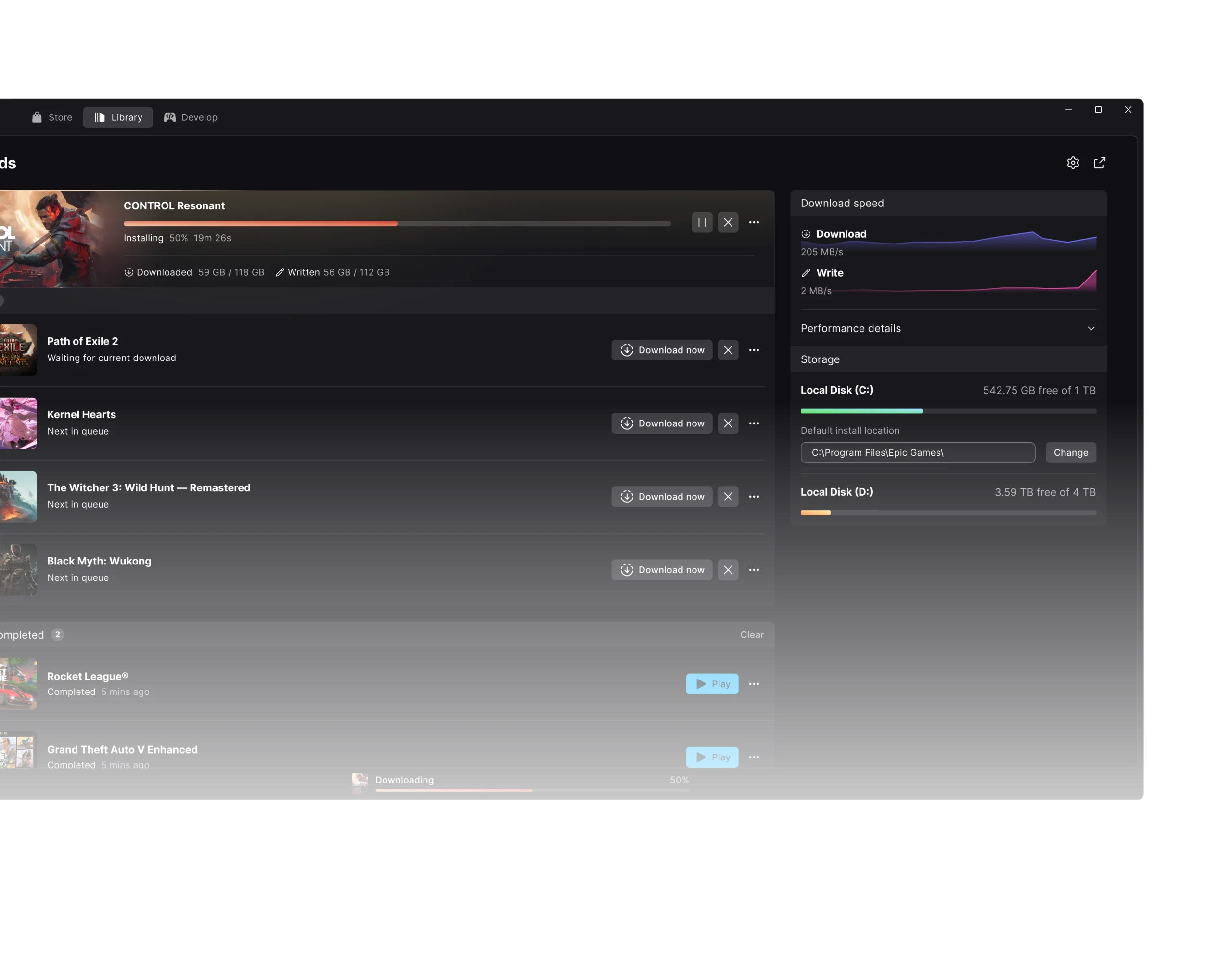
Not after a successful migration. Epic’s support FAQ says you don’t have to redownload the installed games it has transferred. If a particular title wasn’t recognised, check the new Library before starting another full installation.
Your purchases remain tied to your Epic account. Sign into the same account you used previously, and if titles are missing, follow our Library scan guide to check whether existing files can be detected.
What happens to the legacy launcher?
Epic removes the legacy launcher after a completed transfer, leaving Preview to manage the installed games and developer tools. You should expect that change rather than assuming both launchers will remain side by side.
Going back to legacy is a separate process. Epic says to uninstall Preview and reinstall the old launcher, but its FAQ warns that uninstalling may delete games. The newer 0.100.0 release added a keep-games prompt. Read our rollback guide before making that change.
Will migration move every save and custom setting?
Epic explicitly lists Unreal Engine projects among the content moved during migration. Still, make a separate backup of important projects, locally saved game progress, mods and custom files before changing launchers.
Epic says cloud saves and account progress carry over, but save behaviour depends on the individual game. Local files that haven’t been synced deserve their own backup. The Epic Games Launcher Preview migration is a way to transfer installations, not a replacement for one.
Which devices can use the Preview?
Epic offers Preview installers for Windows x64, Apple Silicon macOS and Linux x64. Linux users can choose AppImage or .deb. Intel Macs aren’t supported by this Preview.
Linux can run the launcher natively, but many games in an Epic account are Windows titles. Check their own compatibility first. Our Linux installation guide covers Epic’s supported distributions.
What if Epic Games Launcher Preview migration is stuck?
If the spinner is active, give the transfer time to finish. If the client reports a failure, keep the old files in place, note the error and contact Epic Support or use Send Feedback when available.
For a smooth Epic Games Launcher Preview migration, leave the legacy installation intact until the transfer begins, follow Epic’s prompts and check the new Library when it’s complete. Those three steps prevent most unnecessary re-downloads.
Official source: Epic Games Support: Epic Games Launcher Preview migration and legacy replacement.





