Windows 11 AMD HDMI audio not working even though the picture is fine? Microsoft has fixed one HDMI and DisplayPort sound issue affecting certain AMD graphics cards in its 10 November 2026 update, KB5132061. The important catch is that Microsoft lists this specific fix under Windows 11 24H2 Enterprise and Education, not under every Windows edition.
If your gaming PC still sends a picture to a monitor or TV but no sound comes through, first check the selected audio output and your Windows version. The Windows 11 AMD HDMI audio not working fix in Microsoft’s notes has a limited scope, so there’s no reason to force a Windows package or change your Radeon driver before checking the basics.
Windows 11 AMD HDMI audio not working: who gets the fix?
KB5132061 covers several Windows 11 releases, but the AMD HDMI and DisplayPort repair appears specifically under 24H2 Enterprise and Education. Microsoft doesn’t list affected Radeon models, Adrenalin driver versions, monitors or games. That means there’s no reliable model list to check against.
Windows 11 25H2 and 26H2 also receive KB5132061, but this particular AMD fix isn’t listed in their section of the release notes. Windows 11 26H1 gets the separate KB5132059 update. Neither point confirms that the same HDMI and DisplayPort repair applies to those versions.
Windows 11 AMD HDMI audio not working on another version could have a different cause. Before blaming a driver or downloading a patch, check that Windows is sending sound to the monitor and that the monitor can actually play it.
Windows 11 AMD HDMI audio not working: check your sound output
HDMI and DisplayPort can carry audio alongside the picture, but not every monitor can play it. Some screens have built-in speakers, others have only a headphone socket, and some have neither. Check the monitor’s specifications before trying to fix a speaker that doesn’t exist.
- Confirm the HDMI or DisplayPort cable is connected to the intended AMD graphics output and that the monitor or TV is displaying the PC picture.
- Check that the monitor or TV has speakers or a usable audio output, and that its own volume is not muted.
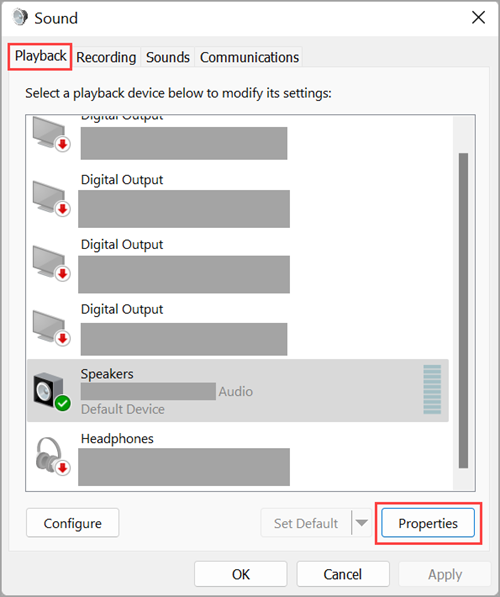
- Open Settings > System > Sound > Output. Look for the connected display or AMD audio endpoint, if one is listed.
- Select the correct output and play a familiar video or Windows sound. If system sound works but one game stays silent, check that game’s output setting.
- Open the Windows volume mixer and make sure your game and output device are not muted.
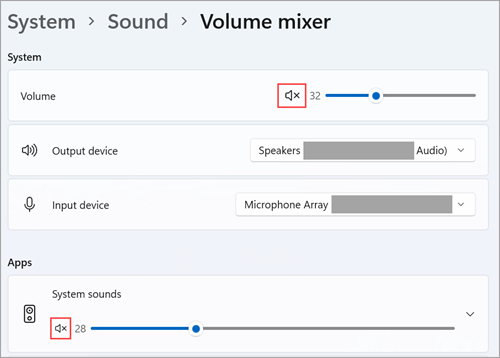
If your display isn’t listed as an audio output at all, make a note of that. It’s useful information if you eventually need support and quite different from the output simply being muted.
Windows 11 AMD HDMI audio not working: check KB5132061 compatibility
Press Windows + R, type winver and press Enter. Note the version and OS build, then open Settings > System > About to check your edition. The documented AMD HDMI/DisplayPort fix is listed for 24H2 Enterprise and Education. Windows 11 24H2 Home and Pro are already past their security-update support period.
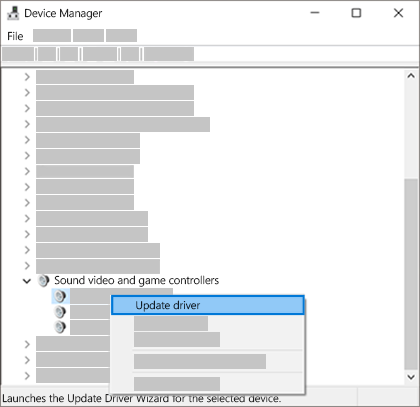
On a 24H2 Enterprise or Education PC, check Settings > Windows Update for the applicable security update, then restart if requested. A system on this November build should show 26100.9974 in winver. If it’s a managed work or school PC, your administrator may have to deploy the update. Try playing audio through the display again afterwards.
Don’t try to force KB5132061 just because Windows 11 AMD HDMI audio not working matches what you’re seeing. On Home or Pro, or on 25H2 and 26H2, use the updates offered for your version and investigate the output settings separately. Microsoft hasn’t described this AMD fix as a universal one.
Is the Windows patch the same as updating AMD Adrenalin?
No. KB5132061 is a Windows security update, while AMD Software: Adrenalin Edition contains graphics drivers. Microsoft’s patch notes don’t identify a particular AMD driver version as the cause of the audio failure.
If your Radeon driver also needs updating, see how to update AMD Adrenalin drivers on Windows 11 and which Recommended and Optional drivers are for. Don’t jump straight to a driver cleaner, registry edits or GPU firmware changes for a missing sound output.
Windows 11 AMD HDMI audio not working: common questions
Does KB5132061 fix DisplayPort audio too?
Yes, the documented 24H2 Enterprise and Education fix explicitly names both HDMI and DisplayPort playback on certain AMD graphics cards.
Does this repair every AMD graphics card?
No. Microsoft does not identify specific supported or affected Radeon models, and it does not promise a fix for every no-sound complaint.
What if the monitor has no built-in speakers?
No update can make a speakerless monitor produce sound. Connect speakers or a headset, or use its headphone output if it has one.
Is this related to USB Audio Class 1.0 Code 10?
Both fixes appear in KB5132061, but they concern separate problems. Our Windows 11 USB Audio Code 10 guide explains that device-start failure and the different 26H1 KB.
What should I do if sound is still missing?
Check that the monitor actually supports audio, that the right output is selected and that nothing is muted. If those checks don’t help, note your Windows build, graphics card and display model when contacting support.
Related Guides
- Windows 11 USB Audio Code 10: November 2026 Fix
- How to Update AMD Adrenalin Drivers on Windows 11
- AMD Adrenalin Recommended vs Optional Drivers
- AMD Adrenalin 26.10.2: Fixes, Known Issues and Supported GPUs
- AMD Radeon Xbox Game Bar Crash: Adrenalin Overlay Fix
- Windows 11 Memory Integrity Gaming: What It Means for FPS
Official source: Microsoft KB5132061 November 2026 release notes.