NVIDIA Studio Driver 621.14 landed on 4 November 2026, bringing fixes for a handful of games alongside changes for monitors, video playback and VR streaming. It’s a Studio release, but you don’t have to be a video editor to care about some of the problems NVIDIA lists.
There is a catch, though. NVIDIA also named several of these gaming fixes in its earlier Game Ready 621.01 notes. So if you’re already running a working Game Ready driver, don’t swap to Studio just because you’ve seen a list of fixes with a newer version number. Here’s what this update actually covers and how to decide whether you need it.
What NVIDIA Studio Driver 621.14 fixes
The Studio 621.14 notes name three games. The details are quite specific, which is useful: a crash involving Freestyle and Frame Generation isn’t the same problem as a game crashing at launch.
| Game | Problem listed as fixed | Bug ID |
|---|---|---|
| Wuthering Waves | Crashing during gameplay with NVIDIA Freestyle filters and DLSS Frame Generation enabled together | 5747079 |
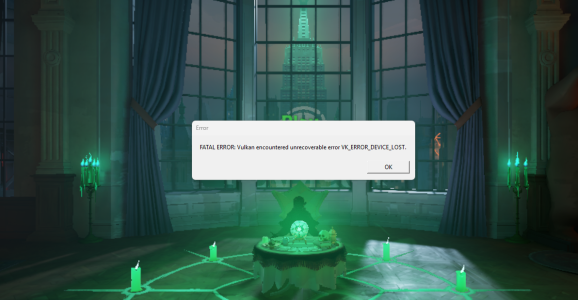
| Star Citizen | A crash when using the Vulkan graphics API | 6680590 |
| Surviving Mars: Relaunched | Crashes during gameplay after updating to an R595 driver | 5965452 |
One important detail missing from a lot of quick roundups: all three bug IDs are also listed as fixed in NVIDIA’s Game Ready 621.01 release from 21 October. Their appearance in NVIDIA Studio Driver 621.14 is not evidence that Studio users got the fixes first, or that every Game Ready user still has these crashes. The Game Ready 621.14 page doesn’t repeat these three entries in its shorter highlights.
If you have the particular Wuthering Waves or Star Citizen problem, the game-specific guides below walk through what to check without treating unrelated crashes as proof of a driver bug.
Monitor, video playback and USB VR fixes
There are also five general fixes in NVIDIA Studio Driver 621.14. These are easy to misread, especially the two black-screen entries, which describe different situations.
| Reported issue | Bug ID |
|---|---|
| Video playback freezing or going black on some RTX 50 Series GPUs and RTX Spark systems after Game Ready 621.01 | 6979343 |
| Occasional black flashes in games on a QHD monitor at 360 Hz | 4846825 |
| Frame rate dropping from 360 FPS to 320 FPS on a 360 Hz G-SYNC Pulsar monitor | 6408986 |
| Meta Horizon Link streaming freezing over USB | 6292679 |
| Intermittent dimming on certain ASUS notebooks after an R615 driver update | 6807011 |
The video issue concerns playback on particular NVIDIA hardware, not every black screen in a PC game. The 360 Hz entries are separate monitor symptoms, while the Meta Horizon Link bug specifically concerns a USB connection. NVIDIA doesn’t describe it as an Air Link or Wi-Fi fix.
Similarly, the notebook dimming issue is limited to certain ASUS models. Check your laptop manufacturer’s recommended driver before assuming a desktop package is the right solution.
Studio versus Game Ready: which should you use?
NVIDIA Studio Driver 621.14 is a WHQL release for supported NVIDIA GPUs on 64-bit Windows 10 and Windows 11. The listed download is 1.04 GB. Studio drivers receive extended testing around creative workflows, while Game Ready releases concentrate on new games and game updates.
For this Studio release, NVIDIA highlights OBS Studio 33, Chaos Vantage, llama.cpp, PyTorch, Topaz Gigapixel, Maxon Redshift and DaVinci Resolve 21.1.1. It also lists DLSS 4.5 Ray Reconstruction support for Blender 5.3 and Autodesk Arnold 7.5.4.0. That is a support list, not a claim that every issue with those applications has been fixed.
If your work depends on those programs, Studio is worth looking at. If you mostly play newly released games, Game Ready is usually the more obvious choice. Both drivers support gaming; the practical question is which branch suits your software and whether a documented problem applies to your machine.
How to install NVIDIA Studio Driver 621.14
- Check your GPU and Windows version against the supported-products list on NVIDIA’s driver page.
- Look at your installed driver version and branch in NVIDIA App before downloading anything.
- Finish any renders or recordings, save open projects and close running games.
- Select the Studio driver for your supported GPU through NVIDIA App or NVIDIA’s official driver search. NVIDIA App is an optional download component.
- Install the update, restart if prompted, then repeat the exact task or game situation that previously gave you trouble.
For laptops, check the manufacturer’s certified driver recommendation first. And if your current setup is stable, there is no need to downgrade or switch branches to chase a fix for a problem you haven’t experienced.
Questions about NVIDIA Studio Driver 621.14
Can I still play games with Studio installed?
Yes. NVIDIA Studio Driver 621.14 is a normal supported graphics driver, and its notes explicitly include gaming fixes. The Studio name refers to the branch’s focus, not a restriction on what you can play.
Can I keep Game Ready and Studio installed together?
Not as two separate active drivers for the same GPU. Changing branches replaces the active driver package. You can switch again later using a compatible NVIDIA download.
Does Game Ready 621.14 have every Studio 621.14 fix?
The release highlights are not identical, so don’t treat the matching version number as a complete list of shared changes. Game Ready 621.01 does already mention the three game bugs above, however, and that’s important when deciding whether you actually need to switch.
- Wuthering Waves NVIDIA Freestyle Crash: Driver Fix
- Star Citizen NVIDIA Vulkan Crash: Driver Fix
- NVIDIA Driver 621.14: Game Ready Fixes
- NVIDIA Driver 621.01: Game Fixes and Installation
- NVIDIA 621.12 Hotfix: RTX 50 Black Screen Fix
- NVIDIA Automatic Shader Compilation Guide
- NVIDIA App Resizable BAR per Game
- Advanced Shader Delivery: Supported Games and GPUs
Official source: NVIDIA Studio Driver 621.14 release notes and download.