The UEFN Fab MCP toolset arrived with Fortnite 43.10. It lets supported MCP workflows search Fab and your own library, inspect listing details and licence prices, and install assets into UEFN. It is useful when you need to find and test a particular prop without switching constantly between the marketplace and the editor.
If you already use MCP tools with UEFN, the appeal is reducing the back-and-forth between finding a suitable asset and importing it into a project. The important part is still the licence. A useful search result is not permission to use content under every condition, especially when you are planning to distribute a Fortnite island.
What the UEFN Fab MCP toolset can do
Searching Fab and installing an asset are two separate steps. Check the seller, supported formats, price and licence on the listing before using the toolset to import it. A library search tells you what your account already has access to; it doesn’t grant rights to something you haven’t acquired.
Search Fab with the UEFN Fab MCP toolset
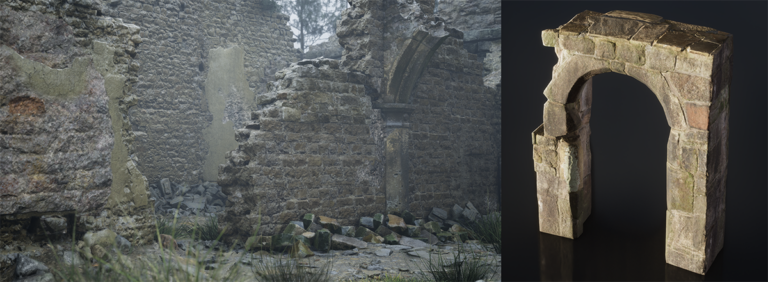
Search for the type of asset your scene actually needs, such as a stone wall section or a tree pack. Check that it will fit your island’s visual style and performance budget. Low-end devices can struggle with large textures and dense meshes, so a good preview image isn’t enough to judge a pack.
Check licences before the UEFN Fab MCP toolset installs assets
Check the publisher and the licence type before installing an asset. If a listing is paid, use the usual Fab purchase or entitlement flow first. Once you have access, the UEFN Fab MCP toolset can install the listing into your project. Buying, licensing and installing are different actions.
UEFN Fab MCP toolset: verify the result inside UEFN

After an authorised installation through the UEFN Fab MCP toolset, look in the Content Browser and confirm that the expected content appears. Inspect meshes, textures and material instances, then place a small sample into a test level. Check whether imports introduce overly large textures, unwanted material complexity or broken dependencies.
A successful import is only the beginning; memory validation and licence compliance still matter before the asset reaches a published island.
What if Fab search or installation is missing?
The toolset is part of the MCP workflow, so availability can depend on editor version, configured tools, permissions and authentication. Check that UEFN is updated and that the relevant MCP integration is actually enabled. Do not invent specific tool identifiers or automation prompts if they are not shown in your environment.
If an action is unavailable, use the standard supported Fab browser and import workflow while you investigate the tool connection.
Keep a record of the Fab assets you import
When a Fab search returns similar packs, save the selected listing URL and licence alongside your project notes. That makes it easier to identify a mesh or texture later, especially when more than one creator is working on the island. Keep the original listing information rather than relying solely on an agent’s description of what it found.
After installation, use the Content Browser to find the files and check their material dependencies. Place one mesh into a small test area first. If its textures are too large or its collision behaves badly, fix that before filling the map with copies. An import that completes successfully can still be expensive for the devices your island targets.
UEFN Fab MCP toolset FAQ
Can the MCP Fab toolset search my library? Epic lists Fab library search among its new 43.10 capabilities.
Can an agent install any paid asset for free? No. Listing search and price display do not override entitlement or licensing.
Does an installed asset automatically pass island validation? No. You still need to test the import, memory use and relevant rights.
Related Guides
- UEFN Shadows of the Abbey Template: How to Open the Horror Example Island
- UEFN Shadows of the Abbey Memory Optimization: Meshes, Materials and Rain
- UEFN Add Branded Content: Convert an Existing Island Safely
- UEFN Switch Brand: Fix Incompatible Assets Before Changing IP
- UEFN GLB Import
- UEFN Material Inheritance Error
- UEFN Procedural Content Generation
- Fortnite Creator Portal Technical Dashboard
Official source: Epic Games documentation.