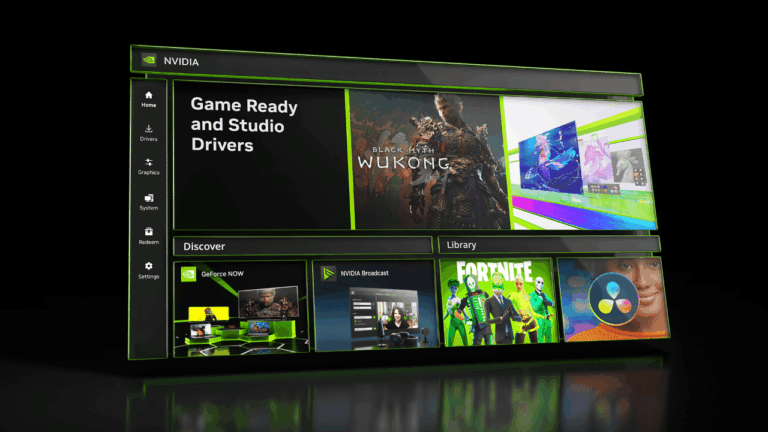
NVIDIA App DLSS override settings let you change supported DLSS features from the NVIDIA software without waiting for every game to add the newest model itself. Open NVIDIA App, go to Graphics, choose a game under Program Settings, then scroll to Driver Settings and find the DLSS Override options. The controls available depend on the game, its existing DLSS integration and your graphics card.
The game must already support the relevant DLSS feature, and some options only work on specific RTX cards. If a setting is missing, check those two things before assuming NVIDIA App is broken.
Where to find NVIDIA App DLSS override settings
- Open NVIDIA App on your Windows PC and select Graphics from the left-hand navigation.
- Select Program Settings to work on one particular game. If the game is missing, use the app’s refresh or scan function and confirm the game is installed.
- Choose the game, then scroll down the settings panel to Driver Settings.
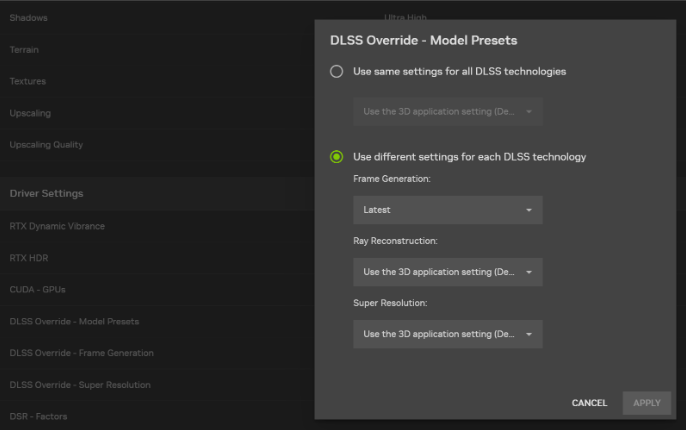
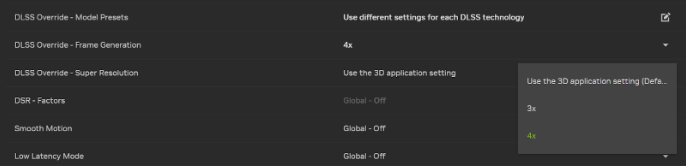
- Look for controls labelled DLSS Override. Depending on the game, these can include Model Presets, Super Resolution and Frame Generation.
- Choose the setting you need, click Apply when offered, and then launch or restart the game to test it.
NVIDIA also offers Global Settings in the Graphics area. For troubleshooting, Program Settings is usually the clearer choice because it limits your changes to one game. Remember that a change in the NVIDIA App does not necessarily replace the title’s own video menu; you may need to enable the relevant DLSS feature in-game first.
NVIDIA App DLSS override settings: what each option does
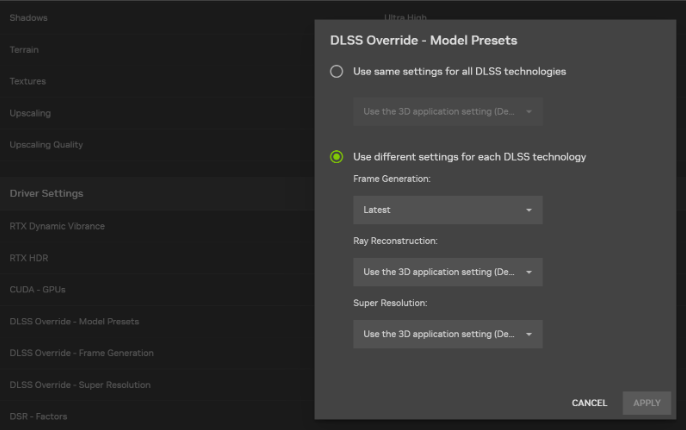
DLSS Override – Model Presets controls the model used for eligible DLSS tasks such as Super Resolution, Ray Reconstruction or Frame Generation. NVIDIA’s current DLSS 4.5 Super Resolution recommendation uses its second-generation transformer model and chooses different presets according to the game’s rendering mode. Earlier NVIDIA instructions describe a dropdown called Latest, but that wording reflects an older app release.
DLSS Override – Super Resolution can expose an eligible mode such as DLAA or Ultra Performance when a supported game lacks its own selection. The override still relies on the game already supporting DLSS Super Resolution; it does not add DLSS code to an unrelated title.
DLSS Override – Frame Generation deals with generated frames. Some features, including Multi Frame Generation and its newer 5X, 6X or Dynamic modes, require compatible RTX 50 Series hardware. Ordinary Frame Generation model upgrades have different support rules, including RTX 40 Series where specified by NVIDIA.
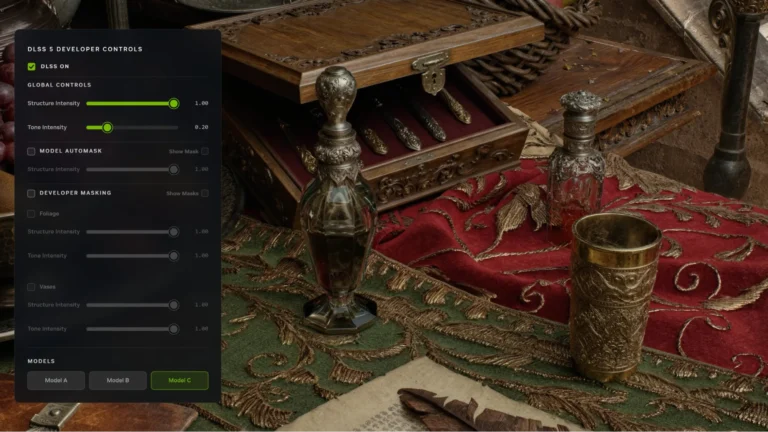
A Super Resolution model override won’t turn on DLSS 5’s 3D-Guided Neural Rendering. That feature needs its own game update and compatible hardware.
How to use NVIDIA App DLSS override settings in a supported game
Before using the override, open the game’s graphics menu. For a Super Resolution model change, enable a supported DLSS Super Resolution mode there first. For a Frame Generation override, NVIDIA’s instructions tell you to enable Frame Generation in the game and then exit to the desktop.
Return to NVIDIA App, choose the correct game’s Program Settings entry and apply the matching override. Relaunch the title after changing it. If you want to undo your experiment, choose Use the 3D application setting where that choice appears. This returns control to the game’s own DLSS implementation instead of leaving the override in place.
NVIDIA App DLSS override settings for Ray Reconstruction
NVIDIA added a second-generation transformer Ray Reconstruction model in August 2026. To use it in supported ray-traced or path-traced games, open NVIDIA App, go to Graphics > Program Settings > Driver Settings > DLSS Override – Model Presets, then choose Custom. Under Ray Reconstruction, select Recommended or Preset F and click Apply. This is different from the Super Resolution presets M, L and K.
If a game does not support Ray Reconstruction, a driver override cannot add the feature. You can reset NVIDIA App DLSS override settings to Use the 3D application setting when you want the game to manage its own model.
Why are NVIDIA App DLSS override settings greyed out or missing?
First, check that the game is supported by NVIDIA’s current override list. A title may use DLSS in some way but still not offer every override. Then update NVIDIA App and your compatible GeForce driver, restart the program and refresh the installed-games list.
For NVIDIA App DLSS override settings, check the GPU family as well. All RTX generations do not share identical frame-generation capabilities, and older cards cannot obtain RTX 50-only Multi Frame Generation modes through a dropdown. If a game is not running a required in-game DLSS mode, NVIDIA may have nothing active to override.
You should also distinguish missing Nvidia App controls from missing game options. If the game’s latest patch has not landed yet, no app switch can force an unreleased feature to exist. Check the developer’s release date before treating a blank menu as a driver bug.
How to reset NVIDIA App DLSS override settings
Choose the affected game under Graphics > Program Settings. For each DLSS Override control you altered, restore Use the 3D application setting or its original value and apply the change. Close and reopen the game afterward. This is a better starting point than reinstalling the entire graphics driver whenever a test setting gives you results you dislike.
Use Alt+Z > Statistics > Statistics View > DLSS to check the active model in-game. It gives you a better confirmation than assuming a selected dropdown has taken effect.
Related Guides
If the NVIDIA App DLSS override settings you need are missing, these guides explain compatibility and model presets.
Official source: NVIDIA App release highlights and DLSS override notes.