How to download NVIDIA drivers without NVIDIA App: open NVIDIA’s official GeForce driver download website, select your exact graphics card and Windows version, choose Game Ready or Studio, and download the matching standalone installer. You can install an NVIDIA graphics driver manually without asking NVIDIA App to manage the download.
Use this method if NVIDIA App isn’t installed, its Drivers page is stuck, or you simply want the installer saved on your PC. Check the model and driver branch carefully; the newest NVIDIA package won’t necessarily fit an older card.
How to download NVIDIA drivers without NVIDIA App step by step
- Visit NVIDIA’s official GeForce Drivers website, not a driver mirror or third-party download utility.
- Use Manual Driver Search. Select the product type and series for your GeForce GPU, then select the exact model.
- Choose your operating system and, where presented, the correct desktop or notebook and driver type options.
- Choose Game Ready Driver if you primarily want current game support, or Studio Driver if your main priority is tested creative software workflows.
- Start Search or Find Drivers and examine the result’s version, release date, supported products and Windows compatibility.
- Download the official installer file. Save it to a folder you can easily find, such as Downloads.
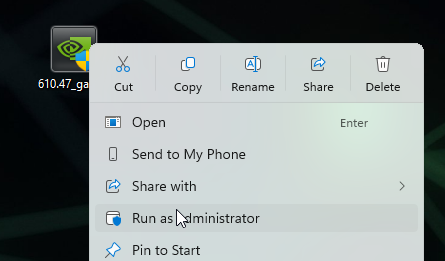
- Close games and other GPU-accelerated software, then run the installer as administrator and follow the on-screen instructions.
- Restart Windows at the end, then check the installed driver version.
The file comes directly from NVIDIA. The App might be offered as a companion during setup, but you don’t need it to handle the driver download.
How to find your NVIDIA GPU before downloading
If you do not know whether your PC has an RTX 5060, RTX 4060, GTX 1660 or another model, open Windows Device Manager and expand Display adapters. Write down the NVIDIA model shown there. If the driver is already installed, NVIDIA Control Panel also lists the GPU in System Information.
Match the name in Device Manager with NVIDIA’s Supported Products list. Desktop and laptop packages can differ, and a GeForce badge on the case doesn’t tell you which model is inside.
On laptops, the device maker can provide its own tested graphics driver. NVIDIA recommends checking the notebook manufacturer’s certified updates, especially when a machine has a customised graphics configuration. Use that guidance when the laptop’s support page specifies a different package.
How to download NVIDIA drivers without NVIDIA App: Game Ready or Studio?
NVIDIA describes Game Ready Drivers as the branch for players prioritising launch support for games and DLC. Studio Drivers undergo testing aimed at creative applications such as video editing, 3D rendering and design tools. Both can run games and creative programs, so the right choice depends on what you prioritise.
How to download NVIDIA drivers without NVIDIA App and install them
Yes. If you follow how to download NVIDIA drivers without NVIDIA App, after downloading the official package, double-click it or use Run as administrator if you encounter a permissions problem. NVIDIA’s current support walkthrough shows the graphics driver and app components together for its full installation example; read the installer choices rather than assuming the app itself must download the file.
If an installation fails, close browsers, monitoring utilities and games, let Windows Update finish, and try again. The NVIDIA installer offers Custom (Advanced) and Perform a clean installation if a reset of old NVIDIA settings is actually needed. Be aware that a clean installation removes custom NVIDIA profiles.
Downloading the file manually can work around an app download problem. It will not by itself fix a wrong package, permissions error or Windows Update conflict.
How to download NVIDIA drivers without NVIDIA App: are older versions safe?
NVIDIA’s own driver search lets you find releases for supported hardware, including older versions when needed. Only use a previous version for a clear compatibility reason, and check the release notes, operating system and security implications rather than following a random link shared in a comment.
Related Guides
Once you know how to download NVIDIA drivers without NVIDIA App, these guides cover installation and fixing errors.
Official source: NVIDIA official GeForce driver download and manual search page.