

Fortnite Dynamic 3D Resolution now works alongside NVIDIA DLSS on compatible PCs. Epic made the change with the v43.00 update on November 1, 2026, removing the restriction that previously stopped players using both graphics features together.
The update also changes the default graphics settings for new Fortnite installations. If you’ve reinstalled the game or set it up on a different computer, those changes are worth checking before you start adjusting anything else.
Can you use Fortnite Dynamic 3D Resolution with DLSS?
Yes. Epic’s patch notes confirm that Dynamic 3D Resolution and NVIDIA DLSS are now compatible. That doesn’t mean DLSS works on every graphics card. You’ll still need a supported NVIDIA GPU and the correct rendering mode for the DLSS option to appear.
Fortnite Dynamic 3D Resolution adjusts the game’s internal rendering resolution as the workload changes. It can render demanding moments at a lower resolution to help performance, then use a higher resolution when there’s more room to do so. DLSS is NVIDIA’s upscaling technology, which builds the displayed image from the rendered one.
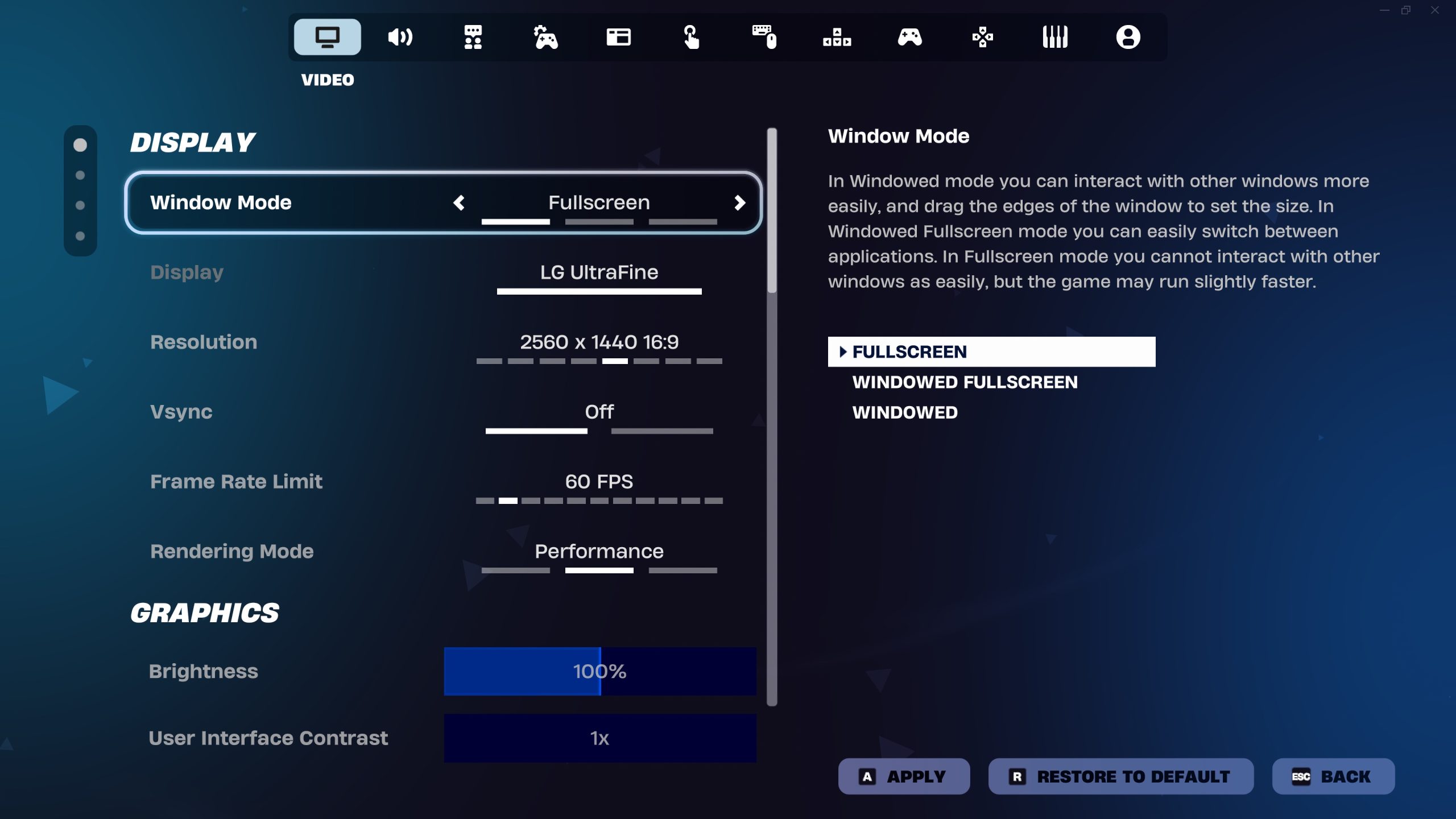
How to turn on Dynamic 3D Resolution and NVIDIA DLSS
Epic’s DLSS support instructions specify DirectX 12 as the rendering mode. Start there if DLSS is missing from your Video settings. You may have to restart Fortnite when you change rendering modes.
- Launch Fortnite, open the menu and select Settings.
- Open the Video tab and find Rendering Mode under Display.
- Switch to DirectX 12, select Apply and restart the game if prompted.
- Return to the Video tab. Under Anti-Aliasing & Super Resolution, select NVIDIA DLSS if it’s available on your PC.
- Find Dynamic 3D Resolution among the graphics options and enable it if supported.
- Apply your changes and try a match to compare both image quality and performance.
If DLSS doesn’t appear, make sure your GPU supports it and that Windows, Fortnite and your NVIDIA driver are up to date. Those are the checks Epic gives players for its upscaling option.
Fortnite Dynamic 3D Resolution can also be unavailable on some setups. The patch allows supported features to work together; it doesn’t unlock unsupported hardware by changing a Windows setting.
Why is Fortnite Dynamic 3D Resolution on by default?
Starting in v43.00, the setting is enabled by default on new installations where it’s supported. It remains off on incompatible systems. Epic didn’t announce a forced switch for players who already had the game installed, so don’t assume your existing setup has been changed.
There’s a second change for new installs on PCs with integrated graphics: Fortnite now defaults to Performance rendering mode. That’s a separate choice aimed at lower-powered hardware. It isn’t DLSS, and integrated graphics do not automatically support NVIDIA upscaling.
If the game looks different after a fresh install, check the Rendering Mode first. Our Fortnite Performance Mode guide explains what that setting changes.
Does the DLSS combination improve FPS?
It’s worth testing on a compatible PC, especially if your frame rate dips during busy fights. But Epic hasn’t supplied a guaranteed FPS gain for this combination, and it won’t have the same effect on every machine.
Turn on the Fortnite FPS counter and compare a few matches with the dynamic option on and off. Watch for changes in clarity as well as the frame-rate number. Some players will prefer a consistent render resolution, even if the dynamic setting makes demanding moments smoother.
Fortnite Dynamic 3D Resolution affects how a scene is rendered. It’s different from textures failing to load, which can make entire objects or buildings look unfinished. If that’s the problem you’re seeing, use our Fortnite textures troubleshooting guide instead.
Other PC changes in v43.00
Epic also fixed a window-scaling problem when moving Fortnite between monitors with different display scaling, modifier keys such as Shift and Ctrl occasionally sticking, and a crash involving graphics software.
The update includes mobile improvements too. You can read about its independently movable Pocket Item button in our Fortnite mobile Pocket Item HUD guide.
For players with supported NVIDIA hardware, Fortnite Dynamic 3D Resolution is now one more option to try alongside DLSS. Start with DirectX 12, check both controls in Video settings and keep whichever combination feels best in a real match.
Official source: Epic Games Fortnite v43.00 patch notes.





