How to check NVIDIA driver version on Windows: open NVIDIA Control Panel, click System Information and read the Driver Version field. You can also find the installed graphics driver in NVIDIA App’s Drivers section. These checks tell you the version actually running on your PC, not just the number printed on a driver download page.
This is worth doing after an update, especially if a game keeps warning that your driver is outdated. It takes less than a minute to see whether you’re still on 621.14 or have actually moved to 621.24.
How to check NVIDIA driver version in NVIDIA Control Panel
- Right-click an empty area of your Windows desktop. On Windows 11, you may first need Show more options if NVIDIA Control Panel does not appear in the short menu.
- Select NVIDIA Control Panel. If it is not listed there, search for NVIDIA Control Panel from the Start menu.
- When the panel opens, select System Information. NVIDIA’s support guide places this link at the bottom-left corner.
- In the System Information window, look for Driver Version under the Display information.
- Read the displayed number, such as 621.14 or 621.24, and compare it with the release you intended to install.
NVIDIA’s support instructions explicitly recommend System Information because it shows which display driver Windows is using. If you downloaded 621.24 but this screen still says 621.14, the newer installation has not taken effect as expected. Reboot before treating the attempt as a permanent failure.
How to check NVIDIA driver version in NVIDIA App
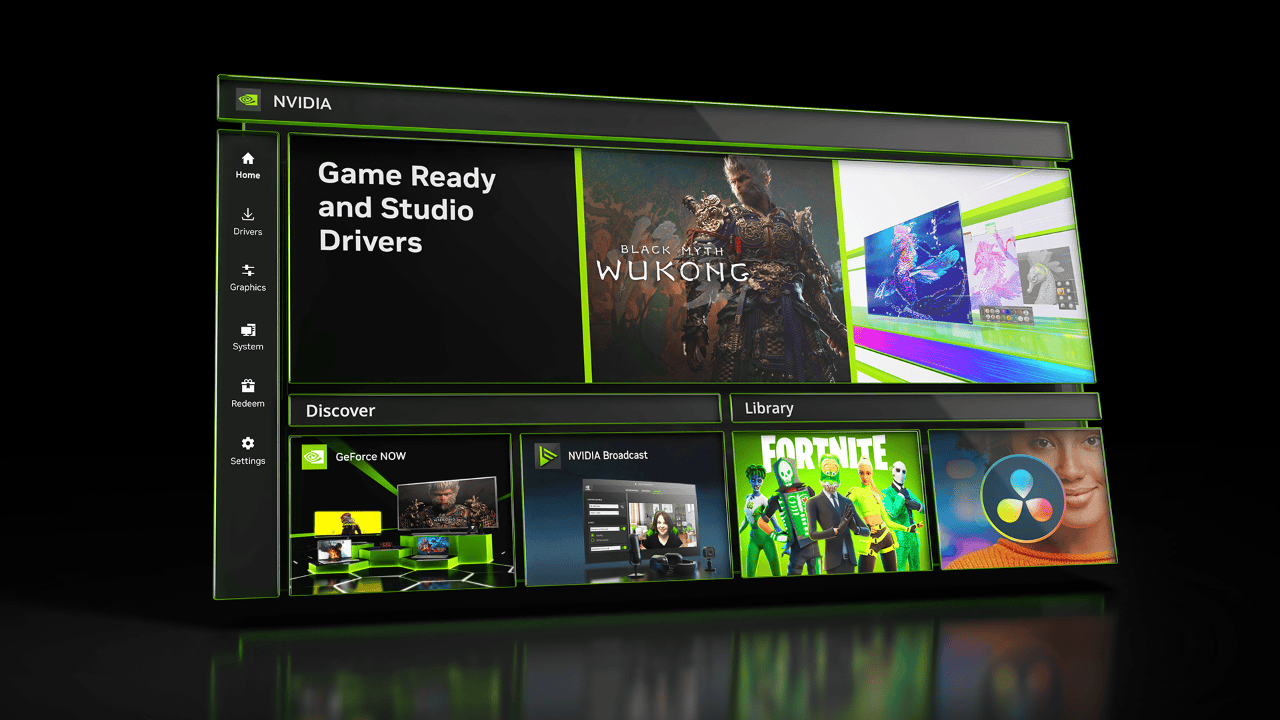
Open NVIDIA App and select Drivers in the left-hand menu. Look for the installed driver and its version number. The page may also show an available newer driver, so read the labels carefully. An available update is not necessarily the version currently installed.
NVIDIA App is a handy alternative to Control Panel. It also offers both Game Ready and Studio downloads, so check which branch you chose if you’re comparing two releases.
How to check NVIDIA driver version using Windows
Open Device Manager, expand Display adapters and double-click your NVIDIA GPU. On the Driver tab, Windows displays the driver provider, date and version. This is useful if NVIDIA Control Panel or NVIDIA App will not open.
Be aware that Windows Device Manager may show a longer Windows-format driver number rather than the shorter NVIDIA release label. They refer to the same installed driver but are displayed differently. If you need to compare a support article about GeForce version 621.24, using NVIDIA’s own version field is generally simpler.
If you see Microsoft Basic Display Adapter instead of a GeForce model, Windows may not be running the expected NVIDIA graphics package. That is an installation or detection question rather than proof that the latest NVIDIA driver is missing for every PC.
How to check NVIDIA driver version after updating
Close and reopen the NVIDIA software after a driver installation, and reboot if the installer requested it. Then compare the installed version against the release you downloaded. In November 2026, 621.24 is a newer Game Ready release than 621.14, but the newest version can change again later.
If the value did not change, check whether the installation reported an error and whether you selected the right hardware and branch. The version in the download filename alone does not prove the installation completed. Do not keep downloading the same package before checking its compatibility.
If a game only started misbehaving after an update, save the driver number alongside the game’s version and the exact symptoms. That information is more useful than a description such as ‘the latest NVIDIA update’.
How to check NVIDIA driver version without NVIDIA App
Yes. NVIDIA Control Panel’s System Information is a direct method recommended in NVIDIA’s support knowledge base, and Windows Device Manager is another option. Installing NVIDIA App solely to read the driver version is unnecessary if you can already see the information there.
Laptop users with switchable graphics may have both an integrated GPU and an NVIDIA GPU listed. Make sure you inspect the NVIDIA entry in Device Manager, not the Intel or AMD integrated graphics component.
Related Guides
For more on how to check NVIDIA driver version, these guides cover installation and choosing the right release.
Official source: NVIDIA Support: determine your installed display driver version.