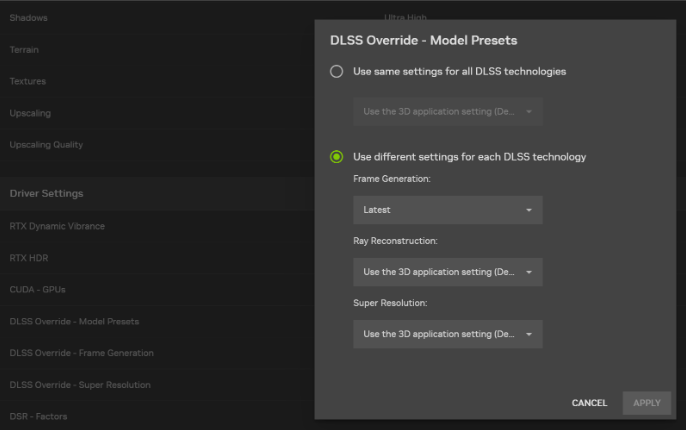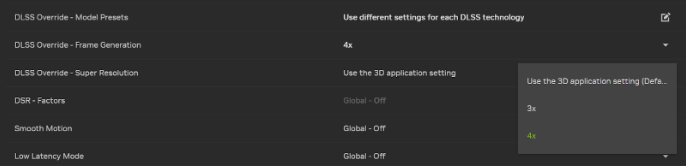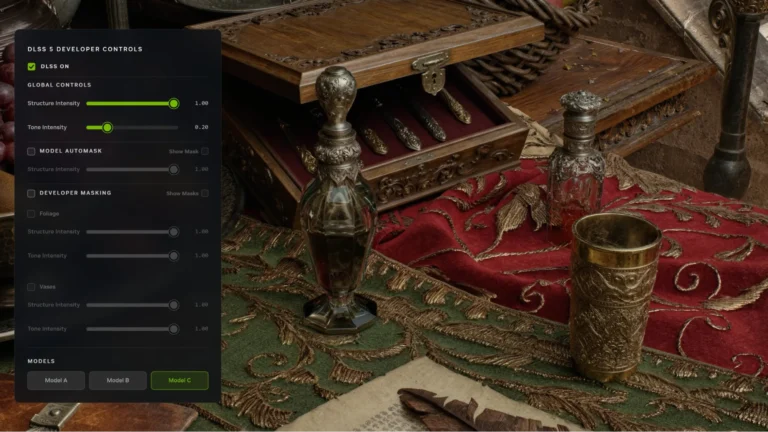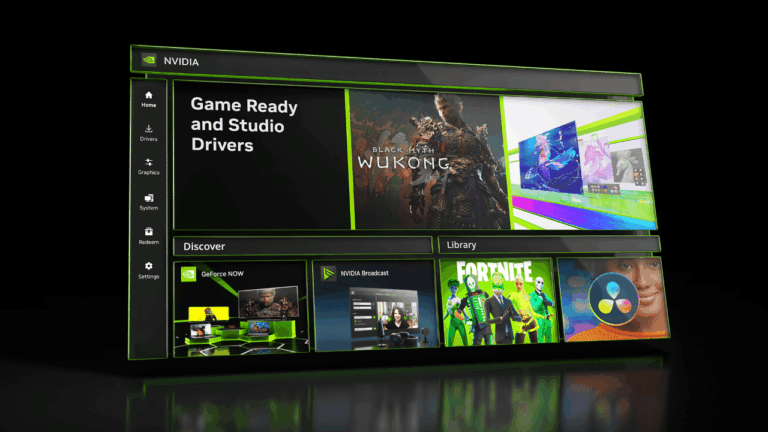
How to install NVIDIA driver 621.24: check that your GeForce GPU supports the 12 November 2026 release, then download it through NVIDIA App or from NVIDIA’s official driver website. Close games, run the installer, follow its prompts and restart Windows when installation finishes. The two download routes install the same version, provided you select the correct package.
Version 621.24 is a WHQL Game Ready driver for supported Windows 10 64-bit and Windows 11 PCs. Check the GPU compatibility list before downloading, and make sure you have not selected the Studio package by mistake.
How to install NVIDIA driver 621.24 using NVIDIA App
- Save your work and close any open game. Driver installation can interrupt graphics output while Windows switches components.
- Launch NVIDIA App and open the Drivers section.
- Check the installed driver version, then locate the Game Ready Driver 621.24 listing if it is offered for your hardware.
- Start the download. The file is substantial, so let it complete before beginning installation.
- Select the installation option in NVIDIA App and follow the wizard. Keep the default settings unless you have a specific reason to change a component.
- Restart Windows when asked, then reopen NVIDIA App and verify the displayed version is 621.24.
How to install NVIDIA driver 621.24 manually without the App
- Visit NVIDIA’s official driver 621.24 download page and read the Supported Products section before choosing Download.
- Confirm the package is GeForce Game Ready Driver 621.24 and matches your exact GPU, Windows version and desktop or notebook system.
- Download the official driver installer. Avoid third-party sites advertising repacked or supposedly accelerated driver versions.
- Right-click the downloaded file in File Explorer and select Run as administrator. Approve the Windows security prompt if shown.
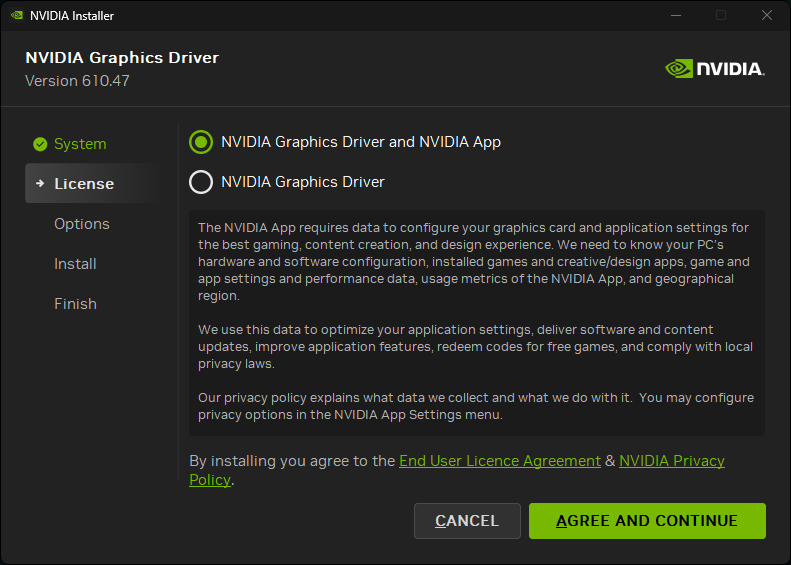
- Accept the licence terms and choose the components you want. NVIDIA’s manual recovery guide illustrates both the Graphics Driver and NVIDIA App option.
- Proceed through the installation wizard, allow the display driver to be replaced, and restart the computer at the end.
The manual installer works even if you do not use NVIDIA App. You do not need to perform a clean installation for every update. Choose Custom (Advanced) and Perform a clean installation only when you have a reason to reset existing driver settings.
Check your GPU and Windows compatibility before installing
The release page lists several modern GeForce families including RTX 50, RTX 40, RTX 30, RTX 20, selected GTX 16 Series products and TITAN RTX on its desktop listing. Individual supported models matter; seeing a family name is not a substitute for checking the exact product. Notebook owners should confirm the notebook driver listing and consider the laptop manufacturer’s certified package.
You can identify your GPU in Windows Device Manager under Display adapters, or in NVIDIA Control Panel under System Information if a driver is already installed. Windows 10 on this release means 64-bit Windows 10, not an old 32-bit installation. An AMD or Intel-only PC cannot use this NVIDIA GeForce package.
What to do if NVIDIA driver 621.24 fails to install
Start with a normal reboot. Let Windows Update complete any pending activity, close browsers and hardware-monitoring utilities, and try the correct official manual installer again. NVIDIA says background applications and Windows Update can interfere with the registration of driver components.
If you’re following how to install NVIDIA driver 621.24 and the normal route keeps failing, NVIDIA recommends running the installer as administrator and using Custom (Advanced) with Perform a clean installation. That resets NVIDIA settings and custom profiles, so make a note of any special configurations before selecting it. Do not jump straight to registry cleaners or unknown driver updater programs.
If you still cannot complete how to install NVIDIA driver 621.24, record the full error message, your GPU name and Windows build. Different failures call for different fixes; the fact that NVIDIA has issued a new driver does not prove a crash or black screen is caused by that specific version.
How to install NVIDIA driver 621.24 and confirm the version
After rebooting, open NVIDIA App’s Drivers screen to view the installed release. You can also right-click the desktop, launch NVIDIA Control Panel and open System Information for the driver version field. Make sure it reads 621.24 rather than 621.14 or another older number.
Related Guides
After learning how to install NVIDIA driver 621.24, use these guides if you need to check compatibility or troubleshoot an error.
Official source: NVIDIA GeForce Game Ready Driver 621.24 download and supported products.