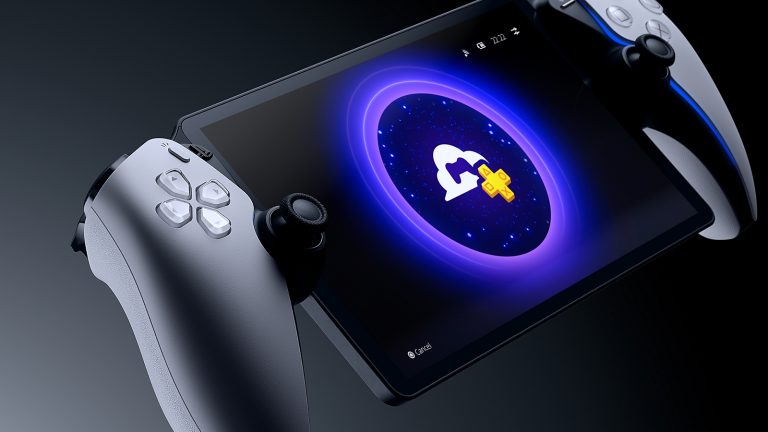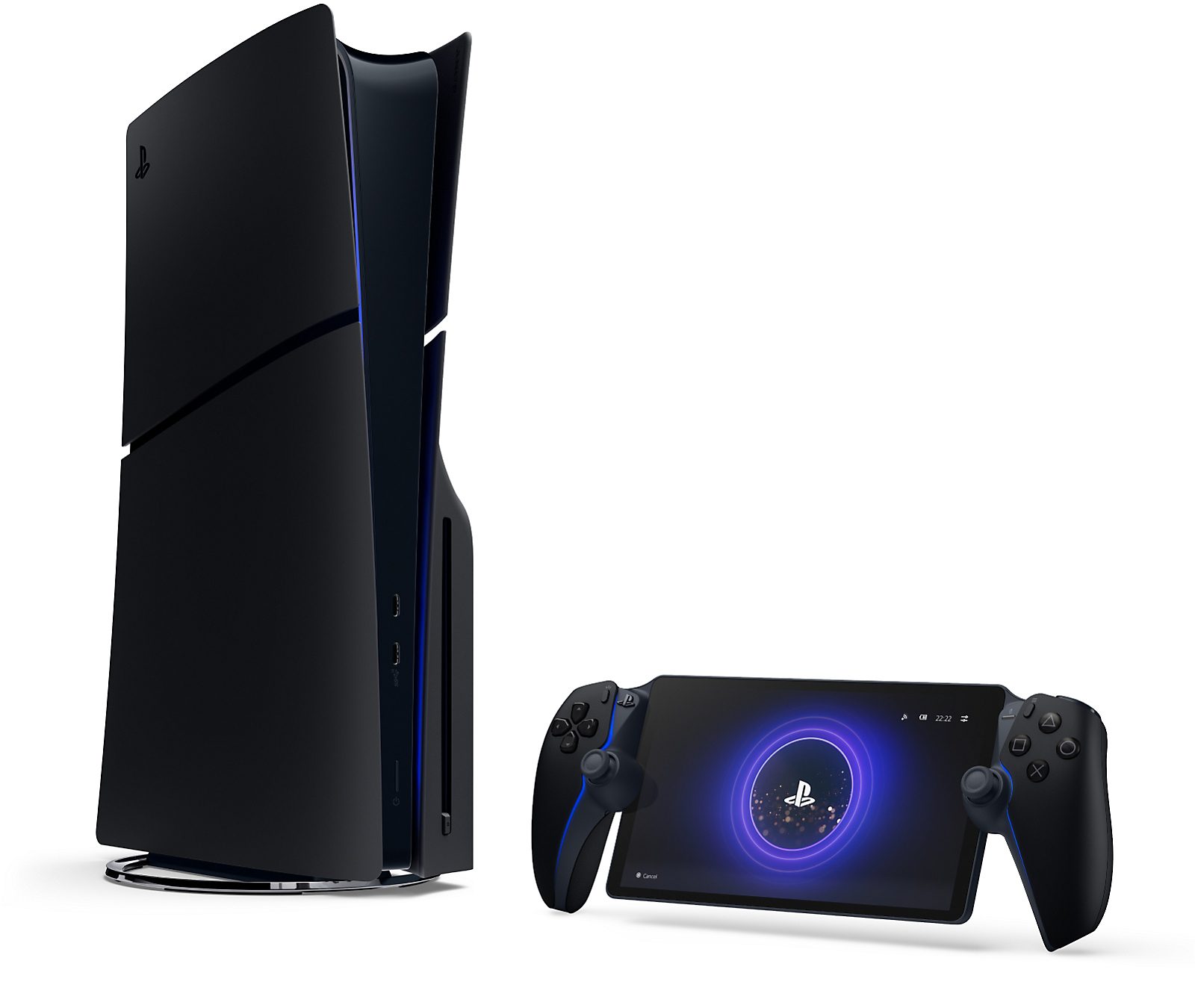
PlayStation Portal cloud streaming vs Remote Play comes down to where the game runs. Remote Play connects to your own PS5. Cloud Streaming uses Sony’s servers instead, so you don’t need a PS5, but you do need Premium and a supported game.
Both modes are on the same handheld, but they don’t share the same game library or subscription rules. That matters if somebody else is using your console, or you’re playing away from home.
PlayStation Portal cloud streaming vs Remote Play: key differences
| Question | Remote Play | Cloud Streaming |
|---|---|---|
| Own PS5 needed? | Yes | No |
| Game runs on | Your PS5 | Sony’s servers |
| Premium required? | No, not for Remote Play | Yes |
| Games | Compatible installed PS5/PS4 games | Selected eligible PS5 titles |
| PS5 powered off? | Cannot connect | Can still stream |
| Child account? | Subject to console/account settings | Not eligible |
When weighing up PlayStation Portal cloud streaming vs Remote Play, start with the game you want. Is it installed on your PS5, or is it one of the titles Sony lets you stream from the cloud?
Set up Remote Play on your own PS5
Your PS5 needs to be online, updated and signed into the same account as Portal. On the console, open Settings > System > Remote Play and enable Remote Play for the account you want to use.
To allow a rest-mode wake-up, open Settings > System > Power Saving > Features Available in Rest Mode. Turn on Stay Connected to the Internet and Enable Turning On PS5 from Network. A fully shut-down PS5 cannot wake through Remote Play.
Sony suggests wiring the PS5 to the router and using 5 GHz Wi-Fi on Portal where possible. Remote Play can work away from home over suitable Wi-Fi, with 15 Mbps recommended for a better experience. Premium isn’t needed just to use Remote Play.
PlayStation Portal cloud streaming vs Remote Play: Premium rules
Cloud Streaming requires an active PlayStation Plus Premium membership on an eligible adult account, in a supported country such as the United Kingdom. Essential and Extra won’t unlock the standalone cloud option. Sony doesn’t offer Portal Cloud Streaming to child accounts.
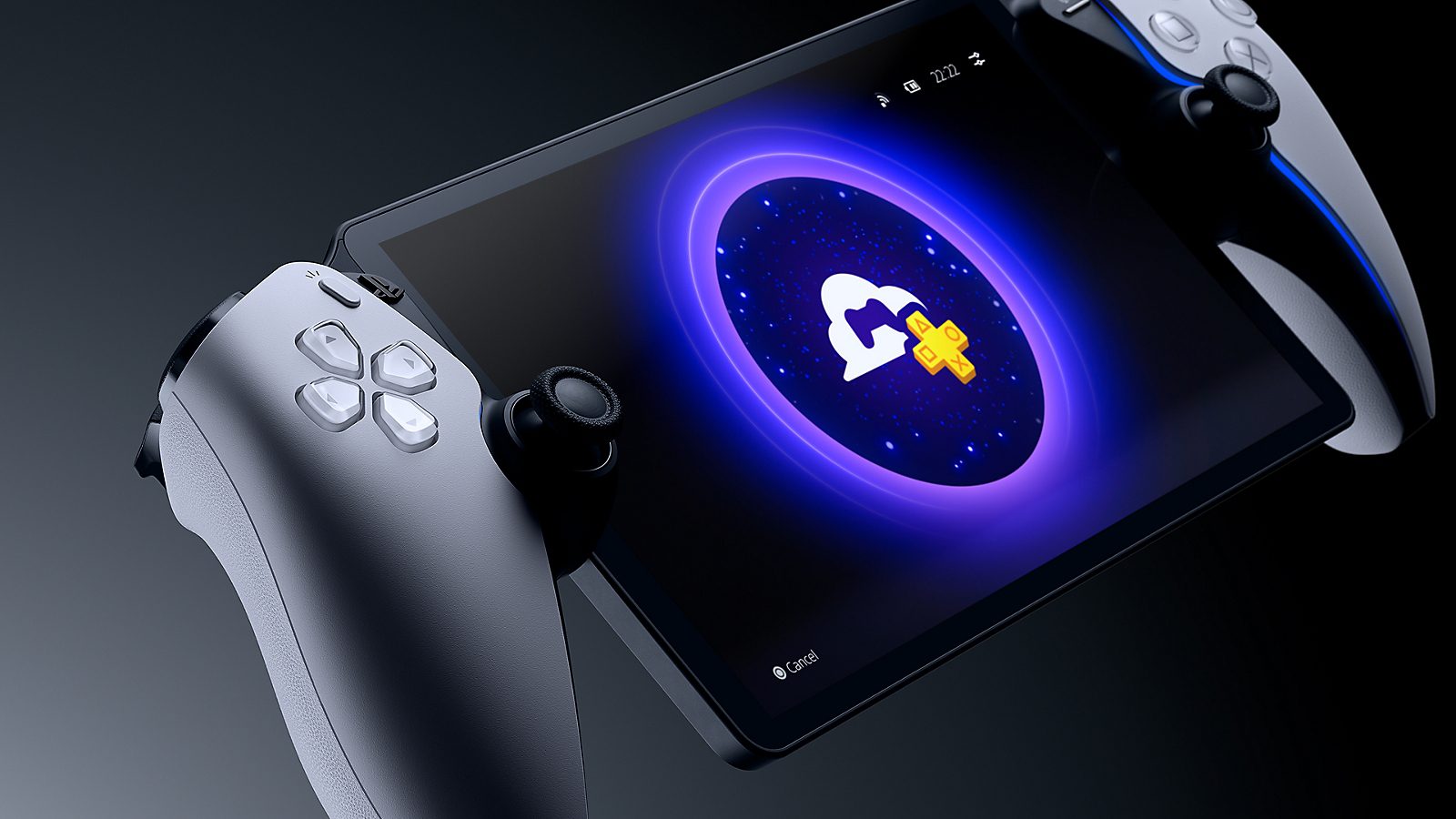
To begin, choose the Cloud Streaming tab on the Portal Home screen, pick an eligible game from the streaming catalogue or your library and press Stream. You do not need to connect to any home PS5.
Sony lists 5 Mbps upload and download to start streaming, 7 Mbps for 720p and 13 Mbps for 1080p. Network stability still affects gameplay. Unlike a typical handheld console, Portal doesn’t download games for offline use.
PlayStation Portal cloud streaming vs Remote Play: can someone else use your PS5?
This is one of the most useful differences. Cloud Streaming runs separately from your PS5, so somebody else can use the console under another account while you play. The console can even be completely off.
Remote Play controls your actual PS5. It doesn’t create a second console that can run another game independently.
PlayStation Portal cloud streaming vs Remote Play game libraries
Remote Play accesses compatible games installed on your PS5, including supported PS4 games running on PS5. Portal cannot connect directly to a PS4. Cloud Streaming is limited to eligible PS5 games from the Premium catalogues and selected digital purchases.
Buying a PS5 game digitally doesn’t guarantee that you can stream it. Sony’s eligible games change by region and over time. Cloud Streaming on Portal also doesn’t support PS3 or PS4 games, and there’s nowhere to insert a physical disc.
Picture quality and saves in PlayStation Portal cloud streaming vs Remote Play
Sony added a 1080p High Quality option to both modes in March 2026. During a session, open Quick Menu > Max Resolution, select 1080p High Quality and restart the session to apply it. A strong, stable Wi-Fi connection matters.
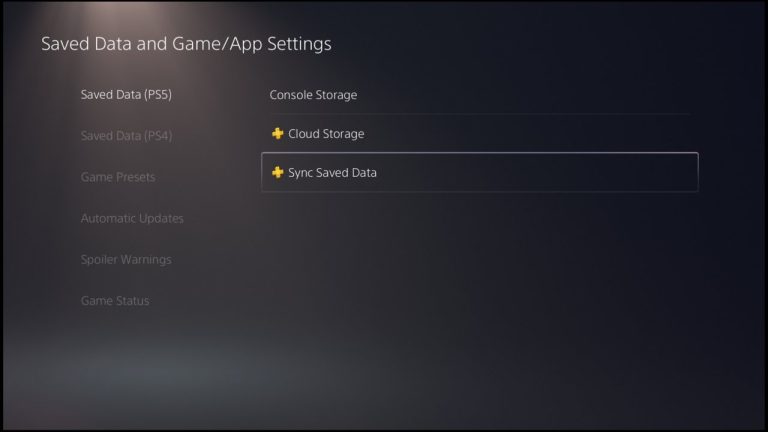
Sony says that if you use the same PlayStation account as your PS5, you can keep playing a supported streamed game from where you left off on the console. Save before leaving a cloud session, because it closes after a period of inactivity. You can’t broadcast a cloud game, use Share Screen or Share Play, and some system-level party functions aren’t available, although individual games may have their own chat options.
PlayStation Portal cloud streaming vs Remote Play: which should you use?
For games installed on your own PS5, choose Remote Play. For eligible cloud games, choose Cloud Streaming if you have Premium and don’t want to use that console.
If the cloud tab is missing, check account age, country, Premium and software updates. If Portal can’t find your PS5, see our Remote Play connection fixes for the console and network steps.
Official source: PlayStation Support, Remote Play on PS Portal.