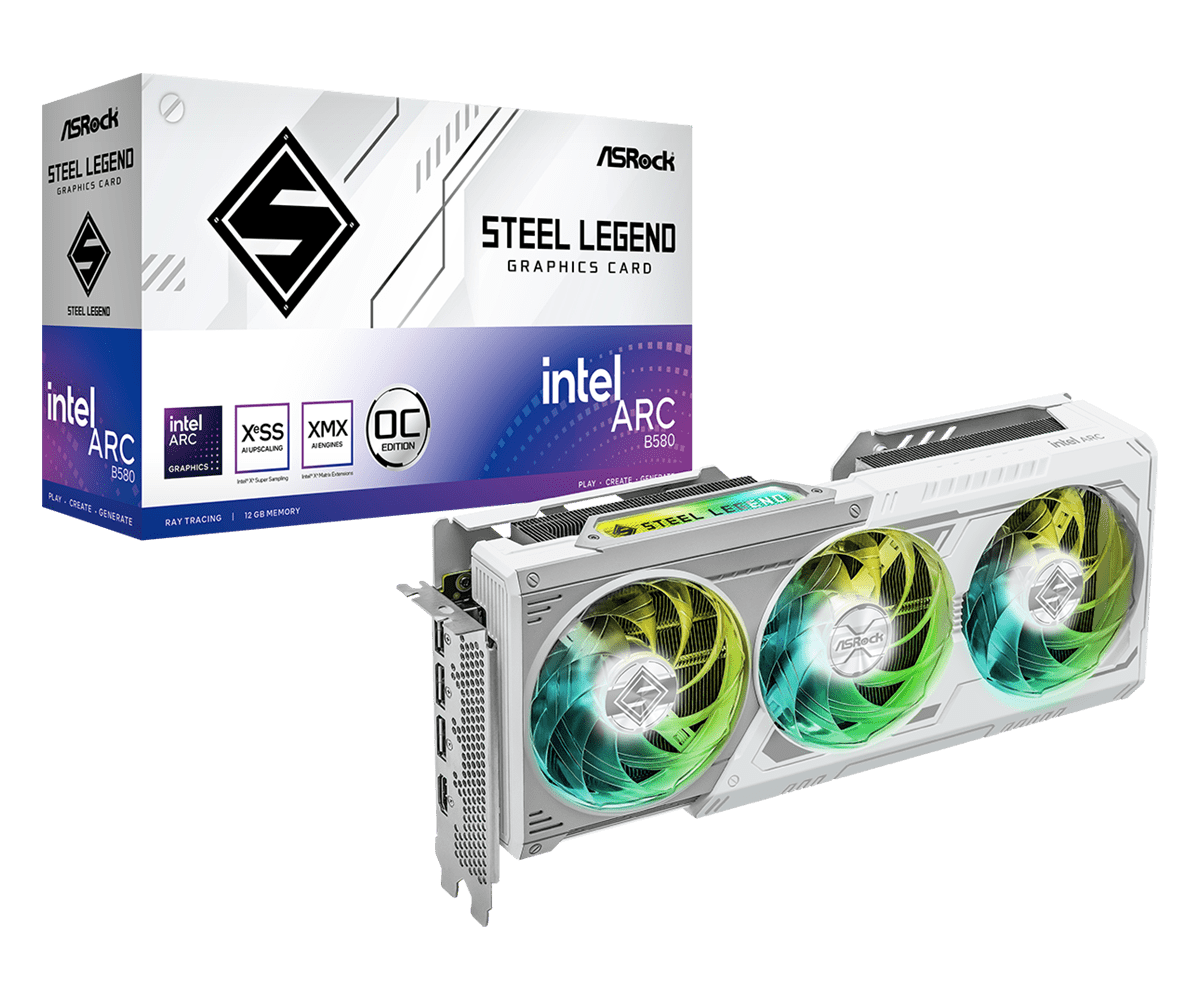
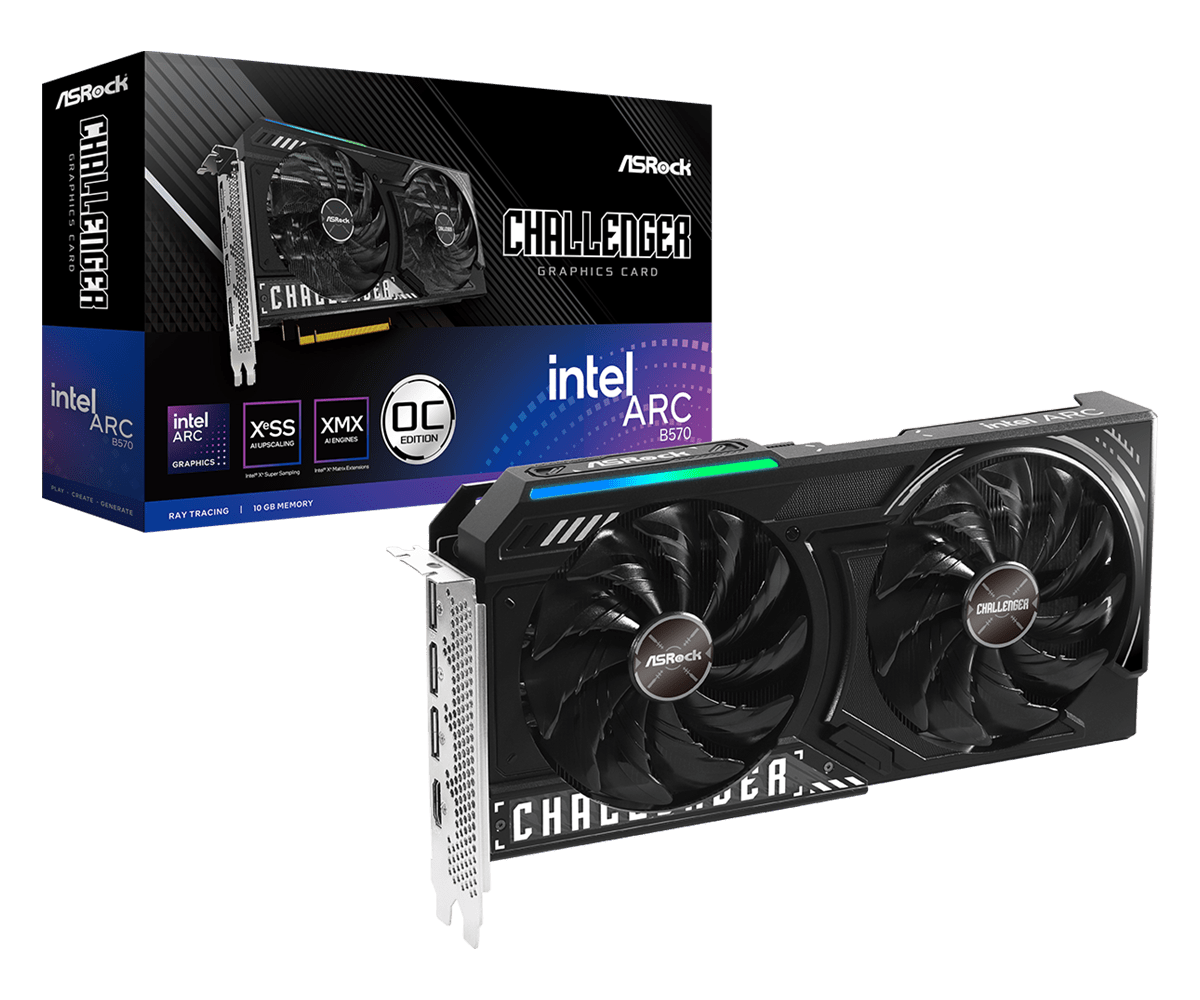
The Intel Arc B580 lock screen freeze is a confirmed issue on Windows 11 25H2 that can leave your PC stuck at sign-in. Intel also names the Arc B570, with graphics driver versions 32.0.101.8974 and later affected. Windows reaches the lock screen, but you cannot enter your password or get to the desktop.
Intel’s advice is to remove the affected graphics driver in Safe Mode, go back to version 32.0.101.8801 and avoid Sleep mode. That is a workaround, not a permanent fix. Here’s what Intel has confirmed and how to approach recovery safely.
What causes the Intel Arc B580 lock screen freeze?
Intel describes a particular sequence behind the Intel Arc B580 lock screen freeze: the PC goes to sleep, wakes up, and is then shut down or restarted. On the following boot, Windows freezes at the lock screen. A normal shutdown on its own is not what Intel identifies as the trigger.
- GPUs named by Intel: Arc B580 and Arc B570.
- Operating system: Windows 11 25H2.
- Driver range: 32.0.101.8974 and newer.
- Typical symptom: An unresponsive lock screen that prevents Windows sign-in.
That doesn’t mean every B580 or B570 system will experience this. Intel’s notice also doesn’t say Arc A-series cards or other Windows releases share the same fault. Check exactly when your PC stops responding: a freeze before Windows loads or a crash inside a game calls for different troubleshooting. Our Lost Ark Intel Arc B580 freezing guide covers an in-game issue, not this Windows sign-in problem.
How to fix the Intel Arc B580 lock screen freeze
If you’re stuck at sign-in and your symptoms match Intel’s description, don’t jump straight to resetting Windows. Removing a graphics driver is an advanced task. First make sure you have a way into Windows Recovery. You may need a BitLocker recovery key if your drive is encrypted, so locate yours before starting. Back up important files if you have a working way to do so. If you can’t access recovery safely, contact Intel or your PC manufacturer.
- Find the correct driver. Intel specifies version 32.0.101.8801. Its main Arc download page currently offers the newer 32.0.101.9150 package, so don’t assume the Download button there will give you the version needed for the rollback. If you cannot find 32.0.101.8801 through a trustworthy Intel or manufacturer source, ask Intel Support. Avoid unofficial driver mirrors.
- Enter Safe Mode. If the sign-in screen still responds, hold Shift while choosing Power > Restart. In Windows Recovery, select Troubleshoot > Advanced options > Startup Settings > Restart, then choose Safe Mode. You’ll need your Windows account password, not your PIN, to sign in. If the lock screen is completely unresponsive, this route may not work. Use your PC manufacturer’s recovery instructions rather than repeatedly forcing shutdowns.
- Remove the affected driver. Intel says to use Display Driver Uninstaller (DDU) in Safe Mode. DDU is third-party software and removes display-driver components, so follow the tool publisher’s instructions carefully. Avoid unofficial mirrors, registry edits and unrelated BIOS fixes.
- Install 32.0.101.8801. After the driver cleanup, install the exact version Intel names using a package suitable for your system, then follow the restart instructions. If your PC uses manufacturer-customised graphics drivers, check the OEM’s advice first.
- Confirm the installed version. If Windows opens again, go to Device Manager > Display adapters, open the Intel Arc card’s Properties and select Driver. Check the number shown there. A successful sign-in is promising, but it does not guarantee every possible freezing problem has been resolved.
The exact rollback version matters for the Intel Arc B580 lock screen freeze. Intel has not recommended reinstalling Windows, flashing your BIOS or trying random graphics drivers for this issue.
Will the newer 32.0.101.9150 driver fix the Intel Arc B580 lock screen freeze?
Intel has not identified it as a fix. Driver 32.0.101.9150 is newer than the first affected version, 32.0.101.8974. The main download page lists 9150, but Intel’s lock-screen notice still tells affected users to roll back to 32.0.101.8801. Don’t mistake the newest general download for a confirmed repair.
If your PC works normally, don’t run DDU just because you own a B580 or B570. Intel’s workaround is for computers experiencing the reported Intel Arc B580 lock screen freeze, not routine maintenance.
How to prevent the Intel Arc B580 lock screen freeze returning
After rolling back, Intel says to avoid Sleep mode. Sleep and wake-up are part of the reported trigger. Shut the PC down normally when you’re finished using it. On a laptop, check whether closing the lid or pressing the power button is set to put Windows to sleep.
That doesn’t mean you have to stop restarting your PC. Intel’s warning concerns the sleep, wake and next-boot sequence. Note your current driver version and check the support notice before trying a newer release. Our Intel Arc generic versus OEM driver guide covers why some computers need manufacturer-specific packages.
Intel Arc B580 lock screen freeze FAQ
Does the Intel Arc B580 lock screen freeze affect the B570 too?
Yes. Intel names both B570 and B580 cards, alongside Windows 11 25H2 and the driver versions above. It does not say the fault affects every system using either GPU.
What if I still cannot reach Safe Mode?
Contact Intel Support or your PC manufacturer for a recovery route suitable for your device. Do not disable encryption, repeatedly force shutdowns or reset Windows simply to get to DDU. Your BitLocker key may be needed in Windows Recovery, so locate it through your own account or device administrator first.
Has Intel released a permanent fix?
Intel’s notice was last reviewed on 24 September 2026 and still says the issue is under investigation. The stated workaround remains driver 32.0.101.8801 and avoiding sleep. When contacting support, give them your GPU model, Windows version, driver number and the sequence leading to the freeze. Never share passwords or BitLocker recovery keys.
If you’re dealing with the Intel Arc B580 lock screen freeze, start by confirming that your symptoms and driver version match Intel’s notice. Follow its specific rollback guidance rather than trying unrelated fixes.
Official source: Intel’s Arc B580/B570 Windows lock-screen freeze support notice.