
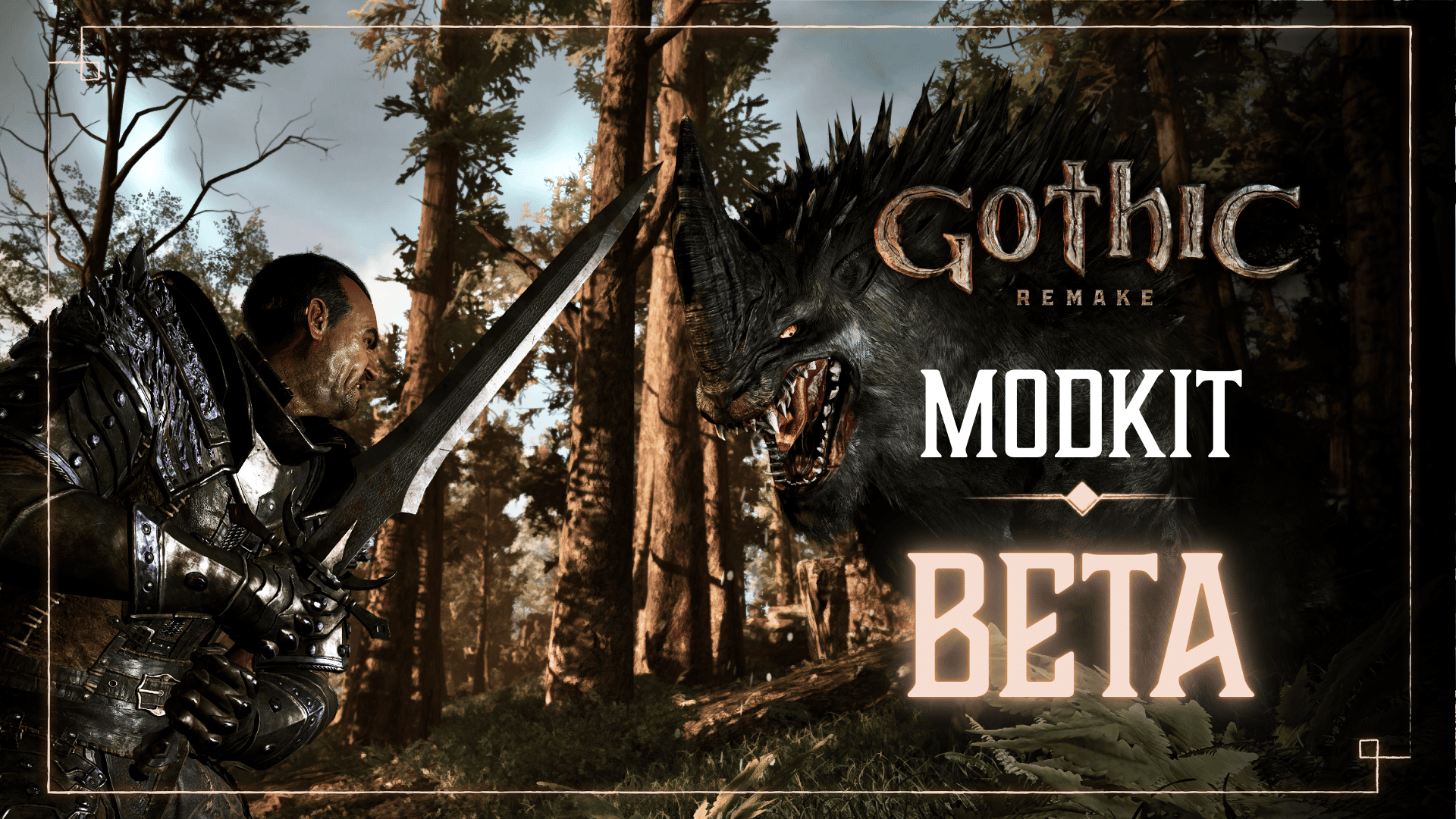
Gothic 1 Remake Steam Workshop support is now official, following Alkimia Interactive’s Modkit Beta announcement on 29 October 2026. PC players can browse community creations through Steam and use the game’s new mod-management interface instead of having to rely on a separate community launcher for every supported mod.
Whether you’re adding a small quality-of-life change or trying a completely different way to play, the basic steps are the same: subscribe to the Workshop item, let Steam download it, then review your mods before loading the game.
How to install mods from Gothic 1 Remake Steam Workshop
- Open Steam on your PC and find Gothic 1 Remake in your library.
- Go to its Workshop page and browse the available mods.
- Open a mod’s page, read its description and check for installation requirements.
- Click Subscribe to add it to your Steam Workshop subscriptions.
- Let Steam finish downloading the Workshop item.
- Launch Gothic 1 Remake’s mod-management interface to review your installation before loading a save.
You don’t need to download a file manually for a normal Workshop subscription. Steam handles it, although some mods may need extra files or specific settings. Read the author’s instructions before starting a save.
Start with one mod, try it in-game, and make sure it works as expected before adding more. That makes any problems much easier to track down.
How to open the Gothic Remake mod manager
Alkimia Interactive added a mod-management launch option for Steam players. When starting the game, select the mod-management option to open the interface for your installed modifications.
The developer also published a direct Windows executable command:
G1R-Win64-Shipping.exe -ModManagementUIThe -ModManagementUI argument launches the manager. It goes with the game executable, not into a game chat box or Marvin Mode console. Once the manager opens, check that the mods you subscribed to are recognised before starting a game session.
Keep a note of what you’ve installed, especially if you’re mixing gameplay changes with quest or character mods. Two creations that alter the same feature may not behave well together.
How to remove or disable a Workshop mod
To remove a Workshop subscription, return to the mod’s Steam page and click Unsubscribe. Steam updates the content linked to your subscription. Check the game’s mod manager before loading your next session to review the mods that remain installed.
If something goes wrong after installing a new mod, disable or unsubscribe from that item first and try launching the game again. Change one thing at a time so you can work out which mod is responsible.
Keep a separate save when trying mods that change quests, inventory items or NPCs. Some modifications affect data recorded in a save, so having a clean save is an easy way to return to an unmodified playthrough.
Workshop mod not downloading or appearing?
Start in Steam. Open the subscribed Workshop item’s page and check that Subscribe has changed to Unsubscribe. Then look at Steam’s downloads to make sure the content has finished downloading.
Next, confirm that the item is for Gothic 1 Remake. Gothic Classic and Gothic II have their own modding scenes, and their files aren’t interchangeable with the Unreal Engine 5 remake. A mod built for another game won’t become compatible just because it also has Gothic in the title.
Open the official mod manager through Steam’s launch option, or with -ModManagementUI. Review the installed content there, then read the mod author’s notes if the item has special dependencies or loading instructions.
If a subscribed mod appears in the manager but doesn’t seem to change anything, go back to its Workshop description. The author should explain what it changes and whether there are any extra setup steps.
Can PS5 or Xbox players install Steam Workshop mods?
Steam Workshop subscriptions are for the PC Steam version. You cannot use the Steam Subscribe button to install mods on PS5 or Xbox Series X|S. Those consoles received the free October Feature Update, but that is a normal game update rather than a community mod service.
Console players still get the update’s official gameplay additions, including Photo Mode, new hairstyles and tattoos and the quest fixes. Those features are built into the game itself; Steam Workshop subscriptions are handled through the PC storefront and mod-management tools.
Workshop versus the Modkit Beta
Use Workshop when you want to install and play mods other people have made. Use the Modkit Beta when you want to make your own. The Modkit includes the scripting language, complete script sources and developer documentation for creators.
If you only want to play with mods, you can stay in Workshop and the in-game manager. Creating your own mod means working through the developer’s scripting documentation and testing your changes before publishing them.
You can enjoy the Workshop without ever touching the scripting tools. The Modkit is there when you’re ready to make something of your own.
Official publisher: THQ Nordic’s Gothic 1 Remake website.





