
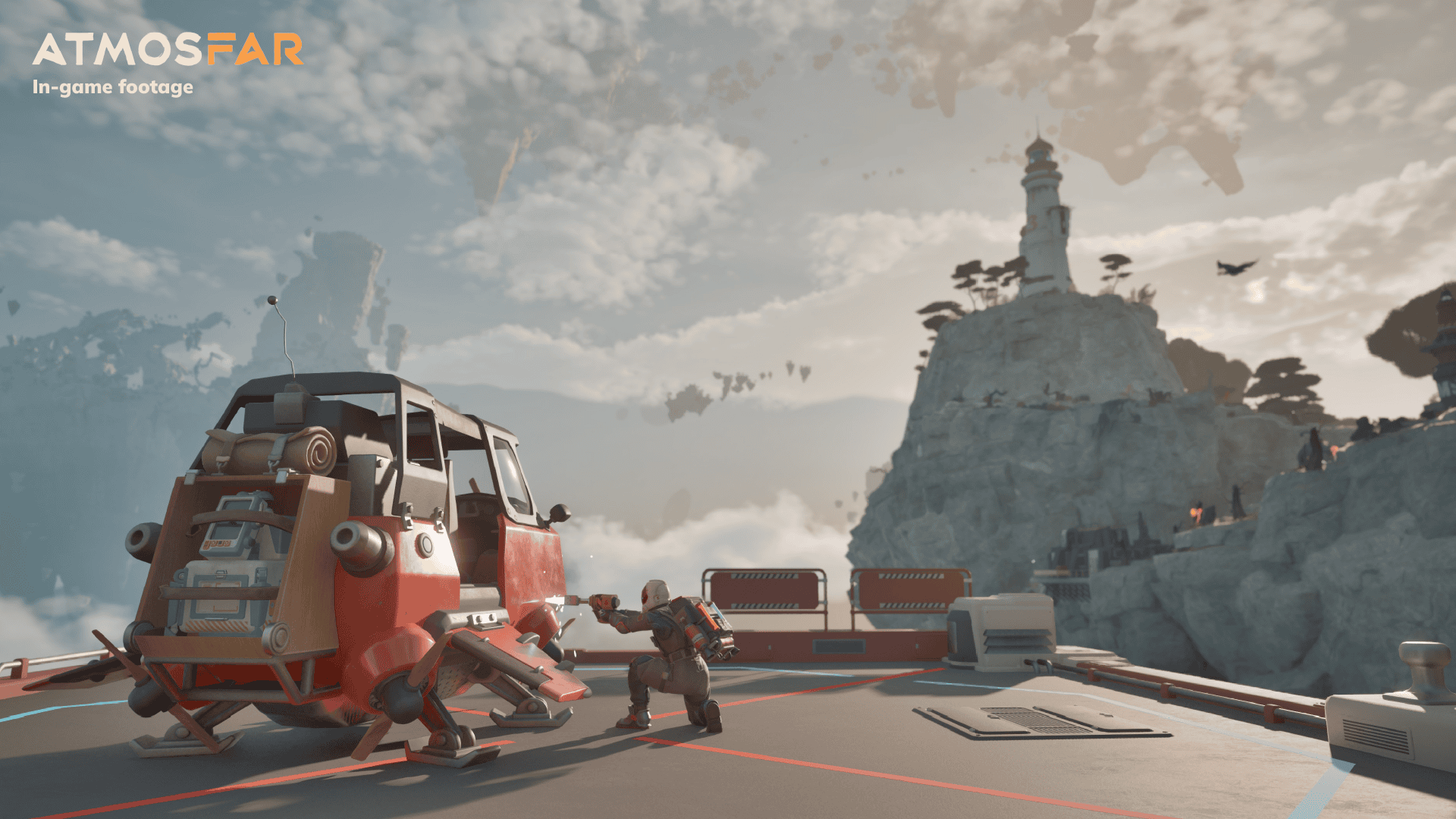
ATMOSFAR controller support is listed as Full Controller Support on Steam, with Xbox controllers among the supported devices. You can explore Tycos, fly a Wasp and manage your base using a gamepad instead of playing exclusively with keyboard and mouse.
ATMOSFAR combines different control modes for walking, piloting, crafting and modular construction. Start with the game’s default button prompts, connect your controller before launching Steam and confirm that the game recognises it in the main menu before moving on to the more complicated flying controls.
ATMOSFAR controller support: what works?
The game’s official Steam listing includes Full Controller Support, as well as Xbox gamepad compatibility. These are supported input options, not merely a community-made control profile. You can still use a keyboard and mouse when convenient, such as when checking a detailed crafting inventory or changing Steam settings.
ATMOSFAR controller support covers flying, walking and building, although the button prompts change when you enter a Wasp, select a construction piece or open a menu. Read the game’s current controls or flight manual rather than memorising a button diagram from a different vehicle or earlier demo version.
ATMOSFAR controller support: connecting an Xbox gamepad
Connect a compatible Xbox controller to the PC using USB or Bluetooth. Open Steam and check its controller settings to confirm the device is recognised. Then launch ATMOSFAR and try navigating the main menu, walking around Pearl Island and interacting with a nearby object before entering the Wasp cockpit.
For ATMOSFAR controller support through Steam Input, right-click the game in your Steam Library, select Properties, then Controller. Start with the default settings and make changes only if the buttons are not responding as expected. If you have customised the controls for another game, avoid assuming the same bindings are suitable for this one.
Using a controller while flying
Wasps are physics-based flying vehicles. Learn the in-game prompts for engine control, movement, hovering, landing gear and any class-specific functions. Start with a short flight near clear terrain. Practise hovering, approaching slowly and landing before attempting narrow island platforms or strong-wind routes.
Check the class-specific prompts whenever you switch Wasps. The Utility deploys a Camp Hub, the Hauler has a retractable magnet and the Striker has projectile turrets. Learning these controls in a clear area is easier than reassigning buttons in the middle of a difficult flight.
Crafting and building with gamepad
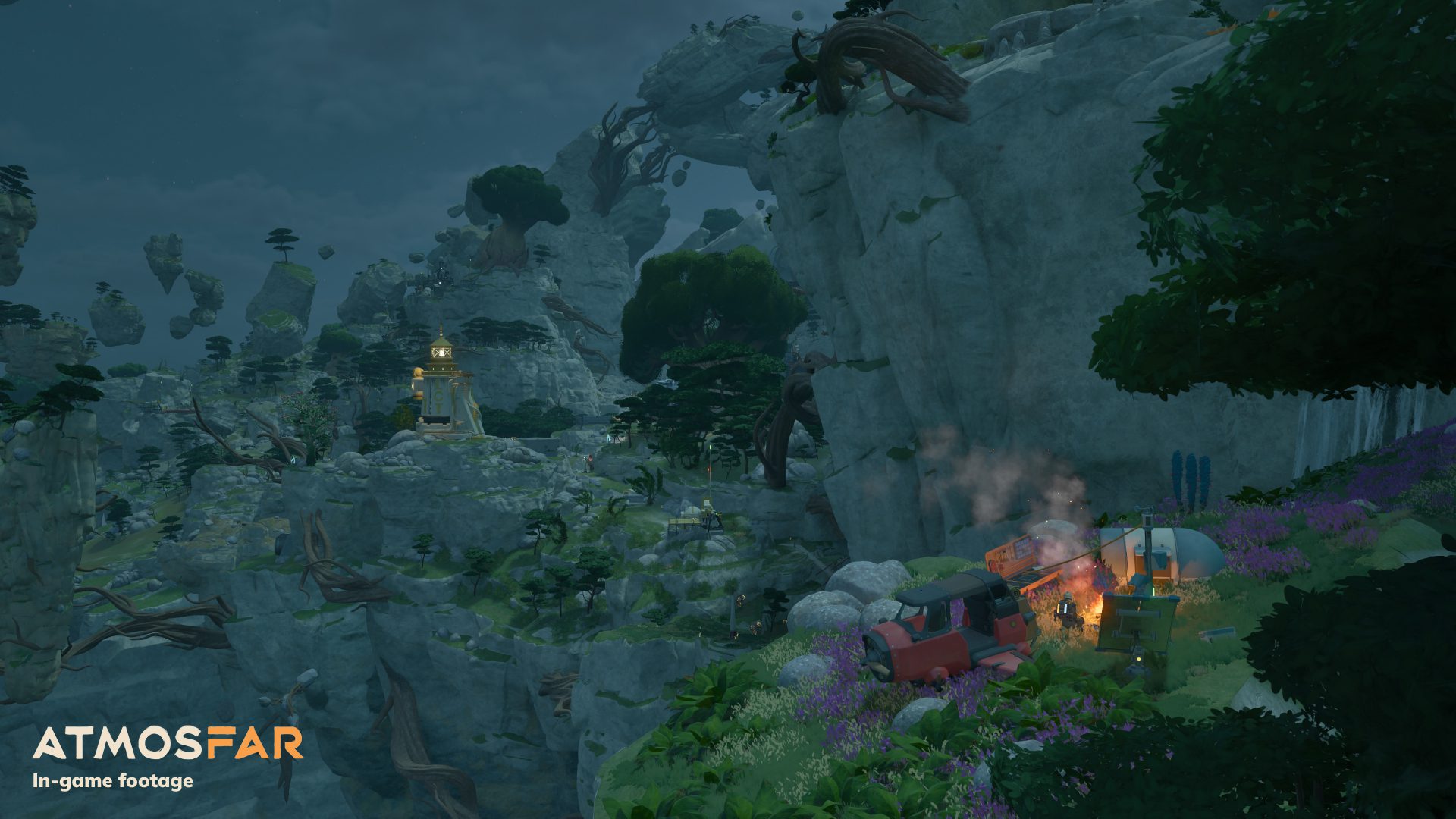
Land your Utility Wasp, deploy the Camp Hub and approach its workstations. Follow the interface prompts for opening the crafting table, selecting a blueprint, viewing required ingredients and confirming production. The Cloud Cruiser similarly uses placement and inventory controls as you assemble storage, machinery and living spaces.
If a building action isn’t working, leave the current menu and check which object or tool is selected. A cockpit, crafting station and construction piece use different controls. A small test with a simple camp object is easier than troubleshooting a large Cruiser module for the first time.
ATMOSFAR controller support: fixing input problems
First check that Steam recognises the connected gamepad, then restart the game with the controller connected. Open the game’s per-title Controller properties and compare the default configuration. Temporarily disconnect duplicate input devices if Windows is assigning the active controller slot to a different pad.
Steam lists Steam Deck compatibility as Unknown at this release, which is separate from ATMOSFAR controller support on Windows PCs. Full Controller Support is confirmed, but it is not a Valve Verified handheld performance claim. The PC Requirements guide has the desktop specifications, while the Beginner Guide covers your first flight.
Related Guides
Official source: Shueisha Games ATMOSFAR game page.





