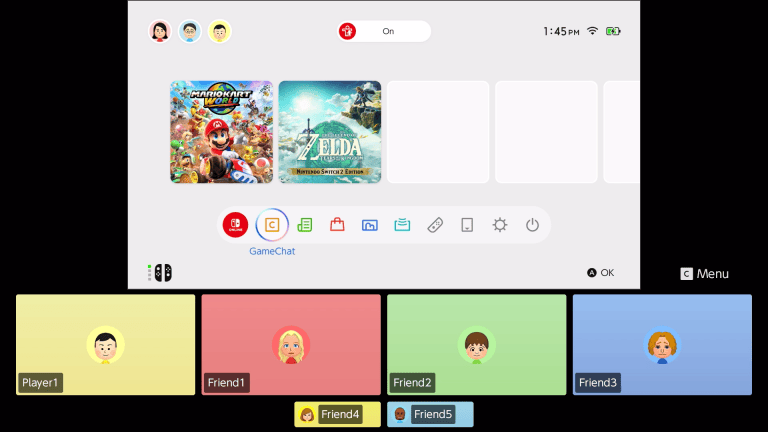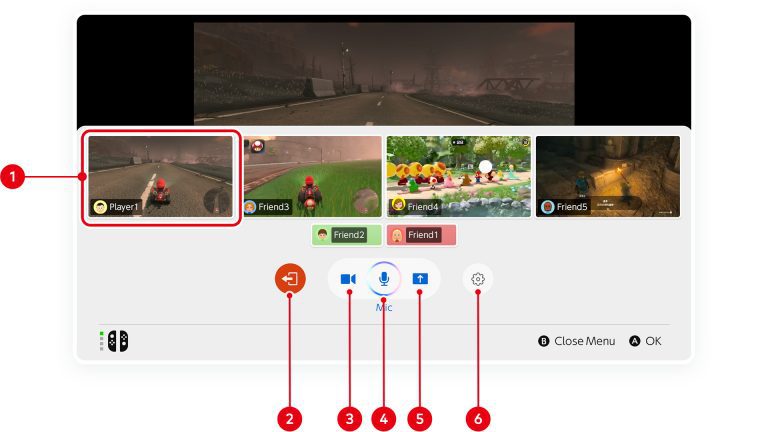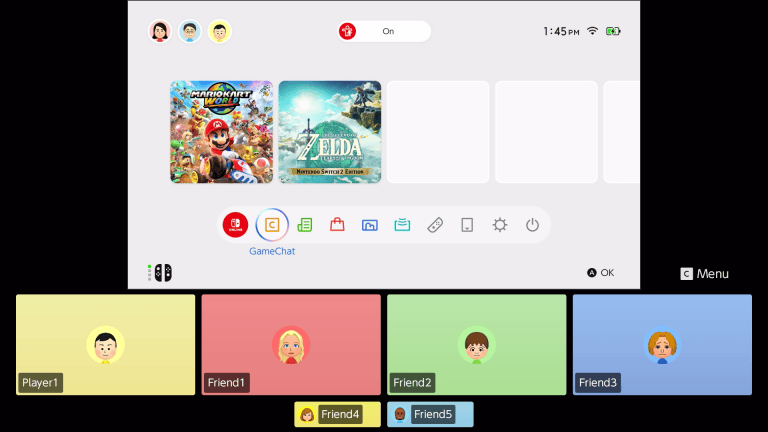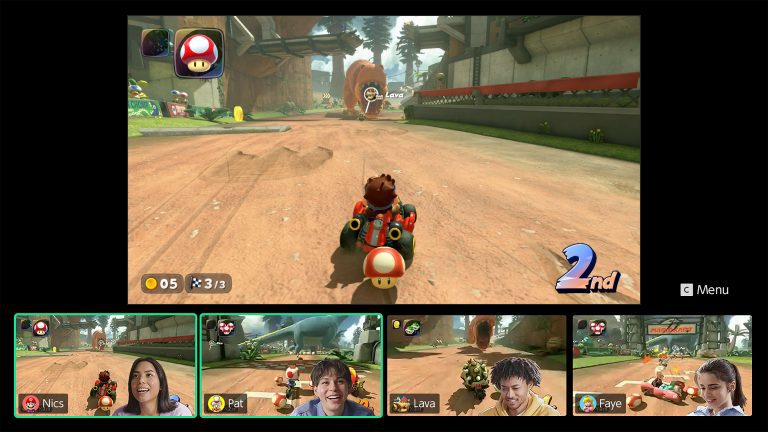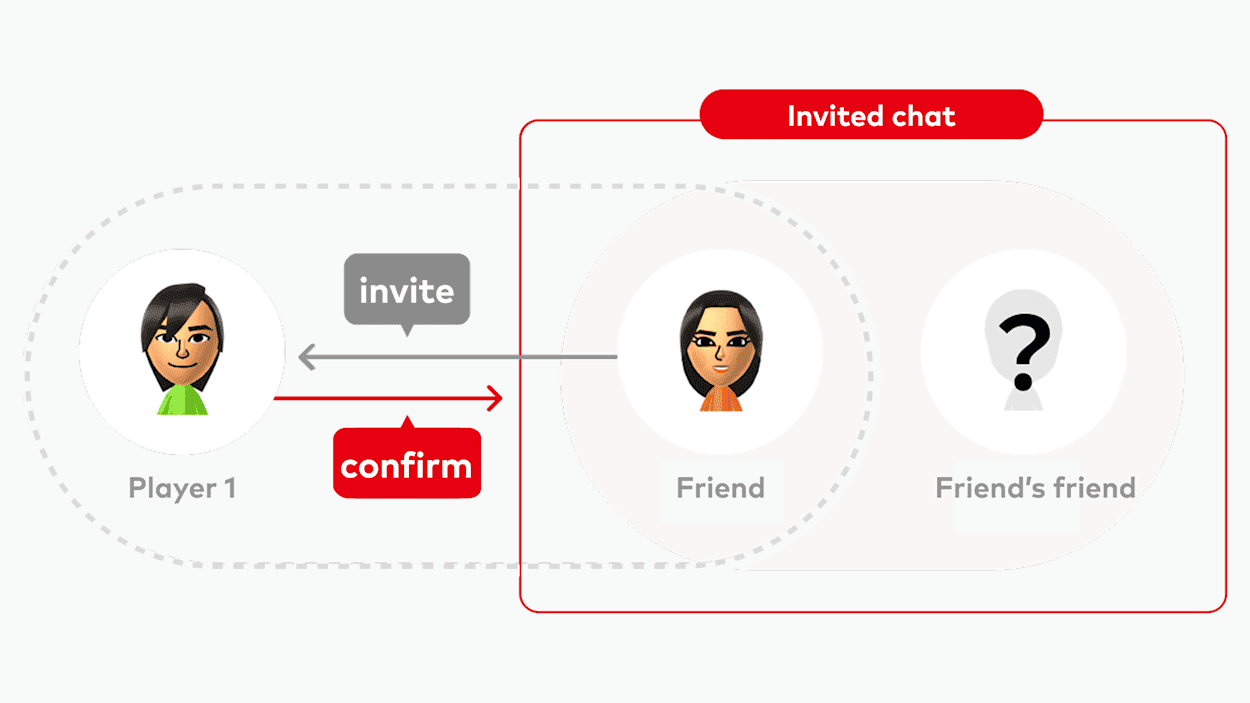
Nintendo Switch 2 GameChat friends not showing is usually down to friend approval. Being on somebody’s Nintendo Account friend list isn’t enough. You must both approve each other for GameChat before invitations can work.
Press C, select your user and open Settings > Chat-Approved Friends. Approve the missing friend, select OK and ask them to approve you too. Child accounts need a parent or guardian to approve the friend separately.
Nintendo Switch 2 GameChat friends not showing: mutual approval
Nintendo’s instructions for players aged 16 and over make this a two-way setting. Check both consoles, not just the one sending the invitation.
- Press C or open GameChat from the HOME Menu, then select your user.
- Choose Settings > Chat-Approved Friends.
- Enable approval for the missing friend and select OK.
- Ask them to open their approved-friends list and approve you as well.
You can also change your permissions in the Nintendo Switch App: open Friends, select the person, tap the three-dot menu and choose Allow for GameChat. Selecting Don’t Allow for GameChat removes your approval. This is separate from invitations inside an individual game.
Already approved? Check membership and first-time setup
If you’re both approved, check the other requirements: a paid Nintendo Switch Online membership, an internet connection and a Nintendo Account with phone-number verification. GameChat’s free welcome offer ended on 31 March 2026.
Each player must also complete GameChat setup, including the connection test and consent to its terms. Since system version 22.0.0, some friends can be invited before finishing setup, but they must complete it to participate. If an error code appears, use Nintendo’s support instructions for that code.
How to invite friends and join a GameChat
Press C, choose your user and select Create Chat. Pick up to 11 approved friends, then select Next and Start Chat. Since version 23.0.0, you can also create a room without inviting anyone. A room holds 12 people at most, including you.
To join, open C > your user > Chat List, select the session and choose Join Chat. Chats you’ve joined before can appear in that list, but you must still be allowed to chat with the people currently invited.
If Nintendo Switch 2 GameChat friends not showing happens only when you’re adding someone to an existing room, press C > Settings > Members > Add Friends to the Chat. Nintendo checks other members’ approvals and blocks, not only yours.
Why you cannot add someone to an existing session
Someone approved by you may still be blocked or unapproved by another invited player. Supervised accounts have extra restrictions: you can’t add a supervised friend to an already active session, and rooms that include supervised invitees can prevent further additions.
In that situation, ending the session and starting a new one with the intended group may help, provided everyone has the necessary approvals. Group chat rules and parental decisions can’t be bypassed.
Nintendo Switch 2 GameChat friends not showing for children under 16
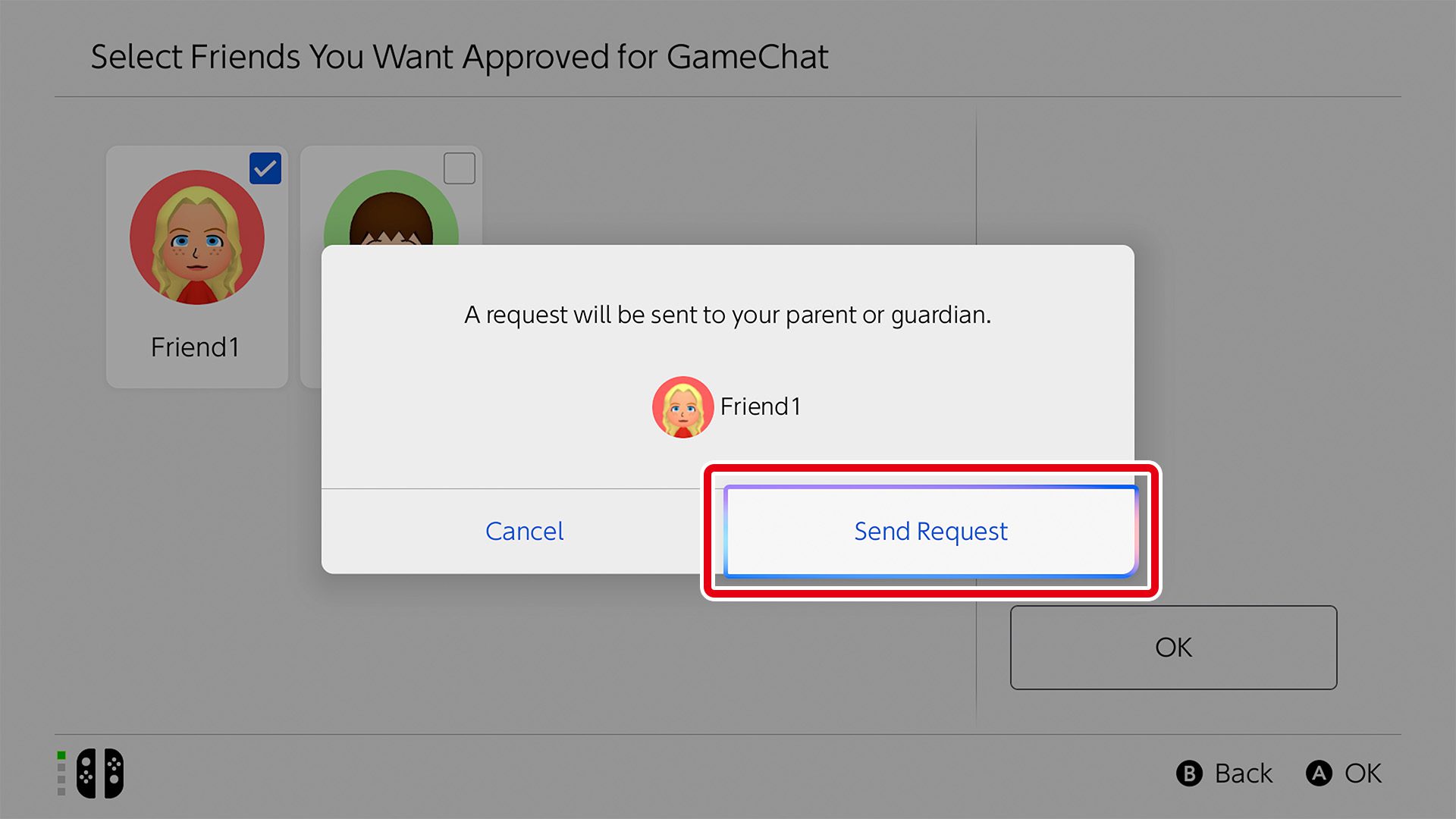
For a player under 16, open C > user > Settings > Chat Approval Requests, toggle approval for the friend and select Send Request when prompted. This sends the request to a parent or guardian instead of immediately approving chat.
The adult then opens the Nintendo Switch Parental Controls app, selects GameChat > the child’s user > Chat Approval Requests and reviews it. The adult can approve, deny or revoke permission. Nintendo also requires the parental-controls PIN when selecting users on a console with those controls, helping prevent children from changing profiles to avoid restrictions.
Nintendo Switch 2 GameChat friends not showing: final checklist
Check the basics in this order: Nintendo friendship, two-way GameChat approval, membership, phone verification and completed setup. If the problem only affects one existing room, check the other participants’ approvals and blocked-user lists.
If the friend appears normally but their shared gameplay doesn’t, that’s a separate display issue. Our GameChat screen-size guide explains the viewing controls. Ordinary multiplayer invitations don’t change GameChat’s own permissions.
For Nintendo Switch 2 GameChat friends not showing, start with mutual approval on both accounts. For a child, the parent must approve the request. Once permissions are in place, use Create Chat or Chat List to connect.
Related Guides
Official Nintendo source: How to Manage Approved-Friend Settings for GameChat.