PS5 Update Loop reports have appeared after system software 26.06-14.00.00, with some consoles restarting into Safe Mode and refusing to complete the installation. If the screen shows SU-101312-8, Sony identifies the problem very specifically: the PS5 cannot detect its Blu-ray Disc drive.
That distinction matters. This is not the same as an ordinary download failure, and repeatedly installing the same update may simply return you to the same screen if the drive is still not being recognized. The safest approach is to work through the low-risk checks first and leave a full console reset until the end.
PS5 Update Loop: what SU-101312-8 means
A PS5 Update Loop with SU-101312-8 points at disc-drive detection rather than a generic PlayStation Network outage. Sony says the code appears when the console cannot recognize a Blu-ray Disc drive. Recent player reports around version 26.06-14.00.00 also describe consoles that had an existing disc-drive fault but had previously installed older firmware without getting trapped in the same cycle.
| What you see | What it suggests |
|---|---|
| SU-101312-8 | The PS5 cannot detect the Blu-ray Disc drive |
| Update downloads, restart fails | The downloaded file is not necessarily the root cause |
| Safe Mode with only update/reset options | The console is failing before a normal boot |
| Disc drive already stopped reading discs | Strong reason to investigate the drive before blaming the network |
How to fix the PS5 Update Loop without resetting first
Start the PS5 Update Loop troubleshooting with Sony’s non-destructive steps. Shut the console down completely, unplug it, and also power down the router for at least five minutes. Reconnect the network, plug the PS5 back in and start it again.
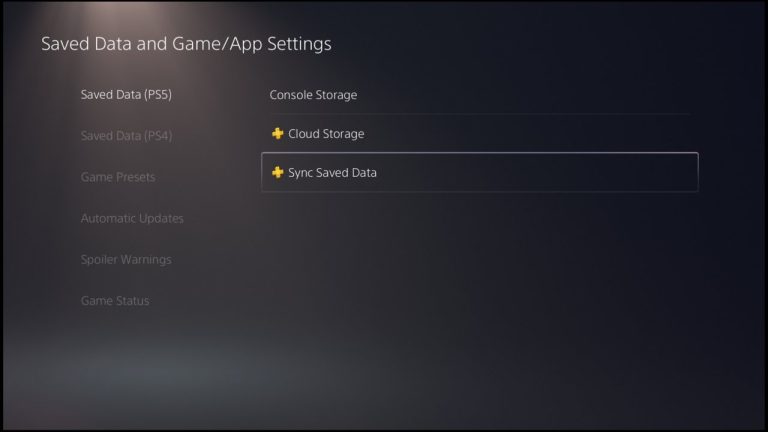
If you can reach the normal interface, open Notifications, highlight the downloaded system update, press Options and delete that update file. Then go to Settings, System, System Software, System Software Update and Settings and start the update again. Deleting the downloaded updater does not erase your games or save data.
- Power the PS5 off completely and unplug it.
- Turn the router off for at least five minutes, then restart it.
- Reconnect and restart the PS5.
- If the normal home screen is available, delete the existing update from Notifications.
- Restart the system software update from Settings.
- If normal updating still fails, use Sony’s Safe Mode system software update route.
What to do if the PS5 Update Loop only boots into Safe Mode
If the PS5 Update Loop sends the console straight back to Safe Mode, avoid choosing Reset PS5 just because it is one of the few available buttons. A reset erases data stored on the console, so it should be treated as a later step, especially if your saves are not fully backed up.
Try Update System Software in Safe Mode first. If the update repeatedly ends with SU-101312-8, the error still points back to the Blu-ray drive. On a disc model, check whether the drive has recently stopped accepting, spinning, reading or ejecting discs normally. A hardware fault is not repaired by repeatedly downloading the same firmware.
Can a broken disc drive cause the PS5 Update Loop?
Yes. Sony’s own definition of SU-101312-8 is that the console cannot detect the Blu-ray Disc drive. That makes an existing drive problem directly relevant to the PS5 Update Loop. It does not prove every update failure is a dead drive, but it does mean a known disc-drive fault should not be ignored while troubleshooting this code.
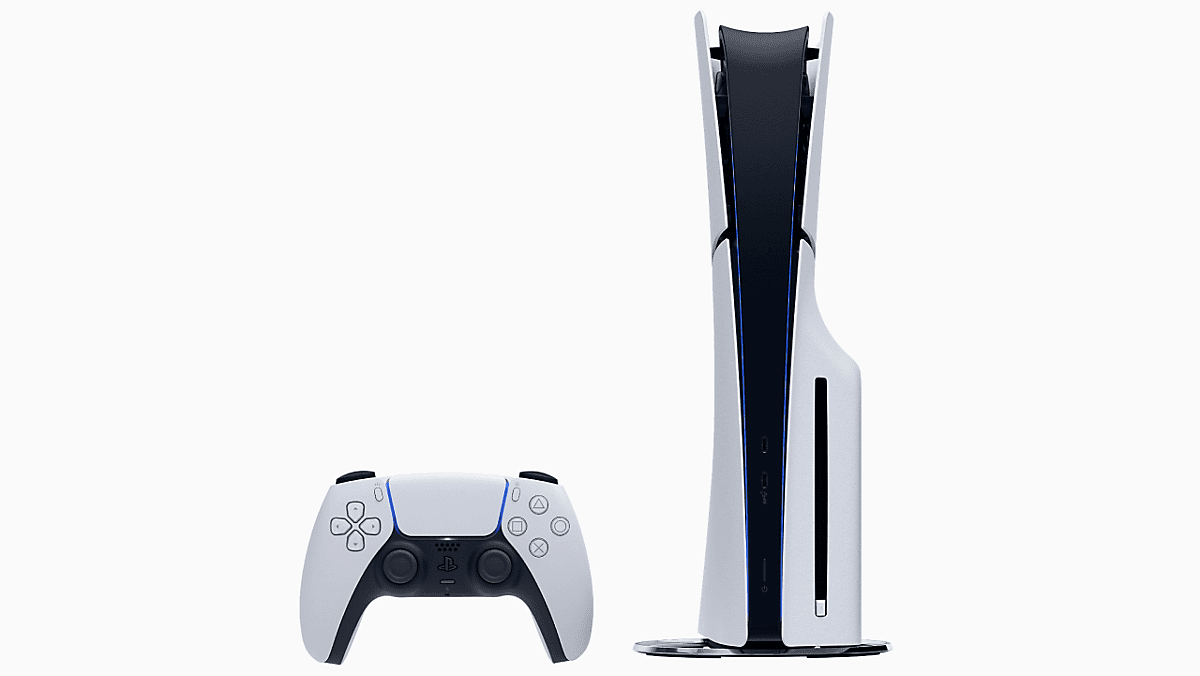
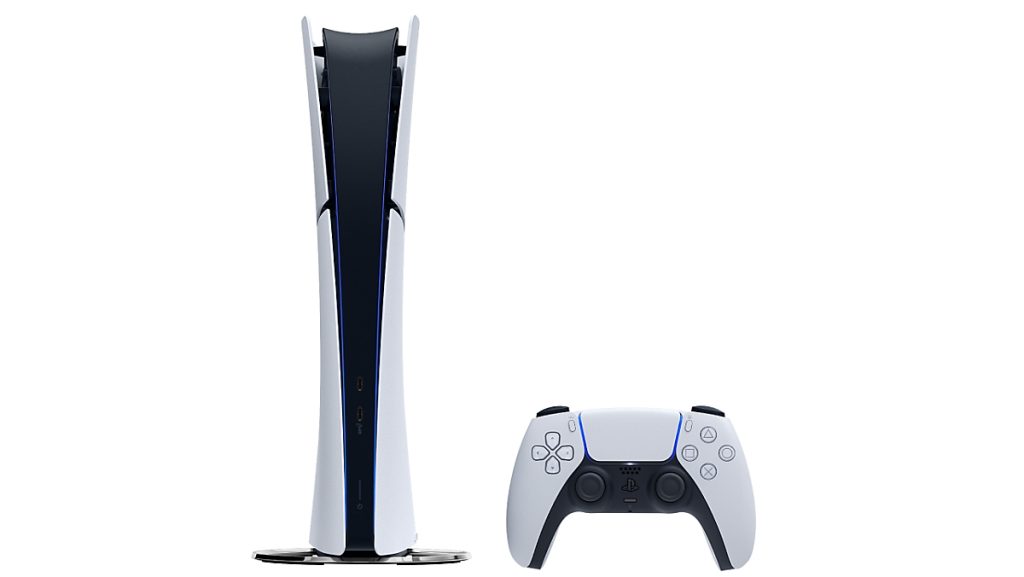
For detachable-drive slim models, also make sure the drive is properly attached and paired as intended for that console model. Do not open the console or attempt internal repairs unless you are comfortable with the warranty and repair implications. If the drive is physically faulty, PlayStation Repairs is the safer next route.
When should you reset a PS5 in an update loop?
Sony includes Reset Your Console as a later option for SU-101312-8, but the warning is important: a full reset erases console storage. Before using it for a PS5 Update Loop, back up anything that can still be backed up and make sure cloud saves are current where applicable.
If the console cannot reach a state where backup is possible, resetting becomes a much bigger decision. A reset also cannot guarantee that a hardware disc-drive fault will disappear, so do not treat it as a harmless first test.
PS5 Update Loop after 26.06-14.00.00: quick checklist
- Confirm whether SU-101312-8 is the exact code on screen.
- Power cycle the console and network hardware.
- Delete the downloaded update file if you can reach Notifications.
- Retry the update from System Software Update and Settings.
- Use the Safe Mode update option before a factory reset.
- Check whether the Blu-ray drive has an existing read, spin or eject fault.
- Back up data before using Reset PS5.
The general features in version 26.06-14.00.00 are already covered in our PS5 update 26.06-14.00.00 guide. This page is specifically for the PS5 Update Loop and SU-101312-8 failure path rather than the patch notes themselves.
- PS5 Update 26.06-14.00.00: Everything New
- PS5 Pro Enhance PSSR Settings: How to Turn Image Quality On or Off
- Fallout 76 PS5 Crash Fix: Crashes, Freezes and Disconnects
- PS5 Voice Chat Speaker Indicator: How to Turn It On
- PS5 Pro PSSR Automatic Setting: Why Enhance Image Quality Turned On
- PS5 Pro Enhance PSSR Image Quality Explained
Official support for the PS5 Update Loop
Sony’s official SU-101312-8 support page confirms that the code means the console cannot detect the Blu-ray Disc drive and lists the restart, update, Safe Mode and reset steps used above. If the PS5 Update Loop remains after those checks, PlayStation Repairs is the appropriate next stop.