PS5 Voice Chat Speaker Indicator is designed for the very ordinary problem of hearing someone in a busy party and having no idea which name matches the voice. Sony added the option with system software 26.06-14.00.00, letting the console show who is currently speaking while you are using PlayStation voice chat.
The feature is controlled from the voice chat card rather than the main Sound settings, and it includes a position option so the label does not have to sit over an important part of a game. Once you know where Sony has tucked the switch, enabling it only takes a few menu selections.
PS5 Voice Chat Speaker Indicator and how to enable it
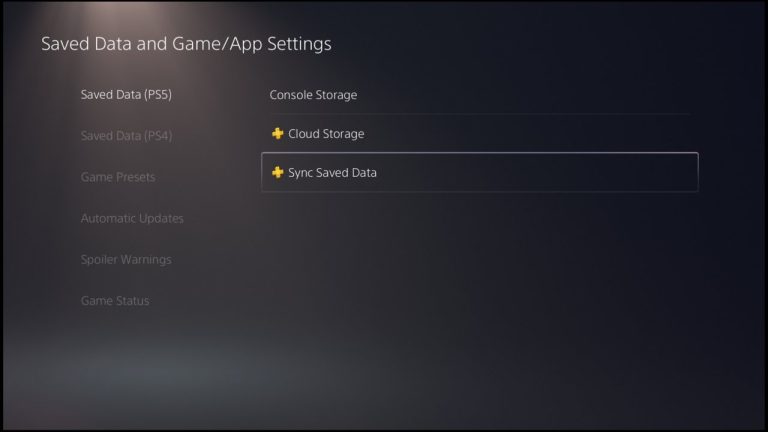
PS5 Voice Chat Speaker Indicator is enabled from the active voice chat card in the control centre. Open the card, select More, choose Display Who’s Speaking, then turn on Display Names. Sony also provides a Position option in the same area so you can move the indicator to a more comfortable part of the screen.
- Join or open a PlayStation voice chat.
- Open the control centre and select the voice chat card.
- Choose More.
- Select Display Who’s Speaking.
- Turn on Display Names.
- Use Position if you want the indicator somewhere else on screen.
The PS5 Voice Chat Speaker Indicator does not require a separate download after the console has system software 26.06-14.00.00. If the menu item is not there, check the installed firmware version first.

What the speaker indicator actually shows
The purpose is identification, not transcription. Sony says the console can show who is speaking, so the useful information is the participant name associated with the current voice. That can make a big difference in a new group where several usernames and voices have not yet become familiar.
PS5 Voice Chat Speaker Indicator placement is adjustable because an overlay can become annoying if it covers a HUD element. Try the available positions while a game is running and pick the least intrusive location. There is no need to leave it in the default position if that conflicts with a minimap, ammo counter or subtitles.
Why Display Who’s Speaking may be missing
The setting arrives with version 26.06-14.00.00, so a console on an older firmware may not show it. It also belongs to the PlayStation voice chat card. If you are looking through a game’s own independent voice settings, you may be in the wrong menu entirely.
PS5 Voice Chat Speaker Indicator availability should therefore be checked at the system level first. Update the console, enter a PlayStation voice chat, then open the control centre card. Sony’s notes do not say that the feature is exclusive to PS5 Pro, unlike the enhanced PSSR change in the same firmware.
How it fits with the rest of update 26.06-14.00.00
The speaker indicator is one of several quality-of-life changes in the September update. Sony also adds the Community Activity widget to the Welcome Hub, changes the default enhanced PSSR setting on PS5 Pro and adjusts special Bluetooth behaviour intended for esports venues.
PS5 Voice Chat Speaker Indicator is arguably the easiest of those additions to use immediately because it does not depend on a specific game. If you regularly join parties with larger groups, turning on Display Names gives the update a practical benefit before you even launch a title.
Can you turn the indicator off again?
Yes. Return to the same Display Who’s Speaking menu and disable Display Names if the overlay becomes distracting. PS5 Voice Chat Speaker Indicator is optional rather than a permanent change to every chat. The Position control also gives you a middle ground if you like seeing the current speaker but dislike where the name appears, so moving it may be better than disabling the feature completely. PS5 Voice Chat Speaker Indicator can therefore be tailored to the party rather than left in one permanent layout.
For the current first-party details, see Sony Interactive Entertainment’s official PlayStation support page at https://www.playstation.com/en-gb/support/hardware/ps5/system-software-info/.