PS5 cloud saves not syncing usually means the latest progress has not been uploaded, the wrong save is being downloaded, or the game has automatic syncing switched off. Start by checking the sync status and which copy has your newest progress, not by overwriting a file.
PlayStation Plus cloud storage works with your subscribed account, and Sony handles PS5 and PS4 saves slightly differently. If you play on two consoles or switch between streamed and downloaded games, it is worth checking those differences before you make any changes.
Fix PS5 cloud saves not syncing with automatic syncing
On the PS5, open Settings > System > Power Saving > Features Available in Rest Mode > Stay Connected to the Internet and enable it. Sony says automatic cloud syncing also requires automatic updates, and saves can sync when you close a game or put the console in rest mode.
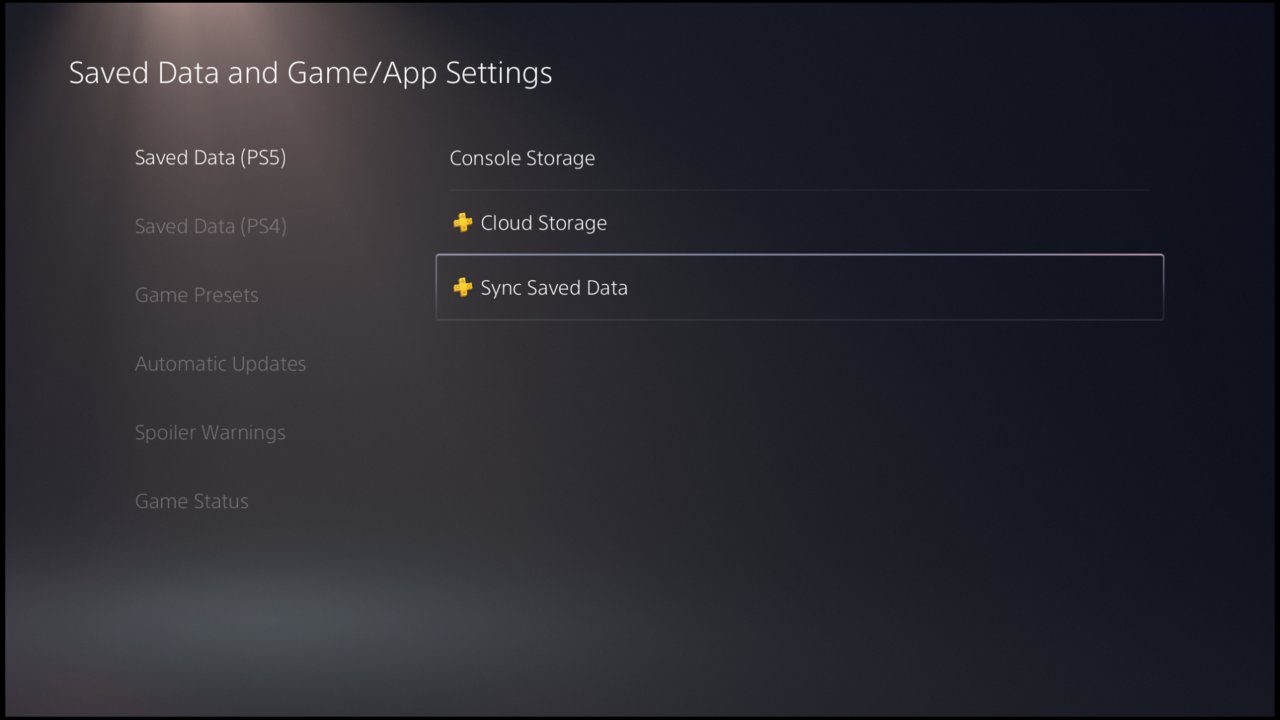
Go to Settings > Saved Data and Game/App Settings > Saved Data (PS5) > Sync Saved Data > Auto-Sync Saved Data. Switch on Enable Auto-Sync and check any game-specific toggle. If it happens with just one game, check that game’s own sync toggle first.
To inspect the latest upload, choose Sync Saved Data > View Sync Status. You can also highlight a game on the home screen, press Options and choose Check Sync Status of Saved Data. A game played offline may still have a newer local file.
Upload or download your save manually
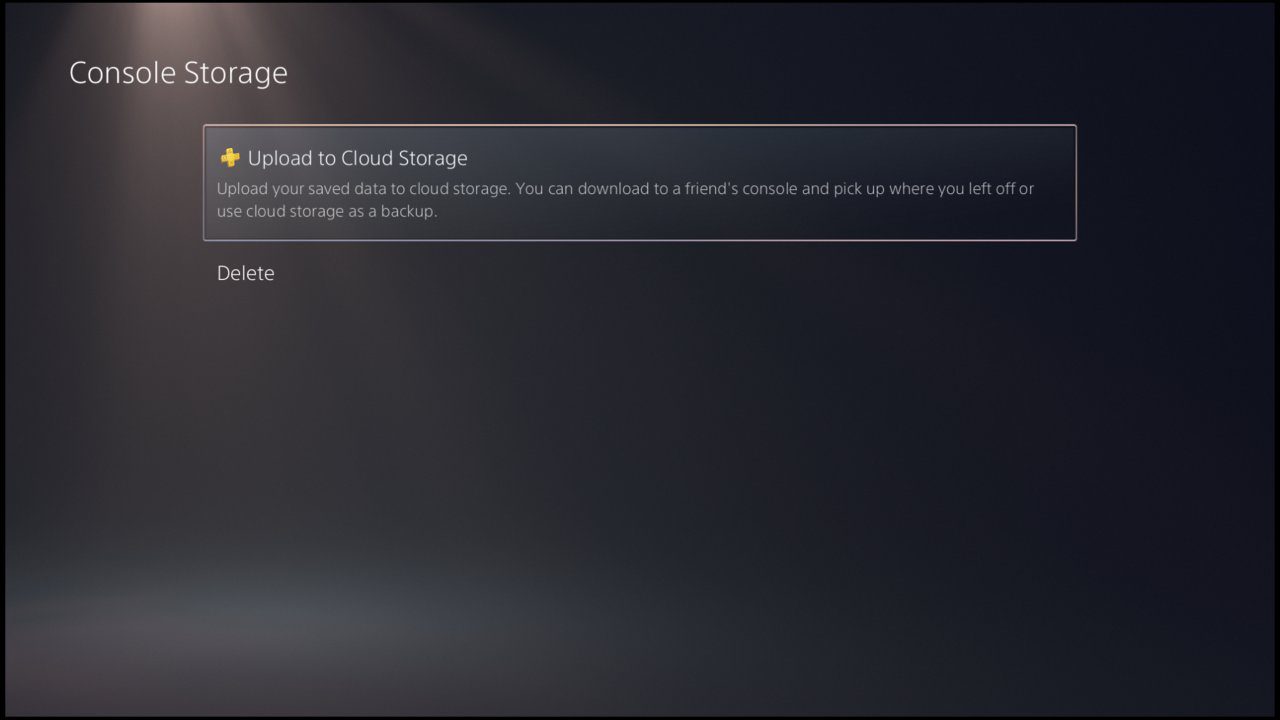
Highlight the game on the Games home screen, press Options, and select Upload/Download Saved Data. Sony provides this shortcut for transferring the most recent saved data. Check the local and online copies carefully before choosing whether to upload or download.
If your old console contains the latest progress, upload that save first. Then sign in using the same account on the second console and download it. If your current local save is more recent, do not replace it with an older cloud copy. Overwriting a newer save with an older one can be much worse than an upload that simply hasn’t finished.
PS5 cloud saves not syncing with PS4 games
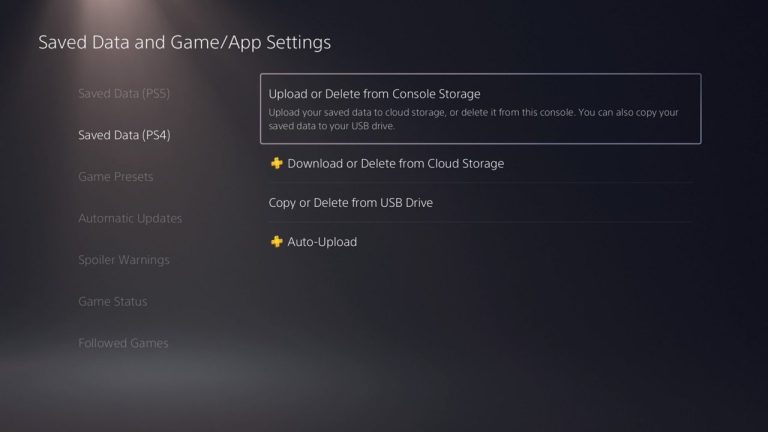
For PS4 titles, the setting is Settings > Saved Data and Game/App Settings > Saved Data (PS4) > Auto-Upload. Enable Auto-Upload. Sony says PS4 saves may upload automatically, but downloading them into PS5 storage can require a manual action.
For a PS4 title, go to Settings > Saved Data and Game/App Settings > Saved Data (PS4) > Download or Delete from Cloud Storage > Download to Console Storage. Select the game and download the correct file. A PS4 save does not automatically work with every separate PS5 edition, so confirm the actual version you are launching before assuming PS5 cloud saves not syncing is the problem.
Why are PS5 cloud saves not syncing on my account?
- Check the affected profile’s PlayStation Plus membership is active.
- Confirm the console is connected to the internet and can use PlayStation Network.
- Review per-game sync status and compare the saved-data dates.
- Check available local and cloud storage before copying large amounts of data.
- Sign in with the same PlayStation account used for the original progress.
Sony allows up to 100 GB of PS5 saved data and 100 GB of PS4 saved data in cloud storage. Console sharing does not grant every family profile cloud backup. Read our PlayStation Plus Family Sharing PS5 guide for the account restrictions.
PS5 cloud saves not syncing when streaming a game
Sony stores streamed PlayStation Plus game progress on its streaming service, while downloaded games write to console storage. Switching between a streamed game and a downloaded version may require transferring saved data through the PlayStation Plus cloud storage controls. In a streamed session, open the PlayStation Plus card and select Manage Saved Data.
If your save looks older after you switch from streaming to downloading, look for the transfer option rather than expecting the two copies to match automatically. The same game must also support the edition and save you’re trying to load.
Why are PS5 cloud saves not syncing on a replacement console?
If the old console still works, check that the latest progress is uploaded before you reset it. Sony says a factory reset deletes user data. A full PS5 USB backup is another option, but restoring it erases the existing data on the destination console. See Copy PS5 Game Saves to USB for the important PS5 and PS4 differences.
If you’re also moving an expansion drive, our Move PS5 M.2 SSD to a New PS5 guide covers installed games versus saved progress. Expansion storage does not contain individual PS5 saves. For PS5 cloud saves not syncing, deal with the save data first, then move the game installations.
Related Guides
Official source: PlayStation Support, PS5 cloud storage.