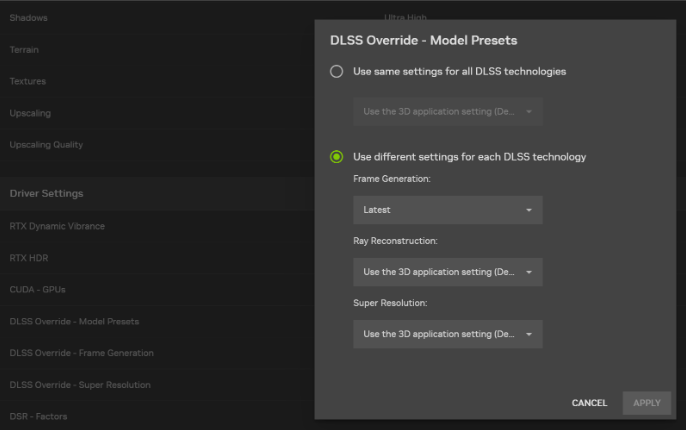
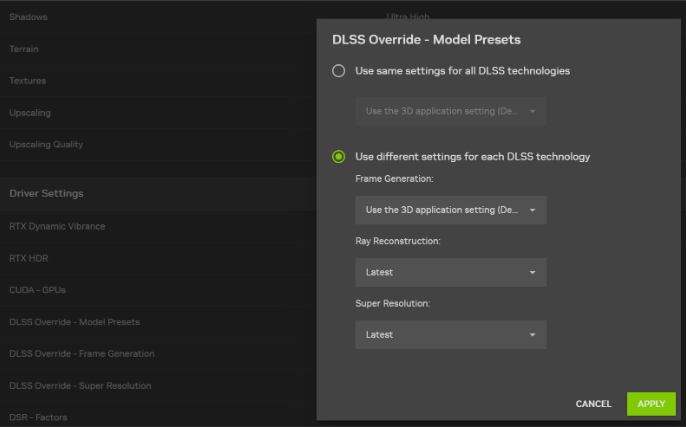
How to enable DLSS 4.5 in NVIDIA App: open Graphics, select a compatible game in Program Settings, scroll to Driver Settings, choose DLSS Override – Model Presets and select Recommended. Apply the change, then start the game with DLSS Super Resolution enabled. The Recommended setting picks NVIDIA’s newer model automatically for each supported Super Resolution mode.
These steps update DLSS 4.5 Super Resolution. The newer 5X, 6X and Dynamic Multi Frame Generation modes are separate options for RTX 50 cards. NVIDIA also renamed the old Latest preset to Recommended, so screenshots from older guides may look different.
How to enable DLSS 4.5 in NVIDIA App step by step
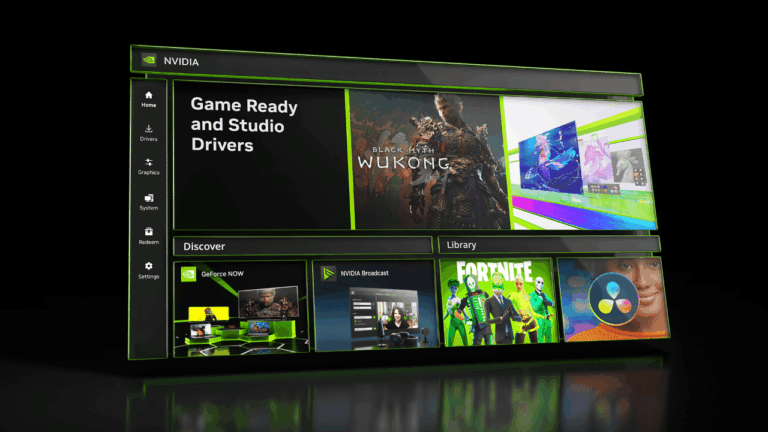
- Update NVIDIA App to a build that includes DLSS 4.5 Super Resolution model presets. NVIDIA identifies the feature in app version 11.0.6 and later.
- Install a compatible GeForce driver using the Drivers section or NVIDIA’s official driver website.
- Launch the game once and confirm its graphics options include DLSS Super Resolution. Enable the feature in a supported quality mode, then exit to Windows if the game needs restarting for the change.
- Open NVIDIA App, select Graphics and switch to Program Settings.
- Pick the intended game. If it does not appear, refresh the game list and check that NVIDIA recognises the installation.
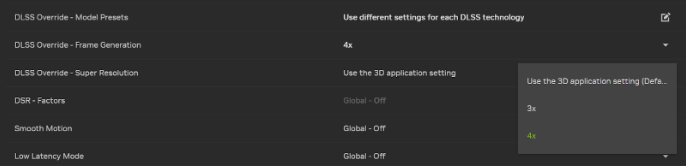
- Scroll to Driver Settings, expand DLSS Override – Model Presets, then choose Recommended for Super Resolution. Click Apply.
- Restart the game. Use the NVIDIA overlay’s DLSS statistics display if you want to verify which model is running.
How to enable DLSS 4.5 in NVIDIA App with Recommended models
NVIDIA changed the wording of the model selector from Latest to Recommended because DLSS 4.5 does not use one identical model for every mode. Recommended selects Model M for the DLSS Performance preset, Model L for Ultra Performance at 4K and Model K for the remaining modes. The correct choice is based on the rendering mode, not simply the newest letter.
Model M and Model L are second-generation transformer Super Resolution models. NVIDIA says they are designed to improve clarity and temporal stability, but their added computation can have a cost. RTX 20 and RTX 30 GPUs lack native FP8 support, so NVIDIA specifically notes that some owners may prefer Preset K instead if performance matters more than the newer models.
How to enable DLSS 4.5 in NVIDIA App on older RTX GPUs
GeForce RTX 20, RTX 30, RTX 40 and RTX 50 owners can use eligible DLSS 4.5 Super Resolution overrides in supported games. That’s the feature addressed by the Recommended Model Presets option. Availability of the newer Super Resolution model does not mean every older RTX series can use Multi Frame Generation.
Dynamic Multi Frame Generation and fixed 5X and 6X modes require RTX 50 Series hardware. NVIDIA App 11.0.7 introduced those features as separate Frame Generation mode options. If you are using an RTX 40 or 30 card, the absence of a 6X control is a hardware limitation, not a broken DLSS 4.5 Super Resolution installation.
How to enable DLSS 4.5 in NVIDIA App for Ray Reconstruction
Ray Reconstruction has a separate DLSS 4.5 update, released in August 2026. For a compatible ray-traced game, open Graphics > Program Settings > Driver Settings > DLSS Override – Model Presets. Choose Custom, open the Ray Reconstruction dropdown, select Recommended or Preset F and apply. The game must already support Ray Reconstruction.
That’s how to enable DLSS 4.5 in NVIDIA App for Ray Reconstruction; the earlier steps using models M, L and K are specifically for Super Resolution. Both options can be managed in NVIDIA App, but neither adds a missing feature to an unsupported game.
How to enable DLSS 4.5 in NVIDIA App when Recommended is missing
Check which version of NVIDIA App is installed, then update it. The old support pages from 2025 describe selecting Latest, but NVIDIA replaced that label when it introduced the newer Super Resolution models. If your app still shows the old choice, the first thing to investigate is the app version.
Next, check whether your game supports the override. NVIDIA maintains a supported-overrides list and adds titles through App updates. The game needs the right underlying DLSS integration, and it may need to be detected in Program Settings. Use the app’s game-list refresh function if necessary.
Finally, turn on DLSS Super Resolution in the game’s own graphics settings. An override changes a supported DLSS path; it does not grant DLSS Super Resolution to a game that lacks the feature. Nor does it turn on DLSS 5’s separate 3D-Guided Neural Rendering.
How to check that DLSS 4.5 is active
After following how to enable DLSS 4.5 in NVIDIA App, open the game, press Alt+Z to bring up the NVIDIA overlay, then find Statistics > Statistics View > DLSS. NVIDIA says this view can report the active model and override information. Use it to check whether the expected model is being used instead of relying on the selector alone.
If the model hasn’t changed, check that the feature is enabled in-game and relaunch. To undo the override, select Use the 3D application setting in NVIDIA App.
Does enabling DLSS 4.5 improve every game’s FPS?
This won’t automatically increase FPS in every game. Super Resolution models have different computational costs, and 6X Frame Generation means additional displayed frames rather than six times the game’s underlying rendered frames.
Related Guides
If you’re still unsure how to enable DLSS 4.5 in NVIDIA App, these guides cover model overrides and checking results.
Official source: NVIDIA: DLSS 4.5 model presets and Recommended override instructions.